> ## Documentation Index
> Fetch the complete documentation index at: https://docs.msportal.ai/llms.txt
> Use this file to discover all available pages before exploring further.
# Update several Planner items
> Apply shared status, value, type, date, hours or cost changes to selected List View rows.
**Audience:** MSP staff with **Write Planner** or **Manage Planner**. **Delete Selected** additionally requires Manage Planner. Ask the MSP to adjust Company permissions when needed.
## Select the intended items
1. Open **Planner > List View** and choose the company scope.
2. Choose the active list or **Archived**, then filter the table to the intended work.
3. Select individual row checkboxes, or the header checkbox to select the current page.
4. Check the count in **Actions (N)** before opening it.
List View loads 25 items per page. The header checkbox does not select every result on later pages. Changing page, filters, company scope or the Archived switch clears selection. Recheck selected rows after sorting. A successful bulk update also clears selection.
 ## Choose a shared value
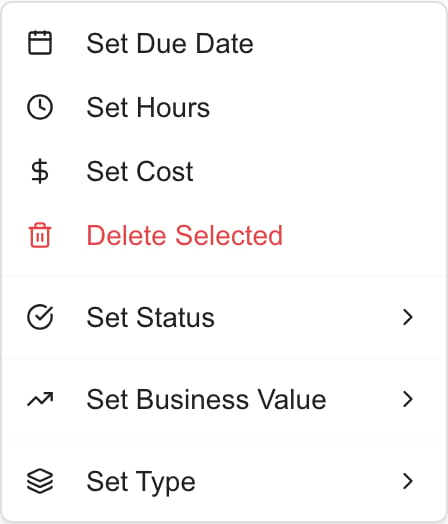
| Action | What to do | When it saves |
| ---------------------- | ----------------------------------------------------------------------------------- | ------------------------------------------------------------------------------------------ |
| **Set Status** | Choose Not Started, In Progress, Pending Approval, Completed, On Hold or Cancelled. | Immediately when you choose the status. |
| **Set Business Value** | Choose High, Medium or Low. | Immediately when you choose the value. |
| **Set Type** | Choose an available Planner type. | Immediately when you choose the type. |
| **Set Due Date** | Choose a calendar date, then **Set Date**. | On Set Date. **Clear Date** immediately removes the due date from the selected items. |
| **Set Hours** | Enter a non-negative number, then **Set Hours**. | On Set Hours. **Clear Value** sets hours to zero. |
| **Set Cost** | Review the cost effect below, enter the amount and choose **Set Cost**. | On Set Cost. **Clear Value** sets the aggregate amount to zero and replaces the breakdown. |
Date and number dialogs offer **Cancel**, which closes them without applying a change. There is no separate Save button after a bulk action. Wait for the result and check the affected rows before starting another action. A dialog can close before the update finishes.
Hours and costs are values for **each selected item**, not a total to split among them. Setting 4.5 hours on two items gives each item 4.5 hours.
## Understand Set Cost before applying it
**Set Cost replaces each selected item's existing cost breakdown with one cost row.** It does not add a new line or proportionally adjust existing lines. The new row uses the item's current aggregate recurrence; the bulk dialog does not choose recurrence.
Review detailed one-time, monthly and annual lines in the item editor first. If you need to preserve separate descriptions, quantities or recurrence lines, [edit the item's Costs section](/user-guides/planner/plan-costs-and-hours) instead. Clear Value has the same replacement effect with a zero amount.
A numeric amount applies separately in each item's currency. The dialog can omit a single currency symbol for mixed-currency selections; it does not convert the number between currencies. Prefer a consistent company/currency selection and verify each result.
## Delete selected items
1. Select the exact rows on the current page.
2. Choose **Actions (N) > Delete Selected**.
3. Check the count in **Delete Selected Items**.
4. Choose **Cancel** to keep them or **Delete N Items** to confirm.
5. Check the result and the list after deletion.
Delete Selected is unavailable if the selection includes a Standards-linked item. Deletion cannot be reversed through Archived > Restore. For reversible lifecycle management, use the individual [Archive and Restore actions](/user-guides/planner/archive-restore-delete).
## Troubleshooting
| Problem | What to check |
| -------------------------------------------------- | -------------------------------------------------------------------------------------------------- |
| Actions is missing | Select a row and check Planner editing permission. Read-only access does not provide bulk editing. |
| Fewer items changed than expected | Check the current page and Actions count. Later pages are not part of the selection. |
| Set Type is missing | The menu requires available Planner types. Ask the MSP administrator to check configuration. |
| Updated item disappears | Its new value may no longer match the current filter. Check filters and Archived before retrying. |
| Number is rejected | Use a non-negative value and read the returned validation message. |
| Date or number dialog closed but change is unclear | Wait for completion, then reopen an affected item. Closing the dialog alone is not success. |
| Cost detail lines disappeared | Set Cost replaces the breakdown. Review the item and re-enter the intended detail lines if needed. |
Bulk updates change Planner data. They do not automatically apply equivalent status, date or cost changes to linked provider tickets or projects.
## FAQs
No. It selects the current loaded page, up to 25 rows. Review Actions (N) and process other pages separately.
Select rows in Planner List View, open Actions (N) > Set Status and choose a status. The choice saves immediately.
No. Menu choices apply immediately; date/number dialogs apply on their Set or Clear action. Wait for the result.
No. Each selected item receives the entered hours. For example, 4.5 hours on two items means 4.5 hours each.
It sets hours to zero on each selected item; it does not cancel the dialog.
Select the items, choose Actions > Set Due Date, then Clear Date. This applies immediately.
No. It replaces the breakdown with one cost row using the item’s current aggregate recurrence. Edit individual Costs sections when you need to preserve detail.
It replaces the cost breakdown with one zero-amount row. It is a saved change, not Cancel.
No. The same numeric amount is applied separately in each selected item’s currency. Check company currencies and results.
The same List View selection controls are available in Archived when your permissions allow them. Updating a field does not restore the item.
Successful updates and changes to page, filters, company scope or Archived clear selection. Check the current rows before selecting again.
It requires Manage Planner and is omitted when any selected item is linked to Standards.
## Choose a shared value
| Action | What to do | When it saves |
| ---------------------- | ----------------------------------------------------------------------------------- | ------------------------------------------------------------------------------------------ |
| **Set Status** | Choose Not Started, In Progress, Pending Approval, Completed, On Hold or Cancelled. | Immediately when you choose the status. |
| **Set Business Value** | Choose High, Medium or Low. | Immediately when you choose the value. |
| **Set Type** | Choose an available Planner type. | Immediately when you choose the type. |
| **Set Due Date** | Choose a calendar date, then **Set Date**. | On Set Date. **Clear Date** immediately removes the due date from the selected items. |
| **Set Hours** | Enter a non-negative number, then **Set Hours**. | On Set Hours. **Clear Value** sets hours to zero. |
| **Set Cost** | Review the cost effect below, enter the amount and choose **Set Cost**. | On Set Cost. **Clear Value** sets the aggregate amount to zero and replaces the breakdown. |
Date and number dialogs offer **Cancel**, which closes them without applying a change. There is no separate Save button after a bulk action. Wait for the result and check the affected rows before starting another action. A dialog can close before the update finishes.
Hours and costs are values for **each selected item**, not a total to split among them. Setting 4.5 hours on two items gives each item 4.5 hours.
## Understand Set Cost before applying it
**Set Cost replaces each selected item's existing cost breakdown with one cost row.** It does not add a new line or proportionally adjust existing lines. The new row uses the item's current aggregate recurrence; the bulk dialog does not choose recurrence.
Review detailed one-time, monthly and annual lines in the item editor first. If you need to preserve separate descriptions, quantities or recurrence lines, [edit the item's Costs section](/user-guides/planner/plan-costs-and-hours) instead. Clear Value has the same replacement effect with a zero amount.
A numeric amount applies separately in each item's currency. The dialog can omit a single currency symbol for mixed-currency selections; it does not convert the number between currencies. Prefer a consistent company/currency selection and verify each result.
## Delete selected items
1. Select the exact rows on the current page.
2. Choose **Actions (N) > Delete Selected**.
3. Check the count in **Delete Selected Items**.
4. Choose **Cancel** to keep them or **Delete N Items** to confirm.
5. Check the result and the list after deletion.
Delete Selected is unavailable if the selection includes a Standards-linked item. Deletion cannot be reversed through Archived > Restore. For reversible lifecycle management, use the individual [Archive and Restore actions](/user-guides/planner/archive-restore-delete).
## Troubleshooting
| Problem | What to check |
| -------------------------------------------------- | -------------------------------------------------------------------------------------------------- |
| Actions is missing | Select a row and check Planner editing permission. Read-only access does not provide bulk editing. |
| Fewer items changed than expected | Check the current page and Actions count. Later pages are not part of the selection. |
| Set Type is missing | The menu requires available Planner types. Ask the MSP administrator to check configuration. |
| Updated item disappears | Its new value may no longer match the current filter. Check filters and Archived before retrying. |
| Number is rejected | Use a non-negative value and read the returned validation message. |
| Date or number dialog closed but change is unclear | Wait for completion, then reopen an affected item. Closing the dialog alone is not success. |
| Cost detail lines disappeared | Set Cost replaces the breakdown. Review the item and re-enter the intended detail lines if needed. |
Bulk updates change Planner data. They do not automatically apply equivalent status, date or cost changes to linked provider tickets or projects.
## FAQs
No. It selects the current loaded page, up to 25 rows. Review Actions (N) and process other pages separately.
Select rows in Planner List View, open Actions (N) > Set Status and choose a status. The choice saves immediately.
No. Menu choices apply immediately; date/number dialogs apply on their Set or Clear action. Wait for the result.
No. Each selected item receives the entered hours. For example, 4.5 hours on two items means 4.5 hours each.
It sets hours to zero on each selected item; it does not cancel the dialog.
Select the items, choose Actions > Set Due Date, then Clear Date. This applies immediately.
No. It replaces the breakdown with one cost row using the item’s current aggregate recurrence. Edit individual Costs sections when you need to preserve detail.
It replaces the cost breakdown with one zero-amount row. It is a saved change, not Cancel.
No. The same numeric amount is applied separately in each selected item’s currency. Check company currencies and results.
The same List View selection controls are available in Archived when your permissions allow them. Updating a field does not restore the item.
Successful updates and changes to page, filters, company scope or Archived clear selection. Check the current rows before selecting again.
It requires Manage Planner and is omitted when any selected item is linked to Standards.