> ## Documentation Index
> Fetch the complete documentation index at: https://docs.msportal.ai/llms.txt
> Use this file to discover all available pages before exploring further.
# Project AI, MCP, and Client Reviews
> Turn project evidence into reviewed updates, connected AI workflows, QBR reports, and meeting agendas
MSPortal connects the delivery record to the client conversation. Use Project AI to explain current work and propose changes, MCP to connect supported project operations to external AI tools, and project content in reports and meeting agendas.
## Ask Project AI about the project
Open a project, then select **Open Project AI** at the right edge of the workspace. Ask a specific question, such as:
> Summarize progress, open decisions, and the next delivery steps for this project. Explain any missing evidence.
The assistant can use project details, phases, tickets, milestones, deliverables, decisions, action items, available time entries, notes, and prior updates. Its answer depends on the information your account can access. Read-only users can ask questions without receiving permission to apply changes.
## Draft and save a weekly update
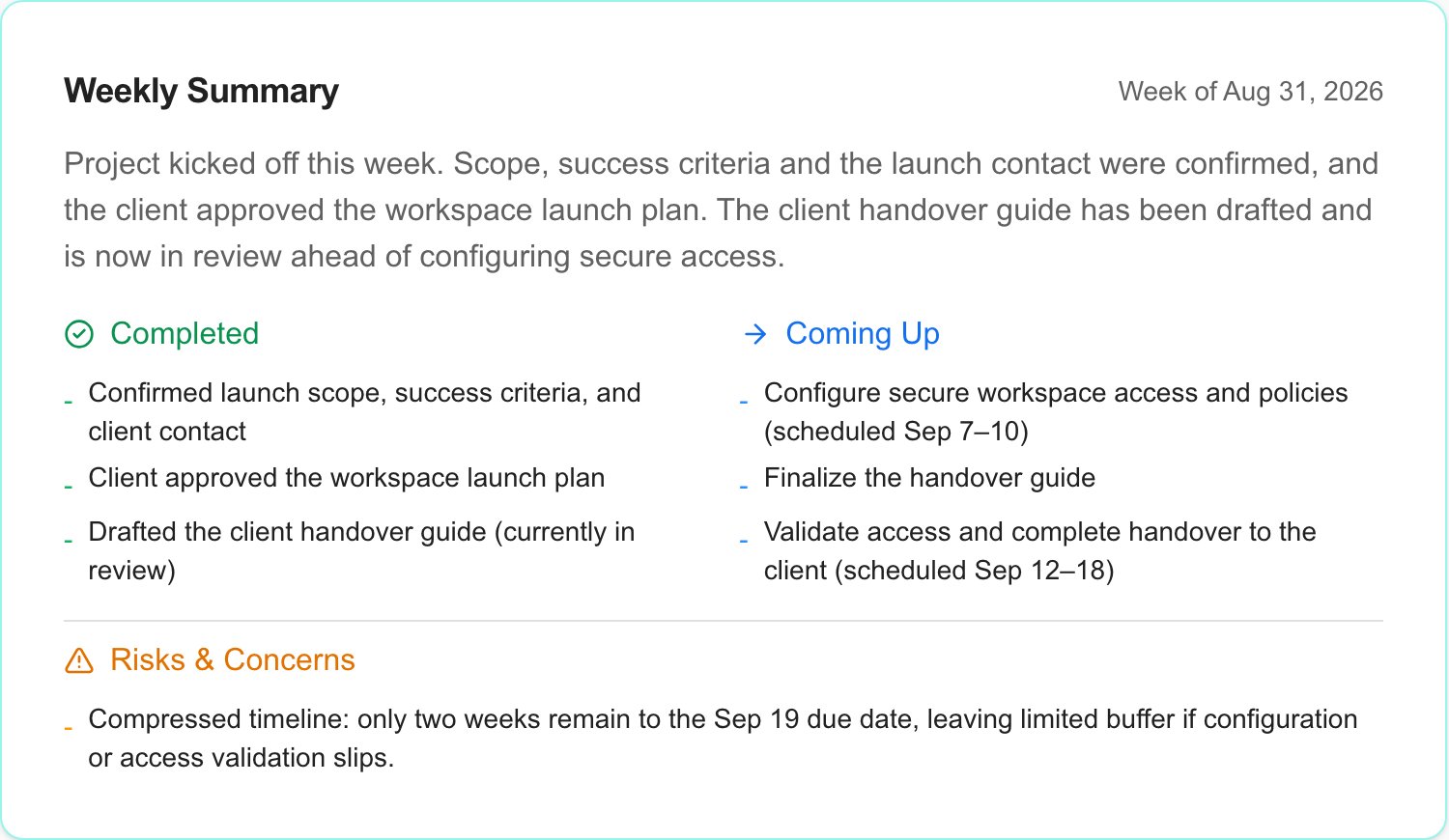
Ask: **Draft a weekly project update using the latest tickets, time entries, milestones, decisions, and prior updates.** Specify the reporting week and whether the update is internal if those matter.
Check the reporting week, summary, progress, next steps, risks, and client visibility. The proposal is a draft; it has not yet been saved.
Select **Apply** on the proposal you want to save. Wait for its applied state, then open **Updates** and confirm the resulting record.
A new weekly update proposal can default to client-visible. Check that setting before applying it. A client-visible record is different from sending an email; review any separate sending action before using it.
You can also ask for proposed milestones, deliverables, decisions, action items, or supported status and assignment changes. Review each proposal individually. The assistant must report an applied result before a change can be treated as saved.
 ## Connect external AI tools through MCP
Configure a connection through **Settings > MCP Server** using the [MCP Server guide](/user-guides/mcp-server/index). The connected user's permissions, selected OAuth scopes, and company access determine which tools and records are available.
Project MCP tools cover these workflows:
| Workflow | Examples |
| ----------------------------------- | ------------------------------------------------------------------------------------------------------------------------------- |
| Read project context | List projects; read a project and its detailed bundle, tickets, time entries, available assignments, and display settings. |
| Maintain collaboration records | Propose and confirm updates, milestones, deliverables, decisions, action items, project outcome fields, and visibility changes. |
| Change supported delivery fields | Propose and confirm ticket status, owner, priority, or project lifecycle status changes. Provider support still applies. |
| Manage supported notes and settings | Use the available ticket-note and project-display tools within their permission and provider limits. |
Write tools use a proposal-and-confirmation flow. Read the proposed target and changes before confirming in the connected AI client.
MCP support is specific to each operation. The current project MCP catalog does not expose native project creation, template design, or native phase/ticket creation and deletion. Use the app for those workflows. Do not assume a PSA-specific note tool supports native tickets merely because both appear in Projects.
For example, ask a connected assistant to find a project, summarize its delivery evidence, and propose a weekly update. Review and confirm the proposed write before expecting it in the project's **Updates** tab. See the [MCP tool reference](/user-guides/mcp-server/tools-reference) for the wider catalog.
## Bring project context into a QBR report
Select the company in the header, then open **Reports > New Report > Builder**, or edit an existing report. The builder requires company scope and can auto-save a new report as you work. In the report builder, choose the project block that answers the client's question:
| Block | Review question |
| --------------------------- | --------------------------------------------------- |
| **Project Health Overview** | Which projects need attention? |
| **Project Task Progress** | How is delivery progressing? |
| **Project Timeline** | What is scheduled and when? |
| **Project Costs** | What do the available budget and cost records show? |
| **Project Trend** | How are the available project metrics changing? |
| **Project Completed Tasks** | What work has been completed? |
| **Project Weekly Activity** | What activity occurred during the reporting period? |
Some blocks summarize the company's projects; others offer a project selector. Review each block's date range and configuration, including **Include Closed Projects** where available, and inspect the report's actual output. A new project may not have time, cost, or historical evidence for every block. Do not treat an empty result as proof that work is complete or on budget.
Save the report and review its access and delivery options before sharing. Follow [Reporting](/user-guides/reporting/index) for the full report workflow.
## Add a project to a meeting agenda
Open the relevant company meeting and use **Add Item** to choose **Project**. When creating a meeting first, confirm that the company name has appeared in **Select company** before saving its draft. Search for the project available for the meeting's company, select it, and choose **Add Selected**. Wait for the agenda item to appear. Arrange it alongside supporting reports or discussion points.
The project agenda view brings available health, dates, milestones, delivery information, and client actions into the discussion. Use **Present**, then **Next** to move from the agenda overview to the project slide and inspect what participants will see before the meeting.
Record decisions and follow-up work in the appropriate place after the discussion. A meeting note is not automatically a change to a project ticket or a completed client decision. Review invitations, summaries, and any other sending action separately.
See [Meeting Pages](/user-guides/calendar/meetings) and [Meeting Summaries](/user-guides/calendar/meeting-summaries) for meeting controls and reviewed communications.
## Troubleshooting
| Problem | What to check |
| ----------------------------------------------- | ------------------------------------------------------------------------------------------------- |
| An AI answer is incomplete | Available project evidence, date range, notes, and the caller's permissions. |
| A proposed update is missing from the project | Whether **Apply** succeeded, the correct project, and item visibility. |
| A tool is missing from the MCP connection | Enabled scopes, user permissions, the tool catalog, and operation/provider support. |
| A project is unavailable in a report or meeting | Company scope, project visibility, permissions, and active/closed filters in the picker. |
| A reporting block has no result | Its selected project, date range, configuration, and whether the required source evidence exists. |
Follow the full creation-to-closeout workflow.
Use the project's delivery and collaboration tabs.
## Connect external AI tools through MCP
Configure a connection through **Settings > MCP Server** using the [MCP Server guide](/user-guides/mcp-server/index). The connected user's permissions, selected OAuth scopes, and company access determine which tools and records are available.
Project MCP tools cover these workflows:
| Workflow | Examples |
| ----------------------------------- | ------------------------------------------------------------------------------------------------------------------------------- |
| Read project context | List projects; read a project and its detailed bundle, tickets, time entries, available assignments, and display settings. |
| Maintain collaboration records | Propose and confirm updates, milestones, deliverables, decisions, action items, project outcome fields, and visibility changes. |
| Change supported delivery fields | Propose and confirm ticket status, owner, priority, or project lifecycle status changes. Provider support still applies. |
| Manage supported notes and settings | Use the available ticket-note and project-display tools within their permission and provider limits. |
Write tools use a proposal-and-confirmation flow. Read the proposed target and changes before confirming in the connected AI client.
MCP support is specific to each operation. The current project MCP catalog does not expose native project creation, template design, or native phase/ticket creation and deletion. Use the app for those workflows. Do not assume a PSA-specific note tool supports native tickets merely because both appear in Projects.
For example, ask a connected assistant to find a project, summarize its delivery evidence, and propose a weekly update. Review and confirm the proposed write before expecting it in the project's **Updates** tab. See the [MCP tool reference](/user-guides/mcp-server/tools-reference) for the wider catalog.
## Bring project context into a QBR report
Select the company in the header, then open **Reports > New Report > Builder**, or edit an existing report. The builder requires company scope and can auto-save a new report as you work. In the report builder, choose the project block that answers the client's question:
| Block | Review question |
| --------------------------- | --------------------------------------------------- |
| **Project Health Overview** | Which projects need attention? |
| **Project Task Progress** | How is delivery progressing? |
| **Project Timeline** | What is scheduled and when? |
| **Project Costs** | What do the available budget and cost records show? |
| **Project Trend** | How are the available project metrics changing? |
| **Project Completed Tasks** | What work has been completed? |
| **Project Weekly Activity** | What activity occurred during the reporting period? |
Some blocks summarize the company's projects; others offer a project selector. Review each block's date range and configuration, including **Include Closed Projects** where available, and inspect the report's actual output. A new project may not have time, cost, or historical evidence for every block. Do not treat an empty result as proof that work is complete or on budget.
Save the report and review its access and delivery options before sharing. Follow [Reporting](/user-guides/reporting/index) for the full report workflow.
## Add a project to a meeting agenda
Open the relevant company meeting and use **Add Item** to choose **Project**. When creating a meeting first, confirm that the company name has appeared in **Select company** before saving its draft. Search for the project available for the meeting's company, select it, and choose **Add Selected**. Wait for the agenda item to appear. Arrange it alongside supporting reports or discussion points.
The project agenda view brings available health, dates, milestones, delivery information, and client actions into the discussion. Use **Present**, then **Next** to move from the agenda overview to the project slide and inspect what participants will see before the meeting.
Record decisions and follow-up work in the appropriate place after the discussion. A meeting note is not automatically a change to a project ticket or a completed client decision. Review invitations, summaries, and any other sending action separately.
See [Meeting Pages](/user-guides/calendar/meetings) and [Meeting Summaries](/user-guides/calendar/meeting-summaries) for meeting controls and reviewed communications.
## Troubleshooting
| Problem | What to check |
| ----------------------------------------------- | ------------------------------------------------------------------------------------------------- |
| An AI answer is incomplete | Available project evidence, date range, notes, and the caller's permissions. |
| A proposed update is missing from the project | Whether **Apply** succeeded, the correct project, and item visibility. |
| A tool is missing from the MCP connection | Enabled scopes, user permissions, the tool catalog, and operation/provider support. |
| A project is unavailable in a report or meeting | Company scope, project visibility, permissions, and active/closed filters in the picker. |
| A reporting block has no result | Its selected project, date range, configuration, and whether the required source evidence exists. |
Follow the full creation-to-closeout workflow.
Use the project's delivery and collaboration tabs.