> ## Documentation Index
> Fetch the complete documentation index at: https://docs.msportal.ai/llms.txt
> Use this file to discover all available pages before exploring further.
# Project Calendar
> Use Schedule to review project dates, phases, tasks, milestones, and scheduled work
Select **Projects > Schedule** to see dated work across your selected companies. Open a project and select its **Schedule** tab to focus on that project's work.
## Before you start
Your role needs access to the project Schedule view. The calendar uses the dates and work available from your projects and PSA; missing dates or unsynced work can leave an item off the calendar.
 ## Navigate the calendar
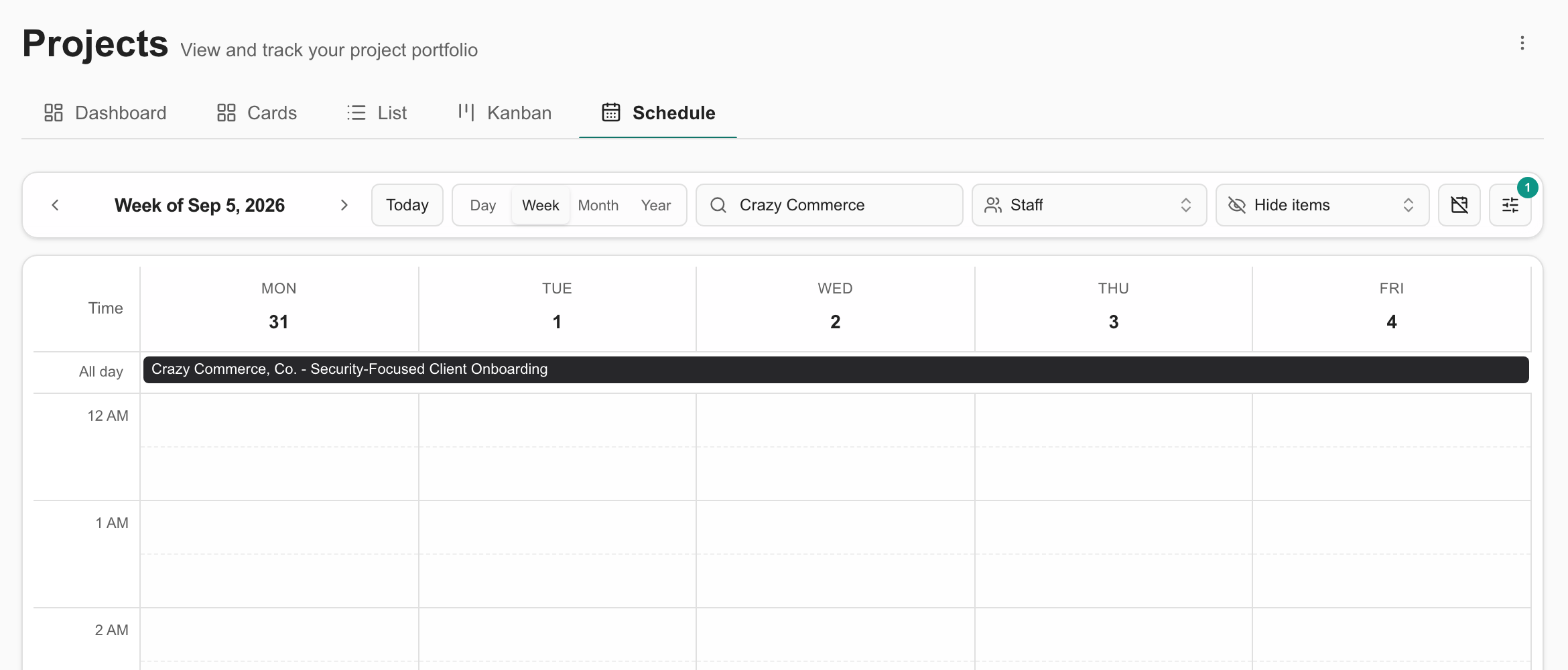
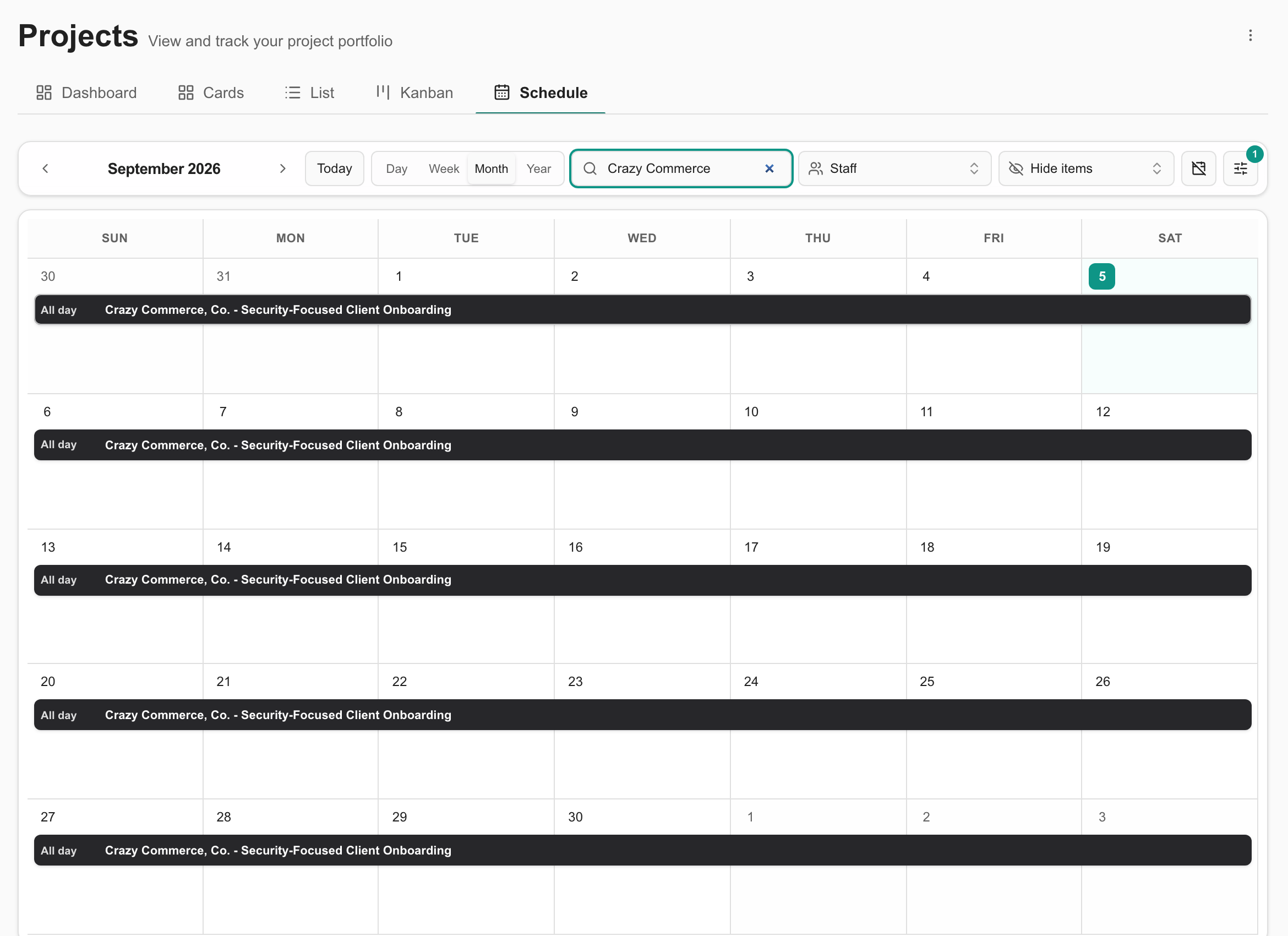
Select the company scope, then open **Projects > Schedule**. Use **Day**, **Week**, **Month**, or **Year** and the previous/next arrows to change the visible period. Select **Today** to return to the current date.
Use **Search events…** to narrow the calendar. Use **Staff** to filter the project items by the available staff assignments. **Hide items** lets you hide specific items from the view.
Select a calendar item to open its relevant details. Projects, phases, and milestones link to the project workspace; tasks and supported service calls open ticket details.
The cross-project schedule can include project date spans, phases, tasks, milestones, and Autotask service calls. Service calls represent timed bookings; a project date span is not itself a technician booking.
In Month view, several all-day items can collapse into an **All day** count. Select the count to inspect the day's items, or switch to Week view to see their spans.
## Change scheduled dates
For supported ConnectWise and Autotask items, MSP staff with project write permission can drag a schedulable item to another date. Review the rescheduling dialog and save to write the new dates back to the PSA. Cancel to keep the original schedule.
This applies to supported project, phase, task, and milestone dates. Do not assume every visible calendar item can be moved; service-call bookings and other providers have different capabilities.
## Project tracker, when enabled
Some ConnectWise tenants have an additional **Project tracker** above the cross-project calendar. It is an MSP staff feature and must be enabled for the tenant.
Use its **Role**, **Team member**, and **Status** filters to review project team assignments. Select a tracked project to inspect its team and end date, then choose **Open project** for the full workspace.
**Show upcoming projects** adds eligible open ConnectWise opportunities expected to become projects. Filter them by **Sales stage**. These are opportunities, not confirmed project schedules, and only deals for companies already imported into MSPortal appear.
The Project tracker is not enabled in the Demo screenshot above. Its absence does not prevent use of the regular Schedule calendar.
## Troubleshooting
| Problem | What to check |
| -------------------------- | ------------------------------------------------------------------------------------------- |
| The calendar is empty | Visible date range, company scope, search, Staff selection, hidden items, and source dates. |
| Only all-day counts appear | Open a count or switch to Week view. |
| An item cannot be dragged | Staff access, project write permission, supported PSA provider, and item type. |
| Project tracker is missing | Tenant feature availability, ConnectWise connection, and MSP staff access. |
Return to the portfolio guide.
Review details and collaborate on a project.
## Navigate the calendar
Select the company scope, then open **Projects > Schedule**. Use **Day**, **Week**, **Month**, or **Year** and the previous/next arrows to change the visible period. Select **Today** to return to the current date.
Use **Search events…** to narrow the calendar. Use **Staff** to filter the project items by the available staff assignments. **Hide items** lets you hide specific items from the view.
Select a calendar item to open its relevant details. Projects, phases, and milestones link to the project workspace; tasks and supported service calls open ticket details.
The cross-project schedule can include project date spans, phases, tasks, milestones, and Autotask service calls. Service calls represent timed bookings; a project date span is not itself a technician booking.
In Month view, several all-day items can collapse into an **All day** count. Select the count to inspect the day's items, or switch to Week view to see their spans.
## Change scheduled dates
For supported ConnectWise and Autotask items, MSP staff with project write permission can drag a schedulable item to another date. Review the rescheduling dialog and save to write the new dates back to the PSA. Cancel to keep the original schedule.
This applies to supported project, phase, task, and milestone dates. Do not assume every visible calendar item can be moved; service-call bookings and other providers have different capabilities.
## Project tracker, when enabled
Some ConnectWise tenants have an additional **Project tracker** above the cross-project calendar. It is an MSP staff feature and must be enabled for the tenant.
Use its **Role**, **Team member**, and **Status** filters to review project team assignments. Select a tracked project to inspect its team and end date, then choose **Open project** for the full workspace.
**Show upcoming projects** adds eligible open ConnectWise opportunities expected to become projects. Filter them by **Sales stage**. These are opportunities, not confirmed project schedules, and only deals for companies already imported into MSPortal appear.
The Project tracker is not enabled in the Demo screenshot above. Its absence does not prevent use of the regular Schedule calendar.
## Troubleshooting
| Problem | What to check |
| -------------------------- | ------------------------------------------------------------------------------------------- |
| The calendar is empty | Visible date range, company scope, search, Staff selection, hidden items, and source dates. |
| Only all-day counts appear | Open a count or switch to Week view. |
| An item cannot be dragged | Staff access, project write permission, supported PSA provider, and item type. |
| Project tracker is missing | Tenant feature availability, ConnectWise connection, and MSP staff access. |
Return to the portfolio guide.
Review details and collaborate on a project.