> ## Documentation Index
> Fetch the complete documentation index at: https://docs.msportal.ai/llms.txt
> Use this file to discover all available pages before exploring further.
# Dispatch project work
> See who is working on what by day across every open project, clear the Needs scheduling queue, and plan a single project from the same page
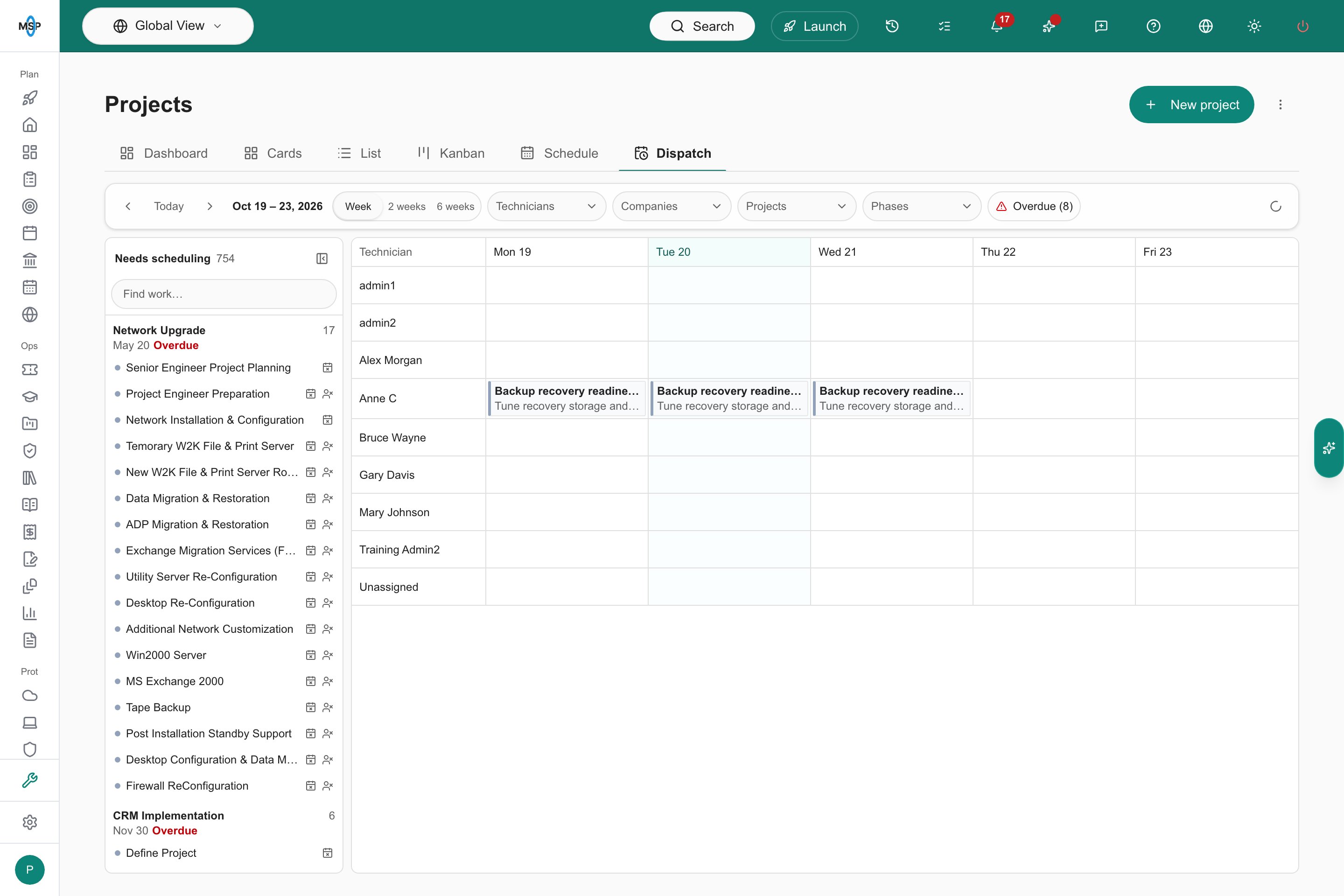
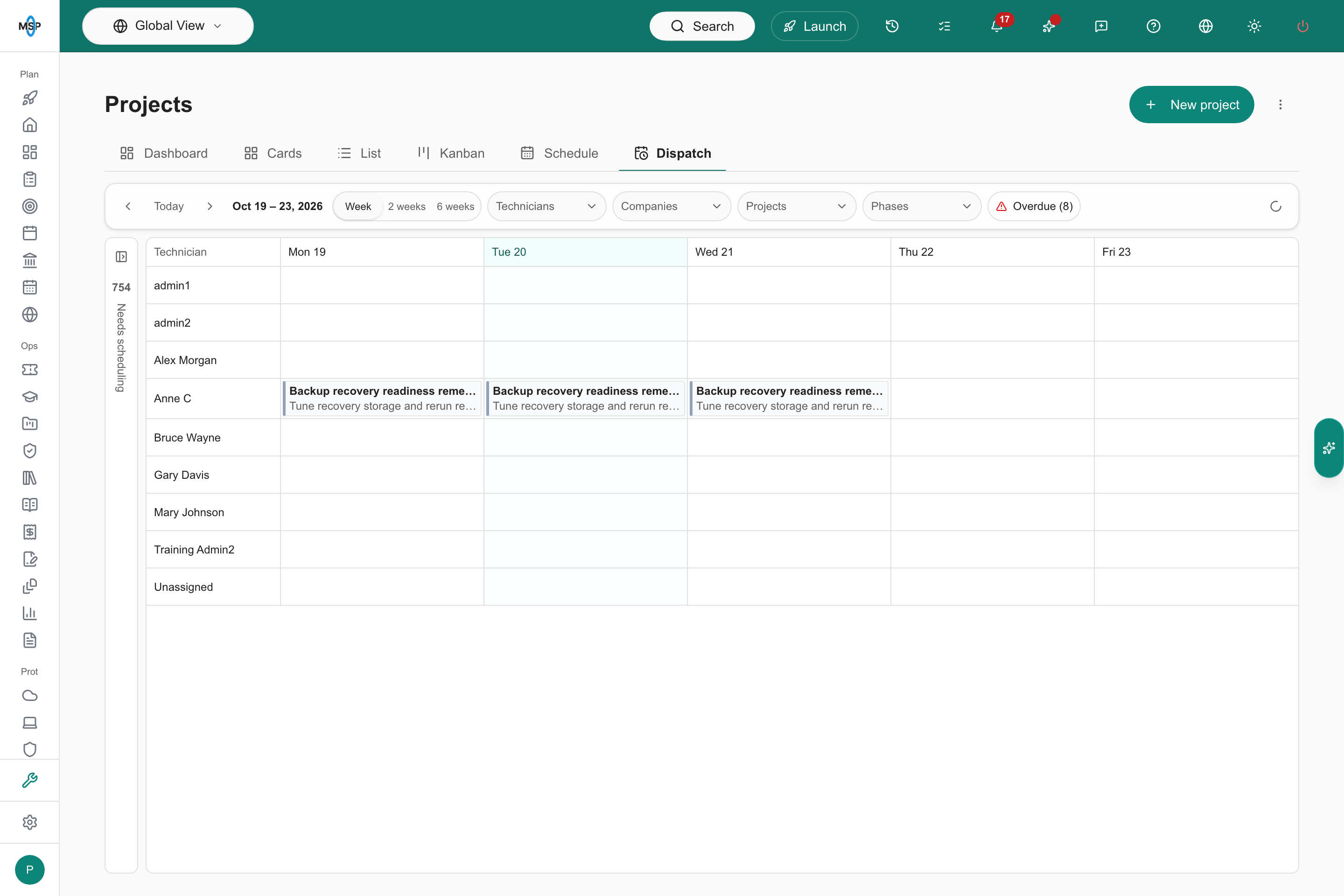
**Projects > Dispatch** shows MSP staff who is working on what, by day, across every open project in the selected company scope. Technicians run down the side and working days run across the top. One toolbar holds the date range, the filters and the planning actions. Drag work onto a technician's day, then click **Save** to sync your changes. The page replaces the Schedule workspace window. **Plan schedule**, **Plan in schedule workspace** and a task's **Reschedule** now open it.
You do not have to pick a project first. The page opens on every open project in your company scope. Narrow the **Projects** filter to one project when you want to plan it with Smart Schedule.
## Before you start
* You need MSP staff access with the Projects **Schedule** view permission, and the scheduling feature must be enabled for your portal. Without both, the **Dispatch** tab does not appear. Company users never see it.
* Changing dates or people also needs project write permission. Without it, the board, the queue and the task editor are read-only, and Smart Schedule and **Schedule settings…** do not appear.
* The board follows the company selector. Pick a company, or **Global View**, before you open it. Only open projects load. When you arrive from a project or a task, that project is loaded whatever the selector says.
* Bookings and busy time come from ConnectWise. Autotask service calls and Halo appointments are not on the board.
* Bookings need a role that can see every appointment. If yours cannot, the board says **ConnectWise bookings are hidden because your role cannot see every appointment. Task dates and owners still show.**
## Open the page
Open **Projects** and click **Dispatch**, beside **Schedule**. The page opens on every open project in scope, with the **Projects** filter empty.
Open the project, click **Project Plan**, then **Schedule**, and click **Plan schedule**. The page opens with that project already in the **Projects** filter, so the planner actions are available straight away. In the **Gantt** view, an item's **Plan in schedule workspace** action does the same and, for a task, opens it.
In **Projects > Schedule** or a project's Schedule tab, click a task's **...** menu and choose **Reschedule**. The page opens with that task's project in the **Projects** filter, the task open in the side sheet, and the board starting on the week of its start date.
 ## Use the toolbar
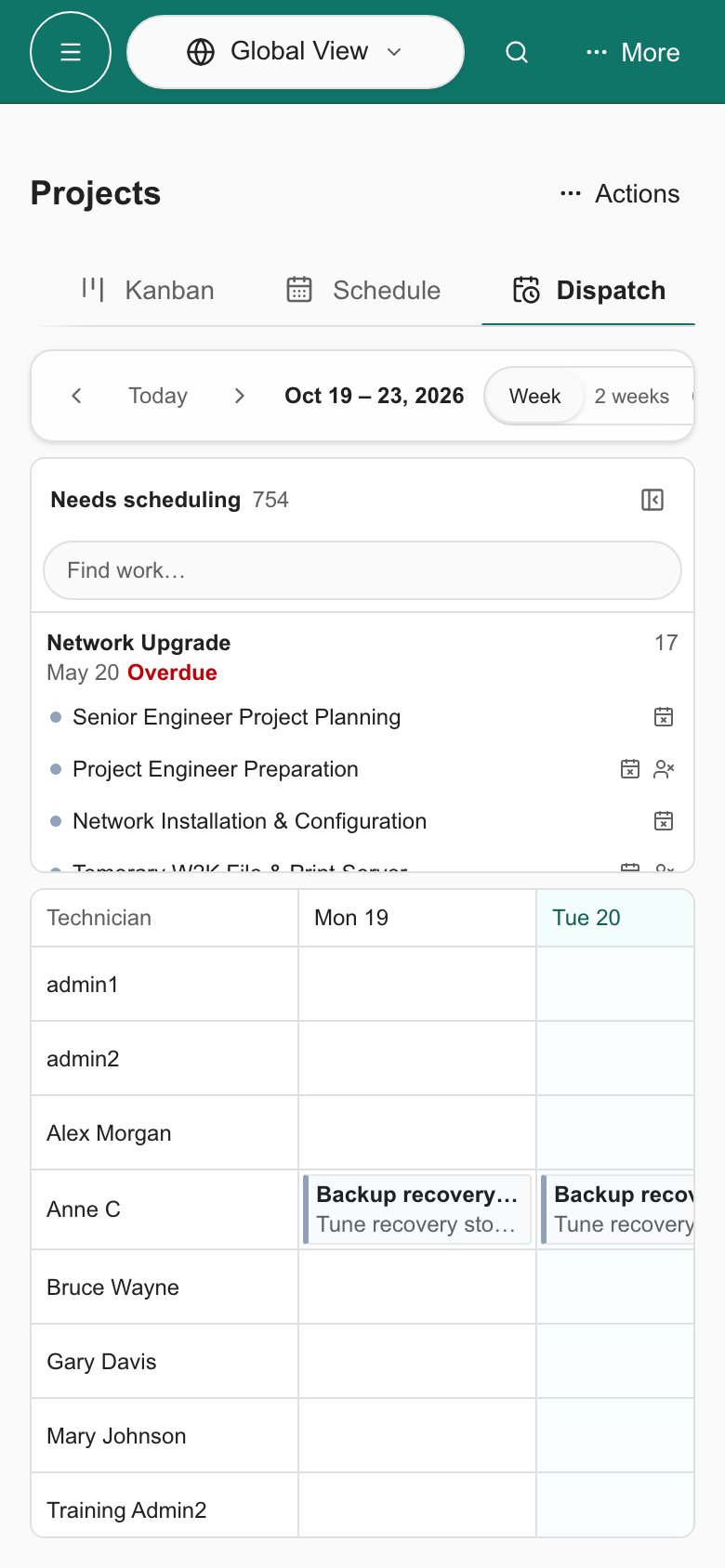
Everything sits in one row. On a phone the row scrolls sideways.
| Control | What it does |
| - | - |
| **Previous**, **Today**, **Next** | Move the board by the visible range. **Today** returns to the current week. The date range for the visible days sits beside the arrows. |
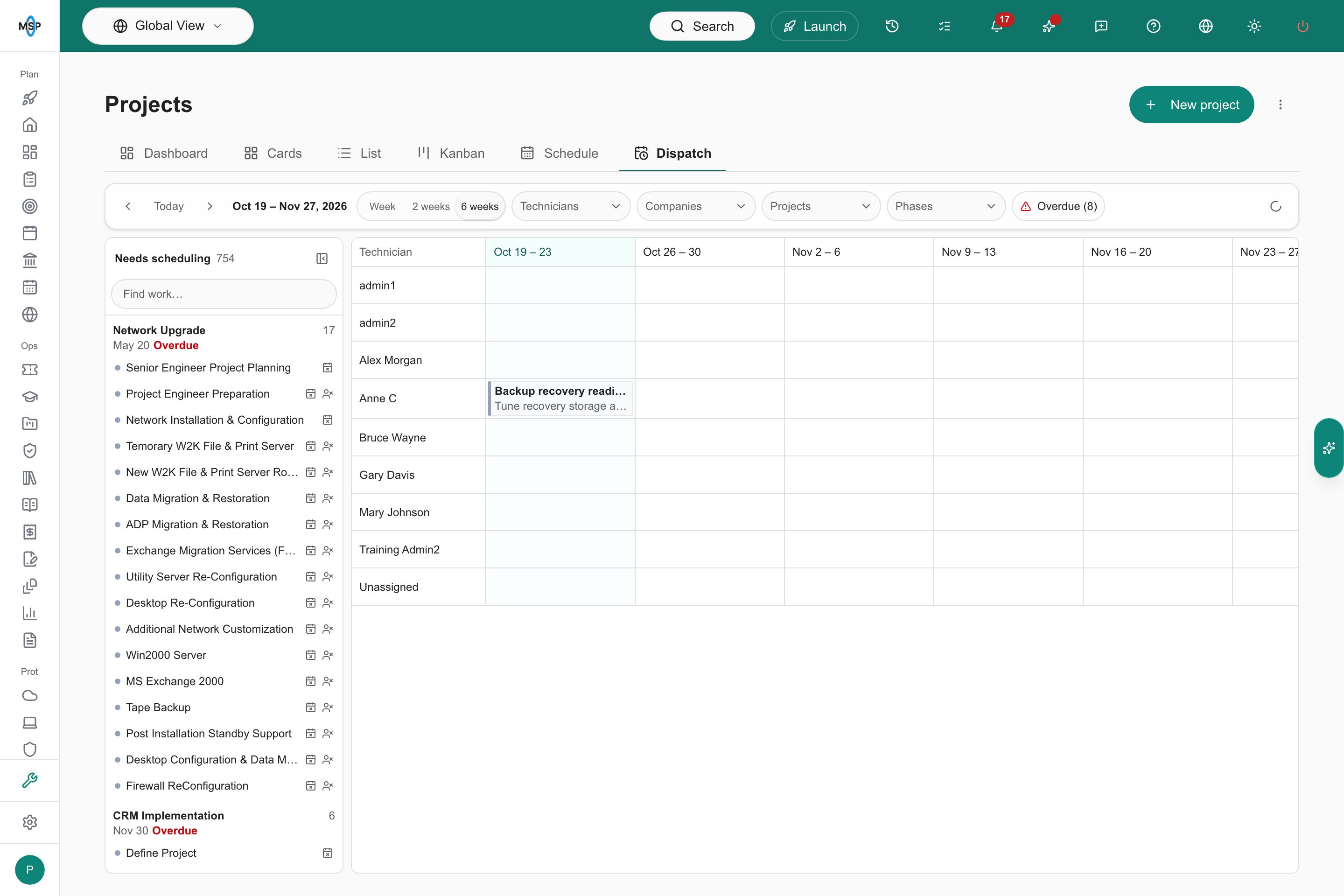
| **Week**, **2 weeks**, **6 weeks** | Set the visible range. The page starts on **Week**. **6 weeks** shows one column per week instead of one per day. |
| **Technicians**, **Companies**, **Projects**, **Phases** | Show only matching work. The board and the queue both follow them. The lists come from the projects in scope. |
| **Overdue (N)** | Appears when N projects are past their due date and still have unscheduled work. Click it to keep only overdue projects. |
| **Clear** | Appears once any filter is set and removes them all, including **Projects**. |
| Bookings status icon | A spinner while ConnectWise bookings load. An amber warning icon appears if they are hidden for your role or could not be loaded, and shows the reason. |
| **Status colours** | Opens the legend of ticket statuses in scope, most common first, with their colours. |
When you narrow **Projects** to exactly one project, that project becomes the one you are planning. The toolbar then adds **View**, **Smart Schedule** and a **More planner actions** menu (**...**) after the **Status colours** button. See [Plan one project](#plan-one-project).
The page remembers the range and the **Technicians**, **Companies**, **Phases** and **Overdue** filters for your portal in this browser. **Projects** always starts from the link you opened.
## Use the toolbar
Everything sits in one row. On a phone the row scrolls sideways.
| Control | What it does |
| - | - |
| **Previous**, **Today**, **Next** | Move the board by the visible range. **Today** returns to the current week. The date range for the visible days sits beside the arrows. |
| **Week**, **2 weeks**, **6 weeks** | Set the visible range. The page starts on **Week**. **6 weeks** shows one column per week instead of one per day. |
| **Technicians**, **Companies**, **Projects**, **Phases** | Show only matching work. The board and the queue both follow them. The lists come from the projects in scope. |
| **Overdue (N)** | Appears when N projects are past their due date and still have unscheduled work. Click it to keep only overdue projects. |
| **Clear** | Appears once any filter is set and removes them all, including **Projects**. |
| Bookings status icon | A spinner while ConnectWise bookings load. An amber warning icon appears if they are hidden for your role or could not be loaded, and shows the reason. |
| **Status colours** | Opens the legend of ticket statuses in scope, most common first, with their colours. |
When you narrow **Projects** to exactly one project, that project becomes the one you are planning. The toolbar then adds **View**, **Smart Schedule** and a **More planner actions** menu (**...**) after the **Status colours** button. See [Plan one project](#plan-one-project).
The page remembers the range and the **Technicians**, **Companies**, **Phases** and **Overdue** filters for your portal in this browser. **Projects** always starts from the link you opened.
 ## Read the board
Each row is one technician. The rows cover every task owner, everyone with a booking or busy time in the visible range, and the team of the project you are editing. A ConnectWise member who is listed in a ticket's Resources but has no portal login still gets a row, under their ConnectWise identifier. Dated work with nobody on it sits on an **Unassigned** row at the bottom.
Each column is one working day, or one week when the range is **6 weeks**. Today is highlighted and a heavier line marks each new week. Each cell lists that person's work for the day.
Every chip has two lines. The first is the company, or the project name when the project has no company. The second is the project name, then the ticket number and title, for example `Server refresh · #12345 Install firewall`. Hover a chip to see the company, project, ticket, status, hours and source. Chips are coloured by ticket status, so a ticket still marked Need to Schedule stands out even once it is booked.
| Chip | What it shows |
| - | - |
| Task dates | A project task with a start and end date, on each working day it spans. The hover text shows the status and the hours. |
| Booking, with a calendar-check icon | A ConnectWise schedule entry on a project ticket, on each day it covers. The hover text reads **Booked in ConnectWise**, with **All day** for all-day entries. A booking replaces the task's own date chip on the same days, so one day never shows the same work twice. |
| **Busy all day** or **Busy 2h** | That person's other ConnectWise bookings, such as service tickets or internal activities. No titles or details are shown. Hover for the number of bookings. On a **6 weeks** board it reads like **Busy 3 days**. |
If a person is listed in the ticket's ConnectWise Resources rather than as its Owner, the hover text says **Listed as a resource, not the owner**. A chip headed **Project outside the selected companies** is a booking on a project that is not loaded in this scope; it cannot be opened from here.
A cell shows three items. Click **+N more** to show the rest of that cell. On a **6 weeks** board each task or booking appears once per week, and a drop lands on the first working day of that week.
## Open a task
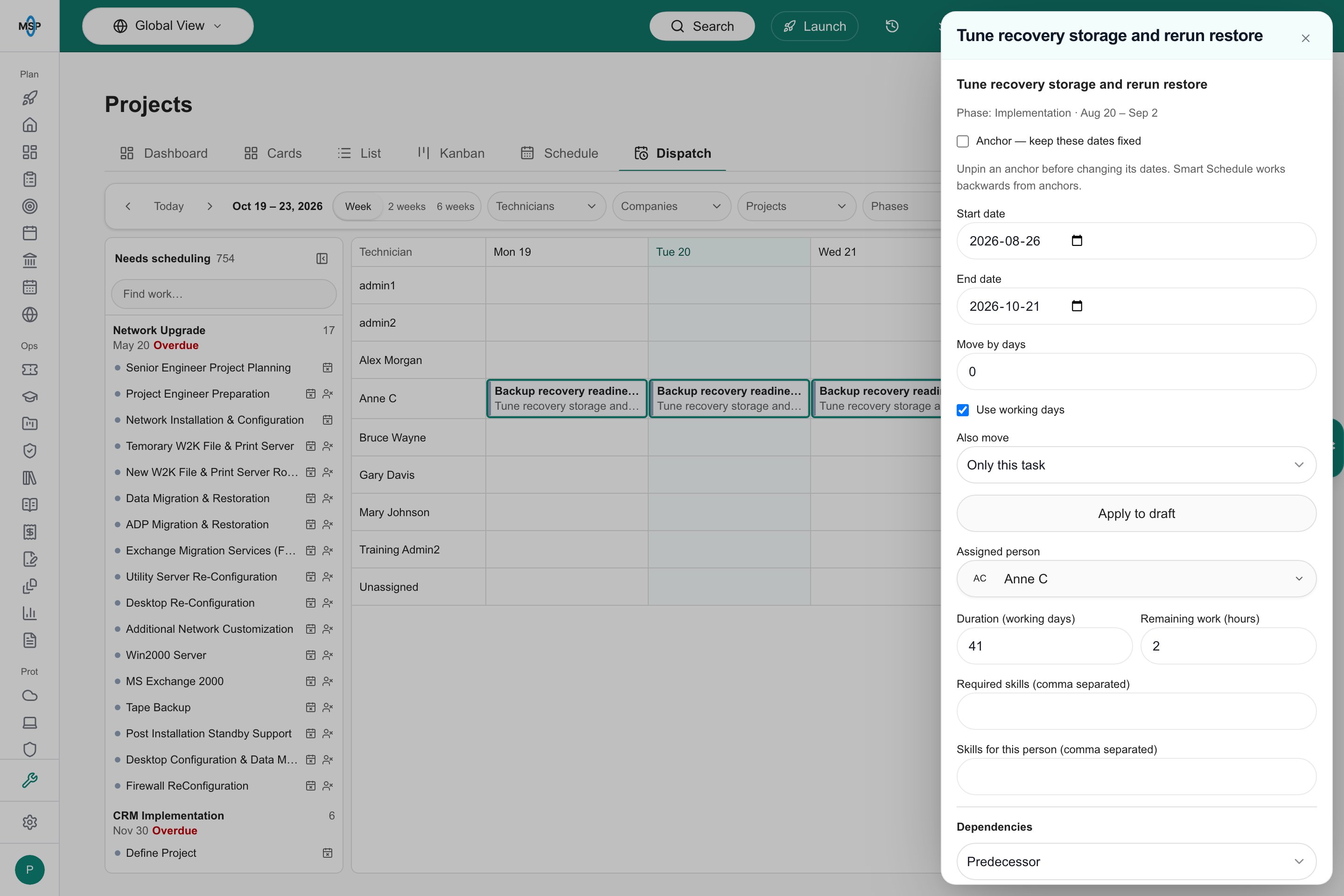
Click any chip or queue row to open that task in a side sheet, where you set the dates, **Assigned person** and dependencies. The editor is the same as in the other views; see [Use the task editor](/user-guides/projects/plan-project-schedule#use-the-task-editor).
## Read the board
Each row is one technician. The rows cover every task owner, everyone with a booking or busy time in the visible range, and the team of the project you are editing. A ConnectWise member who is listed in a ticket's Resources but has no portal login still gets a row, under their ConnectWise identifier. Dated work with nobody on it sits on an **Unassigned** row at the bottom.
Each column is one working day, or one week when the range is **6 weeks**. Today is highlighted and a heavier line marks each new week. Each cell lists that person's work for the day.
Every chip has two lines. The first is the company, or the project name when the project has no company. The second is the project name, then the ticket number and title, for example `Server refresh · #12345 Install firewall`. Hover a chip to see the company, project, ticket, status, hours and source. Chips are coloured by ticket status, so a ticket still marked Need to Schedule stands out even once it is booked.
| Chip | What it shows |
| - | - |
| Task dates | A project task with a start and end date, on each working day it spans. The hover text shows the status and the hours. |
| Booking, with a calendar-check icon | A ConnectWise schedule entry on a project ticket, on each day it covers. The hover text reads **Booked in ConnectWise**, with **All day** for all-day entries. A booking replaces the task's own date chip on the same days, so one day never shows the same work twice. |
| **Busy all day** or **Busy 2h** | That person's other ConnectWise bookings, such as service tickets or internal activities. No titles or details are shown. Hover for the number of bookings. On a **6 weeks** board it reads like **Busy 3 days**. |
If a person is listed in the ticket's ConnectWise Resources rather than as its Owner, the hover text says **Listed as a resource, not the owner**. A chip headed **Project outside the selected companies** is a booking on a project that is not loaded in this scope; it cannot be opened from here.
A cell shows three items. Click **+N more** to show the rest of that cell. On a **6 weeks** board each task or booking appears once per week, and a drop lands on the first working day of that week.
## Open a task
Click any chip or queue row to open that task in a side sheet, where you set the dates, **Assigned person** and dependencies. The editor is the same as in the other views; see [Use the task editor](/user-guides/projects/plan-project-schedule#use-the-task-editor).
 If the task belongs to a different project than the one you were editing, the page switches to that project. With unsaved changes, **Discard this schedule draft?** asks you to **Keep editing** or **Discard changes** first.
## Clear the Needs scheduling queue
**Needs scheduling** lists open work in scope that still has no date, no booking or no technician. It sits beside the board as a rail. Click **Hide queue** to collapse it to a narrow strip that shows only the count, and **Show queue** to bring it back.
The queue is grouped by project and sorted by project due date, with undated projects last. Each group shows the project name, the number of tasks, the company, its due date or **No due date**, and **Overdue** in red when the project is past its due date.
Each row is one line with the task's status colour, the ticket number and title, and an icon for what is missing. A calendar icon with a cross means **No date**. A person icon with a cross means **No technician**. A row can show both. Hover a row for the status, the assigned person and the hours. Type in **Find work…** to filter the rows by task title, ticket number, project or company.
A ConnectWise booking on or after today counts as both a date and a technician, so booked work leaves the queue even when the ticket's own dates and Owner are empty. When nothing is left, the queue reads **Every open task in this scope has a date and a technician.**
The **Technicians** filter keeps queue work assigned to those people, plus work with no technician. **Companies**, **Projects**, **Phases** and **Overdue (N)** narrow the queue the same way they narrow the board.
On a phone the queue sits above the board.
If the task belongs to a different project than the one you were editing, the page switches to that project. With unsaved changes, **Discard this schedule draft?** asks you to **Keep editing** or **Discard changes** first.
## Clear the Needs scheduling queue
**Needs scheduling** lists open work in scope that still has no date, no booking or no technician. It sits beside the board as a rail. Click **Hide queue** to collapse it to a narrow strip that shows only the count, and **Show queue** to bring it back.
The queue is grouped by project and sorted by project due date, with undated projects last. Each group shows the project name, the number of tasks, the company, its due date or **No due date**, and **Overdue** in red when the project is past its due date.
Each row is one line with the task's status colour, the ticket number and title, and an icon for what is missing. A calendar icon with a cross means **No date**. A person icon with a cross means **No technician**. A row can show both. Hover a row for the status, the assigned person and the hours. Type in **Find work…** to filter the rows by task title, ticket number, project or company.
A ConnectWise booking on or after today counts as both a date and a technician, so booked work leaves the queue even when the ticket's own dates and Owner are empty. When nothing is left, the queue reads **Every open task in this scope has a date and a technician.**
The **Technicians** filter keeps queue work assigned to those people, plus work with no technician. **Companies**, **Projects**, **Phases** and **Overdue (N)** narrow the queue the same way they narrow the board.
On a phone the queue sits above the board.
 ### Set real project dates in ConnectWise
The queue sorts by each project's Estimated End, which is its due date in MSPortal, and flags **Overdue** from it. When a project manager creates a project in ConnectWise, set a real Estimated Start and Estimated End instead of keeping the dates ConnectWise fills in. Placeholder dates push the project to the wrong place in the queue, and a project can show **Overdue** or **No due date** when it should not.
## Date and assign work by dragging
Drag a queue row or a chip onto a technician's day. The task starts on that day and keeps its duration in working days. You can drag work from any project you can edit.
* When the person is on the project team, the task is assigned to them.
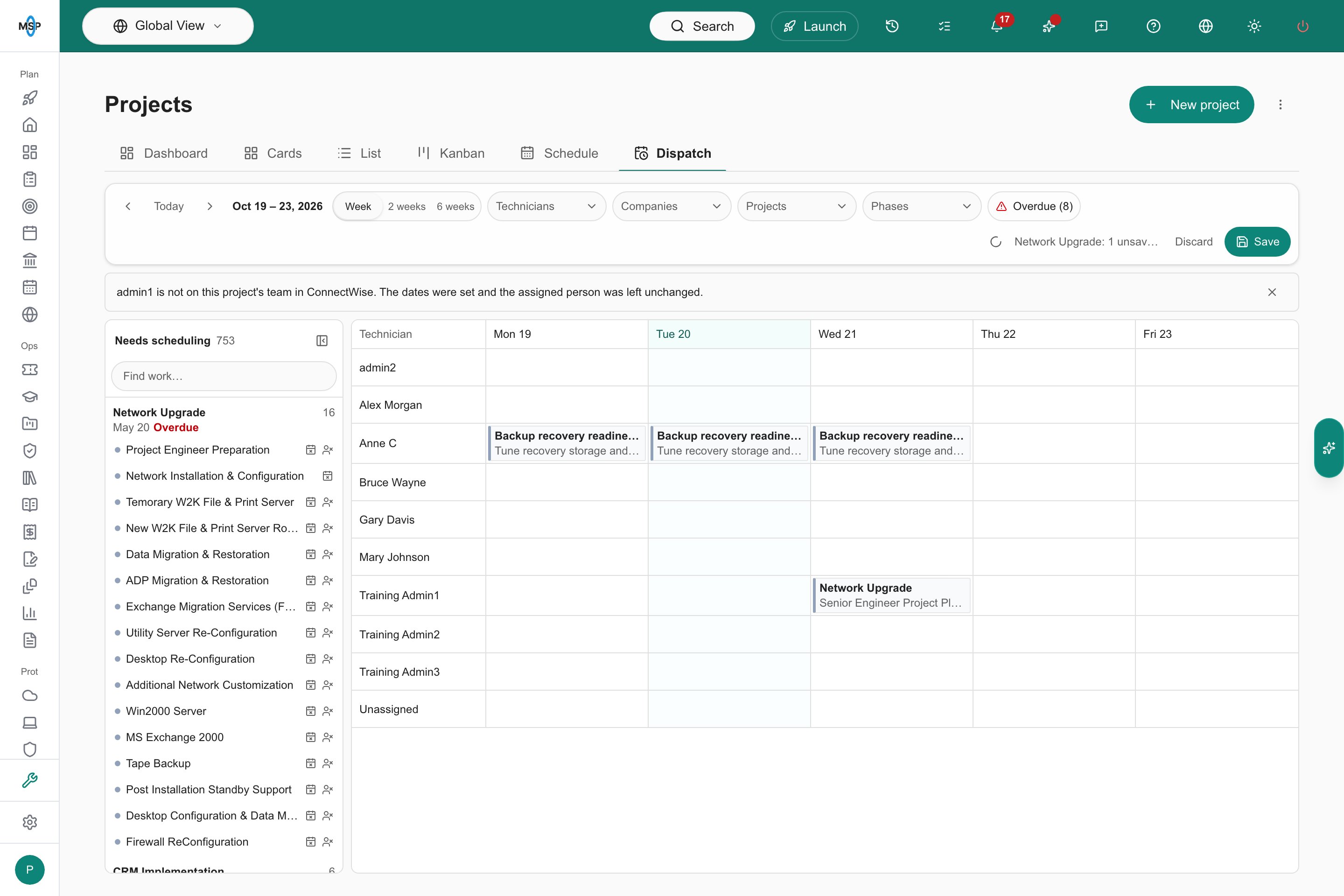
* When they are not, the dates are set, the assigned person is left unchanged, and a one-line notice says so.
* Drop onto the **Unassigned** row to date the work and clear its person.
Dragging work from another project switches the page to that project, as long as the project you were editing has no unsaved changes. If it does, the drop is refused and the page says **Save or discard changes to {project} first**, naming the project you were editing.
### Set real project dates in ConnectWise
The queue sorts by each project's Estimated End, which is its due date in MSPortal, and flags **Overdue** from it. When a project manager creates a project in ConnectWise, set a real Estimated Start and Estimated End instead of keeping the dates ConnectWise fills in. Placeholder dates push the project to the wrong place in the queue, and a project can show **Overdue** or **No due date** when it should not.
## Date and assign work by dragging
Drag a queue row or a chip onto a technician's day. The task starts on that day and keeps its duration in working days. You can drag work from any project you can edit.
* When the person is on the project team, the task is assigned to them.
* When they are not, the dates are set, the assigned person is left unchanged, and a one-line notice says so.
* Drop onto the **Unassigned** row to date the work and clear its person.
Dragging work from another project switches the page to that project, as long as the project you were editing has no unsaved changes. If it does, the drop is refused and the page says **Save or discard changes to {project} first**, naming the project you were editing.
 Completed and anchored tasks cannot be dragged. Dragging also pauses while a Smart Schedule proposal is open, and a drop is refused while a date change in the task editor is waiting for **Apply to draft**.
## Save or discard changes
Nothing changes in MSPortal or your PSA until you save. While you have changes, the right side of the toolbar shows **N unsaved changes**, **Discard** and **Save**. When the **Projects** filter is not on the project you edited, the count names it, for example `Server refresh: 3 unsaved changes`.
**Save** stays disabled, with a tooltip, while a task date change is waiting for **Apply to draft**, while a Smart Schedule proposal is open (**Accept or reject the proposal first**), or while schedule checks are blocking the save. Saving shows **Saving…**.
## Plan one project
Narrow **Projects** to exactly one project to plan it. The toolbar adds these controls.
| Control | What it does |
| - | - |
| **View** | A menu that shows the current view and switches between **Board**, **Calendar**, **Timeline** and **Dependencies**. The queue stays beside every view. |
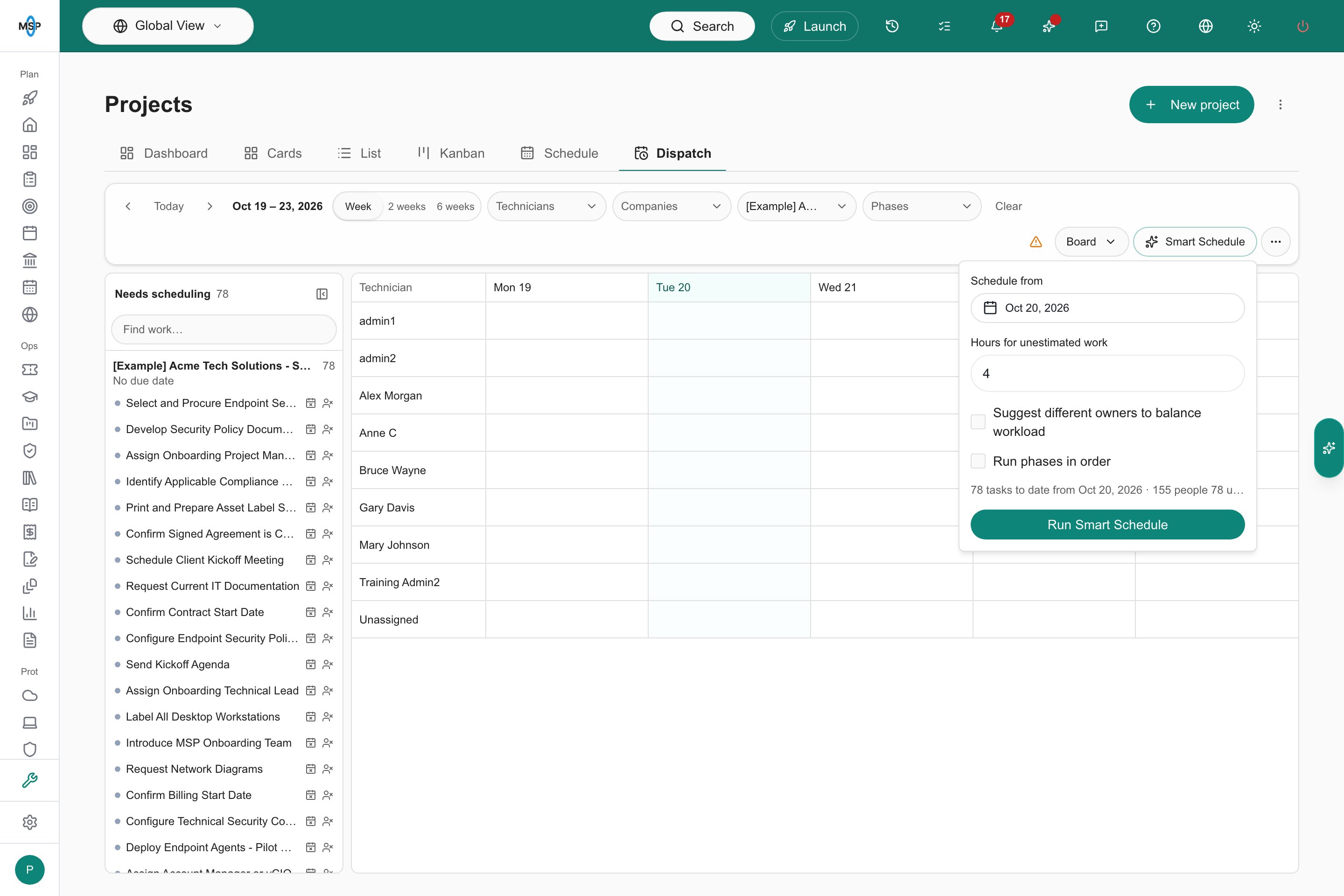
| **Smart Schedule** | Opens a popover with **Schedule from**, **Hours for unestimated work**, **Suggest different owners to balance workload** and, when the project has more than one phase, **Run phases in order**. A line at the bottom summarises how many tasks will be dated and for how many people, or says why it cannot run. Click **Run Smart Schedule** to ask for a proposal. |
| **More planner actions** (**...**) | **Schedule settings…**, **Print / save PDF** and **Export XML**. |
| **Read only** | A badge beside **View**. It appears when the project's provider cannot take schedule writes, and **Smart Schedule** and **Schedule settings…** are then hidden. Hover for the reason. |
Completed and anchored tasks cannot be dragged. Dragging also pauses while a Smart Schedule proposal is open, and a drop is refused while a date change in the task editor is waiting for **Apply to draft**.
## Save or discard changes
Nothing changes in MSPortal or your PSA until you save. While you have changes, the right side of the toolbar shows **N unsaved changes**, **Discard** and **Save**. When the **Projects** filter is not on the project you edited, the count names it, for example `Server refresh: 3 unsaved changes`.
**Save** stays disabled, with a tooltip, while a task date change is waiting for **Apply to draft**, while a Smart Schedule proposal is open (**Accept or reject the proposal first**), or while schedule checks are blocking the save. Saving shows **Saving…**.
## Plan one project
Narrow **Projects** to exactly one project to plan it. The toolbar adds these controls.
| Control | What it does |
| - | - |
| **View** | A menu that shows the current view and switches between **Board**, **Calendar**, **Timeline** and **Dependencies**. The queue stays beside every view. |
| **Smart Schedule** | Opens a popover with **Schedule from**, **Hours for unestimated work**, **Suggest different owners to balance workload** and, when the project has more than one phase, **Run phases in order**. A line at the bottom summarises how many tasks will be dated and for how many people, or says why it cannot run. Click **Run Smart Schedule** to ask for a proposal. |
| **More planner actions** (**...**) | **Schedule settings…**, **Print / save PDF** and **Export XML**. |
| **Read only** | A badge beside **View**. It appears when the project's provider cannot take schedule writes, and **Smart Schedule** and **Schedule settings…** are then hidden. Hover for the reason. |
 A Smart Schedule proposal appears as one line under the toolbar, for example **3 changes proposed**, with **Show changes**, **Reject** and **Accept**. **Show changes** lists the proposed dates and people. Nothing is applied until you click **Accept**, and you still need to click **Save** afterwards.
**Schedule settings…** opens a dialog for the project with the **Working calendar**, the **Project team** and the **Schedule checks**. Open it to change daily capacity or holidays, choose which roles Smart Schedule can assign, or review issues. The calendar and checks are described in [Plan a project schedule](/user-guides/projects/plan-project-schedule).
## What saving writes to ConnectWise
For a ConnectWise project, **Save** writes each changed task's dates to the project ticket's Schedule Start and Schedule End fields and its person to the ticket's Owner.
Autotask and Halo projects sync dates and assigned people as described in [Save your plan](/user-guides/projects/plan-project-schedule#save-your-plan).
## Where ConnectWise dates and people come from
ConnectWise keeps a project ticket's planned dates, its people and its actual schedule in different places, and MSPortal shows each of them from its own source.
| In MSPortal | ConnectWise source | Who fills it |
| - | - | - |
| Task start and end dates | The project ticket's Schedule Start and Schedule End fields | ConnectWise does not fill these itself. They are empty on every ConnectWise project ticket MSPortal has synced, in every ConnectWise portal. MSPortal writes them when you click **Save**. |
| Assigned person | The ticket's Owner field | Someone sets it by hand on the ticket. |
| Resources | The ticket's Resources field | ConnectWise fills it when a member is scheduled on the ticket. It can also be edited by hand. |
| Booking | A schedule entry on the ticket, made in its Resources & Meetings pod, the Dispatch Portal or **Schedule Me** | The dispatcher or technician. MSPortal syncs schedule entries every 30 minutes. |
Logging time on a ticket never sets its Owner, its Resources or its dates.
The board shows a schedule entry as a booking, and a booking on or after today takes the ticket out of **Needs scheduling**. To date and assign work from MSPortal, drag the card onto the technician's day and click **Save**.
## Leave a task out of scheduling
**Include in scheduling** is an MSPortal-only switch on each task, under **Visibility and scheduling** in the task's details. It is on by default. Admins set the default per task type under **Settings > Projects > Project Settings > Task types**, and a single task can override its type.
When it is off, the task is left out of this page, the project Gantt and Smart Schedule. The task itself, its bookings and its dependency links are kept, and they come back when you turn the switch on again. Nothing is written to your PSA either way. When a project has excluded tasks, **Schedule settings…** says how many, for example **3 tasks are excluded from scheduling.** See [Task types and individual task controls](/user-guides/settings/projects#task-types-and-individual-task-controls).
## Troubleshooting
| Problem | What to check |
| - | - |
| The **Dispatch** tab is missing | You need MSP staff access with the Projects **Schedule** view permission, and the scheduling feature must be enabled for your portal. |
| Nothing can be dragged | You need project write permission, and the project must be a ConnectWise, Autotask, Halo or native project. Completed and anchored tasks never move. An open Smart Schedule proposal pauses dragging. |
| **Save or discard changes to {project} first** | You dragged work from a different project while the project you were editing still has unsaved changes. Click **Save** or **Discard** in the toolbar, then drag again. |
| **View**, **Smart Schedule** and the **...** menu are missing | They appear only when **Projects** is narrowed to exactly one project. Smart Schedule and **Schedule settings…** also need project write permission. |
| **ConnectWise bookings are hidden because your role cannot see every appointment.** | Ask an admin for a role with **All appointments** on the Calendar permission. See [Calendar visibility](/user-guides/ticketing/change-management#calendar-visibility). Task dates and owners still show. |
| **ConnectWise bookings could not be loaded.** | Reload the page. If it persists, check the ConnectWise connection under **Settings > Integrations**. |
| **No technicians to show for these filters.** | Widen the range, click **Clear**, check the company selector, and check that the work has dates or a booking. |
| A technician is missing from the rows | Rows come from work in scope and the team of the project you are editing. There is no full staff roster on the board. Give them dated work, or open a task on their project so its team loads. |
| A chip is headed **Project outside the selected companies** | The booked ticket belongs to a project outside the loaded scope. Change the company selector. |
| A task sits under the wrong person | A chip follows the ticket's Owner, or its Resources when there is no Owner. Change **Assigned person** in the task editor, or fix Resources in ConnectWise. |
| **Showing the first 1,000 projects. Select companies to narrow the list.** | The page loads at most 1,000 open projects. Pick one or more companies in the company selector. |
| A project shows **Overdue** or **No due date** unexpectedly | The queue reads the project's Estimated End from ConnectWise. See [Set real project dates in ConnectWise](#set-real-project-dates-in-connectwise). |
## Frequently asked questions
Status is a ConnectWise field. The board colours the chip by it but never changes it. Update the status in ConnectWise or on the project board, or leave it; the colour makes the mismatch visible either way.
The list holds open projects in the selected company scope. Change the company selector, then reopen the page.
You can drag and edit work from any project, but Smart Schedule, the views and the schedule settings work on one project at a time. Narrow **Projects** to that project first.
No. Company users read shared dates in [Read a project schedule](/user-guides/projects/read-project-schedule).
They are not on this board. Autotask service calls still appear on the project calendars described in [Read a project schedule](/user-guides/projects/read-project-schedule).
## Related guides
The task editor, dependencies, Smart Schedule, schedule checks and saving.
Navigate Projects > Schedule and reschedule items.
Interpret dated items and the Gantt view.
Task type defaults for Include in scheduling.
This documentation is built and hosted on [Mintlify](https://mintlify.com), a developer documentation platform.
A Smart Schedule proposal appears as one line under the toolbar, for example **3 changes proposed**, with **Show changes**, **Reject** and **Accept**. **Show changes** lists the proposed dates and people. Nothing is applied until you click **Accept**, and you still need to click **Save** afterwards.
**Schedule settings…** opens a dialog for the project with the **Working calendar**, the **Project team** and the **Schedule checks**. Open it to change daily capacity or holidays, choose which roles Smart Schedule can assign, or review issues. The calendar and checks are described in [Plan a project schedule](/user-guides/projects/plan-project-schedule).
## What saving writes to ConnectWise
For a ConnectWise project, **Save** writes each changed task's dates to the project ticket's Schedule Start and Schedule End fields and its person to the ticket's Owner.
Autotask and Halo projects sync dates and assigned people as described in [Save your plan](/user-guides/projects/plan-project-schedule#save-your-plan).
## Where ConnectWise dates and people come from
ConnectWise keeps a project ticket's planned dates, its people and its actual schedule in different places, and MSPortal shows each of them from its own source.
| In MSPortal | ConnectWise source | Who fills it |
| - | - | - |
| Task start and end dates | The project ticket's Schedule Start and Schedule End fields | ConnectWise does not fill these itself. They are empty on every ConnectWise project ticket MSPortal has synced, in every ConnectWise portal. MSPortal writes them when you click **Save**. |
| Assigned person | The ticket's Owner field | Someone sets it by hand on the ticket. |
| Resources | The ticket's Resources field | ConnectWise fills it when a member is scheduled on the ticket. It can also be edited by hand. |
| Booking | A schedule entry on the ticket, made in its Resources & Meetings pod, the Dispatch Portal or **Schedule Me** | The dispatcher or technician. MSPortal syncs schedule entries every 30 minutes. |
Logging time on a ticket never sets its Owner, its Resources or its dates.
The board shows a schedule entry as a booking, and a booking on or after today takes the ticket out of **Needs scheduling**. To date and assign work from MSPortal, drag the card onto the technician's day and click **Save**.
## Leave a task out of scheduling
**Include in scheduling** is an MSPortal-only switch on each task, under **Visibility and scheduling** in the task's details. It is on by default. Admins set the default per task type under **Settings > Projects > Project Settings > Task types**, and a single task can override its type.
When it is off, the task is left out of this page, the project Gantt and Smart Schedule. The task itself, its bookings and its dependency links are kept, and they come back when you turn the switch on again. Nothing is written to your PSA either way. When a project has excluded tasks, **Schedule settings…** says how many, for example **3 tasks are excluded from scheduling.** See [Task types and individual task controls](/user-guides/settings/projects#task-types-and-individual-task-controls).
## Troubleshooting
| Problem | What to check |
| - | - |
| The **Dispatch** tab is missing | You need MSP staff access with the Projects **Schedule** view permission, and the scheduling feature must be enabled for your portal. |
| Nothing can be dragged | You need project write permission, and the project must be a ConnectWise, Autotask, Halo or native project. Completed and anchored tasks never move. An open Smart Schedule proposal pauses dragging. |
| **Save or discard changes to {project} first** | You dragged work from a different project while the project you were editing still has unsaved changes. Click **Save** or **Discard** in the toolbar, then drag again. |
| **View**, **Smart Schedule** and the **...** menu are missing | They appear only when **Projects** is narrowed to exactly one project. Smart Schedule and **Schedule settings…** also need project write permission. |
| **ConnectWise bookings are hidden because your role cannot see every appointment.** | Ask an admin for a role with **All appointments** on the Calendar permission. See [Calendar visibility](/user-guides/ticketing/change-management#calendar-visibility). Task dates and owners still show. |
| **ConnectWise bookings could not be loaded.** | Reload the page. If it persists, check the ConnectWise connection under **Settings > Integrations**. |
| **No technicians to show for these filters.** | Widen the range, click **Clear**, check the company selector, and check that the work has dates or a booking. |
| A technician is missing from the rows | Rows come from work in scope and the team of the project you are editing. There is no full staff roster on the board. Give them dated work, or open a task on their project so its team loads. |
| A chip is headed **Project outside the selected companies** | The booked ticket belongs to a project outside the loaded scope. Change the company selector. |
| A task sits under the wrong person | A chip follows the ticket's Owner, or its Resources when there is no Owner. Change **Assigned person** in the task editor, or fix Resources in ConnectWise. |
| **Showing the first 1,000 projects. Select companies to narrow the list.** | The page loads at most 1,000 open projects. Pick one or more companies in the company selector. |
| A project shows **Overdue** or **No due date** unexpectedly | The queue reads the project's Estimated End from ConnectWise. See [Set real project dates in ConnectWise](#set-real-project-dates-in-connectwise). |
## Frequently asked questions
Status is a ConnectWise field. The board colours the chip by it but never changes it. Update the status in ConnectWise or on the project board, or leave it; the colour makes the mismatch visible either way.
The list holds open projects in the selected company scope. Change the company selector, then reopen the page.
You can drag and edit work from any project, but Smart Schedule, the views and the schedule settings work on one project at a time. Narrow **Projects** to that project first.
No. Company users read shared dates in [Read a project schedule](/user-guides/projects/read-project-schedule).
They are not on this board. Autotask service calls still appear on the project calendars described in [Read a project schedule](/user-guides/projects/read-project-schedule).
## Related guides
The task editor, dependencies, Smart Schedule, schedule checks and saving.
Navigate Projects > Schedule and reschedule items.
Interpret dated items and the Gantt view.
Task type defaults for Include in scheduling.
This documentation is built and hosted on [Mintlify](https://mintlify.com), a developer documentation platform.