> ## Documentation Index
> Fetch the complete documentation index at: https://docs.msportal.ai/llms.txt
> Use this file to discover all available pages before exploring further.
# Edit the project goal and description
> Maintain the project narrative and current-phase label, then review Company visibility and save.
**Audience:** MSP staff with permission to edit project collaboration content. Company users [read the Overview](/user-guides/projects/read-project-overview); their MSP manages project editing and user permissions.
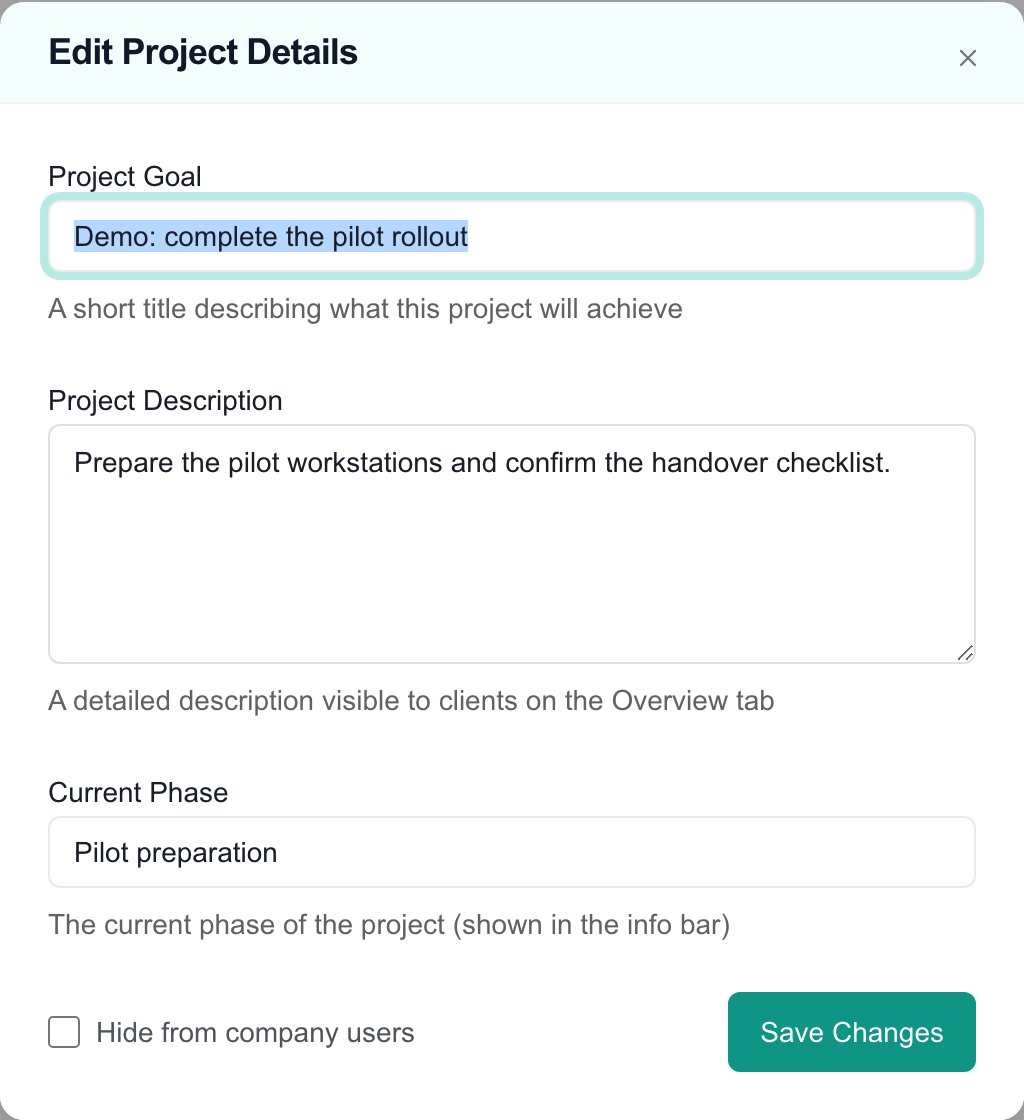 MSP editing form with synthetic Demo content.
## Update project details
Open **Projects**, select the intended project, and select **Edit Project Details** in the header.
Set **Project Goal** to a short outcome title, **Project Description** to explain the scope and result, and **Current Phase** to the label you want in the Overview information bar. The form allows up to 200, 2,000, and 100 characters respectively.
**Hide from company users** is a checkbox: checked hides the project from Company users; unchecked allows it to appear for users who otherwise have access. It does not create users or grant permissions. Shared collaboration items have their own visibility settings too.
Select **Save Changes** and wait for success. These fields do not autosave while typing. Revisit Overview and reopen the form to check the saved values. If saving fails, retain your intended text and verify the current record before trying again.
Project Goal appears as **Goal** in the information bar. Project Description appears as **Project Outcome**. **Project Summary** is a separate project summary; this form does not rename the project or replace that summary. Clearing one of these optional fields removes its corresponding narrative value after saving.
Closing the dialog without saving discards the form edits. Current Phase is a descriptive label: changing it does not move tickets, rename a phase in the plan, reschedule work, or change project status. These details stay in MSPortal; do not expect a PSA writeback from this form.
To update names and contact details, use [Overview > Contacts](/user-guides/projects/manage-project-contacts). For the project's work plan, use the relevant [workspace tabs](/user-guides/projects/workspace).
## FAQs
Project Description is displayed as Project Outcome. The project's separate summary is not edited by this form.
No. It changes a label in the Overview information bar. Manage the plan and ticket statuses separately.
No. Select Save Changes. Closing the dialog without saving discards its edits.
No. Company users still need project access, and updates, milestones, deliverables, and documents have their own visibility controls.
This form edits the goal, description, phase label, and Company visibility. Project name, schedule, and status use their own supported workflow.
Use the edit control in Overview's Contacts section, then Save Changes there. See [Manage project contacts](/user-guides/projects/manage-project-contacts).
MSP editing form with synthetic Demo content.
## Update project details
Open **Projects**, select the intended project, and select **Edit Project Details** in the header.
Set **Project Goal** to a short outcome title, **Project Description** to explain the scope and result, and **Current Phase** to the label you want in the Overview information bar. The form allows up to 200, 2,000, and 100 characters respectively.
**Hide from company users** is a checkbox: checked hides the project from Company users; unchecked allows it to appear for users who otherwise have access. It does not create users or grant permissions. Shared collaboration items have their own visibility settings too.
Select **Save Changes** and wait for success. These fields do not autosave while typing. Revisit Overview and reopen the form to check the saved values. If saving fails, retain your intended text and verify the current record before trying again.
Project Goal appears as **Goal** in the information bar. Project Description appears as **Project Outcome**. **Project Summary** is a separate project summary; this form does not rename the project or replace that summary. Clearing one of these optional fields removes its corresponding narrative value after saving.
Closing the dialog without saving discards the form edits. Current Phase is a descriptive label: changing it does not move tickets, rename a phase in the plan, reschedule work, or change project status. These details stay in MSPortal; do not expect a PSA writeback from this form.
To update names and contact details, use [Overview > Contacts](/user-guides/projects/manage-project-contacts). For the project's work plan, use the relevant [workspace tabs](/user-guides/projects/workspace).
## FAQs
Project Description is displayed as Project Outcome. The project's separate summary is not edited by this form.
No. It changes a label in the Overview information bar. Manage the plan and ticket statuses separately.
No. Select Save Changes. Closing the dialog without saving discards its edits.
No. Company users still need project access, and updates, milestones, deliverables, and documents have their own visibility controls.
This form edits the goal, description, phase label, and Company visibility. Project name, schedule, and status use their own supported workflow.
Use the edit control in Overview's Contacts section, then Save Changes there. See [Manage project contacts](/user-guides/projects/manage-project-contacts).