> ## Documentation Index
> Fetch the complete documentation index at: https://docs.msportal.ai/llms.txt
> Use this file to discover all available pages before exploring further.
# Filter and sort projects
> Find open or closed projects by manager, date, status, health, or custom fields and understand saved filters
Use these controls in **Projects > Cards**, **List**, or the portfolio **Kanban**. They narrow projects you are already allowed to read. **Schedule** and the MSP **Dashboard** have separate controls; switching to them does not apply every portfolio filter in the same way.
## Find open or closed work
Select the company scope available to you and open Cards, List, or Kanban. Each tab requires its own role permission.
Open is the initial selection. Use Closed for closed work, or All to search both. This selection uses the project's open/closed state; a mapped display status or manually assigned health label is a separate signal.
Enter part of a project name, company name, or outcome. Use **Project Manager** to choose one or more leads. Several selected managers include projects belonging to any of them. The available manager choices come from the current project results, so other filters can remove a manager from the choices.
Use **Name (A-Z)**, **Name (Z-A)**, **Last Changed**, **Due Date (Soonest)**, **Due Date (Furthest)**, or **Company (A-Z)**. List column headings do not provide a separate portfolio sort. Kanban keeps its configured columns.
These toolbar controls apply immediately. They do not change a project's source record.
## Filter by activity or due date
Select **Date**. Choose **Last Activity** or **Due Date** under **Filter by**, then set **From**, **To**, or both. Last Activity uses the recorded project update time; it is not a filter on ticket activity or the integration's latest sync run. Due Date uses the project's due date, not an individual task's date.
Changes in this Date popover apply immediately. Its **Clear** control removes the date bounds. Projects without a date matching the selected range will not appear. Check that From is not later than To if a range unexpectedly returns nothing.
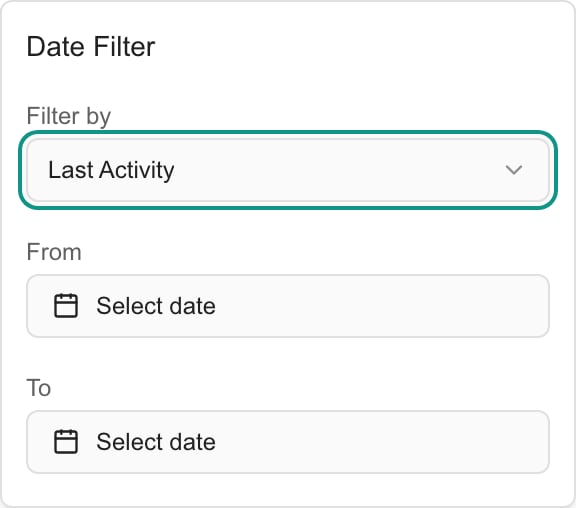 This screenshot shows generic date controls in the MSP Demo portal, with no project records. Available views and project access depend on your role.
## Apply several filters together
Review **Status**, **Health Status**, **Project Manager**, **Date Filter**, and any available custom fields.
Status choices represent stored project statuses, which may differ from the mapped card labels. Multiple choices within a section match any selected value. Different filter sections narrow the results together.
Select **Apply Filters** to use the drawer's choices and close it. Closing the drawer without applying discards those draft changes. **Reset** clears the drawer's draft choices; select Apply Filters to use that reset. Reset does not clear the separate search field or change Open / Closed / All.
Custom fields appear when the MSP enables them for project lists and your role can view them. Picklists and Yes/No fields offer choices. Text, number, and date custom fields use **Contains** text matching, not numeric or date ranges. Several custom-field filters must all match. Projects from a different integration, or without the selected field, do not match that field filter.
## Understand health filters and totals
**Needs Input** identifies eligible projects with pending client actions. A project can need input and also be **On Track**, **At Risk**, or **Blocked**. Selecting multiple health choices matches any of them; Needs Input plus At Risk does not mean both conditions must be true.
Health counts summarize the current company, search, open/closed, status, date, manager, and custom-field results before the selected health filter. They can overlap, so do not add all tiles together as a unique project total. **Unscored** means the health calculation lacks both a due date and sufficient hours evidence. It is not a positive health assessment. Your MSP can exclude project statuses from health scoring or override a project's classification.
Choose **All** or **Closed** before looking for **Completed** projects in Health Status. Keeping Open selected can exclude them even when Completed is checked.
## Clear filters and remembered choices
Use **Clear filters** to remove search, health, status, manager, date, and custom-field filters. Change **Open / Closed / All** separately. Clear filters also leaves the sort order and selected view unchanged.
Your browser remembers the view, sort order, and date filter. Manager selections are remembered for the selected company scope. Other active filters can remain when switching companies in the same session; check them after changing scope. A new page of results is selected when filters change, so do not use the previous page number to identify a project.
## FAQs
Clear filters leaves Open / Closed / All unchanged. Choose All or Closed separately, then confirm the company scope and access with your MSP if the project is still absent.
The drawer holds draft changes until you select Apply Filters. Reset also edits the draft. The toolbar's Date and manager controls apply immediately instead.
No. A project can appear in both, and the health counts are calculated before the current health filter. Use the displayed project result count for the filtered list.
The custom-field Contains box matches text. It does not provide numeric comparisons or date ranges. The separate Date filter supports the project's Last Activity or Due Date.
## Related guides
* [Find and open a project](/user-guides/projects/find-projects)
* [Project calendar](/user-guides/projects/calendar)
* [Project settings (MSP)](/user-guides/settings/projects)
This screenshot shows generic date controls in the MSP Demo portal, with no project records. Available views and project access depend on your role.
## Apply several filters together
Review **Status**, **Health Status**, **Project Manager**, **Date Filter**, and any available custom fields.
Status choices represent stored project statuses, which may differ from the mapped card labels. Multiple choices within a section match any selected value. Different filter sections narrow the results together.
Select **Apply Filters** to use the drawer's choices and close it. Closing the drawer without applying discards those draft changes. **Reset** clears the drawer's draft choices; select Apply Filters to use that reset. Reset does not clear the separate search field or change Open / Closed / All.
Custom fields appear when the MSP enables them for project lists and your role can view them. Picklists and Yes/No fields offer choices. Text, number, and date custom fields use **Contains** text matching, not numeric or date ranges. Several custom-field filters must all match. Projects from a different integration, or without the selected field, do not match that field filter.
## Understand health filters and totals
**Needs Input** identifies eligible projects with pending client actions. A project can need input and also be **On Track**, **At Risk**, or **Blocked**. Selecting multiple health choices matches any of them; Needs Input plus At Risk does not mean both conditions must be true.
Health counts summarize the current company, search, open/closed, status, date, manager, and custom-field results before the selected health filter. They can overlap, so do not add all tiles together as a unique project total. **Unscored** means the health calculation lacks both a due date and sufficient hours evidence. It is not a positive health assessment. Your MSP can exclude project statuses from health scoring or override a project's classification.
Choose **All** or **Closed** before looking for **Completed** projects in Health Status. Keeping Open selected can exclude them even when Completed is checked.
## Clear filters and remembered choices
Use **Clear filters** to remove search, health, status, manager, date, and custom-field filters. Change **Open / Closed / All** separately. Clear filters also leaves the sort order and selected view unchanged.
Your browser remembers the view, sort order, and date filter. Manager selections are remembered for the selected company scope. Other active filters can remain when switching companies in the same session; check them after changing scope. A new page of results is selected when filters change, so do not use the previous page number to identify a project.
## FAQs
Clear filters leaves Open / Closed / All unchanged. Choose All or Closed separately, then confirm the company scope and access with your MSP if the project is still absent.
The drawer holds draft changes until you select Apply Filters. Reset also edits the draft. The toolbar's Date and manager controls apply immediately instead.
No. A project can appear in both, and the health counts are calculated before the current health filter. Use the displayed project result count for the filtered list.
The custom-field Contains box matches text. It does not provide numeric comparisons or date ranges. The separate Date filter supports the project's Last Activity or Due Date.
## Related guides
* [Find and open a project](/user-guides/projects/find-projects)
* [Project calendar](/user-guides/projects/calendar)
* [Project settings (MSP)](/user-guides/settings/projects)