> ## Documentation Index
> Fetch the complete documentation index at: https://docs.msportal.ai/llms.txt
> Use this file to discover all available pages before exploring further.
# Find and open a project
> Find a Company project in Cards or List, read its summary, and resolve missing projects or views
Open **Projects** to find work shared with your company. MSP staff can use the same controls across the companies they can access.
## Before you start
You need Projects access and permission for **Cards** or **List**. Each view has its own permission. Company users see projects made available by their MSP; **Dashboard** is an MSP-only portfolio view. Ask your MSP to review missing access, including for Company administrators.
Use the company selector if it is available, then open **Projects**. **Global View** includes only companies you can access.
Use **Cards** for summaries or **List** to compare rows. Your browser can remember a previous view. If a tab is missing, choose another available view or ask your MSP about its permission.
Enter part of its name, company name, or outcome in the search field. The initial state is **Open**. Choose **Closed** for closed projects, or **All** if you are unsure. Review the active filters; [filtering projects](/user-guides/projects/filter-projects) explains dates, managers, status, and health.
Select the project card or table row. Confirm the project and company before reviewing the [project workspace](/user-guides/projects/workspace). Use the page controls to see more results when the list spans several pages.
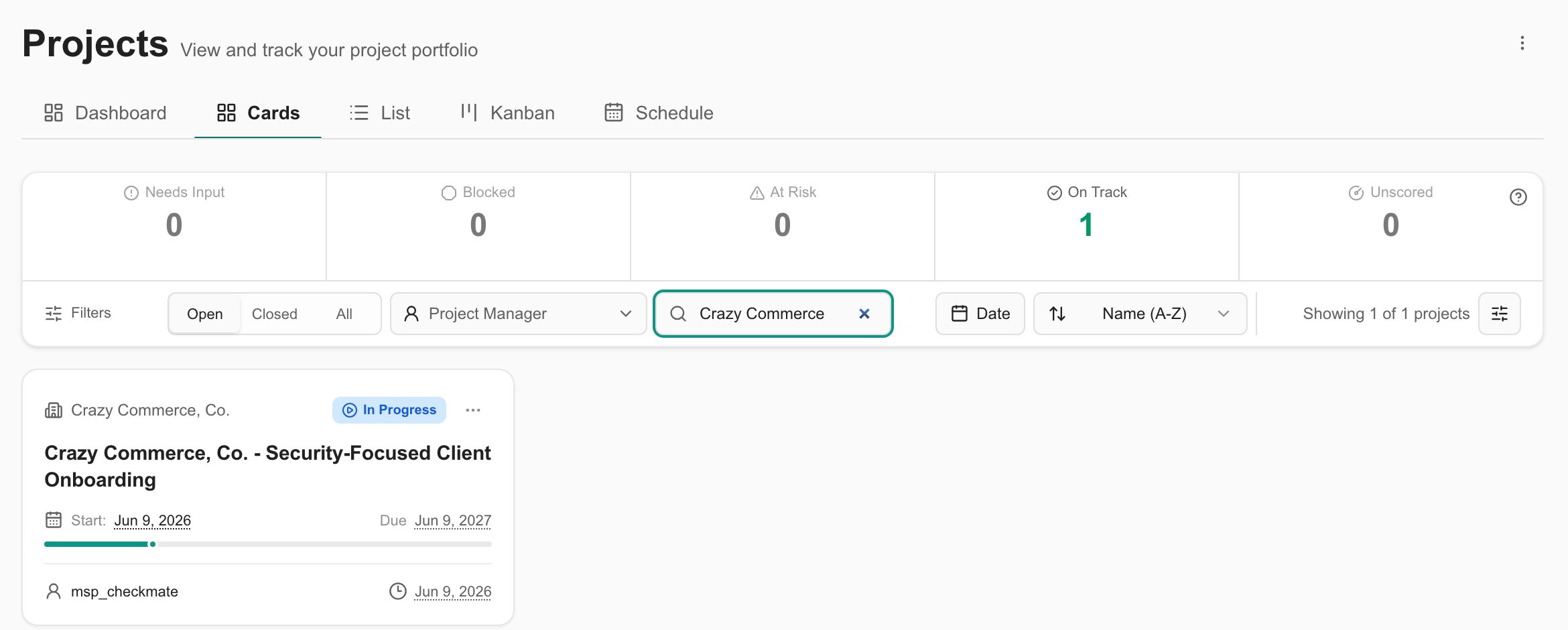 This existing MSP Demo example shows a filtered project card. Company users do not receive the Dashboard tab shown here. Fields, menus, and available tabs depend on role, project data, and MSP settings.
## Read the project summary
| Field | What it tells you |
| ------------------ | -------------------------------------------------------------------------------------------------------------------------------------------------------------------------- |
| Status | The displayed project status; your MSP may map the original PSA status to a simpler label. |
| Health | The project's health classification, where available. A missing health classification can cause List to display the project status instead. |
| Hours progress | Hours used relative to the estimate, capped at 100%. It is not a percentage of tasks completed. A displayed Not Started status keeps the card's hours progress at zero. |
| Timeline | Time elapsed between the start and due dates. It is separate from hours usage and task completion. |
| Lead | The MSPortal project lead when one is set, otherwise the synced PSA lead. |
| Next action | The next pending client action, prioritizing urgent actions and due dates; otherwise an upcoming visible milestone with a date. It is a summary, not the full action list. |
| Milestones in List | Completed visible milestones out of all visible milestones. |
| Last Change | The project's recorded PSA update time. It does not prove that every integration has just synchronized. |
**Waiting on you** identifies the selected pending action assigned to your user. **Waiting on** another person or **Waiting on client** describes that action's assignment. Open the workspace to read the request before responding.
Cards show only fields enabled by the MSP and available for that project. Custom fields must be enabled and shared with your role; a card shows up to four populated fields, while List can show additional columns. Hidden hours or an absent estimate are not evidence of zero effort.
## Compare projects in List
Use the page's sort selector, such as **Name (A-Z)**, **Last Changed**, or **Due Date (Soonest)**. Column headings do not sort the entire portfolio. Select **Columns** above the table to choose visible columns. Opening a row reads the project; it does not save a change.
The project row/card **…** menu may expose separate actions such as **Add to Meeting** or **Reschedule**. Those are workflow actions, not filters. Company users do not receive the MSP rescheduling control. Simply opening a project does not perform either action.
## If a project is missing
Choose **All**, clear the search and other filters, check the selected company, and try again. **Clear filters** does not change **Open / Closed / All**, the selected view, or sort order. A date filter may be remembered from a previous visit.
If the project still does not appear, ask your MSP to check its company mapping, client visibility, role access, and source sync. MSP staff should also check **Settings > Projects > Client project access** and the individual project's visibility. Changing a Company user's role is an MSP task; Company administrators do not grant themselves access.
If the page shows a load error, use **Retry** when offered. An error or empty filtered result is not confirmation that the company has no projects.
## FAQs
Company scope, your role, Client project access settings, and individual project visibility can limit the Company view. Ask your MSP to review these after clearing filters and selecting All.
The card's hours progress measures use of estimated hours and is capped at 100%. Check the actual project status, milestones, and delivery updates to establish completion.
Dashboard is MSP-only. Cards, List, Kanban, and Schedule each require their own view permission. Ask your MSP about a missing Company view.
New project is an MSP staff action requiring project write permission. Ask your MSP to scope the work. For a support request, start with the [Home AI Assistant](/user-guides/ticketing/open-a-ticket), review its proposed ticket, and confirm before submission.
## Related guides
* [Filter and sort projects](/user-guides/projects/filter-projects)
* [Project workspace](/user-guides/projects/workspace)
* [Project calendar](/user-guides/projects/calendar)
* [Project access and display settings (MSP)](/user-guides/settings/projects)
This existing MSP Demo example shows a filtered project card. Company users do not receive the Dashboard tab shown here. Fields, menus, and available tabs depend on role, project data, and MSP settings.
## Read the project summary
| Field | What it tells you |
| ------------------ | -------------------------------------------------------------------------------------------------------------------------------------------------------------------------- |
| Status | The displayed project status; your MSP may map the original PSA status to a simpler label. |
| Health | The project's health classification, where available. A missing health classification can cause List to display the project status instead. |
| Hours progress | Hours used relative to the estimate, capped at 100%. It is not a percentage of tasks completed. A displayed Not Started status keeps the card's hours progress at zero. |
| Timeline | Time elapsed between the start and due dates. It is separate from hours usage and task completion. |
| Lead | The MSPortal project lead when one is set, otherwise the synced PSA lead. |
| Next action | The next pending client action, prioritizing urgent actions and due dates; otherwise an upcoming visible milestone with a date. It is a summary, not the full action list. |
| Milestones in List | Completed visible milestones out of all visible milestones. |
| Last Change | The project's recorded PSA update time. It does not prove that every integration has just synchronized. |
**Waiting on you** identifies the selected pending action assigned to your user. **Waiting on** another person or **Waiting on client** describes that action's assignment. Open the workspace to read the request before responding.
Cards show only fields enabled by the MSP and available for that project. Custom fields must be enabled and shared with your role; a card shows up to four populated fields, while List can show additional columns. Hidden hours or an absent estimate are not evidence of zero effort.
## Compare projects in List
Use the page's sort selector, such as **Name (A-Z)**, **Last Changed**, or **Due Date (Soonest)**. Column headings do not sort the entire portfolio. Select **Columns** above the table to choose visible columns. Opening a row reads the project; it does not save a change.
The project row/card **…** menu may expose separate actions such as **Add to Meeting** or **Reschedule**. Those are workflow actions, not filters. Company users do not receive the MSP rescheduling control. Simply opening a project does not perform either action.
## If a project is missing
Choose **All**, clear the search and other filters, check the selected company, and try again. **Clear filters** does not change **Open / Closed / All**, the selected view, or sort order. A date filter may be remembered from a previous visit.
If the project still does not appear, ask your MSP to check its company mapping, client visibility, role access, and source sync. MSP staff should also check **Settings > Projects > Client project access** and the individual project's visibility. Changing a Company user's role is an MSP task; Company administrators do not grant themselves access.
If the page shows a load error, use **Retry** when offered. An error or empty filtered result is not confirmation that the company has no projects.
## FAQs
Company scope, your role, Client project access settings, and individual project visibility can limit the Company view. Ask your MSP to review these after clearing filters and selecting All.
The card's hours progress measures use of estimated hours and is capped at 100%. Check the actual project status, milestones, and delivery updates to establish completion.
Dashboard is MSP-only. Cards, List, Kanban, and Schedule each require their own view permission. Ask your MSP about a missing Company view.
New project is an MSP staff action requiring project write permission. Ask your MSP to scope the work. For a support request, start with the [Home AI Assistant](/user-guides/ticketing/open-a-ticket), review its proposed ticket, and confirm before submission.
## Related guides
* [Filter and sort projects](/user-guides/projects/filter-projects)
* [Project workspace](/user-guides/projects/workspace)
* [Project calendar](/user-guides/projects/calendar)
* [Project access and display settings (MSP)](/user-guides/settings/projects)