> ## Documentation Index
> Fetch the complete documentation index at: https://docs.msportal.ai/llms.txt
> Use this file to discover all available pages before exploring further.
# Project Forms
> Share forms with project clients, save work in progress, submit responses, and reopen saved entries
Branch preview: this guide describes Forms in the unified Projects workspace. Availability depends on your rollout and permissions. Save progress, submission status, and response links require the completed Forms update; this preview does not establish that saving is available in production.
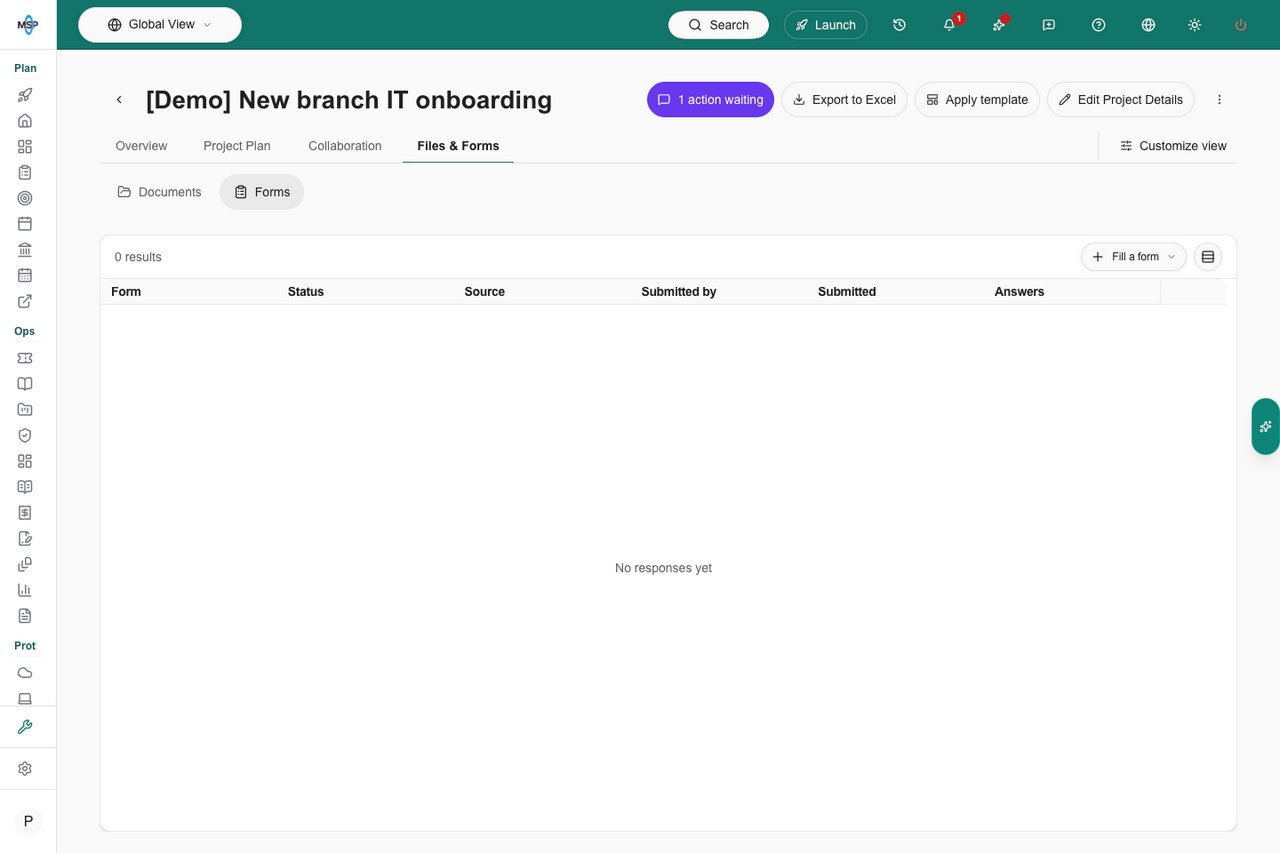
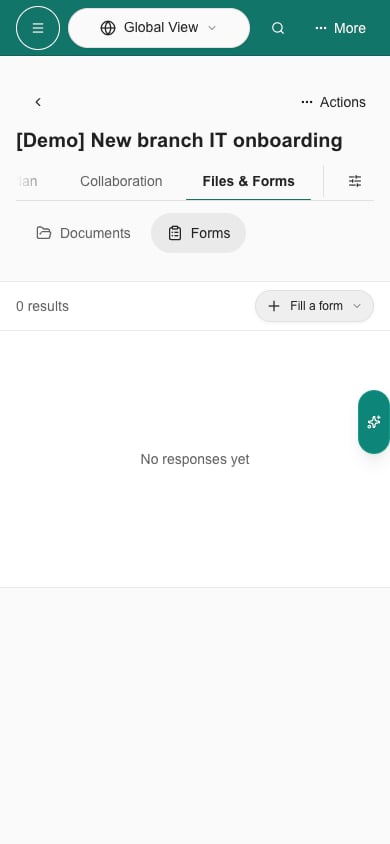
Open a project and choose **Files & Forms > Forms**. Forms work on regular projects as well as projects linked to an onboarding portal.
The response table sits directly beneath the project tabs. **Fill a form** opens the form picker from its toolbar; the editor appears in a dialog so the response list keeps its space.
 ## Before you start
You need access to the project and permission to view forms. **Submit and edit form responses** permits saving your permitted entries. Staff with **Share forms with clients** can control which forms clients can use. Client users see only forms shared with their project and their own responses; sharing a form does not expose earlier internal responses.
Administrators build and activate form definitions under **Settings > Projects > Templates > Forms**. See [Build reusable forms](/user-guides/client-onboarding/forms).
## Fill and save a form
1. Select **Fill a form** in the response-table toolbar, then choose an active form. Its fields open in a dialog.
2. Select **Save progress** to retain incomplete answers. The entry remains **In progress** and you can reopen it later.
3. Select **Submit** when the required fields are complete. Close the dialog and confirm the saved entry and its status in the response table.
4. Use **Edit** on a permitted response to an active form to continue or correct it. If the active form allows multiple entries, **Create** starts another response.
**Save progress** on a previously submitted response deliberately returns it to **In progress**. Submit it again when the revised answers are ready. Typing alone does not save; review the unsaved-changes prompt when switching forms, project sections, or leaving the page.
Single-entry forms retain an internal staff response and separate responses for individual clients. Repeatable forms permit additional entries; edit an existing response when you mean to correct it.
## Share or stop sharing
Staff can select a form and enable **Share this form with clients**. The change saves immediately. Clients still need project access and form-view or submission permissions for the action they want to take.
Turn the switch off to revoke access. An archived shared form remains available to staff for removing its sharing assignment. Hiding the project from clients also blocks client access to its forms.
## Read an archived form response
Branch preview: archived-response viewing is prepared for the Forms update and still requires rollout verification.
Choose **View** beside a permitted response to an archived form, or open its response link. You can read the saved answers, but cannot edit them, create another entry, **Save progress**, or **Submit** while the form is archived.
Archiving does not broaden access. Staff still need the appropriate project and form permissions. Clients still need project access and a shared form, and can read only their own permitted responses. Unsharing the form or hiding the project continues to revoke client access; a copied response link does not bypass those checks.
## Link to a form or response
**Copy form link** copies a link to the selected form. **Copy response link** links to the loaded response. These links require sign-in and the recipient's existing access; copying a link does not share the form, broaden response visibility, or send a message.
## Project responses and onboarding tasks
A project form response is separate from completing an onboarding task. Onboarding clients continue using the forms attached to their portal tasks. Staff with the appropriate onboarding access can also review permitted linked-portal responses in the response list.
Saving a project response does not automatically create or update a Hudu or IT Glue asset. Use the explicit documentation workflow described in [Build reusable forms](/user-guides/client-onboarding/forms#mapping-fields-to-hudu-or-it-glue) where available.
## Troubleshooting
| Problem | Check |
| - | - |
| A form is missing | Its activation state, project sharing, and your permissions. |
| Submit fails | Required fields, field validation, and current project access. Use Save progress if you are not ready to submit. |
| A submitted entry now says In progress | Save progress reopens a submission; select Submit after finishing the changes. |
| A copied link denies access | Links do not grant access. Ask the MSP to review project visibility, form sharing, and response ownership. |
| An archived response is read-only | Use View to read saved answers. Editing, new entries, Save progress, and Submit are unavailable while the form is archived. This branch preview requires the archived-response update to be rolled out. |
Find the project sections and dashboards.
Complete forms assigned through a client portal.
This documentation is built and hosted on [Mintlify](https://mintlify.com), a developer documentation platform.
## Before you start
You need access to the project and permission to view forms. **Submit and edit form responses** permits saving your permitted entries. Staff with **Share forms with clients** can control which forms clients can use. Client users see only forms shared with their project and their own responses; sharing a form does not expose earlier internal responses.
Administrators build and activate form definitions under **Settings > Projects > Templates > Forms**. See [Build reusable forms](/user-guides/client-onboarding/forms).
## Fill and save a form
1. Select **Fill a form** in the response-table toolbar, then choose an active form. Its fields open in a dialog.
2. Select **Save progress** to retain incomplete answers. The entry remains **In progress** and you can reopen it later.
3. Select **Submit** when the required fields are complete. Close the dialog and confirm the saved entry and its status in the response table.
4. Use **Edit** on a permitted response to an active form to continue or correct it. If the active form allows multiple entries, **Create** starts another response.
**Save progress** on a previously submitted response deliberately returns it to **In progress**. Submit it again when the revised answers are ready. Typing alone does not save; review the unsaved-changes prompt when switching forms, project sections, or leaving the page.
Single-entry forms retain an internal staff response and separate responses for individual clients. Repeatable forms permit additional entries; edit an existing response when you mean to correct it.
## Share or stop sharing
Staff can select a form and enable **Share this form with clients**. The change saves immediately. Clients still need project access and form-view or submission permissions for the action they want to take.
Turn the switch off to revoke access. An archived shared form remains available to staff for removing its sharing assignment. Hiding the project from clients also blocks client access to its forms.
## Read an archived form response
Branch preview: archived-response viewing is prepared for the Forms update and still requires rollout verification.
Choose **View** beside a permitted response to an archived form, or open its response link. You can read the saved answers, but cannot edit them, create another entry, **Save progress**, or **Submit** while the form is archived.
Archiving does not broaden access. Staff still need the appropriate project and form permissions. Clients still need project access and a shared form, and can read only their own permitted responses. Unsharing the form or hiding the project continues to revoke client access; a copied response link does not bypass those checks.
## Link to a form or response
**Copy form link** copies a link to the selected form. **Copy response link** links to the loaded response. These links require sign-in and the recipient's existing access; copying a link does not share the form, broaden response visibility, or send a message.
## Project responses and onboarding tasks
A project form response is separate from completing an onboarding task. Onboarding clients continue using the forms attached to their portal tasks. Staff with the appropriate onboarding access can also review permitted linked-portal responses in the response list.
Saving a project response does not automatically create or update a Hudu or IT Glue asset. Use the explicit documentation workflow described in [Build reusable forms](/user-guides/client-onboarding/forms#mapping-fields-to-hudu-or-it-glue) where available.
## Troubleshooting
| Problem | Check |
| - | - |
| A form is missing | Its activation state, project sharing, and your permissions. |
| Submit fails | Required fields, field validation, and current project access. Use Save progress if you are not ready to submit. |
| A submitted entry now says In progress | Save progress reopens a submission; select Submit after finishing the changes. |
| A copied link denies access | Links do not grant access. Ask the MSP to review project visibility, form sharing, and response ownership. |
| An archived response is read-only | Use View to read saved answers. Editing, new entries, Save progress, and Submit are unavailable while the form is archived. This branch preview requires the archived-response update to be rolled out. |
Find the project sections and dashboards.
Complete forms assigned through a client portal.
This documentation is built and hosted on [Mintlify](https://mintlify.com), a developer documentation platform.