> ## Documentation Index
> Fetch the complete documentation index at: https://docs.msportal.ai/llms.txt
> Use this file to discover all available pages before exploring further.
# Create and manage project decisions and action items
> Create requests, assign Company users or staff, notify assignees, and maintain project decision and action registers
MSP staff use a project's **Decisions** and **Action Items** tabs to record who needs to respond or complete work. You need project access and permission to edit project collaboration items. General project-write or status-edit permission alone does not grant this editor; your subscription must also permit writes.
Company users respond to their own assigned pending items using [Respond to project decisions and action items](/user-guides/projects/respond-to-project-actions). The editing workflow below is for MSP staff.
## Create a request
Adding an item creates it immediately. Inline edits save automatically; there is no final Save or Publish button. Prepare text suitable for the project's audience before adding it. This editor has no per-item Client Visible switch.
Open the project and select **Total** to avoid hiding a newly added pending item behind the Completed filter. Use **Decisions > Add Action** for a decision or request, or **Action Items > Add Action Item** for work to complete. In a populated register the Add control is a plus icon with that label.
Replace the default **Title** and enter a clear **Description**. In Decisions, choose **Type**: Approval Required, Question, Access Needed, Scheduling, or Decision Required. Action Items fixes the type as Action Item and has no Type picker.
Set **Status** to Pending, choose **Due Date** if needed, and use **Assigned To** to search for Company users or staff. The picker labels them Client or Staff. Hidden user records are excluded, and searching the user list also requires user-read access. You can select several people. **Mark as Urgent** highlights and prioritizes pending work.
Allow text edits to finish saving, then revisit the row and confirm the title, description, status, date, and assignees. Watch for save errors. If another user changed the same information, refresh and reconcile the changes before continuing.
Text fields save after a brief pause. Type, status, due date, assignees, and Urgent changes save as you change them. Closing an editor or switching tabs does not discard edits already sent; pending text may also save when leaving. A blank title does not replace the last saved title.
## Check Company visibility
Project access and the source update's audience affect what Company users can see. Standalone requests on a client-visible project are not made private by assigning only staff. Decisions linked to an internal weekly update can be hidden from Company users even when a Company assignee is selected.
Review **Updates** and the project's visibility before notifying a Company user. This editor does not provide its own visibility toggle. Do not use assignment or an absent notification as a substitute for controlling the content's audience.
## Notify assignees
Assignment alone does not notify anyone. After confirming the saved assignment, use the notification panel:
1. Select **In-App**, **Email**, or both. In-App is initially selected; Email is initially off.
2. Review the intended assignees and item content.
3. Select **Notify Assignee** or **Notify Assignees**.
4. Review the result and **Last notified** information. Delivery can succeed for some recipients or channels and fail for others.
In-app delivery requires a portal login; email requires an email address. Hidden Company content is not sent to Company assignees. The recorded result indicates sends accepted by the application, not that the recipient read the message. Repeating Notify can send another notification, so check the result before retrying. An email opens the project; the recipient may need to choose Decisions or Action Items to locate the request.
If a person is absent from Assigned To, ask an MSP administrator to check that they are not hidden, that a Company user belongs to this project's company, and that your role can read users. A blank search result can also follow a lookup error; it does not prove that the user account is absent.
## Completion, cancellation, and removal
For an assigned response, use the row's green action button and confirmation dialog. One assignee completing the item resolves it for all assignees. Questions require text; other types have different confirmation behavior. See the [response guide](/user-guides/projects/respond-to-project-actions).
MSP editors can also change **Status** to Completed or Cancelled directly. Direct status editing is an administrative change, not proof that an assignee gave approval. Completed rows expose **Response** and completion details. Changing a completed item back to Pending may retain earlier response or completion information; review it before treating the item as a fresh request.
Select **Total** to see cancelled items; the Completed filter includes completed items only. Use the row's delete control and confirm the deletion to remove an item. Deletion has no undo control here. If saving or deleting reports an error, refresh to confirm the actual stored result.
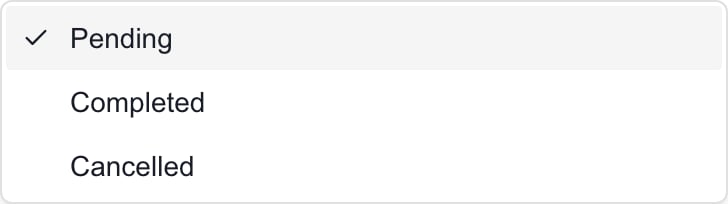 This genuine MSP Demo control comes from a synthetic action item. Changing Status here is an administrative edit; it is not an assigned Company user's approval.
## Decisions linked to weekly updates
**Updates > Decisions Needed** and the Decisions register are connected. New pending Decision Required or Approval Required items can be added to the latest existing update, or linked to an existing matching decision. Questions, access requests, scheduling requests, and Action Items do not automatically follow that same new-decision behavior.
Changing or resolving a linked decision can update or remove matching Decisions Needed text. Matching uses the decision title, so repeated titles across updates can be affected together. Review Updates after renaming, completing, cancelling, or deleting a linked decision. Use clear, distinct titles when the decisions are different.
These records live in MSPortal. A phase or ticket link supplies context; editing a request does not automatically edit or close the linked PSA record.
## FAQs
No. It creates a pending item immediately, and inline edits autosave. Confirm the project and audience before adding it; there is no separate Publish step.
No. Choose the notification channels and explicitly select Notify Assignee after the assignment has saved. Email is initially off.
Collaboration editing has a separate permission. General project-write and status-edit access do not automatically grant the Decisions or Action Items editor. Ask an MSP administrator to review your role.
No. Assignment does not control its audience. Review project visibility and any linked weekly update; the action editor has no per-item visibility switch.
Pending decisions and approvals can synchronize with Decisions Needed in a weekly update. Review both locations after editing or resolving linked decisions, especially when titles are repeated.
No. An MSP editor can change Status directly. Review the saved response and completion details, and use the assigned user's response workflow when their explicit confirmation is needed.
## Related guides
* [Respond to project decisions and action items](/user-guides/projects/respond-to-project-actions)
* [Project workspace](/user-guides/projects/workspace)
* [Company user permissions (MSP)](/user-guides/settings/change-company-user-permissions)
This genuine MSP Demo control comes from a synthetic action item. Changing Status here is an administrative edit; it is not an assigned Company user's approval.
## Decisions linked to weekly updates
**Updates > Decisions Needed** and the Decisions register are connected. New pending Decision Required or Approval Required items can be added to the latest existing update, or linked to an existing matching decision. Questions, access requests, scheduling requests, and Action Items do not automatically follow that same new-decision behavior.
Changing or resolving a linked decision can update or remove matching Decisions Needed text. Matching uses the decision title, so repeated titles across updates can be affected together. Review Updates after renaming, completing, cancelling, or deleting a linked decision. Use clear, distinct titles when the decisions are different.
These records live in MSPortal. A phase or ticket link supplies context; editing a request does not automatically edit or close the linked PSA record.
## FAQs
No. It creates a pending item immediately, and inline edits autosave. Confirm the project and audience before adding it; there is no separate Publish step.
No. Choose the notification channels and explicitly select Notify Assignee after the assignment has saved. Email is initially off.
Collaboration editing has a separate permission. General project-write and status-edit access do not automatically grant the Decisions or Action Items editor. Ask an MSP administrator to review your role.
No. Assignment does not control its audience. Review project visibility and any linked weekly update; the action editor has no per-item visibility switch.
Pending decisions and approvals can synchronize with Decisions Needed in a weekly update. Review both locations after editing or resolving linked decisions, especially when titles are repeated.
No. An MSP editor can change Status directly. Review the saved response and completion details, and use the assigned user's response workflow when their explicit confirmation is needed.
## Related guides
* [Respond to project decisions and action items](/user-guides/projects/respond-to-project-actions)
* [Project workspace](/user-guides/projects/workspace)
* [Company user permissions (MSP)](/user-guides/settings/change-company-user-permissions)