> ## Documentation Index
> Fetch the complete documentation index at: https://docs.msportal.ai/llms.txt
> Use this file to discover all available pages before exploring further.
# Manage project contacts and the client sponsor
> Select a Company sponsor, maintain additional project contacts, and understand the synced project lead.
**Audience:** MSP staff with permission to edit project collaboration content. Company users can read available contact details; the MSP manages users and permissions.
Open **Projects > select a project > Overview**. Find **Contacts** and select **Edit Contacts**, or **Add contacts** when none are set.
## Choose the right contact type
| Contact | How it is maintained |
| ---------------------------- | ------------------------------------------------------------------------------------------------------------------------------------------ |
| **Project Lead (Your Team)** | Read-only in this form. The portal uses the synced project lead when available, with older stored details as a fallback. |
| **Client Sponsor** | Select an existing Company user belonging to the project's Company. |
| **Additional Contacts** | Enter useful contact details for vendors, owners, former providers, or other participants. This is a contact list, not a portal user list. |
## Update and save
Check the displayed lead. The form labels it **Automatically synced** when details are available. Correct a synced lead in the connected project system; it cannot be typed over here. For a project without a synced lead, ask the MSP administrator which project-management workflow applies.
Open **Select a company user**, search by name or email, and choose the intended person. To clear a selected sponsor, open the picker and select that same checked person again. If no eligible user appears, ask the MSP administrator to check the Company user record; do not create a duplicate person just to fill this field.
Select **Add contact**, then enter **Organization**, **Name**, **Email**, and **Phone** as appropriate. You do not need every field, but an email must be valid if entered. Completely blank rows are omitted when saving. Use **Remove contact** on a row to remove it from the form.
Select **Save Changes** and wait for success. Adding, removing, and typing within the dialog are unsaved form changes until this step. Revisit Overview and reopen Contacts to verify the saved sponsor and list.
Closing the dialog without saving discards the form edits. Removing an additional contact from this project does not delete a Company user. Selecting a sponsor does not assign project tasks, notify that person, or grant access. Contacts saved here do not update the PSA's contact records.
Treat the contact list as information for the shared project audience. There is no separate “internal only” switch for an additional contact in this form. Keep private staff-only notes elsewhere.
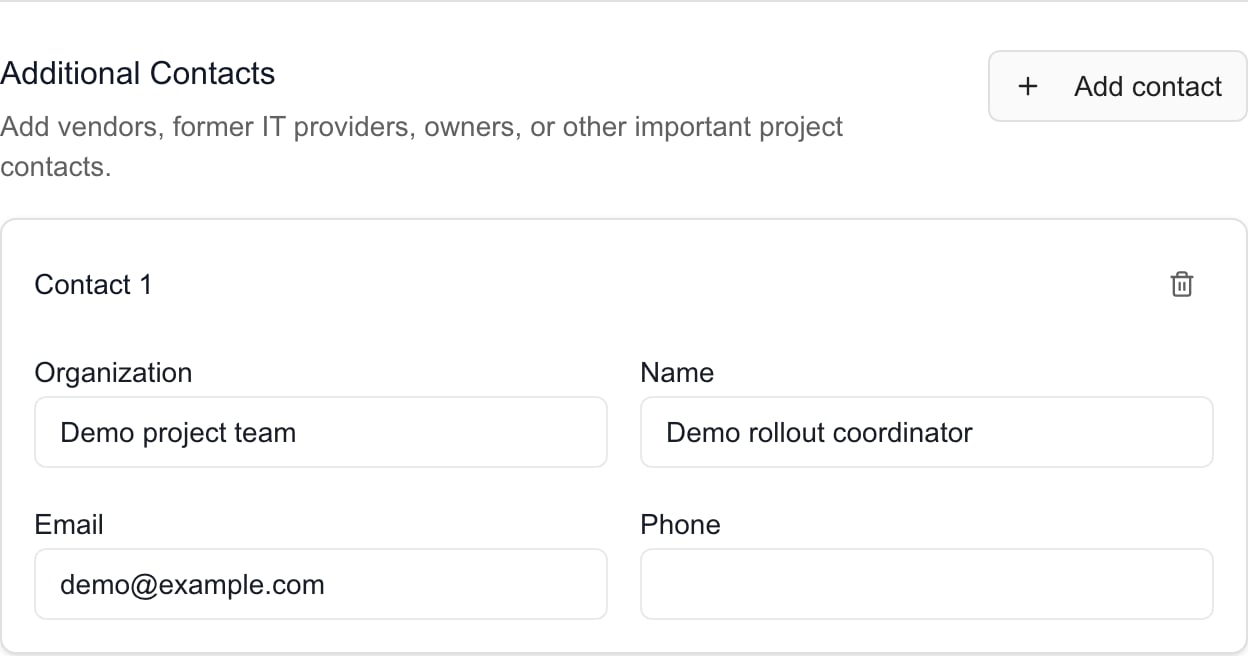 MSP contact editor with synthetic Demo content. Select Save Changes after finishing the form.
## Troubleshooting
| Problem | What to check |
| ---------------------------------- | -------------------------------------------------------------------------------------------------------------------------------------------------------------------- |
| No Company users found | Search by name or email and check the project's Company. A failed search can also appear empty; close and reopen before asking the MSP administrator to investigate. |
| Sponsor is not in the list | The picker uses Company user records, not every MSP technician or external contact. Use Additional Contacts for someone who only needs to be listed. |
| A contact disappeared after saving | Completely blank rows are not stored. Reopen the form and check the saved result and any error. |
| A saved sponsor name is outdated | Reselect the correct user and save. The sponsor name and email are copied from that Company user when this form saves. |
| The client cannot open the portal | Contact details and portal access are separate. Follow [Company user permissions](/user-guides/settings/change-company-user-permissions). |
## FAQs
No. It adds a project contact after Save Changes. User creation, access, and invitations are separate MSP workflows.
Choose an existing Company user from the picker. Use Additional Contacts for a person who only needs to be listed, or ask the MSP administrator to manage their user record.
The lead is read-only here and uses synced project information where available. Change it in the appropriate project-management system.
Remove an additional-contact row, or select the checked sponsor again to clear it, then Save Changes. This does not delete a user account.
No. Select Save Changes. Closing the form without saving discards its edits.
No. Use separate [project requests](/user-guides/projects/manage-project-actions) for assignments and explicit notification controls.
MSP contact editor with synthetic Demo content. Select Save Changes after finishing the form.
## Troubleshooting
| Problem | What to check |
| ---------------------------------- | -------------------------------------------------------------------------------------------------------------------------------------------------------------------- |
| No Company users found | Search by name or email and check the project's Company. A failed search can also appear empty; close and reopen before asking the MSP administrator to investigate. |
| Sponsor is not in the list | The picker uses Company user records, not every MSP technician or external contact. Use Additional Contacts for someone who only needs to be listed. |
| A contact disappeared after saving | Completely blank rows are not stored. Reopen the form and check the saved result and any error. |
| A saved sponsor name is outdated | Reselect the correct user and save. The sponsor name and email are copied from that Company user when this form saves. |
| The client cannot open the portal | Contact details and portal access are separate. Follow [Company user permissions](/user-guides/settings/change-company-user-permissions). |
## FAQs
No. It adds a project contact after Save Changes. User creation, access, and invitations are separate MSP workflows.
Choose an existing Company user from the picker. Use Additional Contacts for a person who only needs to be listed, or ask the MSP administrator to manage their user record.
The lead is read-only here and uses synced project information where available. Change it in the appropriate project-management system.
Remove an additional-contact row, or select the checked sponsor again to clear it, then Save Changes. This does not delete a user account.
No. Select Save Changes. Closing the form without saving discards its edits.
No. Use separate [project requests](/user-guides/projects/manage-project-actions) for assignments and explicit notification controls.