> ## Documentation Index
> Fetch the complete documentation index at: https://docs.msportal.ai/llms.txt
> Use this file to discover all available pages before exploring further.
# Create and manage project deliverables
> Track project outputs, maintain status and dates, and decide what Company users can see.
**Audience:** MSP staff with permission to edit project collaboration content. Company users [read shared deliverables and files](/user-guides/projects/read-project-deliverables); their MSP manages editing permissions.
Open **Projects > select a project > Deliverables**. Deliverables track outputs in MSPortal. Editing one does not by itself change a PSA ticket, upload a file, or record a client's formal approval.
**Known issue:** Editing a deliverable after attaching documents can remove its attachments. This was reproduced when changing **Client Visible**. Keep original copies, finish the deliverable’s fields and visibility before uploading, and avoid editing the containing deliverable while files are attached. If you need to change it, retain the originals and contact support before proceeding.
## Create an output
Clear any status filter with **All**. Select the **+** control labeled **Add Deliverable**, or the empty-state **Add Deliverable** button. It immediately creates **New Deliverable** as **Planned**, with **Client Visible** off, and opens the editor.
Replace **Title** with a clear, nonblank name and optionally add **Description**. Text saves after a short typing pause. Closing the editor does not discard the new record; there is no separate Save button.
Choose **Planned**, **In Progress**, **In Review**, or **Complete**.
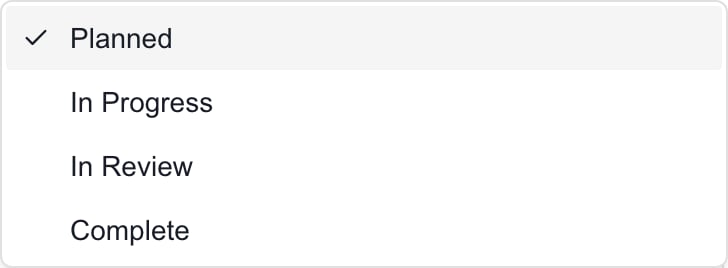 This menu is shown to MSP editors.
Set **Due Date** and, when appropriate, **Completion Date**. Status saves immediately; dates save after a short pause. Complete and Completion Date are separate fields: changing one does not automatically fill or clear the other.
Before uploading any documents, keep **Client Visible** off while preparing internal content. Enable it when the deliverable is ready for Company users who can access the project. This shares the deliverable's title, description, and status; documents still need their own sharing switch.
Collapse and reopen the row, then revisit the project. Check the saved fields before repeating a change after an error. If a status change hid the row, select All before adding another copy.
Use [Upload and share deliverable documents](/user-guides/projects/manage-deliverable-documents) for attachments. An output does not need a document in order to appear in Deliverables or count toward progress.
## Review, reorder, and delete
**Deliverables Progress** is Complete divided by all available deliverables, with equal weight per item. The **Review** summary filter shows **In Review** rows. Summary counts stay based on all available deliverables when a filter is selected.
To reorder, select **All** and drag the row by its grip handle. You need editing permission; dragging is disabled while a status filter is active. Reordering changes the list order, not due dates.
The **Internal** row badge identifies a deliverable with Client Visible off on wider screens. Enabling Client Visible does not notify users or give them project access. Because of the attachment-removal issue above, do not toggle the containing deliverable after uploading files. To stop sharing an individual document, turn off that file’s **Share with client** switch.
To remove an output, select its row's delete control and confirm. Revisit the list to verify removal. Deleting the deliverable also removes access to its attached documents through that item; do not use it to remove just one file. Use the individual document's Delete control instead. Previously downloaded copies cannot be recalled.
## FAQs
No. Add Deliverable saves the default record immediately. Finish it or explicitly delete it.
It is a status, not an assigned approval. Create a separate request in [Decisions](/user-guides/projects/manage-project-actions) when you need a recorded response.
No. Maintain Status and Completion Date separately. Changing back to an earlier status does not automatically clear the date.
Select All to clear the status filter. Reordering also requires editing permission. Newly added deliverables start Planned and can be hidden by another status filter.
No. Each document also needs Share with client enabled. Set the deliverable’s visibility before uploading: changing the containing deliverable afterwards can remove attachments. New uploads start internal.
No. The deliverable is a separate portal output. It removes the output and access to documents attached there, not the linked PSA ticket.
This menu is shown to MSP editors.
Set **Due Date** and, when appropriate, **Completion Date**. Status saves immediately; dates save after a short pause. Complete and Completion Date are separate fields: changing one does not automatically fill or clear the other.
Before uploading any documents, keep **Client Visible** off while preparing internal content. Enable it when the deliverable is ready for Company users who can access the project. This shares the deliverable's title, description, and status; documents still need their own sharing switch.
Collapse and reopen the row, then revisit the project. Check the saved fields before repeating a change after an error. If a status change hid the row, select All before adding another copy.
Use [Upload and share deliverable documents](/user-guides/projects/manage-deliverable-documents) for attachments. An output does not need a document in order to appear in Deliverables or count toward progress.
## Review, reorder, and delete
**Deliverables Progress** is Complete divided by all available deliverables, with equal weight per item. The **Review** summary filter shows **In Review** rows. Summary counts stay based on all available deliverables when a filter is selected.
To reorder, select **All** and drag the row by its grip handle. You need editing permission; dragging is disabled while a status filter is active. Reordering changes the list order, not due dates.
The **Internal** row badge identifies a deliverable with Client Visible off on wider screens. Enabling Client Visible does not notify users or give them project access. Because of the attachment-removal issue above, do not toggle the containing deliverable after uploading files. To stop sharing an individual document, turn off that file’s **Share with client** switch.
To remove an output, select its row's delete control and confirm. Revisit the list to verify removal. Deleting the deliverable also removes access to its attached documents through that item; do not use it to remove just one file. Use the individual document's Delete control instead. Previously downloaded copies cannot be recalled.
## FAQs
No. Add Deliverable saves the default record immediately. Finish it or explicitly delete it.
It is a status, not an assigned approval. Create a separate request in [Decisions](/user-guides/projects/manage-project-actions) when you need a recorded response.
No. Maintain Status and Completion Date separately. Changing back to an earlier status does not automatically clear the date.
Select All to clear the status filter. Reordering also requires editing permission. Newly added deliverables start Planned and can be hidden by another status filter.
No. Each document also needs Share with client enabled. Set the deliverable’s visibility before uploading: changing the containing deliverable afterwards can remove attachments. New uploads start internal.
No. The deliverable is a separate portal output. It removes the output and access to documents attached there, not the linked PSA ticket.