> ## Documentation Index
> Fetch the complete documentation index at: https://docs.msportal.ai/llms.txt
> Use this file to discover all available pages before exploring further.
# Create and manage project milestones
> Add milestones, maintain planned and actual dates, set client visibility, and reorder the timeline.
**Audience:** MSP staff with permission to edit project collaboration content. Company users [read shared milestones](/user-guides/projects/read-project-timeline); their MSP manages permissions.
Use **Projects > select a project > Timeline**. Timeline milestones are maintained in MSPortal. Changing one does not by itself change a linked PSA ticket, phase schedule, or project status.
## Add a milestone
Clear any status filter with **Total**, then select the **+** control labeled **Add Milestone** or the empty-state button. A **New Milestone** is saved immediately as **Pending**, with **Client Visible** off, and its editor opens.
Replace **Title** with a clear outcome and optionally add **Description**. Keep a nonblank title. Text saves shortly after you stop typing; there is no separate Save button. Clearing the title is not a way to delete the milestone.
Choose **Planned Date** and the appropriate **Status**.
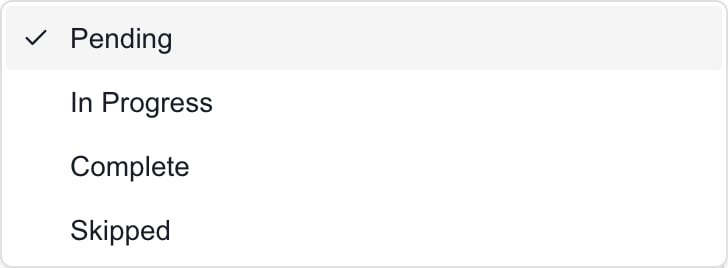 This menu is shown to MSP editors.
When the milestone is finished, set **Complete** and record **Actual Completion Date**. These are separate controls: selecting Complete does not automatically fill the actual date, and entering an actual date does not automatically mark the milestone complete.
Check all content, then enable **Client Visible** when the milestone is ready for Company users who can access the project. Visibility saves immediately. Later edits to a visible milestone are shared as they save.
Collapse and reopen the row, then revisit the project to check the saved title, status, dates, and visibility. If a save fails, check the saved state before repeating changes.
Do not put confidential information in **Notes (internal)** on a client-visible milestone. The current field does not have a verified separate privacy boundary: the client-facing data filter retains milestone notes. Keep private content off shared milestones until this is corrected.
For the separate **Mark as Milestone** phase/ticket shortcut, its different defaults, and the currently recorded failure, see [phase and ticket action menus](/user-guides/projects/use-phase-ticket-actions).
## Filter, reorder, and remove
The **Timeline** tab badge counts client-visible milestones. It can show fewer items than your MSP **Total**, which includes internal milestones.
* Select **Completed**, **In Progress**, or **Pending** to filter rows. A change of status can move a row out of the current filter. **Total** includes **Skipped**.
* To change the list order, select **Total** and drag a milestone by its grip handle. Reordering is disabled while a status filter is active. The order saves; dragging does not reschedule dates.
* Use **Skipped** when a milestone is no longer part of the plan but should remain in the record. It does not count as Complete.
* To delete, select the row's delete control and confirm. Revisit the list to verify removal; collapsing the editor does not cancel a new milestone.
See [Read the project timeline](/user-guides/projects/read-project-timeline) for date-delay indicators and [Write project updates](/user-guides/projects/write-project-updates) for progress narratives.
## FAQs
Adding immediately saves the default Pending milestone. Finish its fields or explicitly delete it; closing the editor does not discard it.
A status filter may hide it. New milestones are Pending. Select Total before assuming a save failed or adding another copy.
No. Set Status and Actual Completion Date separately. Reopening a completed milestone also does not automatically clear its actual date.
You need editing permission and the unfiltered Total list. Reordering is disabled with a status filter active.
No. It makes the milestone available within a project they can already access. These controls do not send notifications or grant permissions.
No. Keep confidential text out of that field on shared milestones until its privacy behavior is verified and corrected. The label alone is not a reliable isolation guarantee.
This menu is shown to MSP editors.
When the milestone is finished, set **Complete** and record **Actual Completion Date**. These are separate controls: selecting Complete does not automatically fill the actual date, and entering an actual date does not automatically mark the milestone complete.
Check all content, then enable **Client Visible** when the milestone is ready for Company users who can access the project. Visibility saves immediately. Later edits to a visible milestone are shared as they save.
Collapse and reopen the row, then revisit the project to check the saved title, status, dates, and visibility. If a save fails, check the saved state before repeating changes.
Do not put confidential information in **Notes (internal)** on a client-visible milestone. The current field does not have a verified separate privacy boundary: the client-facing data filter retains milestone notes. Keep private content off shared milestones until this is corrected.
For the separate **Mark as Milestone** phase/ticket shortcut, its different defaults, and the currently recorded failure, see [phase and ticket action menus](/user-guides/projects/use-phase-ticket-actions).
## Filter, reorder, and remove
The **Timeline** tab badge counts client-visible milestones. It can show fewer items than your MSP **Total**, which includes internal milestones.
* Select **Completed**, **In Progress**, or **Pending** to filter rows. A change of status can move a row out of the current filter. **Total** includes **Skipped**.
* To change the list order, select **Total** and drag a milestone by its grip handle. Reordering is disabled while a status filter is active. The order saves; dragging does not reschedule dates.
* Use **Skipped** when a milestone is no longer part of the plan but should remain in the record. It does not count as Complete.
* To delete, select the row's delete control and confirm. Revisit the list to verify removal; collapsing the editor does not cancel a new milestone.
See [Read the project timeline](/user-guides/projects/read-project-timeline) for date-delay indicators and [Write project updates](/user-guides/projects/write-project-updates) for progress narratives.
## FAQs
Adding immediately saves the default Pending milestone. Finish its fields or explicitly delete it; closing the editor does not discard it.
A status filter may hide it. New milestones are Pending. Select Total before assuming a save failed or adding another copy.
No. Set Status and Actual Completion Date separately. Reopening a completed milestone also does not automatically clear its actual date.
You need editing permission and the unfiltered Total list. Reordering is disabled with a status filter active.
No. It makes the milestone available within a project they can already access. These controls do not send notifications or grant permissions.
No. Keep confidential text out of that field on shared milestones until its privacy behavior is verified and corrected. The label alone is not a reliable isolation guarantee.