> ## Documentation Index
> Fetch the complete documentation index at: https://docs.msportal.ai/llms.txt
> Use this file to discover all available pages before exploring further.
# Native Projects: Start to Finish
> Create an MSPortal-only project, plan delivery, track work, collaborate with clients, and close out the project
Native Projects let you manage delivery directly in MSPortal. The project, phases, and tickets live in MSPortal, with no PSA project records created. Your team can manage the work while clients follow the parts you make available in their branded portal.
This guide follows a **Client Workspace Launch** from a reusable plan through delivery and handover. The example uses two phases, three tickets, a decision, and an action item.
## Before you start
* Use an MSP staff account with project write permission and an active subscription. Project-settings permission is needed to build or maintain templates.
* Have an available company and a saved project template. If the wizard shows **No templates yet**, follow [Project Templates](/user-guides/projects/templates).
* Check company scope and [project display settings](/user-guides/settings/projects). Client users see only the projects and information their access permits.
## 1. Create the native project
Open **Projects** and select **New project**. In **Create project from template**, select your template. The picker shows its phases, tickets, and action counts.
Choose **Company**, enter **Project name**, and choose **Start date**. Review the suggested name rather than accepting it automatically, then select **Next**.
Wait for the company integration check, then choose **MSPortal only**. If the company is linked to a supported PSA, the wizard can initially select that PSA; deliberately choose **MSPortal only** for a native project.
Select **Next** and check the template, counts, company, project name, start date, and **Target**. Select **Create project** once. Wait for the result, check the created counts, and select **Open project**.
**Create in your PSA** is a different destination. It creates supported project work in the connected PSA. **MSPortal only** keeps the project local even when the chosen company has a PSA integration.
## 2. Explain the goal and client access
Select **Edit Project Details**. Enter **Project Goal**, **Project Description**, and **Current Phase**, then select **Save Changes**. These describe the outcome for project viewers; the current-phase label does not move or complete the delivery phases.
MSP staff can select **Hide from company users** to keep the project out of client views. Leaving it visible does not override company scope, role permissions, or **Settings > Projects > Client project access**.
Review visibility on individual updates, milestones, decisions, and deliverables as well. Keep internal notes internal and publish only the information intended for the client.
## 3. Review and adjust the delivery plan
Open **Phases**, expand each phase, and confirm the generated tickets, dates, hours, and assignments.
| Action | Steps |
| ------------------ | ------------------------------------------------------------------------------------------------------------------------------------------------------------------- |
| Add a phase | Select **Add phase**, enter its name, description, and optional start/end dates, then save. |
| Edit a phase | Open the phase's action menu, select **Edit phase**, change the fields, and save. |
| Add a ticket | Select **Add ticket**, enter its title and details, choose its **Phase**, select an assignee and priority where needed, and save. |
| Edit a ticket | Use **Edit or delete ticket > Edit ticket**. Review phase, status, priority, budget hours, dates, and assignee before saving. |
| Remove unused work | Use the matching delete action and review its confirmation. Move or delete a phase's tickets before deleting the phase. Tickets with logged time cannot be deleted. |
Native ticket statuses include **Open**, **In Progress**, **Blocked**, and **Done**. Update actual work deliberately; a project goal or client update does not change ticket status.
Use **Kanban** and its **Group by** control to read tickets by status, owner, or priority. The owner label follows the portal’s PSA terminology. Native ticket Kanban currently has no drag controls; use **Phases > Edit ticket** to change status, assignment, or priority. See [Read and filter project ticket Kanban](/user-guides/projects/read-ticket-kanban). Use **Schedule** to review dated work. Read [Project Workspace](/user-guides/projects/workspace) and [Project Calendar](/user-guides/projects/calendar) for view controls.
If a native ticket appears in **Other**, review **Settings > Projects > Status Mapping > Ticket Statuses**. Saved mappings may predate Native Projects. Assign **Done** to your completed column and **Blocked** to the appropriate blocked/on-hold column, then select **Save**. Preserve any mappings your PSA projects still use.
## 4. Record work and time
Open **Log time** in the project's time section to record work. Choose a ticket or **Project (no ticket)**, set **Work date**, enter **Duration** and **Notes**, review **Billable**, then select **Save**. Duration accepts hours (`1.5`), hours and minutes (`1:30`), or minutes (`90m`); **Start / end** is available as an alternative. Native time stays in MSPortal. Review the resulting entry and hours total after saving.
The project header also offers **Start timer**. A running timer and a saved time entry are separate states: stop and complete the time-entry flow to record the work.
Use clear work notes because they help your team understand delivery and can provide evidence for AI summaries and project updates. Check the correct project or ticket before saving time.
## 5. Track milestones, decisions, and deliverables
* **Timeline** tracks milestone dates and completion.
* **Decisions** holds approvals, questions, scheduling requests, and other responses needed to move work forward.
* **Action Items** holds follow-up tasks separately from decisions and delivery tickets.
* **Deliverables** tracks outputs, due dates, completion state, and attachments.
Create the item in its register or use an available phase/ticket action to start a linked collaboration item. Inline editors save changes as you edit. Creating a row can create the record before you finish editing every field, so complete its title, dates, owner, and visibility in the same session.
For the example project, record approval of the launch plan, prepare the handover guide, and track client acceptance. Completing an action item does not automatically complete all project tickets.
## 6. Explain progress with AI and updates
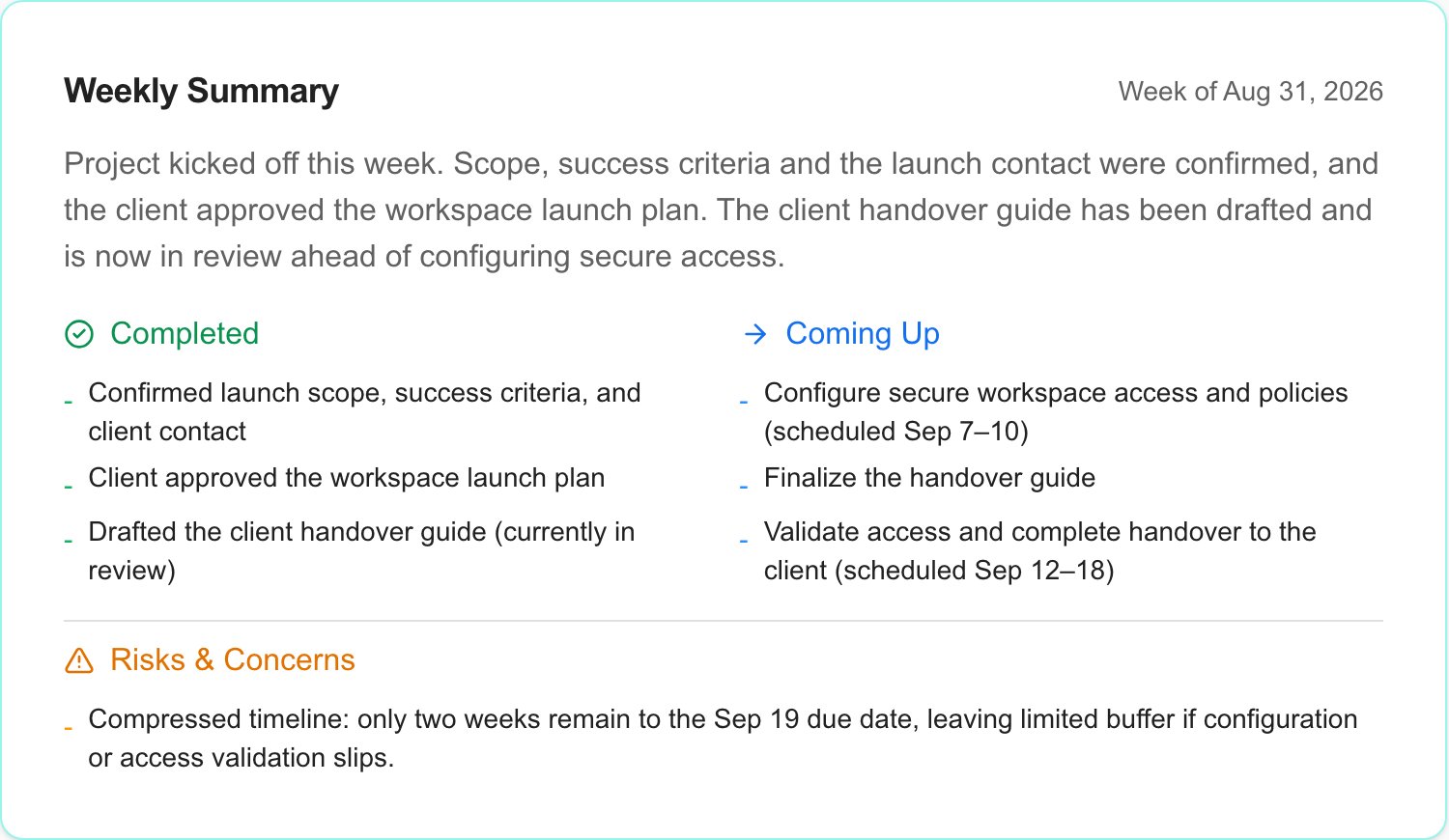
Open **Project AI** and ask for a summary of the project's current work, blockers, and next steps. To create a saved update, ask it to draft a weekly project update. The assistant uses the project evidence available to your account.
Review the proposal, especially the reporting week, progress, next steps, risks, and client visibility. Select **Apply** to save it. Check **Updates** afterwards; text in chat alone is not a saved update.
You can also maintain updates directly in the **Updates** register. A client-visible update becomes available in the permitted project view; that is different from sending an email or meeting invitation.
See [Project AI, MCP, and Client Reviews](/user-guides/projects/ai-and-client-reviews) for examples and connected workflows.
 ## 7. Review the project with the client
Use the project's progress, milestones, deliverables, and open decisions to prepare the conversation. Add project blocks to a QBR report or add the project to a meeting agenda. Confirm the report or meeting is scoped to the right company and inspect the actual content before sharing it.
Client access to a project, a report, and a meeting follows the permissions of each surface. Preparing a report or draft meeting does not itself send it to attendees.
## 8. Finish and close out
1. Confirm acceptance criteria and the final deliverables with the client.
2. Mark finished tickets **Done**, resolve the remaining decisions and action items, and complete the relevant milestones and deliverables.
3. Check time records and publish a final update that explains the outcome, handover, and any remaining follow-up.
4. Set the native project's lifecycle status to **Completed**. For example, ask **Project AI** to propose that status change, review the target project, and select **Apply**. This closes the native project and records its completion date. Project health and lifecycle status are separate concepts.
5. Return to **Projects** and use **Closed** or **All** to find completed work when it no longer appears under **Open**.
Keep the project as the delivery record. Closeout does not require deleting its tickets, time, decisions, or updates. Reuse the template for the next engagement and update the template deliberately when the process improves.
## Troubleshooting
| Problem | What to check |
| --------------------------------------------------- | ----------------------------------------------------------------------------------------------------------------------------------------------- |
| **New project** is missing | MSP staff status, project write permission, and whether your page has the current release. |
| No template can be selected | Create and save a template; check archive state and settings access. |
| The wizard selected the PSA | Choose **MSPortal only** on the target step before creating. |
| A save fails | Check the visible validation message, required fields, date order, and permissions. Verify whether the record exists before repeating creation. |
| Clients cannot see the project or an item | Company scope, role access, project visibility, individual item visibility, and display settings. |
| AI describes a draft but nothing appears in Updates | Review and **Apply** the proposal, then check the register. |
| A completed project still appears | Check **Open / Closed / All**, filters, and its lifecycle status. Completing a ticket alone does not close the whole project. |
Maintain reusable delivery plans.
Connect project evidence to updates, reports, and meetings.
## 7. Review the project with the client
Use the project's progress, milestones, deliverables, and open decisions to prepare the conversation. Add project blocks to a QBR report or add the project to a meeting agenda. Confirm the report or meeting is scoped to the right company and inspect the actual content before sharing it.
Client access to a project, a report, and a meeting follows the permissions of each surface. Preparing a report or draft meeting does not itself send it to attendees.
## 8. Finish and close out
1. Confirm acceptance criteria and the final deliverables with the client.
2. Mark finished tickets **Done**, resolve the remaining decisions and action items, and complete the relevant milestones and deliverables.
3. Check time records and publish a final update that explains the outcome, handover, and any remaining follow-up.
4. Set the native project's lifecycle status to **Completed**. For example, ask **Project AI** to propose that status change, review the target project, and select **Apply**. This closes the native project and records its completion date. Project health and lifecycle status are separate concepts.
5. Return to **Projects** and use **Closed** or **All** to find completed work when it no longer appears under **Open**.
Keep the project as the delivery record. Closeout does not require deleting its tickets, time, decisions, or updates. Reuse the template for the next engagement and update the template deliberately when the process improves.
## Troubleshooting
| Problem | What to check |
| --------------------------------------------------- | ----------------------------------------------------------------------------------------------------------------------------------------------- |
| **New project** is missing | MSP staff status, project write permission, and whether your page has the current release. |
| No template can be selected | Create and save a template; check archive state and settings access. |
| The wizard selected the PSA | Choose **MSPortal only** on the target step before creating. |
| A save fails | Check the visible validation message, required fields, date order, and permissions. Verify whether the record exists before repeating creation. |
| Clients cannot see the project or an item | Company scope, role access, project visibility, individual item visibility, and display settings. |
| AI describes a draft but nothing appears in Updates | Review and **Apply** the proposal, then check the register. |
| A completed project still appears | Check **Open / Closed / All**, filters, and its lifecycle status. Completing a ticket alone does not close the whole project. |
Maintain reusable delivery plans.
Connect project evidence to updates, reports, and meetings.