> ## Documentation Index
> Fetch the complete documentation index at: https://docs.msportal.ai/llms.txt
> Use this file to discover all available pages before exploring further.
# Read a project schedule
> Understand project date spans, milestones, scheduled tasks, and what each calendar item opens
Open a project and select **Schedule** to see its available dated work. Use **Projects > Schedule** for the calendar across projects. These views can show different information, especially for Company users.
**Audience:** Company users with project Schedule access and MSP staff.
## Choose the right schedule
| View | Company users | MSP staff |
| ---------------------------- | ---------------------------------------------------------------------------------------------------------------------------------------- | ------------------------------------------------------------------------------------------------------------------------- |
| **Projects > Schedule** | Shared milestones from projects your access permits. It does not provide the MSP's full project, phase, task, or service-call feed. | Available project spans, phases, tasks, milestones, and task-linked Autotask service calls in the selected company scope. |
| A project's **Schedule** tab | The accessible project's date span, shared milestones, and available phase/task dates when the MSP's client display settings allow them. | The project's supplied dated work, including available task-linked Autotask service calls. |
Your role needs project Schedule view access. Company users should ask their MSP about missing projects or fields; the MSP manages their permissions and sharing. Seeing a milestone does not grant access to every underlying task.
## Navigate and inspect
Select **Day**, **Week**, **Month**, or **Year**. Use the previous/next arrows to move one period, or **Today** to return to the current calendar date. The calendar uses its configured timezone and week start.
Look in the all-day area for project spans, phases, tasks, and milestones. In Month view, an **All day** count can group several items; select it to inspect the day, or use Week view for spans. A long bar repeated across calendar rows is one date span, not a new booking each week.
Select an item to open its associated project information. Where an item menu is available, **View Details** opens the same destination. Check the table below for the destination by item type.
 This capture shows the MSP view selector, with Month selected.
| Item | What it represents and opens |
| --------------------- | ---------------------------------------------------------------------------------------------------------------------------------------- |
| Project | The project start-to-due-date span; opens Overview. On an enabled MSP Project tracker, a project marker may first open its team details. |
| Phase | The scheduled phase span; opens Phases when available. |
| Task | A project ticket's scheduled date span; opens its ticket details when available. |
| Milestone | Its planned date, falling back to actual date if no planned date exists; opens Timeline. |
| Autotask service call | A timed booking linked to a project task, available to MSP staff; opens the linked ticket details when supplied. |
This capture shows the MSP view selector, with Month selected.
| Item | What it represents and opens |
| --------------------- | ---------------------------------------------------------------------------------------------------------------------------------------- |
| Project | The project start-to-due-date span; opens Overview. On an enabled MSP Project tracker, a project marker may first open its team details. |
| Phase | The scheduled phase span; opens Phases when available. |
| Task | A project ticket's scheduled date span; opens its ticket details when available. |
| Milestone | Its planned date, falling back to actual date if no planned date exists; opens Timeline. |
| Autotask service call | A timed booking linked to a project task, available to MSP staff; opens the linked ticket details when supplied. |
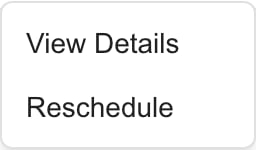 This genuine MSP menu includes **Reschedule** because this item and account support it. Company readers do not receive scheduling permission from the menu shown here. For supported MSP changes, see [Change scheduled dates](/user-guides/projects/calendar#change-scheduled-dates).
## Interpret dates and colors
Project, phase, and task spans include the end date. They are displayed as all-day work, even if the source carries a time. A multi-day task is a planned date span; it is not evidence that a technician is booked for every hour. Autotask service calls use timed calendar blocks instead.
Colors help distinguish items and owners, but are not a complete status report. Available task owners can have matching colored dots in **Staff**. Colors can repeat or change as the loaded people change. Completed or skipped items can use a muted color; confirm the status in the source details. Phase color alone does not show phase completion.
## Why work can be missing
A project, phase, or task needs a start date to appear. A due date alone is not enough. If its end is missing or earlier than its start, the display can fall back to the start day. A milestone needs a planned or actual date.
Very long planning spans are omitted: project start/end dates more than 400 days apart, or phase/task spans more than 120 days apart. Check the project's details for long-running plan items instead of assuming they were deleted.
The selected period, shared access, and filters also affect what appears. **Show all-day events** can restore an apparently empty project calendar. **Hide items** remains saved until you unhide those titles. Follow [Filter the project schedule](/user-guides/projects/filter-project-schedule) before reporting missing work.
Schedule shows available synced project information, not a live guarantee of staff availability. It does not include every personal calendar appointment, meeting, or calendar block from the separate **Calendar** module.
## FAQs
Company access differs between these views. The cross-project feed supplies shared milestones; the project's own Schedule can additionally show dates allowed by its client display settings.
No. It shows the task's planned date span. A timed Autotask service call is a separate MSP booking item. Neither a project span nor a phase span proves staff availability.
Project tasks need a scheduled start date to appear. Check the visible period and filters too. A due date by itself does not create a calendar entry.
Planned date first, then actual date when planned is absent. Changing milestone status alone does not move the item to its actual completion date while a planned date remains.
Month view draws its continuous date span across the rows it covers. These are parts of one project span, not repeated meetings or duplicate projects.
No. The Projects schedule focuses on project items. Use the separate Calendar area for its permitted meetings, appointments, and calendar blocks.
Phase/task spans with start and end more than 120 days apart are omitted. Project spans have a 400-day limit. Read the project details for these longer planning items.
Company users read shared scheduled work. The MSP manages supported date changes with separate editing permissions. Request the change from your MSP.
Restore hidden work and understand saved view preferences.
Review milestone status and dates in a list.
This genuine MSP menu includes **Reschedule** because this item and account support it. Company readers do not receive scheduling permission from the menu shown here. For supported MSP changes, see [Change scheduled dates](/user-guides/projects/calendar#change-scheduled-dates).
## Interpret dates and colors
Project, phase, and task spans include the end date. They are displayed as all-day work, even if the source carries a time. A multi-day task is a planned date span; it is not evidence that a technician is booked for every hour. Autotask service calls use timed calendar blocks instead.
Colors help distinguish items and owners, but are not a complete status report. Available task owners can have matching colored dots in **Staff**. Colors can repeat or change as the loaded people change. Completed or skipped items can use a muted color; confirm the status in the source details. Phase color alone does not show phase completion.
## Why work can be missing
A project, phase, or task needs a start date to appear. A due date alone is not enough. If its end is missing or earlier than its start, the display can fall back to the start day. A milestone needs a planned or actual date.
Very long planning spans are omitted: project start/end dates more than 400 days apart, or phase/task spans more than 120 days apart. Check the project's details for long-running plan items instead of assuming they were deleted.
The selected period, shared access, and filters also affect what appears. **Show all-day events** can restore an apparently empty project calendar. **Hide items** remains saved until you unhide those titles. Follow [Filter the project schedule](/user-guides/projects/filter-project-schedule) before reporting missing work.
Schedule shows available synced project information, not a live guarantee of staff availability. It does not include every personal calendar appointment, meeting, or calendar block from the separate **Calendar** module.
## FAQs
Company access differs between these views. The cross-project feed supplies shared milestones; the project's own Schedule can additionally show dates allowed by its client display settings.
No. It shows the task's planned date span. A timed Autotask service call is a separate MSP booking item. Neither a project span nor a phase span proves staff availability.
Project tasks need a scheduled start date to appear. Check the visible period and filters too. A due date by itself does not create a calendar entry.
Planned date first, then actual date when planned is absent. Changing milestone status alone does not move the item to its actual completion date while a planned date remains.
Month view draws its continuous date span across the rows it covers. These are parts of one project span, not repeated meetings or duplicate projects.
No. The Projects schedule focuses on project items. Use the separate Calendar area for its permitted meetings, appointments, and calendar blocks.
Phase/task spans with start and end more than 120 days apart are omitted. Project spans have a 400-day limit. Read the project details for these longer planning items.
Company users read shared scheduled work. The MSP manages supported date changes with separate editing permissions. Request the change from your MSP.
Restore hidden work and understand saved view preferences.
Review milestone status and dates in a list.