> ## Documentation Index
> Fetch the complete documentation index at: https://docs.msportal.ai/llms.txt
> Use this file to discover all available pages before exploring further.
# Write and share project updates
> Create weekly updates, add progress and decision bullets, and control client visibility.
**Audience:** MSP staff with permission to edit project collaboration content. Company users [read shared updates](/user-guides/projects/read-project-updates); their MSP manages editing access.
Use **Projects > select a project > Updates**. These updates are maintained in MSPortal. Writing a progress bullet does not close a PSA ticket, schedule work, or send an email.
## Create an internal update
Select the **+** control labeled **Add Update**, or the empty-state **Add Update** button. This immediately creates an update and opens its editor. Closing it does not discard the record.
**Week Of** initially uses Monday of the current week. Select the date control to change the reporting date. Keep a valid date; this is not a scheduled publication date. Multiple updates can use the same week.
Add a short **Summary** of the week's progress. Text saves shortly after you stop typing. There is no separate Save or Publish button.
Under **Completed This Week**, **Coming Up Next**, **Risks & Concerns**, or **Decisions Needed**, type an entry and select the adjacent **+**, or press **Enter**. Text still sitting in the add-item field has not been added to the list.
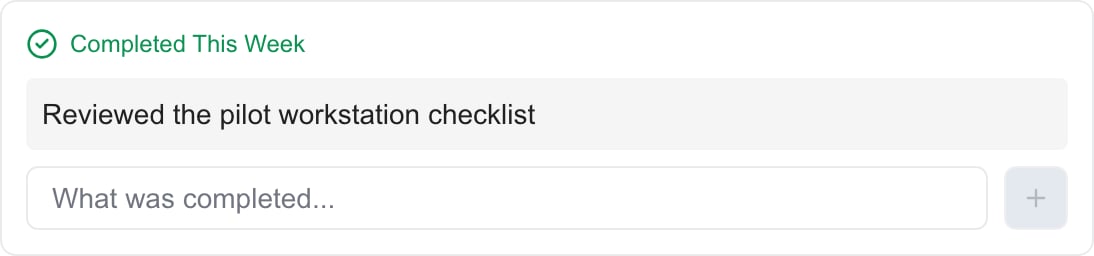 This synthetic example shows the MSP editor. Company users receive a reading view.
Each added entry saves immediately. To correct a saved entry, remove it using its delete control and confirm, then add the corrected text. Review the decision effects below before replacing a decision bullet.
Collapse and reopen the update, then revisit the project to check persistence. An error means you should verify the saved content before repeating an operation. Changes to reporting week, list entries, and visibility save as you make them.
Updates added with **Add Update** on the Updates tab start with **Client Visible** off. The phase/ticket menu **Create Update** shortcut is configured to start shared; see [phase and ticket action menus](/user-guides/projects/use-phase-ticket-actions). Finish the content and check the intended audience before enabling it. Turning it on makes the update available to Company users who can access the project; it does not grant access to the project itself.
Once an update is client-visible, later edits are also saved to that shared update. There is no separate draft copy or approval stage. Turn **Client Visible** off before substantial private revisions, then review the whole update before sharing it again. This does not retract copies people may already have read.
## Understand Decisions Needed
Adding a **Decisions Needed** bullet can create a linked pending item in **Decisions**. Open that register to set the request's details, due date, urgency, and assignees using [Manage project decisions and action items](/user-guides/projects/manage-project-actions).
The related request follows the source update's audience. Assignment does not automatically notify anyone. Use the request's explicit notification controls only when you intend to send a message.
Decision titles are matched across updates, ignoring letter case and extra spaces. Repeated titles can represent the same pending request. Removing a bullet or an update can remove a pending request that was generated from it; resolving or deleting a linked request can remove matching bullets from more than one update. Give distinct decisions clear, distinct titles and check **Decisions** after changing these bullets.
## Delete an update
Select the update row's delete control and confirm. Wait for the result, revisit **Updates**, and verify the intended update is gone. Also check **Decisions** when the update contained decision bullets. Deleting an update is not an undoable draft cancellation or a way to delete the project.
## FAQs
There is no separate button. Add Update creates the record immediately, Summary saves after a short typing pause, and the other controls save their changes directly. Client Visible controls whether eligible Company users can read it.
It shares the update in the portal. The update editor does not automatically email or notify clients when you add, edit, or share it.
You must select its adjacent + or press Enter to add it. Leaving text in the add-item field does not save a list entry.
No. These are narrative bullets. Manage the ticket separately through the supported ticket workflow.
Decision bullets and linked requests synchronize. A generated pending request can disappear when its source bullet is removed. Check the register after changing or deleting a source update.
The displayed posted time comes from when the update was created. Do not use it as a publication timestamp, last-edit timestamp, or delivery receipt.
This synthetic example shows the MSP editor. Company users receive a reading view.
Each added entry saves immediately. To correct a saved entry, remove it using its delete control and confirm, then add the corrected text. Review the decision effects below before replacing a decision bullet.
Collapse and reopen the update, then revisit the project to check persistence. An error means you should verify the saved content before repeating an operation. Changes to reporting week, list entries, and visibility save as you make them.
Updates added with **Add Update** on the Updates tab start with **Client Visible** off. The phase/ticket menu **Create Update** shortcut is configured to start shared; see [phase and ticket action menus](/user-guides/projects/use-phase-ticket-actions). Finish the content and check the intended audience before enabling it. Turning it on makes the update available to Company users who can access the project; it does not grant access to the project itself.
Once an update is client-visible, later edits are also saved to that shared update. There is no separate draft copy or approval stage. Turn **Client Visible** off before substantial private revisions, then review the whole update before sharing it again. This does not retract copies people may already have read.
## Understand Decisions Needed
Adding a **Decisions Needed** bullet can create a linked pending item in **Decisions**. Open that register to set the request's details, due date, urgency, and assignees using [Manage project decisions and action items](/user-guides/projects/manage-project-actions).
The related request follows the source update's audience. Assignment does not automatically notify anyone. Use the request's explicit notification controls only when you intend to send a message.
Decision titles are matched across updates, ignoring letter case and extra spaces. Repeated titles can represent the same pending request. Removing a bullet or an update can remove a pending request that was generated from it; resolving or deleting a linked request can remove matching bullets from more than one update. Give distinct decisions clear, distinct titles and check **Decisions** after changing these bullets.
## Delete an update
Select the update row's delete control and confirm. Wait for the result, revisit **Updates**, and verify the intended update is gone. Also check **Decisions** when the update contained decision bullets. Deleting an update is not an undoable draft cancellation or a way to delete the project.
## FAQs
There is no separate button. Add Update creates the record immediately, Summary saves after a short typing pause, and the other controls save their changes directly. Client Visible controls whether eligible Company users can read it.
It shares the update in the portal. The update editor does not automatically email or notify clients when you add, edit, or share it.
You must select its adjacent + or press Enter to add it. Leaving text in the add-item field does not save a list entry.
No. These are narrative bullets. Manage the ticket separately through the supported ticket workflow.
Decision bullets and linked requests synchronize. A generated pending request can disappear when its source bullet is removed. Check the register after changing or deleting a source update.
The displayed posted time comes from when the update was created. Do not use it as a publication timestamp, last-edit timestamp, or delivery receipt.