> ## Documentation Index
> Fetch the complete documentation index at: https://docs.msportal.ai/llms.txt
> Use this file to discover all available pages before exploring further.
# Find and open a quote
> Find an accessible quote, open its provider page, and add a quote to an available meeting agenda.
Open **Quotes** in the sidebar to find **Quoter**, **QuoteWerks**, and **Salesbuildr** quotes shared through your MSP’s connected integrations.
**Audience:** Company users with quote access and MSP staff reviewing client quotes.
## Before you start
Your role must allow reading quotes. Your MSP controls which companies, contacts, locations, and quote statuses you can see. Provider setup and company mapping must also be in place. A blank list is not proof that your MSP has never created a quote.
## Find the quote
If you have a company selector, select the intended company. Changing company scope resets the list’s filters and page. Company users remain limited to their permitted company access.
Use a **Name**, **Number**, or **Owner** text filter to find the quote. Use one of these text filters at a time. You can also use **Stage** and the **Created** date filter to narrow the results.
Check additional pages when needed. The default list shows the most recently created records first. Use the column controls to show hidden fields such as **Owner** or **Monthly** when available.
Confirm its **Number**, **Name**, **Company** when shown, **Stage**, and **Contact**. The contact is the quote’s billing contact; the owner is a different field.
A stage is a synchronized provider status. If you need to verify a recent change, check the provider page or ask your MSP.
Select the linked **Number**, or open the row’s **…** menu and choose **Open in Quoter**, **Open in QuoteWerks**, or **Open in Salesbuildr**, as shown. The provider link opens in a new tab.
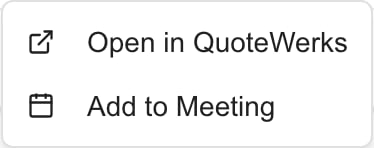 This crop shows the QuoteWerks menu in an MSP Demo session. Available actions depend on the quote and your access.
If the number is plain text and no provider action appears, the record has no available link. Ask your MSP for the correct quote link. Selecting the name or an arbitrary part of the row does not open an internal detail page.
## Provider documents
**Open in Quoter** opens the Quoter proposal. **Open in QuoteWerks** opens the supplied customer quote link, including QuoteValet when configured. **Open in Salesbuildr** opens the Salesbuildr proposal; those quotes can also offer **Download PDF** directly in MSPortal.
Use [documents and CSV export](/user-guides/quotes/download-quotes) for all three providers. A missing PDF button does not mean a Quoter or QuoteWerks quote is unsupported. Ask your MSP for a document when the quote has no usable provider link.
## Review or accept a quote
Use the provider link to review the quote’s current terms. Any acceptance, signature, or payment step is handled by that provider’s page and may require separate access. Follow the controls actually shown there; the portal Quotes list has no universal **Accept** button.
For a revision or correction, contact your MSP before accepting. Opening the link, exporting the list, or adding a quote to a meeting does not approve the quote. After acting in the provider, keep its confirmation; the portal may update after synchronization.
## Add a quote to a meeting
When **Add to Meeting** is available:
1. Open the quote’s **…** menu and select **Add to Meeting**.
2. Choose the intended existing meeting from the available meeting picker. Check its company and date.
3. Select **Add to agenda** and wait for the result.
Opening the picker does not add the item. This action adds an agenda reference; it does not create a quote, approve it, or create a new meeting. If no appropriate meeting is available, ask the meeting organizer or your MSP.
## Troubleshooting
| Problem | What to check |
| --------------------------------------------- | ------------------------------------------------------------------------------------------------------------------ |
| Quotes is missing | Ask your MSP to check quote permission and module availability. |
| A quote is missing | Company scope, filters, role visibility, allowed statuses, company mapping, and provider synchronization. |
| A colleague sees different quotes | Roles can restrict access to billing-contact matches or contacts at the user’s location. |
| The provider link fails | Ask your MSP to check the link and provider access. Portal sign-in does not guarantee access to the external page. |
| A recent acceptance still shows the old stage | Use the provider confirmation and allow for synchronization; ask the MSP if it remains stale. |
## Frequently asked questions
Use the linked **Number** or the **Open in** provider action. The list’s name and row are not general internal-detail links. If your MSP gives you an internal detail link, see [read a quote’s details](/user-guides/quotes/read-quote-details).
Mine only matches you as the billing contact. It does not match the separate quote owner field. Ask your MSP to check the contact and your role.
No. Your company access still applies. The visibility setting does not grant access to other companies.
Open the linked provider page and use its available acceptance process. The portal list does not provide a universal approval action.
The synchronized quote may have no available provider link. Ask your MSP for a current link rather than guessing an address.
Selecting it opens a picker. Choose the meeting and select **Add to agenda** to submit the agenda change.
The current export uses the loaded page. See [download and export quotes](/user-guides/quotes/download-quotes) before relying on it as a complete report.
This crop shows the QuoteWerks menu in an MSP Demo session. Available actions depend on the quote and your access.
If the number is plain text and no provider action appears, the record has no available link. Ask your MSP for the correct quote link. Selecting the name or an arbitrary part of the row does not open an internal detail page.
## Provider documents
**Open in Quoter** opens the Quoter proposal. **Open in QuoteWerks** opens the supplied customer quote link, including QuoteValet when configured. **Open in Salesbuildr** opens the Salesbuildr proposal; those quotes can also offer **Download PDF** directly in MSPortal.
Use [documents and CSV export](/user-guides/quotes/download-quotes) for all three providers. A missing PDF button does not mean a Quoter or QuoteWerks quote is unsupported. Ask your MSP for a document when the quote has no usable provider link.
## Review or accept a quote
Use the provider link to review the quote’s current terms. Any acceptance, signature, or payment step is handled by that provider’s page and may require separate access. Follow the controls actually shown there; the portal Quotes list has no universal **Accept** button.
For a revision or correction, contact your MSP before accepting. Opening the link, exporting the list, or adding a quote to a meeting does not approve the quote. After acting in the provider, keep its confirmation; the portal may update after synchronization.
## Add a quote to a meeting
When **Add to Meeting** is available:
1. Open the quote’s **…** menu and select **Add to Meeting**.
2. Choose the intended existing meeting from the available meeting picker. Check its company and date.
3. Select **Add to agenda** and wait for the result.
Opening the picker does not add the item. This action adds an agenda reference; it does not create a quote, approve it, or create a new meeting. If no appropriate meeting is available, ask the meeting organizer or your MSP.
## Troubleshooting
| Problem | What to check |
| --------------------------------------------- | ------------------------------------------------------------------------------------------------------------------ |
| Quotes is missing | Ask your MSP to check quote permission and module availability. |
| A quote is missing | Company scope, filters, role visibility, allowed statuses, company mapping, and provider synchronization. |
| A colleague sees different quotes | Roles can restrict access to billing-contact matches or contacts at the user’s location. |
| The provider link fails | Ask your MSP to check the link and provider access. Portal sign-in does not guarantee access to the external page. |
| A recent acceptance still shows the old stage | Use the provider confirmation and allow for synchronization; ask the MSP if it remains stale. |
## Frequently asked questions
Use the linked **Number** or the **Open in** provider action. The list’s name and row are not general internal-detail links. If your MSP gives you an internal detail link, see [read a quote’s details](/user-guides/quotes/read-quote-details).
Mine only matches you as the billing contact. It does not match the separate quote owner field. Ask your MSP to check the contact and your role.
No. Your company access still applies. The visibility setting does not grant access to other companies.
Open the linked provider page and use its available acceptance process. The portal list does not provide a universal approval action.
The synchronized quote may have no available provider link. Ask your MSP for a current link rather than guessing an address.
Selecting it opens a picker. Choose the meeting and select **Add to agenda** to submit the agenda change.
The current export uses the loaded page. See [download and export quotes](/user-guides/quotes/download-quotes) before relying on it as a complete report.