> ## Documentation Index
> Fetch the complete documentation index at: https://docs.msportal.ai/llms.txt
> Use this file to discover all available pages before exploring further.
# Reporting
> Build and share professional reports with drag-and-drop blocks
The Reporting module lets you create professional reports by combining data blocks from across MSPortal.ai. Build QBR presentations, compliance summaries, budget forecasts, and more with the visual report builder.
## Accessing Reports
1. Click **Reporting** in the sidebar
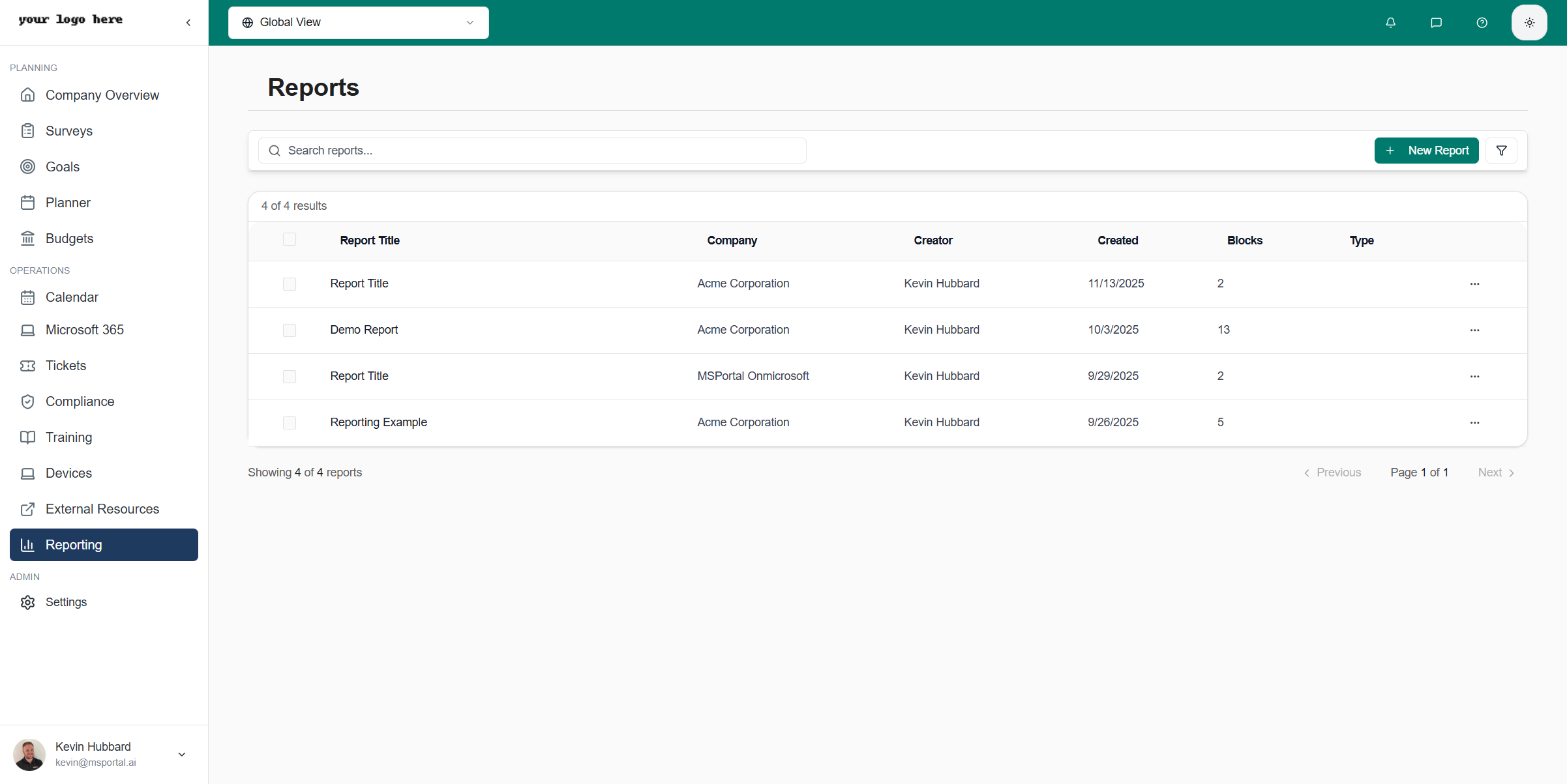
2. The reports list displays all your saved reports
 ## Reports List
### Reports Table
The reports table displays:
| Column | Description |
| ---------------- | ---------------------------------------- |
| **Report Title** | Name of the report |
| **Company** | Associated company |
| **Creator** | User who created the report |
| **Created** | Creation date |
| **Blocks** | Number of content blocks in the report |
| **Type** | Report category (Quarterly Report, etc.) |
| **Actions** | Edit, duplicate, delete options |
### Filtering and Search
* **Search** - Find reports by title
* **Filter** - Click the filter icon to narrow results
* **Sort** - Click column headers to sort
## Viewing a Report
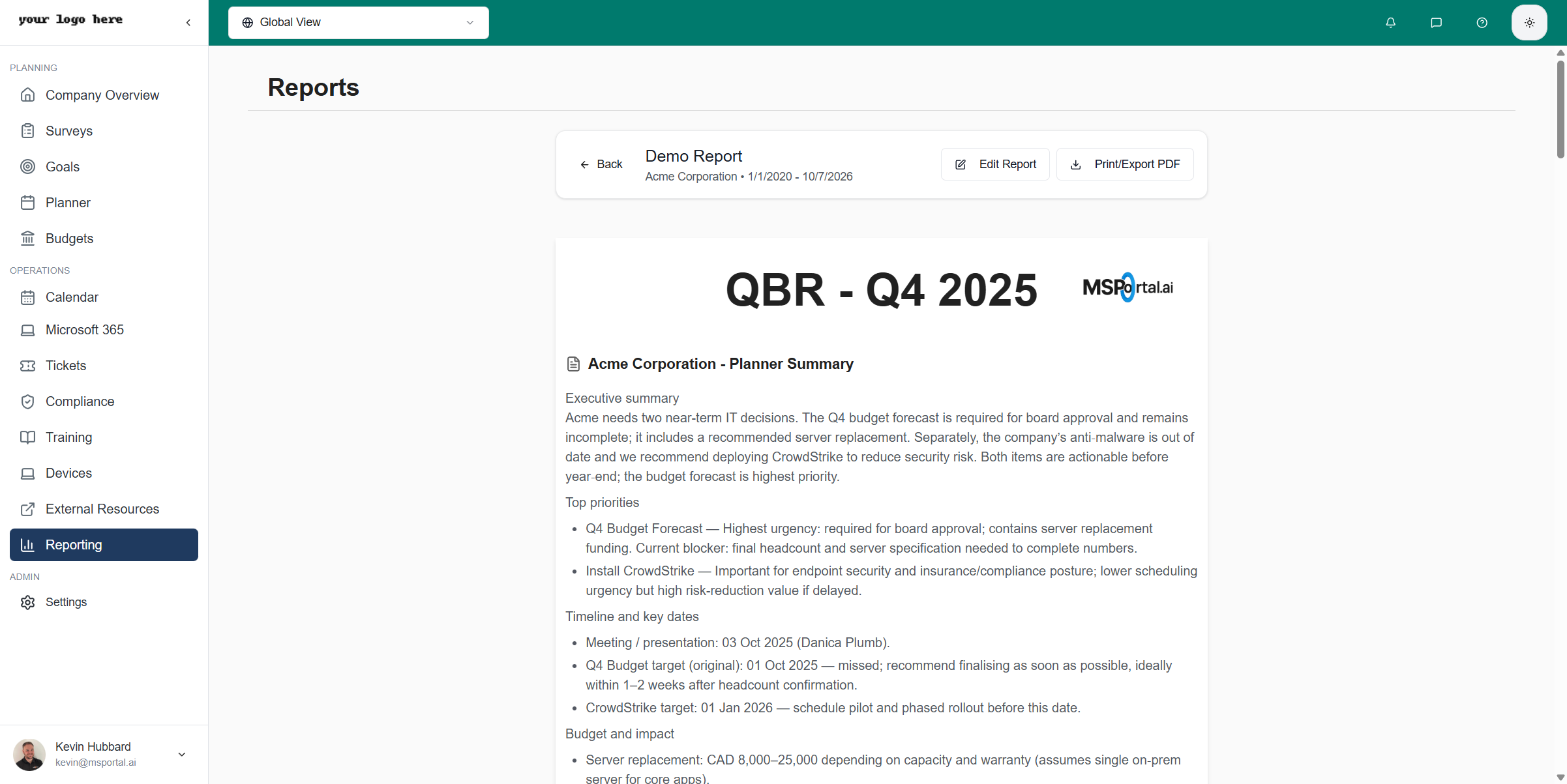
Click any report to view its contents:
## Reports List
### Reports Table
The reports table displays:
| Column | Description |
| ---------------- | ---------------------------------------- |
| **Report Title** | Name of the report |
| **Company** | Associated company |
| **Creator** | User who created the report |
| **Created** | Creation date |
| **Blocks** | Number of content blocks in the report |
| **Type** | Report category (Quarterly Report, etc.) |
| **Actions** | Edit, duplicate, delete options |
### Filtering and Search
* **Search** - Find reports by title
* **Filter** - Click the filter icon to narrow results
* **Sort** - Click column headers to sort
## Viewing a Report
Click any report to view its contents:
 ### Report Header
| Element | Description |
| -------------------- | ------------------------ |
| **Back** | Return to reports list |
| **Title** | Report name and company |
| **Date Range** | Data period covered |
| **Edit Report** | Open in report builder |
| **Print/Export PDF** | Generate PDF for sharing |
### Report Content
Reports display content blocks in a paginated format:
* **Text blocks** - Headings, paragraphs, AI-generated summaries
* **Data blocks** - Charts, tables, metrics from MSPortal modules
* **Branding** - Company logos and styling
## Creating a New Report
Click the **New Report** button in the toolbar
Set report type, company, and description
Define the data period for the report
Drag content blocks onto report pages
Press Ctrl+S or click Save to store the report
## Report Builder
The report builder provides a visual editor for creating reports:
### Report Header
| Element | Description |
| -------------------- | ------------------------ |
| **Back** | Return to reports list |
| **Title** | Report name and company |
| **Date Range** | Data period covered |
| **Edit Report** | Open in report builder |
| **Print/Export PDF** | Generate PDF for sharing |
### Report Content
Reports display content blocks in a paginated format:
* **Text blocks** - Headings, paragraphs, AI-generated summaries
* **Data blocks** - Charts, tables, metrics from MSPortal modules
* **Branding** - Company logos and styling
## Creating a New Report
Click the **New Report** button in the toolbar
Set report type, company, and description
Define the data period for the report
Drag content blocks onto report pages
Press Ctrl+S or click Save to store the report
## Report Builder
The report builder provides a visual editor for creating reports:
 ### Report Metadata
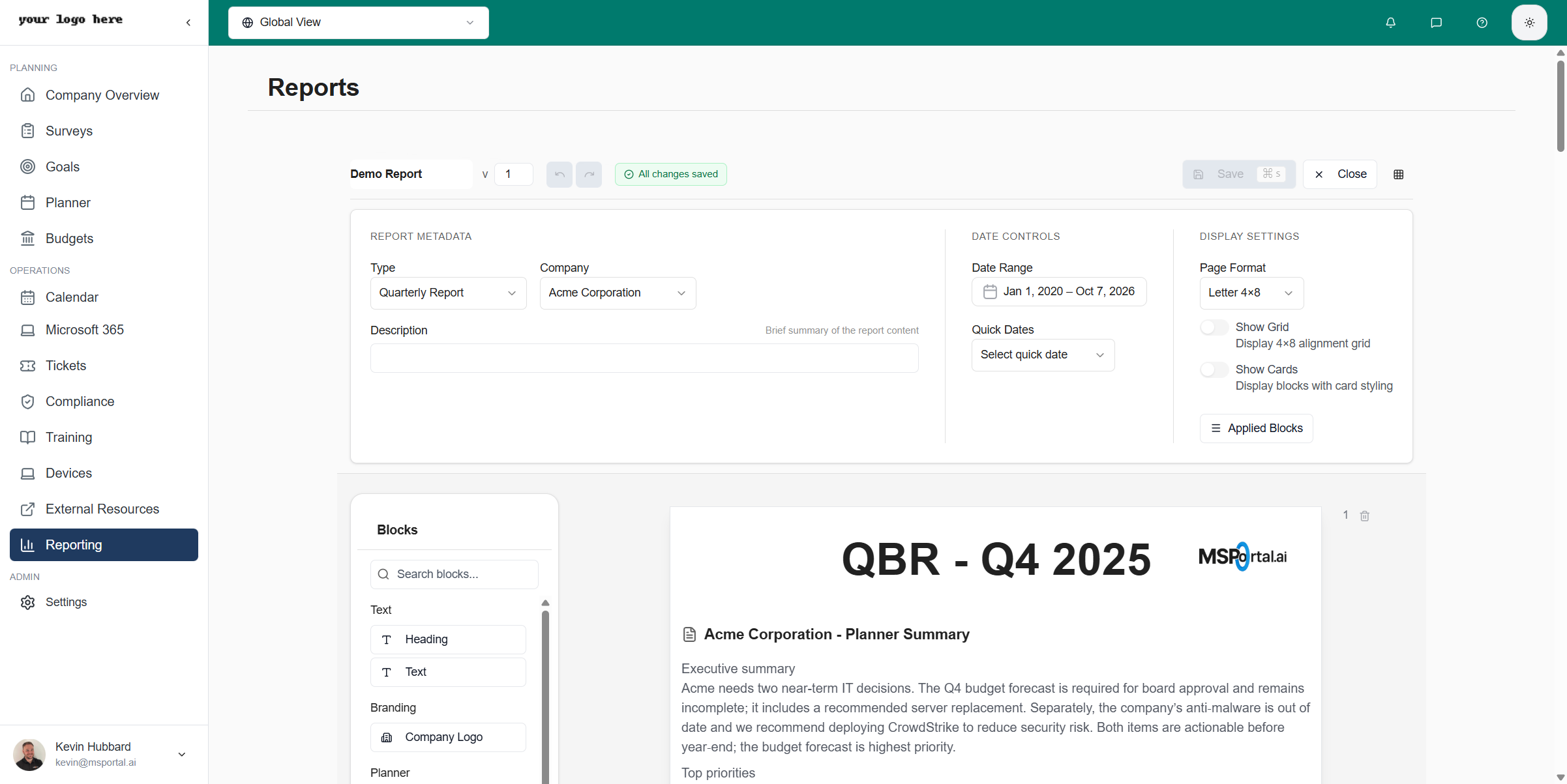
Configure basic report information:
| Field | Description |
| ---------------- | -------------------------------------------------- |
| **Report Title** | Editable report name |
| **Version** | Version number for tracking changes |
| **Type** | Category (Quarterly Report, Monthly Summary, etc.) |
| **Company** | Associated company for data filtering |
| **Description** | Brief summary of report contents |
### Date Controls
| Field | Description |
| --------------- | --------------------------------------------- |
| **Date Range** | Start and end dates for data |
| **Quick Dates** | Preset ranges (This Quarter, Last Month, YTD) |
### Display Settings
| Setting | Description |
| ------------------ | -------------------------------------- |
| **Page Format** | Letter 4x8, A4, or custom layouts |
| **Show Grid** | Display alignment grid for positioning |
| **Show Cards** | Enable card styling on blocks |
| **Applied Blocks** | View list of blocks used in report |
## Content Blocks
### Text Blocks
| Block | Description |
| ----------- | ----------------------------------- |
| **Heading** | Large title text for sections |
| **Text** | Paragraph text with rich formatting |
### Branding
| Block | Description |
| ---------------- | ------------------------------- |
| **Company Logo** | Insert your organization's logo |
### Planner Blocks
| Block | Description |
| --------------------- | --------------------------------------------------------------------------------------- |
| **Roadmap Timeline** | Visual timeline of planned items |
| **Planner Table** | Table view of planner tasks |
| **Planner Summary** | AI-generated executive summary |
| **Quarterly Roadmap** | Planner items grouped by fiscal year and quarter, sized to fit any grid from 2x2 to 4x8 |
#### Quarterly Roadmap
A roadmap-style block that groups planner items by fiscal year and quarter, ready for QBR slides and client-facing PDFs.
| Setting | Description |
| -------------- | ----------------------------------------------------------------------------------------------------------------------------------------------- |
| **Columns** | Show recommendation, description, type, status, priority, and value, in any combination |
| **Filters** | Filter by year, quarter, type, status, or priority. Useful for splitting "this year's plan" from "completed work", or excluding cancelled items |
| **Density** | Pick a text size (extra small, small, base, or large) so the same block fits compact at 2x2 or full-detail at 4x8 |
| **Pagination** | Split the block across multiple pages with offset and limit settings, useful for client-ready PDF exports of long roadmaps |
### Compliance Blocks
| Block | Description |
| --------------------------------- | ------------------------------------ |
| **Compliance Score Overview** | Overall compliance grade and metrics |
| **Compliance Breakdown** | Score by compliance group |
| **Compliance Progress Over Time** | Historical compliance trend chart |
| **Non-Compliance Items List** | Detailed list of failing checks |
| **Compliance Report** | Full compliance summary |
### Goals Blocks
| Block | Description |
| --------- | -------------------------------- |
| **Goals** | Company goals with progress bars |
### Budget Blocks
| Block | Description |
| ------------------- | ------------------------------------- |
| **Budget Detail** | Full budget breakdown with line items |
| **Budget Forecast** | Multi-year budget projection chart |
### Device Blocks
| Block | Description |
| --------------------- | ----------------------------- |
| **Device Warranties** | Warranty status summary |
| **Device Inventory** | Device list and counts |
| **Warranty Timeline** | Upcoming warranty expirations |
### User Coverage Blocks
| Block | Description |
| -------------- | ----------------------------------------------------------------------------------------------------------------- |
| **Users List** | Lists every user across the tenant alongside the systems each one shows up in (M365, PSA, MSPortal client portal) |
#### Users List
A coverage matrix that exposes which systems each user is present in. Useful for finding M365 licenses without a PSA contact, PSA contacts without portal access, or any other coverage gap.
| Setting | Description |
| ---------------------- | --------------------------------------------------------------------------------------------------------------------------------------- |
| **Filter mode** | Show every user, only users with M365, only users with a PSA contact, only portal users, or only users with both M365 and a PSA contact |
| **Active-only toggle** | Hide disabled or terminated users with one click, so coverage reports don't include people who have already left |
| **Column visibility** | Toggle each system column on or off so the same block doubles as a slim "who has portal access" list or a wide "full coverage matrix" |
## Working with Pages
### Page Management
* **Add Page** - Click "+ Add Page" to create new pages
* **Delete Page** - Click the trash icon on a page header
* **Page Numbers** - Pages are numbered automatically
### Block Positioning
* **Drag and Drop** - Move blocks to position them
* **Resize** - Drag block edges to resize
* **Grid Alignment** - Enable grid for precise positioning
* **Split Across Pages** - Large blocks can span multiple pages
## Report Actions
### Saving Reports
* **Auto-save** - Changes save automatically
* **Manual Save** - Press Ctrl+S or click Save
* **Version Tracking** - Version numbers track changes
### Exporting Reports
View the report you want to export
Select the export button in the header
Set page size and orientation if needed
Save the PDF to your device
### Sharing Reports
* **PDF Export** - Share as professional PDF documents
* **Direct Link** - Share report URL with team members
* **Meeting Integration** - Add reports to meeting agendas
## Report Types
| Type | Use Case |
| -------------------------- | --------------------------------------- |
| **Quarterly Report (QBR)** | Quarterly business reviews with clients |
| **Monthly Summary** | Regular status updates |
| **Compliance Report** | Audit and compliance documentation |
| **Budget Review** | Financial planning and tracking |
| **Custom** | Any specialized reporting need |
## Best Practices
### Report Design
1. **Start with Purpose** - Define what the report should communicate
2. **Use Summaries** - Include AI-generated executive summaries
3. **Balance Content** - Mix charts, tables, and text
4. **Logical Flow** - Organize from overview to details
### Data Freshness
* Reports pull live data when viewed
* Export PDFs to capture point-in-time snapshots
* Set appropriate date ranges for the reporting period
### Branding
* Upload company logo in Tenant Settings
* Logo appears automatically in report headers
* Consistent branding across all exported PDFs
## Troubleshooting
### Blocks Not Loading
* Verify the company has data for the selected date range
* Check that integrations are connected and synced
* Refresh the page and try again
### Export Issues
* Ensure all blocks have finished loading
* Try a smaller date range for large reports
* Check browser pop-up settings for downloads
### Missing Data
* Verify date range includes relevant data
* Check company selection matches data source
* Ensure required modules are enabled
## Related Resources
* [Company Overview](/user-guides/company-overview/index) - Dashboard metrics
* [Compliance](/user-guides/compliance/index) - Compliance data source
* [Budgets](/user-guides/budgets/index) - Budget data source
* [Goals](/user-guides/goals/index) - Goals data source
* [Planner](/user-guides/planner/index) - Planner data source
### Report Metadata
Configure basic report information:
| Field | Description |
| ---------------- | -------------------------------------------------- |
| **Report Title** | Editable report name |
| **Version** | Version number for tracking changes |
| **Type** | Category (Quarterly Report, Monthly Summary, etc.) |
| **Company** | Associated company for data filtering |
| **Description** | Brief summary of report contents |
### Date Controls
| Field | Description |
| --------------- | --------------------------------------------- |
| **Date Range** | Start and end dates for data |
| **Quick Dates** | Preset ranges (This Quarter, Last Month, YTD) |
### Display Settings
| Setting | Description |
| ------------------ | -------------------------------------- |
| **Page Format** | Letter 4x8, A4, or custom layouts |
| **Show Grid** | Display alignment grid for positioning |
| **Show Cards** | Enable card styling on blocks |
| **Applied Blocks** | View list of blocks used in report |
## Content Blocks
### Text Blocks
| Block | Description |
| ----------- | ----------------------------------- |
| **Heading** | Large title text for sections |
| **Text** | Paragraph text with rich formatting |
### Branding
| Block | Description |
| ---------------- | ------------------------------- |
| **Company Logo** | Insert your organization's logo |
### Planner Blocks
| Block | Description |
| --------------------- | --------------------------------------------------------------------------------------- |
| **Roadmap Timeline** | Visual timeline of planned items |
| **Planner Table** | Table view of planner tasks |
| **Planner Summary** | AI-generated executive summary |
| **Quarterly Roadmap** | Planner items grouped by fiscal year and quarter, sized to fit any grid from 2x2 to 4x8 |
#### Quarterly Roadmap
A roadmap-style block that groups planner items by fiscal year and quarter, ready for QBR slides and client-facing PDFs.
| Setting | Description |
| -------------- | ----------------------------------------------------------------------------------------------------------------------------------------------- |
| **Columns** | Show recommendation, description, type, status, priority, and value, in any combination |
| **Filters** | Filter by year, quarter, type, status, or priority. Useful for splitting "this year's plan" from "completed work", or excluding cancelled items |
| **Density** | Pick a text size (extra small, small, base, or large) so the same block fits compact at 2x2 or full-detail at 4x8 |
| **Pagination** | Split the block across multiple pages with offset and limit settings, useful for client-ready PDF exports of long roadmaps |
### Compliance Blocks
| Block | Description |
| --------------------------------- | ------------------------------------ |
| **Compliance Score Overview** | Overall compliance grade and metrics |
| **Compliance Breakdown** | Score by compliance group |
| **Compliance Progress Over Time** | Historical compliance trend chart |
| **Non-Compliance Items List** | Detailed list of failing checks |
| **Compliance Report** | Full compliance summary |
### Goals Blocks
| Block | Description |
| --------- | -------------------------------- |
| **Goals** | Company goals with progress bars |
### Budget Blocks
| Block | Description |
| ------------------- | ------------------------------------- |
| **Budget Detail** | Full budget breakdown with line items |
| **Budget Forecast** | Multi-year budget projection chart |
### Device Blocks
| Block | Description |
| --------------------- | ----------------------------- |
| **Device Warranties** | Warranty status summary |
| **Device Inventory** | Device list and counts |
| **Warranty Timeline** | Upcoming warranty expirations |
### User Coverage Blocks
| Block | Description |
| -------------- | ----------------------------------------------------------------------------------------------------------------- |
| **Users List** | Lists every user across the tenant alongside the systems each one shows up in (M365, PSA, MSPortal client portal) |
#### Users List
A coverage matrix that exposes which systems each user is present in. Useful for finding M365 licenses without a PSA contact, PSA contacts without portal access, or any other coverage gap.
| Setting | Description |
| ---------------------- | --------------------------------------------------------------------------------------------------------------------------------------- |
| **Filter mode** | Show every user, only users with M365, only users with a PSA contact, only portal users, or only users with both M365 and a PSA contact |
| **Active-only toggle** | Hide disabled or terminated users with one click, so coverage reports don't include people who have already left |
| **Column visibility** | Toggle each system column on or off so the same block doubles as a slim "who has portal access" list or a wide "full coverage matrix" |
## Working with Pages
### Page Management
* **Add Page** - Click "+ Add Page" to create new pages
* **Delete Page** - Click the trash icon on a page header
* **Page Numbers** - Pages are numbered automatically
### Block Positioning
* **Drag and Drop** - Move blocks to position them
* **Resize** - Drag block edges to resize
* **Grid Alignment** - Enable grid for precise positioning
* **Split Across Pages** - Large blocks can span multiple pages
## Report Actions
### Saving Reports
* **Auto-save** - Changes save automatically
* **Manual Save** - Press Ctrl+S or click Save
* **Version Tracking** - Version numbers track changes
### Exporting Reports
View the report you want to export
Select the export button in the header
Set page size and orientation if needed
Save the PDF to your device
### Sharing Reports
* **PDF Export** - Share as professional PDF documents
* **Direct Link** - Share report URL with team members
* **Meeting Integration** - Add reports to meeting agendas
## Report Types
| Type | Use Case |
| -------------------------- | --------------------------------------- |
| **Quarterly Report (QBR)** | Quarterly business reviews with clients |
| **Monthly Summary** | Regular status updates |
| **Compliance Report** | Audit and compliance documentation |
| **Budget Review** | Financial planning and tracking |
| **Custom** | Any specialized reporting need |
## Best Practices
### Report Design
1. **Start with Purpose** - Define what the report should communicate
2. **Use Summaries** - Include AI-generated executive summaries
3. **Balance Content** - Mix charts, tables, and text
4. **Logical Flow** - Organize from overview to details
### Data Freshness
* Reports pull live data when viewed
* Export PDFs to capture point-in-time snapshots
* Set appropriate date ranges for the reporting period
### Branding
* Upload company logo in Tenant Settings
* Logo appears automatically in report headers
* Consistent branding across all exported PDFs
## Troubleshooting
### Blocks Not Loading
* Verify the company has data for the selected date range
* Check that integrations are connected and synced
* Refresh the page and try again
### Export Issues
* Ensure all blocks have finished loading
* Try a smaller date range for large reports
* Check browser pop-up settings for downloads
### Missing Data
* Verify date range includes relevant data
* Check company selection matches data source
* Ensure required modules are enabled
## Related Resources
* [Company Overview](/user-guides/company-overview/index) - Dashboard metrics
* [Compliance](/user-guides/compliance/index) - Compliance data source
* [Budgets](/user-guides/budgets/index) - Budget data source
* [Goals](/user-guides/goals/index) - Goals data source
* [Planner](/user-guides/planner/index) - Planner data source