> ## Documentation Index
> Fetch the complete documentation index at: https://docs.msportal.ai/llms.txt
> Use this file to discover all available pages before exploring further.
# Present reports as slides
> Build a presentation from a finished full report, edit its slides and present or print the reviewed result
Create a slide presentation from a finished full report, review the generated content, then use **Present** for a client review or meeting.
**Branch preview:** This guide describes the report presentation changes under review. Availability depends on your organization's feature settings and your role. The final production workflow and screenshots still need release verification.
## Before you start
* Report presentations must be enabled for your organization.
* Start with a finished **Full Report** that contains written sections. A block-only report cannot be turned into a presentation through this workflow.
* MSP staff need permission to create or edit reports, or reporting management access, to build or edit a presentation. AI must be available, with sufficient credits where required.
* Viewers still need access to the underlying report and its company scope. A presentation link does not grant access.
Finalize the report's company selection, dates, written sections and visuals first. Presentation generation uses that report as its source; it does not guarantee that the provider data or the report's claims are current or correct.
## Build the presentation
Open the full report from **Reporting** and choose **Create presentation**.
Choose **Short**, **Standard** or **Detailed** under **Length**. Use **Focus (optional)** for instructions such as leading with security or limiting the budget discussion. The indicated slide count is approximate.
Select **Build presentation**. The build runs in the background, and MSPortal notifies you when it finishes. You can leave the report page while it builds.
Choose **Present** once a deck is available. Check every slide against the report, especially figures flagged for review. Confirm dates, company names, units, charts and the wording of conclusions before presenting.
## Edit and save slides
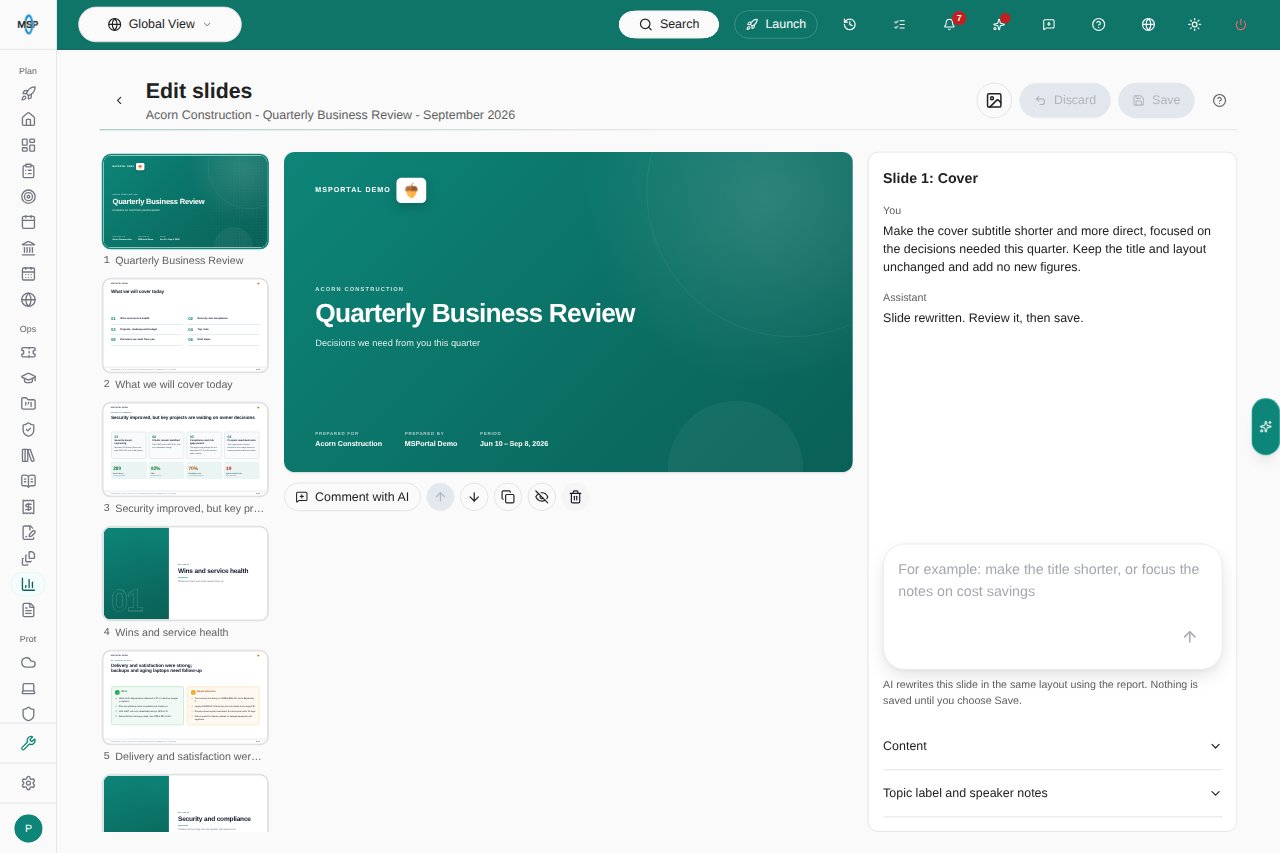
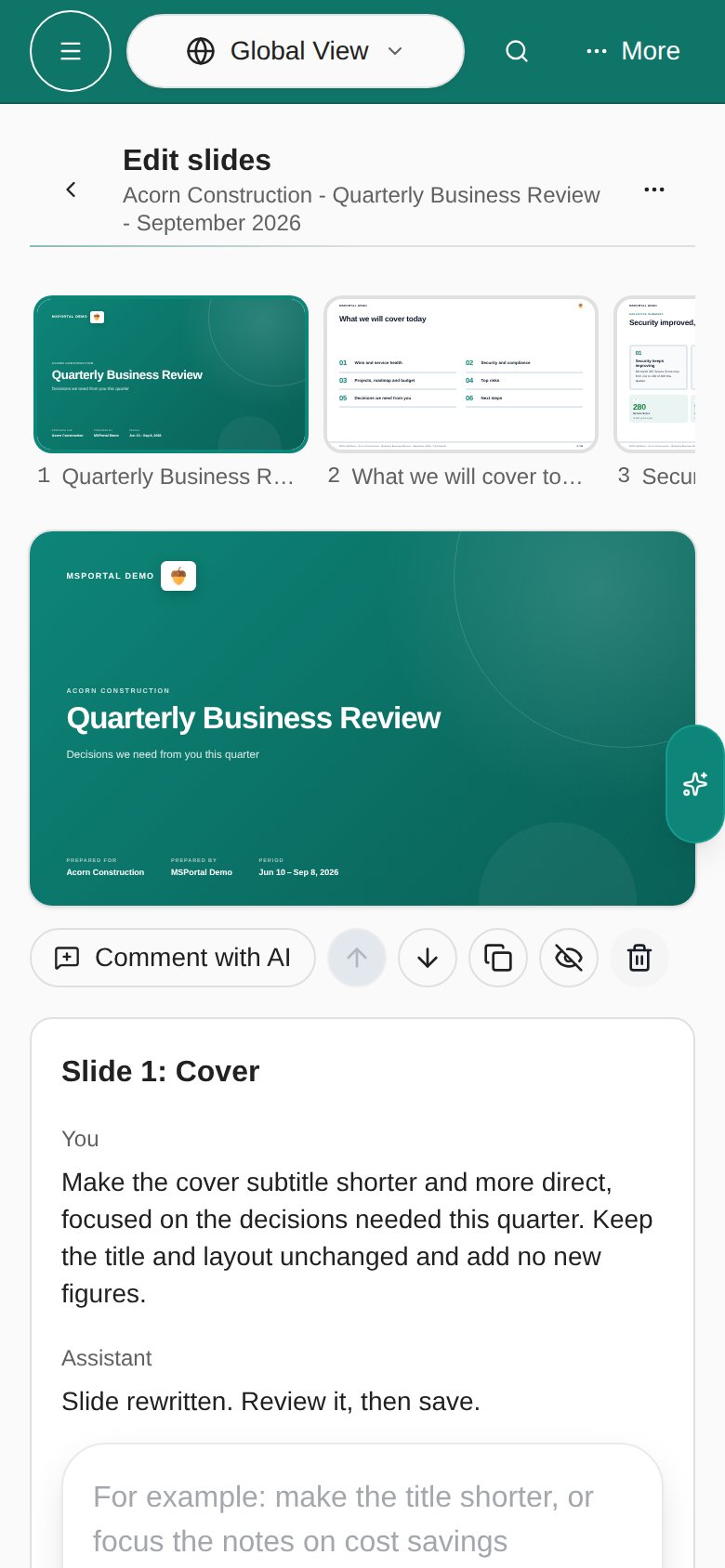
Choose **Edit slides** from the player or the report's **Presentation options** menu. Select a source slide in the slide list, then edit its visible text or use **Slide details** for its content and presenter fields.
The editor supports moving, duplicating, hiding and deleting slides. Hidden slides remain in the editable deck but do not appear in the presentation or printout. Keep at least one visible slide.
Use **Rewrite with AI** to request a change to the selected slide. The rewrite uses the report and retains the slide's layout. Review the proposed wording and any flagged figures before saving.
Slide edits and AI rewrites are drafts until you click **Save** or press Ctrl+S (Cmd+S on Mac). **Discard** asks you to confirm, then returns to the last saved deck. Leaving with unsaved changes prompts you to keep editing or discard those changes. Editing the deck does not rewrite the source report.
Wait for **Presentation saved** before leaving. If a newer save or rebuild has replaced your deck, preserve any text you need and reopen the editor. If required fields are empty, fill them in before saving.
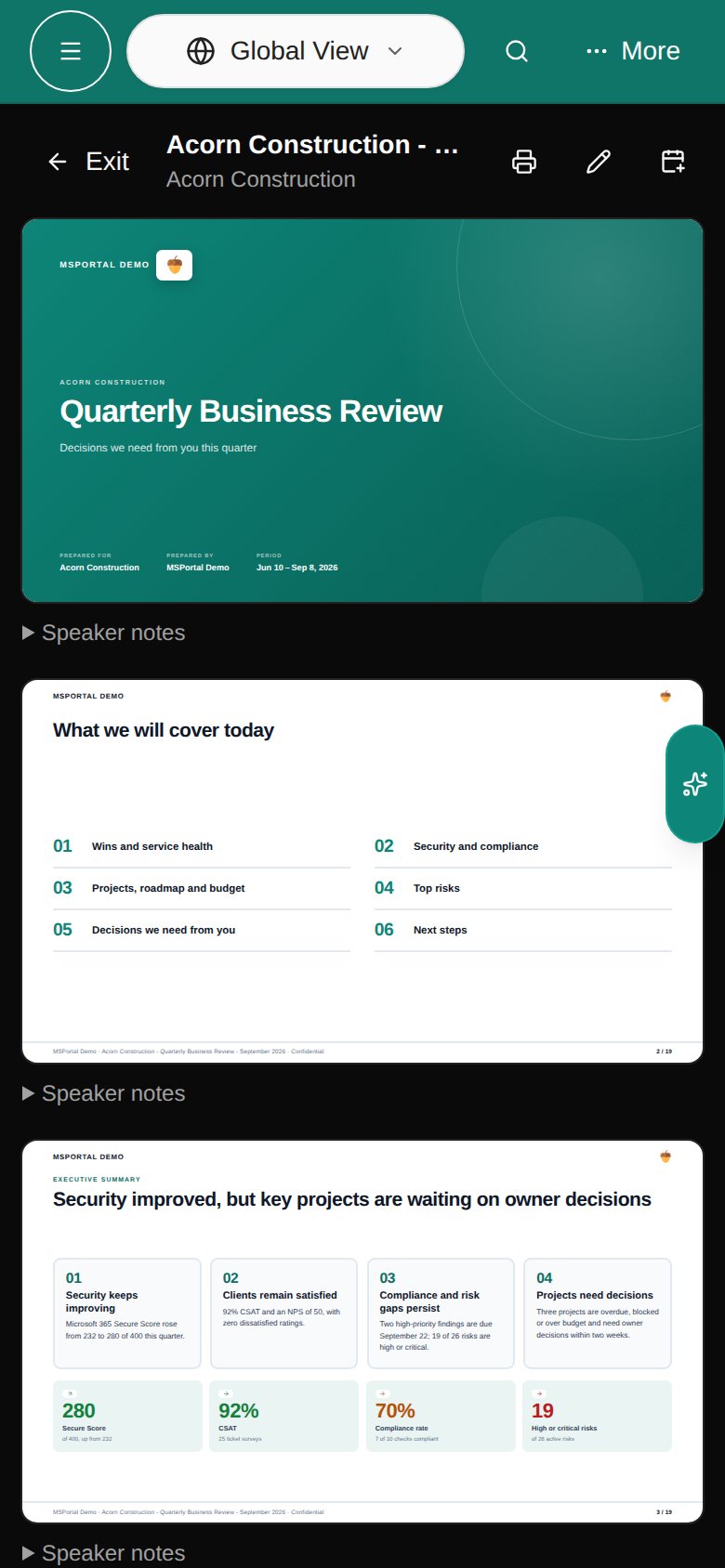
Speaker notes are presenter material for MSP staff. The client copy of the presentation omits them.
 ## Continued content pages
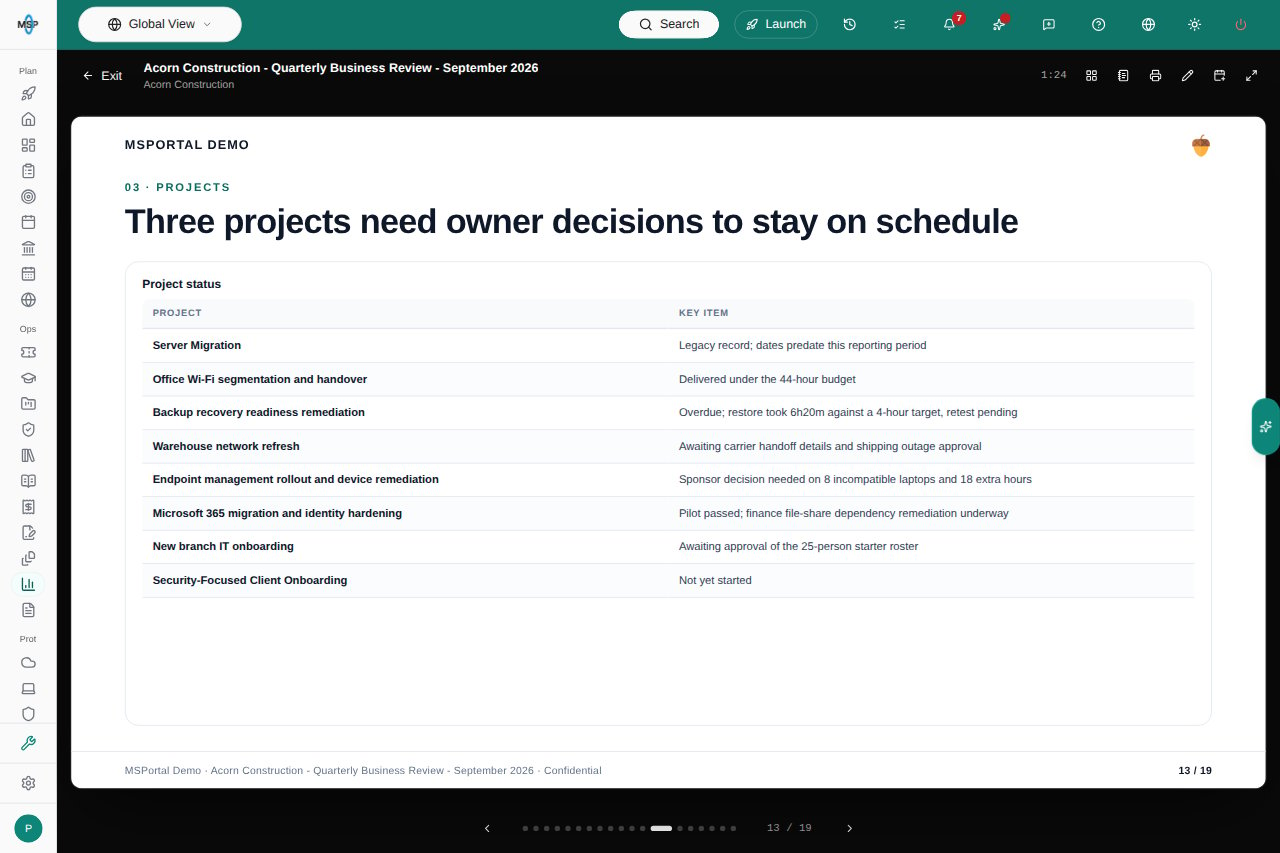
Dense tables and long lists can continue across several presentation pages. The source slide remains one editing unit: editing a field on a continuation changes that field in its original slide.
Wide tables repeat their first column for row context when split into column groups. Review every continuation to check all rows and columns. The player and printout include the continuations, so their displayed page count can exceed the original source-slide count or the build dialog's estimate.
## Present and print
On desktop, use **Previous slide**, **Next slide**, **All slides** and **Full screen** to navigate. Staff can open **Speaker notes** when available. On a phone, slides appear as a scrollable list.
## Continued content pages
Dense tables and long lists can continue across several presentation pages. The source slide remains one editing unit: editing a field on a continuation changes that field in its original slide.
Wide tables repeat their first column for row context when split into column groups. Review every continuation to check all rows and columns. The player and printout include the continuations, so their displayed page count can exceed the original source-slide count or the build dialog's estimate.
## Present and print
On desktop, use **Previous slide**, **Next slide**, **All slides** and **Full screen** to navigate. Staff can open **Speaker notes** when available. On a phone, slides appear as a scrollable list.
 Choose **Print or save as PDF** to open the browser's print workflow. MSPortal waits for slide content to load; a loading failure stops printing and reports an error. Review the print preview and saved PDF for every continuation, readable tables, branding and complete data. Select the browser's PDF destination when you want a file.
With meeting access, **Present in a meeting** lets you select an eligible meeting for the report's company or choose **Start a new meeting now**. This adds the report to that meeting's agenda and opens the meeting presenter. Adding it is a saved agenda change.
## Update or remove a presentation
If the report changes after the deck was built, MSPortal marks the presentation as potentially out of date. Open **Presentation options > Rebuild presentation** to generate a replacement from the current report.
A successful rebuild replaces the current slides, including manual slide edits. The current deck remains available while the replacement builds. Review the finished report and preserve any slide text you need before rebuilding; changing a report does not automatically rewrite its existing deck.
**Delete presentation** removes the deck after confirmation and leaves the report itself unchanged.
## Troubleshooting
| Symptom | What to check |
| - | - |
| Create presentation is missing | Feature availability, staff reporting permissions, and whether this is a finished full report with written sections. |
| A build fails | The displayed error, AI availability, credits and provider configuration. Retry from the report after correcting the cause. |
| Figures are flagged | Compare them directly with the source report; correct the report or slides before presenting. |
| Save is unavailable | Empty required fields, no visible slides, an active rebuild or a deck replaced by a newer save. |
| Slides are out of date | Review the changed report and rebuild deliberately, accounting for the slide edits a rebuild replaces. |
| Print cannot finish | Wait for content, resolve block loading or incomplete-data errors, then try again. |
## Related guides
* [Reporting](/user-guides/reporting/index)
* [Design reporting blocks with AI](/user-guides/reporting/design-ai-blocks)
This documentation is built and hosted on [Mintlify](https://mintlify.com), a developer documentation platform.
Choose **Print or save as PDF** to open the browser's print workflow. MSPortal waits for slide content to load; a loading failure stops printing and reports an error. Review the print preview and saved PDF for every continuation, readable tables, branding and complete data. Select the browser's PDF destination when you want a file.
With meeting access, **Present in a meeting** lets you select an eligible meeting for the report's company or choose **Start a new meeting now**. This adds the report to that meeting's agenda and opens the meeting presenter. Adding it is a saved agenda change.
## Update or remove a presentation
If the report changes after the deck was built, MSPortal marks the presentation as potentially out of date. Open **Presentation options > Rebuild presentation** to generate a replacement from the current report.
A successful rebuild replaces the current slides, including manual slide edits. The current deck remains available while the replacement builds. Review the finished report and preserve any slide text you need before rebuilding; changing a report does not automatically rewrite its existing deck.
**Delete presentation** removes the deck after confirmation and leaves the report itself unchanged.
## Troubleshooting
| Symptom | What to check |
| - | - |
| Create presentation is missing | Feature availability, staff reporting permissions, and whether this is a finished full report with written sections. |
| A build fails | The displayed error, AI availability, credits and provider configuration. Retry from the report after correcting the cause. |
| Figures are flagged | Compare them directly with the source report; correct the report or slides before presenting. |
| Save is unavailable | Empty required fields, no visible slides, an active rebuild or a deck replaced by a newer save. |
| Slides are out of date | Review the changed report and rebuild deliberately, accounting for the slide edits a rebuild replaces. |
| Print cannot finish | Wait for content, resolve block loading or incomplete-data errors, then try again. |
## Related guides
* [Reporting](/user-guides/reporting/index)
* [Design reporting blocks with AI](/user-guides/reporting/design-ai-blocks)
This documentation is built and hosted on [Mintlify](https://mintlify.com), a developer documentation platform.