> ## Documentation Index
> Fetch the complete documentation index at: https://docs.msportal.ai/llms.txt
> Use this file to discover all available pages before exploring further.
# Review HootPhish challenges
> Find CyberHoot challenges, filter their status, and select the results you want to inspect.
**Audience:** Company users and MSP staff with Security Awareness read access, a connected CyberHoot integration, and mapped active customers with HootPhish data. Your MSP manages provider setup and campaigns.
## Find a challenge
1. Open **Security > Security Awareness** and confirm the company selection.
2. Scroll to **HootPhish challenges** below the CyberHoot company summary.
3. Use **Search challenges** to match a challenge name, company name, or source challenge identifier.
4. Use **Challenge status** to choose **All challenges**, **Active**, or **Completed**. Keep All challenges when looking for another status, such as Upcoming or Inactive.
5. Browse using **Previous page** and **Next page**. Each page contains up to 25 challenges.
6. Select the challenge name in the desktop table, or its card on a smaller screen. Its [participant results](/user-guides/security/read-hootphish-participants) appear below.
The first challenge on the current page is selected automatically when no selected challenge is present there. Searching, changing status, changing company scope, or paging can change the selected challenge. Always check the name above the participant results.
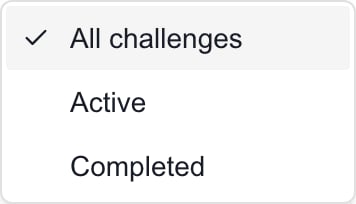 This generic control was captured in an MSP Demo session. Available challenges depend on company access and synced provider data.
## Read the results
Review **Dates**, **Participation**, **Success**, **Challenge score**, and **Challenge rank**. Compact challenge cards also show **Avg. participant score**. These are imported challenge metrics; a missing value displays a dash or **Not provided**.
**Participation** and **Success** are different percentages. A completed challenge is not a statement that every participant succeeded. The status can reflect provider data or dates when no source status was supplied. If the Active badge and a status filter appear inconsistent, return to **All challenges** and ask your MSP to verify the source status before relying on it.
The list is ordered by start date, newest first, with undated challenges later. It has no column-sort control or date-range filter. Selecting a challenge only changes the results being viewed; it does not enroll a learner, launch a simulation, send an email, or complete the challenge.
## Empty results or load errors
For **No HootPhish challenges found**, clear Search challenges, choose All challenges, and confirm the company selection. The company summary can exist even when no eligible HootPhish challenge data has been returned.
For a load error, use **Try again** and ask your MSP to check integration mapping and sync information if it continues. This retry reads stored results; it does not launch a campaign or run a provider sync.
Company users can request assistance through the [Home AI Assistant](/user-guides/ticketing/open-a-ticket). Include the company and challenge name, then review and confirm the request. MSP staff administer campaigns through the provider's supported workflow. This reader does not create challenges or export CSV.
## Frequently asked questions
The first challenge in the new result page is selected when the previous selection is no longer present. Check the displayed challenge name before reading the participants.
Choose All challenges. The status dropdown only offers All challenges, Active, and Completed.
No. It opens the imported participant results. Campaign administration and delivery happen through the provider's supported workflow.
No. Review the separate participant completion and success results. Challenge status alone does not prove every participant succeeded.
This generic control was captured in an MSP Demo session. Available challenges depend on company access and synced provider data.
## Read the results
Review **Dates**, **Participation**, **Success**, **Challenge score**, and **Challenge rank**. Compact challenge cards also show **Avg. participant score**. These are imported challenge metrics; a missing value displays a dash or **Not provided**.
**Participation** and **Success** are different percentages. A completed challenge is not a statement that every participant succeeded. The status can reflect provider data or dates when no source status was supplied. If the Active badge and a status filter appear inconsistent, return to **All challenges** and ask your MSP to verify the source status before relying on it.
The list is ordered by start date, newest first, with undated challenges later. It has no column-sort control or date-range filter. Selecting a challenge only changes the results being viewed; it does not enroll a learner, launch a simulation, send an email, or complete the challenge.
## Empty results or load errors
For **No HootPhish challenges found**, clear Search challenges, choose All challenges, and confirm the company selection. The company summary can exist even when no eligible HootPhish challenge data has been returned.
For a load error, use **Try again** and ask your MSP to check integration mapping and sync information if it continues. This retry reads stored results; it does not launch a campaign or run a provider sync.
Company users can request assistance through the [Home AI Assistant](/user-guides/ticketing/open-a-ticket). Include the company and challenge name, then review and confirm the request. MSP staff administer campaigns through the provider's supported workflow. This reader does not create challenges or export CSV.
## Frequently asked questions
The first challenge in the new result page is selected when the previous selection is no longer present. Check the displayed challenge name before reading the participants.
Choose All challenges. The status dropdown only offers All challenges, Active, and Completed.
No. It opens the imported participant results. Campaign administration and delivery happen through the provider's supported workflow.
No. Review the separate participant completion and success results. Challenge status alone does not prove every participant succeeded.