> ## Documentation Index
> Fetch the complete documentation index at: https://docs.msportal.ai/llms.txt
> Use this file to discover all available pages before exploring further.
# Billing Settings
> Manage subscriptions, payment methods, and invoices
Billing Settings allows you to manage your MSPortal.ai subscription, payment methods, add-on services, and view billing history. Only Primary Admins can access billing settings.
## Accessing Billing Settings
1. Click **Settings** in the sidebar
2. Select the **Billing** icon from the settings navigation
## Billing Overview
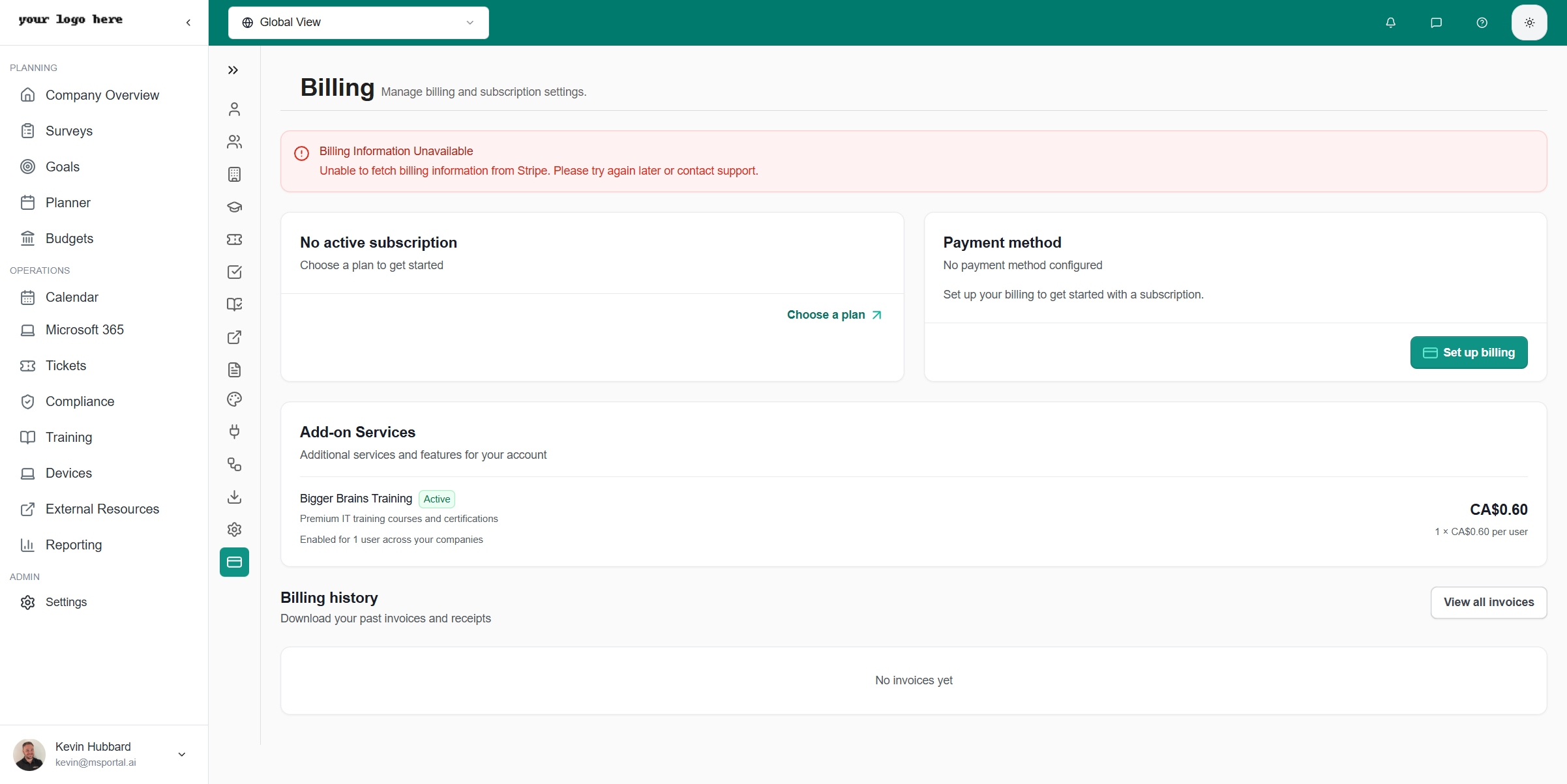 ## Subscription Management
### Current Plan
View your active subscription details:
| Field | Description |
| --------------------- | ------------------------------ |
| **Plan Name** | Your current subscription tier |
| **Status** | Active, Trial, or Expired |
| **Billing Cycle** | Monthly or Annual |
| **Next Billing Date** | When your next payment is due |
### Choosing a Plan
Select the plan selection button
Review features and pricing for each tier
Choose the plan that fits your needs
Enter payment details to activate
## Payment Methods
### Setting Up Billing
Open the payment configuration
Provide credit card or payment information
Confirm billing address
Complete the setup
### Managing Payment Methods
* **Update card** - Change to a new payment method
* **Set default** - Choose primary payment method
* **Remove** - Delete saved payment methods
## Add-on Services
Additional features available for your account:
### Bigger Brains Training
| Detail | Value |
| --------------- | ---------------------------------------------- |
| **Description** | Premium IT training courses and certifications |
| **Pricing** | Per-user monthly fee |
| **Status** | Active or Inactive |
### Managing Add-ons
1. View available add-ons in the Add-on Services section
2. Click to enable or configure each service
3. Pricing is shown per-user or per-month
## Billing History
### Viewing Invoices
Access past invoices and receipts:
| Field | Description |
| ------------ | ------------------------ |
| **Date** | Invoice date |
| **Amount** | Total charged |
| **Status** | Paid, Pending, or Failed |
| **Download** | PDF invoice download |
### View All Invoices
Click **View all invoices** to see complete billing history with options to:
* Download individual invoices
* Filter by date range
* Export billing reports
## What Happens if Payment Fails?
If your payment fails or subscription lapses, your MSP team members will be placed in **read-only mode** until payment is resolved.
### Read-Only Mode for MSP Team
When your account enters a billing-restricted state, the following occurs:
| Who | Impact |
| --------------------- | ----------------------------------------------------------------------- |
| **MSP Team Members** | Read-only access - can view all data but cannot create, edit, or delete |
| **Your Client Users** | **No impact** - continue working normally with full access |
| **Primary Admin** | Can still access Billing Settings to resolve payment issues |
### What MSP Team Members Can Do in Read-Only Mode
* View all dashboards, reports, and data
* Access company and user information
* Review tickets, projects, and compliance status
* Export data and run reports
### What MSP Team Members Cannot Do
* Create new records (tickets, projects, meetings, etc.)
* Edit existing data
* Delete any records
* Modify settings or configurations
* Make changes to client companies
### Billing Status Types
| Status | Description | Access Level |
| -------------- | -------------------------------- | ---------------------- |
| **Active** | Subscription is current and paid | Full access |
| **Trialing** | Free trial period | Full access |
| **Past Due** | Payment failed, grace period | Read-only for MSP team |
| **Unpaid** | Multiple payment failures | Read-only for MSP team |
| **Canceled** | Subscription canceled | Read-only for MSP team |
| **Incomplete** | Setup not finished | Read-only for MSP team |
### How to Restore Full Access
Primary Admins can always access **Settings > Billing** even in read-only mode
Add a new card or update your existing payment information
Process the outstanding payment
Once payment succeeds, full access is immediately restored for all MSP team members
Your client users are never affected by your billing status. They can continue using MSPortal normally even if your MSP team is in read-only mode.
## Billing FAQs
### When am I charged?
Charges occur at the start of each billing cycle (monthly or annually).
### Can I change my plan?
Yes, you can upgrade or downgrade at any time. Changes take effect on your next billing cycle.
### How do I cancel?
Contact support to cancel your subscription. You'll retain access until the end of your current billing period.
### What payment methods are accepted?
MSPortal accepts major credit cards through Stripe, including Visa, Mastercard, and American Express.
### What happens to my data if I don't pay?
Your data is never deleted due to billing issues. MSP team members are placed in read-only mode but can still access all existing data. Your client users continue to have full access. Once payment is resolved, full access is restored immediately.
### Why can my clients still work when my team can't?
MSPortal prioritizes your client experience. Your clients (company users) are never impacted by your MSP's billing status. This ensures continuity of service for the end users you support.
### I'm an admin but can't make changes - what do I do?
If you're a Primary Admin and see a billing restriction message, navigate to **Settings > Billing** to update your payment method. This menu item is always accessible regardless of billing status.
## Related Resources
* [Tenant Settings](/user-guides/settings/tenant) - Organization configuration
* [Settings Overview](/user-guides/settings/index) - All settings options
## Subscription Management
### Current Plan
View your active subscription details:
| Field | Description |
| --------------------- | ------------------------------ |
| **Plan Name** | Your current subscription tier |
| **Status** | Active, Trial, or Expired |
| **Billing Cycle** | Monthly or Annual |
| **Next Billing Date** | When your next payment is due |
### Choosing a Plan
Select the plan selection button
Review features and pricing for each tier
Choose the plan that fits your needs
Enter payment details to activate
## Payment Methods
### Setting Up Billing
Open the payment configuration
Provide credit card or payment information
Confirm billing address
Complete the setup
### Managing Payment Methods
* **Update card** - Change to a new payment method
* **Set default** - Choose primary payment method
* **Remove** - Delete saved payment methods
## Add-on Services
Additional features available for your account:
### Bigger Brains Training
| Detail | Value |
| --------------- | ---------------------------------------------- |
| **Description** | Premium IT training courses and certifications |
| **Pricing** | Per-user monthly fee |
| **Status** | Active or Inactive |
### Managing Add-ons
1. View available add-ons in the Add-on Services section
2. Click to enable or configure each service
3. Pricing is shown per-user or per-month
## Billing History
### Viewing Invoices
Access past invoices and receipts:
| Field | Description |
| ------------ | ------------------------ |
| **Date** | Invoice date |
| **Amount** | Total charged |
| **Status** | Paid, Pending, or Failed |
| **Download** | PDF invoice download |
### View All Invoices
Click **View all invoices** to see complete billing history with options to:
* Download individual invoices
* Filter by date range
* Export billing reports
## What Happens if Payment Fails?
If your payment fails or subscription lapses, your MSP team members will be placed in **read-only mode** until payment is resolved.
### Read-Only Mode for MSP Team
When your account enters a billing-restricted state, the following occurs:
| Who | Impact |
| --------------------- | ----------------------------------------------------------------------- |
| **MSP Team Members** | Read-only access - can view all data but cannot create, edit, or delete |
| **Your Client Users** | **No impact** - continue working normally with full access |
| **Primary Admin** | Can still access Billing Settings to resolve payment issues |
### What MSP Team Members Can Do in Read-Only Mode
* View all dashboards, reports, and data
* Access company and user information
* Review tickets, projects, and compliance status
* Export data and run reports
### What MSP Team Members Cannot Do
* Create new records (tickets, projects, meetings, etc.)
* Edit existing data
* Delete any records
* Modify settings or configurations
* Make changes to client companies
### Billing Status Types
| Status | Description | Access Level |
| -------------- | -------------------------------- | ---------------------- |
| **Active** | Subscription is current and paid | Full access |
| **Trialing** | Free trial period | Full access |
| **Past Due** | Payment failed, grace period | Read-only for MSP team |
| **Unpaid** | Multiple payment failures | Read-only for MSP team |
| **Canceled** | Subscription canceled | Read-only for MSP team |
| **Incomplete** | Setup not finished | Read-only for MSP team |
### How to Restore Full Access
Primary Admins can always access **Settings > Billing** even in read-only mode
Add a new card or update your existing payment information
Process the outstanding payment
Once payment succeeds, full access is immediately restored for all MSP team members
Your client users are never affected by your billing status. They can continue using MSPortal normally even if your MSP team is in read-only mode.
## Billing FAQs
### When am I charged?
Charges occur at the start of each billing cycle (monthly or annually).
### Can I change my plan?
Yes, you can upgrade or downgrade at any time. Changes take effect on your next billing cycle.
### How do I cancel?
Contact support to cancel your subscription. You'll retain access until the end of your current billing period.
### What payment methods are accepted?
MSPortal accepts major credit cards through Stripe, including Visa, Mastercard, and American Express.
### What happens to my data if I don't pay?
Your data is never deleted due to billing issues. MSP team members are placed in read-only mode but can still access all existing data. Your client users continue to have full access. Once payment is resolved, full access is restored immediately.
### Why can my clients still work when my team can't?
MSPortal prioritizes your client experience. Your clients (company users) are never impacted by your MSP's billing status. This ensures continuity of service for the end users you support.
### I'm an admin but can't make changes - what do I do?
If you're a Primary Admin and see a billing restriction message, navigate to **Settings > Billing** to update your payment method. This menu item is always accessible regardless of billing status.
## Related Resources
* [Tenant Settings](/user-guides/settings/tenant) - Organization configuration
* [Settings Overview](/user-guides/settings/index) - All settings options