> ## Documentation Index
> Fetch the complete documentation index at: https://docs.msportal.ai/llms.txt
> Use this file to discover all available pages before exploring further.
# Configure risk tracking and categories
> Enable tenant risk tracking and maintain categories without confusing immediate changes with drafts.
**Audience:** MSP staff. Open **Settings > Compliance > Risk** with Compliance settings read access. Enabling or disabling risk requires manage access. Adding, editing, reordering and archiving categories requires write or manage access. The Compliance feature must be available.
These settings apply across the tenant. The top Company selector does not turn category changes into a single-company override. [Risk Management](/user-guides/compliance/risk-management) explains the register and individual assessments.
## Enable risk tracking
1. If tracking is disabled, choose a category starter on the page: **MSP risk domains**, **NIST CSF**, or **Custom**.
2. Select **Enable risk tracking**, either the button or switch. Review the confirmation, including the selected starter.
3. Confirm **Enable risk tracking**. Cancel leaves tracking disabled.
4. Review **Risk categories** and the Risk workspace before introducing the workflow to your team. Enabling also provisions or activates the system Risk Dashboard and prepares eligible compliance findings; it is not just a cosmetic switch.
MSP risk domains provides broad business and operational categories. NIST CSF starts with Govern, Identify, Protect, Detect, Respond, Recover and Other. Custom starts with Other. These are editable category starters, not proof of compliance with a framework.
Re-enabling the same starter preserves the existing categories. Choosing a different starter when re-enabling adds missing starter categories rather than replacing your entire category library. Review the resulting list instead of assuming it was reset.
## Maintain categories
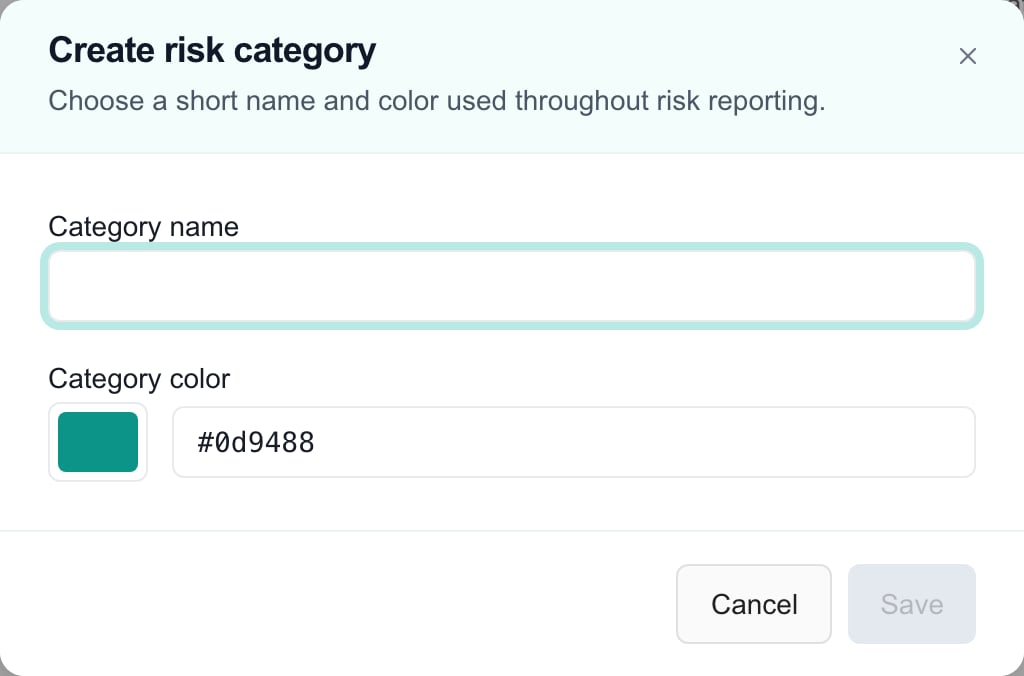
1. Select **Add category**, or open a category's menu and choose **Edit**.
2. Enter a short **Category name** and choose a **Category color**. If typing a color, use a complete six-digit hexadecimal value such as `#0d9488`.
3. Select **Save** in the dialog. Cancel discards that dialog's draft.
4. Use the up/down arrows to reorder categories. Each arrow saves immediately.
5. Use **Archive category** to retire a category, or **Restore category** to return it. These menu actions save immediately without a later page Save. Archiving preserves existing risk references; it is not deletion of those risks.
 The **Scoring matrix** is a read-only reference: likelihood × impact, each on a 1–5 scale. Severity bands are Low 1–4, Medium 5–9, High 10–16 and Critical 17–25. Category colors and ordering do not change those bands.
## Disable tracking
Turning **Enable risk tracking** off saves immediately. There is no separate Save or disabling confirmation. It hides the feature while preserving existing risk data. Review the impact on your team's register and reporting before switching it off; do not toggle it as a way to preview a different starter.
## Troubleshooting
If controls are disabled, check settings permissions. If a category cannot save, check its name, color and any duplicate-name message. Reopen the list after a failure before retrying. If a client cannot see a risk, enabling tracking alone is insufficient: review the risk's visibility, recorded MSP approval, company scope and the client's Compliance access.
## Related guides
* [Risk Management](/user-guides/compliance/risk-management)
* [Compliance Settings](/user-guides/settings/compliance)
* [Compliance Scoring](/user-guides/settings/compliance-scoring)
## FAQs
No. Review and confirm Enable risk tracking to persist the change.
No. When re-enabling with a different starter, missing starter categories are added while existing categories and references are preserved.
No. It hides the feature while preserving the data, and the off switch saves immediately.
No. Reordering, archiving and restoring save immediately. Category name and color edits use the dialog Save.
No. Existing risk references are preserved.
No. The matrix is a fixed 5 × 5 reference. Category colors do not change severity.
No. Client access also requires an eligible company scope, Compliance access, visibility enabled on the risk and recorded MSP approval.
The **Scoring matrix** is a read-only reference: likelihood × impact, each on a 1–5 scale. Severity bands are Low 1–4, Medium 5–9, High 10–16 and Critical 17–25. Category colors and ordering do not change those bands.
## Disable tracking
Turning **Enable risk tracking** off saves immediately. There is no separate Save or disabling confirmation. It hides the feature while preserving existing risk data. Review the impact on your team's register and reporting before switching it off; do not toggle it as a way to preview a different starter.
## Troubleshooting
If controls are disabled, check settings permissions. If a category cannot save, check its name, color and any duplicate-name message. Reopen the list after a failure before retrying. If a client cannot see a risk, enabling tracking alone is insufficient: review the risk's visibility, recorded MSP approval, company scope and the client's Compliance access.
## Related guides
* [Risk Management](/user-guides/compliance/risk-management)
* [Compliance Settings](/user-guides/settings/compliance)
* [Compliance Scoring](/user-guides/settings/compliance-scoring)
## FAQs
No. Review and confirm Enable risk tracking to persist the change.
No. When re-enabling with a different starter, missing starter categories are added while existing categories and references are preserved.
No. It hides the feature while preserving the data, and the off switch saves immediately.
No. Reordering, archiving and restoring save immediately. Category name and color edits use the dialog Save.
No. Existing risk references are preserved.
No. The matrix is a fixed 5 × 5 reference. Category colors do not change severity.
No. Client access also requires an eligible company scope, Compliance access, visibility enabled on the risk and recorded MSP approval.