> ## Documentation Index
> Fetch the complete documentation index at: https://docs.msportal.ai/llms.txt
> Use this file to discover all available pages before exploring further.
# Schedule compliance assessments
> Choose a run template, target companies and recurrence, then manage the saved schedule.
**Audience:** MSP staff with Compliance settings access. Creating, editing and pausing schedules requires write access; deleting requires manage access. The Compliance feature must be available to your tenant.
Open **Settings > Compliance > Schedule**. This is tenant-wide configuration. The top Company selector does not limit a schedule to the company you happen to be viewing: its **Targets** determine who receives runs.
## Before creating a schedule
Prepare an active template under **Settings > Compliance > Runs** with the intended groups and individual checks. Review its contents before scheduling it. Only active templates appear in the schedule picker. A template defines the assessment package; a schedule decides when and for whom to create runs.
## Create the schedule
1. Select **Create Schedule**. Enter a recognizable **Schedule Name**, optional description, and **Run Template**.
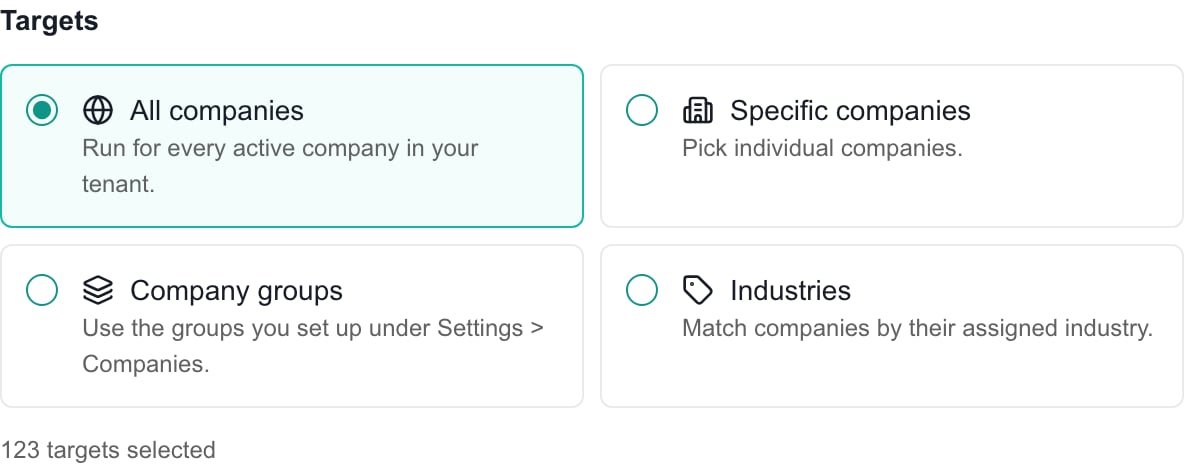
2. Choose **Targets** deliberately. The new form starts with **All companies**, which targets active companies across the tenant. Choose **Specific companies** for an explicit client list, **Company groups** for the available groups, or **Industries** for company industry matches.
3. For a targeted mode, select at least one entry. The summary counts selected groups or industries in those modes; it is not a preview of the final company count. If no groups are offered, use Specific companies or review company classification; do not assume every PSA-synced type is a schedulable group.
4. Set the **Frequency** and the additional recurrence controls. Review the preview after changing frequency because its recurrence options reset to defaults for that frequency.
5. Choose the **Start date**, or **Run date** for a one-time schedule. The form offers dates and patterns, not an exact time-of-day or time-zone selector.
6. Select **Create Schedule** and wait for success. New schedules are created active. **Cancel** closes the unsaved draft.
7. Reopen the saved schedule with **Edit** to verify its template, target mode, selections and recurrence. Review resulting runs in Compliance when the schedule executes.
 ## Recurrence choices
| Frequency | Configure |
| ------------ | ---------------------------------------------------------------------------- |
| One-time | Run date |
| Weekly | Day of the week and start date |
| Semi-monthly | Two offered days of the month; the second can be the last day |
| Monthly | A day of the month, last day, or an ordinal weekday such as the first Monday |
| Quarterly | Starting month and day pattern; repeats every three months |
| Semi-annual | Starting month and day pattern; repeats every six months |
| Annual | Month and day pattern |
Use the offered day choices rather than assuming an unavailable date is supported. A saved schedule is not proof that assessments already exist: background processing creates runs and then assigns checks. A processing failure or no eligible active companies can prevent expected results. No exact execution-time guarantee is implied by the date preview.
## Edit, pause and delete
* **Edit** opens a draft of the saved configuration. **Update Schedule** persists it; Cancel leaves it unchanged.
* The row's **Active/Paused** switch saves immediately. There is no separate page Save for the status switch. Pausing controls future scheduling; it does not undo assessments already created.
* **Delete** opens a confirmation. Confirm **Delete Schedule** only when future scheduling should stop. Removing a schedule is not a way to delete historical runs or completed evidence.
Review **Last Run** separately from completion of the resulting checks. A last-run timestamp does not certify that assignments finished or that a company passed its assessment.
## Troubleshooting
If Create Schedule is disabled, check the name, template and target selection. If a template is absent, check whether it is active. If an edit cannot save, review permissions and field errors, then reopen the record before retrying. If no assessment appears, check Active/Paused, start date, target membership, active-company status and the resulting Compliance runs; do not create duplicate schedules to compensate for delayed processing.
## Related guides
* [Build checks, groups and run templates](/user-guides/settings/compliance)
* [Manage companies](/user-guides/settings/companies)
* [Find and read compliance checks](/user-guides/compliance/find-and-read-checks)
## FAQs
No. Schedule configuration is tenant-wide. Choose the intended companies in Targets.
All active companies in the tenant. Change Targets before saving if you need a narrower assessment.
The schedule picker offers active templates. Review the template under Settings > Compliance > Runs.
Only a company selection directly counts companies. Group and industry modes count the selected groups or industries.
No. The row status switch saves immediately. It does not cancel or delete runs already created.
No. Run creation and check assignment are separate from assessment completion.
The schedule editor offers dates and recurrence patterns, without a time-of-day or time-zone selector.
No. It removes the schedule for future execution, not the historical assessments.
## Recurrence choices
| Frequency | Configure |
| ------------ | ---------------------------------------------------------------------------- |
| One-time | Run date |
| Weekly | Day of the week and start date |
| Semi-monthly | Two offered days of the month; the second can be the last day |
| Monthly | A day of the month, last day, or an ordinal weekday such as the first Monday |
| Quarterly | Starting month and day pattern; repeats every three months |
| Semi-annual | Starting month and day pattern; repeats every six months |
| Annual | Month and day pattern |
Use the offered day choices rather than assuming an unavailable date is supported. A saved schedule is not proof that assessments already exist: background processing creates runs and then assigns checks. A processing failure or no eligible active companies can prevent expected results. No exact execution-time guarantee is implied by the date preview.
## Edit, pause and delete
* **Edit** opens a draft of the saved configuration. **Update Schedule** persists it; Cancel leaves it unchanged.
* The row's **Active/Paused** switch saves immediately. There is no separate page Save for the status switch. Pausing controls future scheduling; it does not undo assessments already created.
* **Delete** opens a confirmation. Confirm **Delete Schedule** only when future scheduling should stop. Removing a schedule is not a way to delete historical runs or completed evidence.
Review **Last Run** separately from completion of the resulting checks. A last-run timestamp does not certify that assignments finished or that a company passed its assessment.
## Troubleshooting
If Create Schedule is disabled, check the name, template and target selection. If a template is absent, check whether it is active. If an edit cannot save, review permissions and field errors, then reopen the record before retrying. If no assessment appears, check Active/Paused, start date, target membership, active-company status and the resulting Compliance runs; do not create duplicate schedules to compensate for delayed processing.
## Related guides
* [Build checks, groups and run templates](/user-guides/settings/compliance)
* [Manage companies](/user-guides/settings/companies)
* [Find and read compliance checks](/user-guides/compliance/find-and-read-checks)
## FAQs
No. Schedule configuration is tenant-wide. Choose the intended companies in Targets.
All active companies in the tenant. Change Targets before saving if you need a narrower assessment.
The schedule picker offers active templates. Review the template under Settings > Compliance > Runs.
Only a company selection directly counts companies. Group and industry modes count the selected groups or industries.
No. The row status switch saves immediately. It does not cancel or delete runs already created.
No. Run creation and check assignment are separate from assessment completion.
The schedule editor offers dates and recurrence patterns, without a time-of-day or time-zone selector.
No. It removes the schedule for future execution, not the historical assessments.