> ## Documentation Index
> Fetch the complete documentation index at: https://docs.msportal.ai/llms.txt
> Use this file to discover all available pages before exploring further.
# Configure compliance scoring
> Adjust tenant compliance weights and grade thresholds, with explicit save and reset behavior.
**Audience:** MSP staff with Compliance settings access. Saving or resetting requires Compliance settings manage access. These settings apply to the tenant, not just the company selected in the top bar.
Open **Settings > Compliance > Scoring**. This is **Compliance Scoring**, separate from [Client Health scoring](/user-guides/settings/scoring) under MSP Tools and from the fixed likelihood × impact matrix used by the [risk register](/user-guides/compliance/risk-management).
## Review and change weights
1. Record the current values before changing the model.
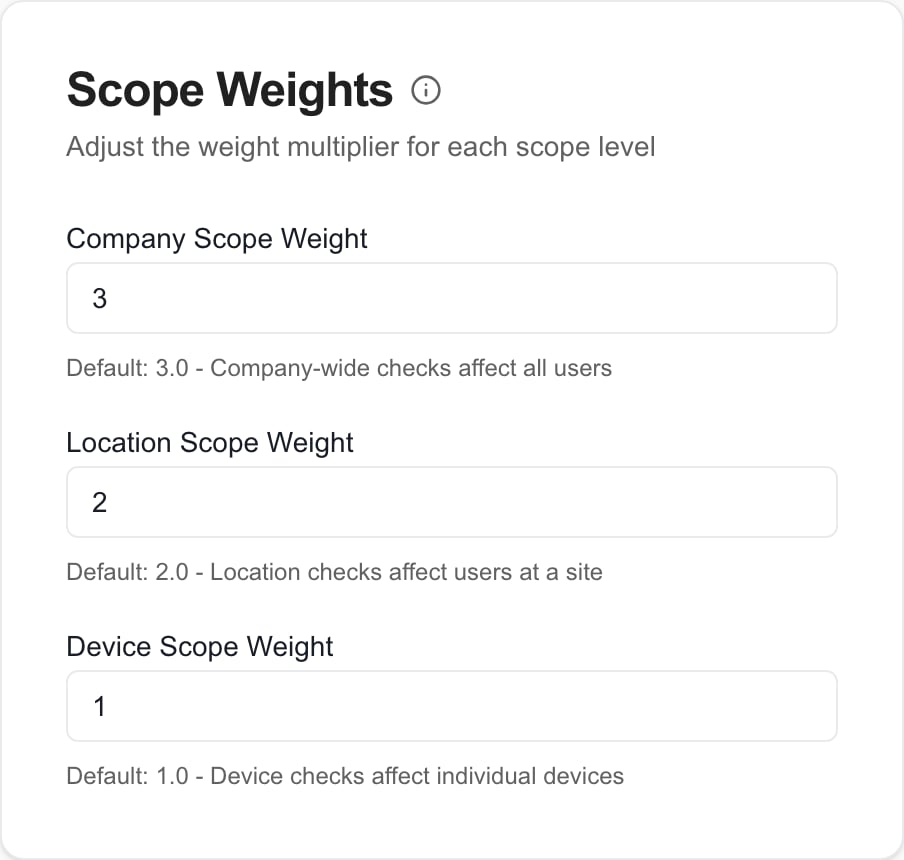
2. Review **Scope Weights** for Company, Location and Device checks, **Priority Weights** for High, Medium and Low, and the **Criticality Multiplier**.
3. Edit the intended values. Scope weights accept 0–10; priority weights and criticality multiplier accept 0–5. Use numeric values and the offered increments.
4. Review **Grade Thresholds** for A, B, C and D, each between 1 and 100. Keep A higher than B, B higher than C and C higher than D so the grades remain meaningful. Scores below D receive F.
5. Review **Grade Preview**. It shows example percentages graded using the draft thresholds; it is not a live client assessment.
6. Select **Save Changes** in the header. Wait for the result and reopen Scoring to verify the stored values.
 The displayed weighting formula combines scope, criticality and priority. Setting the criticality multiplier to zero removes criticality's extra contribution; it does not mark a check passed. Configuration changes do not edit answers, evidence, source integrations or risk-register likelihood and impact.
## Defaults and reset
| Setting | Default |
| --------------------------------- | ----------------- |
| Company / Location / Device scope | 3 / 2 / 1 |
| High / Medium / Low priority | 1.2 / 1 / 0.8 |
| Criticality multiplier | 1 |
| A / B / C / D minimum percentage | 90 / 80 / 70 / 60 |
**Reset to Defaults** opens a confirmation. Confirming **Reset** immediately restores the saved tenant defaults. It does not merely stage values for a later Save Changes, and it does not restore your last custom configuration.
To discard an unsaved edit while preserving the previous saved configuration, leave and reopen the page or return the fields to their previous values. Do not use Reset to Defaults as Cancel. To recover a custom model after a reset, re-enter the recorded values and save.
## Check the outcome
Reopen Scoring after Save or Reset, then review the relevant compliance scores. Do not treat the example Grade Preview as proof that every report, cached score or historical publication has recalculated. Saving configuration is not a compliance certification or a repair of failed checks.
If saving fails, verify permissions and numeric limits and reopen the saved values before retrying. Save Changes is disabled when there are no draft changes or an operation is running. Visible editable controls do not themselves grant permission to persist them.
## Related guides
* [Compliance Settings](/user-guides/settings/compliance)
* [Risk Management](/user-guides/compliance/risk-management)
* [Client Health Score Configuration](/user-guides/settings/scoring)
## FAQs
No. Compliance Scoring configures compliance weights and grades. Client Health has a separate settings page and model.
No. Select Save Changes to persist the draft.
No. Confirming Reset immediately restores saved tenant defaults. Leave and reopen to discard an unsaved edit instead.
No. The scoring configuration is tenant-wide.
It shows how draft thresholds grade fixed example percentages. It does not verify live company scores or recalculated reports.
No. A zero multiplier removes the criticality contribution to weighting; it does not change the check answer.
No. Risk likelihood and impact use a separate fixed matrix.
The displayed weighting formula combines scope, criticality and priority. Setting the criticality multiplier to zero removes criticality's extra contribution; it does not mark a check passed. Configuration changes do not edit answers, evidence, source integrations or risk-register likelihood and impact.
## Defaults and reset
| Setting | Default |
| --------------------------------- | ----------------- |
| Company / Location / Device scope | 3 / 2 / 1 |
| High / Medium / Low priority | 1.2 / 1 / 0.8 |
| Criticality multiplier | 1 |
| A / B / C / D minimum percentage | 90 / 80 / 70 / 60 |
**Reset to Defaults** opens a confirmation. Confirming **Reset** immediately restores the saved tenant defaults. It does not merely stage values for a later Save Changes, and it does not restore your last custom configuration.
To discard an unsaved edit while preserving the previous saved configuration, leave and reopen the page or return the fields to their previous values. Do not use Reset to Defaults as Cancel. To recover a custom model after a reset, re-enter the recorded values and save.
## Check the outcome
Reopen Scoring after Save or Reset, then review the relevant compliance scores. Do not treat the example Grade Preview as proof that every report, cached score or historical publication has recalculated. Saving configuration is not a compliance certification or a repair of failed checks.
If saving fails, verify permissions and numeric limits and reopen the saved values before retrying. Save Changes is disabled when there are no draft changes or an operation is running. Visible editable controls do not themselves grant permission to persist them.
## Related guides
* [Compliance Settings](/user-guides/settings/compliance)
* [Risk Management](/user-guides/compliance/risk-management)
* [Client Health Score Configuration](/user-guides/settings/scoring)
## FAQs
No. Compliance Scoring configures compliance weights and grades. Client Health has a separate settings page and model.
No. Select Save Changes to persist the draft.
No. Confirming Reset immediately restores saved tenant defaults. Leave and reopen to discard an unsaved edit instead.
No. The scoring configuration is tenant-wide.
It shows how draft thresholds grade fixed example percentages. It does not verify live company scores or recalculated reports.
No. A zero multiplier removes the criticality contribution to weighting; it does not change the check answer.
No. Risk likelihood and impact use a separate fixed matrix.