> ## Documentation Index
> Fetch the complete documentation index at: https://docs.msportal.ai/llms.txt
> Use this file to discover all available pages before exploring further.
# Global Team Roles
> Assign MSP staff across companies and automate company-team membership changes.
Branch preview for PR #1508. These controls are not yet generally available. Screenshots show the unreleased branch UI. The instructions describe the behavior planned for this release.
Use a **Global team role** when the same MSP staff should serve every company—for example, a shared service manager or escalation team. Use **Add team members** and **Remove team members** automation actions when membership should change in response to a record or event.
Team roles describe responsibilities. They do not replace the Tenant or Company permission roles managed under **Settings > Users & Roles > Roles**.
## Before you start
* Open **Settings > Users & Roles > Team Roles** as MSP staff.
* Create the team role and assign its initial staff using your existing company-team controls.
* You need permission to read Company Users settings to load the roles and staff selectors, and write Company Users settings to change global assignments. Global changes also require an active billing state.
* Saving an automation with a membership action requires write access to both Automation settings and Company Users settings. This workflow selects MSP staff, not customer contacts or Company users.
 ## Make a team role global
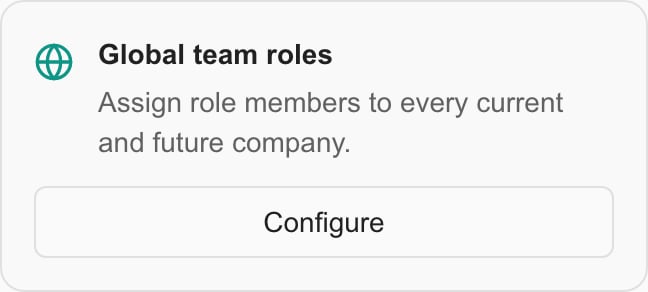
In **Team Roles**, find **Global team roles** and select **Configure**.
Enabling Global collects the staff already assigned to this role at any company. That combined roster will serve every company, subject to existing company-specific exclusions.
Turn on the switch for the role. Each switch saves immediately; there is no separate Save button. Wait for **Global team role updated** before leaving the dialog.
New companies inherit these members automatically. Adding a staff member to a Global role at one company also adds them to that role across companies.
Global applies across your tenant. Adding a person to a Global role through an automation scoped to one company can still assign that person across all companies. Use a non-global role for company-specific staffing.
## Keep a company-specific exception
Removing a member from one company's role creates a lasting exception for that company. The person can remain assigned elsewhere. Global inheritance and PSA reconciliation do not silently restore the excluded assignment.
Explicitly add the person back to that company's role to clear their exception. An **Add team members** automation action also clears the selected person's exception for the matched company.
Turning Global off removes inherited assignments. Original company assignments and company-specific removal exceptions remain. It does not delete staff accounts or the team role.
## Automate membership changes
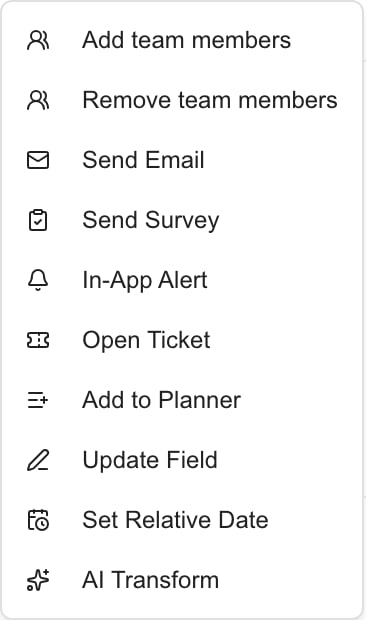
Open **Settings > Automation > New Rule** and configure the trigger, scope and conditions. In **Actions**, choose:
| Action | Configuration | Result |
| ----------------------- | -------------------------------------------------------------------------------------- | ----------------------------------------------------------------------------------------------------------------------------------------------- |
| **Add team members** | Select a team role and one or more staff members | Adds those people to the matched company's role and clears their exclusions there. Global roles can propagate those additions across companies. |
| **Remove team members** | Select a team role and specific staff, or select **Remove everyone in this team role** | Removes those members from the matched company's role and records company-specific exclusions. |
## Make a team role global
In **Team Roles**, find **Global team roles** and select **Configure**.
Enabling Global collects the staff already assigned to this role at any company. That combined roster will serve every company, subject to existing company-specific exclusions.
Turn on the switch for the role. Each switch saves immediately; there is no separate Save button. Wait for **Global team role updated** before leaving the dialog.
New companies inherit these members automatically. Adding a staff member to a Global role at one company also adds them to that role across companies.
Global applies across your tenant. Adding a person to a Global role through an automation scoped to one company can still assign that person across all companies. Use a non-global role for company-specific staffing.
## Keep a company-specific exception
Removing a member from one company's role creates a lasting exception for that company. The person can remain assigned elsewhere. Global inheritance and PSA reconciliation do not silently restore the excluded assignment.
Explicitly add the person back to that company's role to clear their exception. An **Add team members** automation action also clears the selected person's exception for the matched company.
Turning Global off removes inherited assignments. Original company assignments and company-specific removal exceptions remain. It does not delete staff accounts or the team role.
## Automate membership changes
Open **Settings > Automation > New Rule** and configure the trigger, scope and conditions. In **Actions**, choose:
| Action | Configuration | Result |
| ----------------------- | -------------------------------------------------------------------------------------- | ----------------------------------------------------------------------------------------------------------------------------------------------- |
| **Add team members** | Select a team role and one or more staff members | Adds those people to the matched company's role and clears their exclusions there. Global roles can propagate those additions across companies. |
| **Remove team members** | Select a team role and specific staff, or select **Remove everyone in this team role** | Removes those members from the matched company's role and records company-specific exclusions. |
 The company comes from the triggering record. For a Company rule it is the matched company itself; for other records it is their associated company. Records without an associated company are skipped without a membership change. You cannot configure a different target company inside the action.
**Remove everyone in this team role** resolves the role's membership when the action executes. It does not save a snapshot of today's roster or delete the role itself. New people added to the role later are not permanently blocked by a previous removal run.
Membership actions do not support an approval hold. Review **Specific Companies**, conditions and the rule's Active setting before enabling them. **Run Test** previews matching records; it does not change memberships or prove that an eventual write will succeed.
### Example: finish an onboarding handoff
1. Create a company-specific **Onboarding** team role and assign the staff handling the handoff.
2. Create a rule using an **Onboarding Event** and choose the completion event appropriate to your workflow.
3. Limit the rule to the intended companies and add any necessary conditions.
4. Add **Remove team members**, select **Onboarding**, and select **Remove everyone in this team role**.
5. Review the rule, save it inactive while preparing the rollout, then enable it when ready.
Only the event's associated company loses those assignments. An event without a company is skipped. Review automation logs and the company's team after execution.
## Where the changes appear
Global membership uses the same company-team assignments as existing team views and role-member recipient selection. These actions change membership in MSPortal; they do not change a person's permission-role definition, delete accounts, or write team changes back to your PSA.
## Troubleshooting
| Symptom | What to check |
| ---------------------------------------------------- | --------------------------------------------------------------------------------------------------------------------------------------------------- |
| Roles or staff fail to load | Company Users settings permissions and whether this feature's database release is available. |
| No roles appear | Create a staff team role first. Parent-company-specific roles are not offered as Global roles. |
| A member does not inherit into one company | They may have a company-specific exclusion. Explicitly add them back there. |
| Staff appeared at more companies than expected | Check whether the selected role is Global. |
| A membership action reports no change | Check the company association, existing membership, selected role and execution result. A repeated add or remove can legitimately change zero rows. |
| A selector choice can no longer be saved or executed | The selected staff member, company or role may have been removed or changed. Reopen the rule and review its selections. |
## Related guides
* [Users & Roles](/user-guides/settings/users-roles)
* [Automation Rules](/user-guides/settings/automation/index)
* [Rule Wizard Walkthrough](/user-guides/settings/automation/wizard)
The company comes from the triggering record. For a Company rule it is the matched company itself; for other records it is their associated company. Records without an associated company are skipped without a membership change. You cannot configure a different target company inside the action.
**Remove everyone in this team role** resolves the role's membership when the action executes. It does not save a snapshot of today's roster or delete the role itself. New people added to the role later are not permanently blocked by a previous removal run.
Membership actions do not support an approval hold. Review **Specific Companies**, conditions and the rule's Active setting before enabling them. **Run Test** previews matching records; it does not change memberships or prove that an eventual write will succeed.
### Example: finish an onboarding handoff
1. Create a company-specific **Onboarding** team role and assign the staff handling the handoff.
2. Create a rule using an **Onboarding Event** and choose the completion event appropriate to your workflow.
3. Limit the rule to the intended companies and add any necessary conditions.
4. Add **Remove team members**, select **Onboarding**, and select **Remove everyone in this team role**.
5. Review the rule, save it inactive while preparing the rollout, then enable it when ready.
Only the event's associated company loses those assignments. An event without a company is skipped. Review automation logs and the company's team after execution.
## Where the changes appear
Global membership uses the same company-team assignments as existing team views and role-member recipient selection. These actions change membership in MSPortal; they do not change a person's permission-role definition, delete accounts, or write team changes back to your PSA.
## Troubleshooting
| Symptom | What to check |
| ---------------------------------------------------- | --------------------------------------------------------------------------------------------------------------------------------------------------- |
| Roles or staff fail to load | Company Users settings permissions and whether this feature's database release is available. |
| No roles appear | Create a staff team role first. Parent-company-specific roles are not offered as Global roles. |
| A member does not inherit into one company | They may have a company-specific exclusion. Explicitly add them back there. |
| Staff appeared at more companies than expected | Check whether the selected role is Global. |
| A membership action reports no change | Check the company association, existing membership, selected role and execution result. A repeated add or remove can legitimately change zero rows. |
| A selector choice can no longer be saved or executed | The selected staff member, company or role may have been removed or changed. Reopen the rule and review its selections. |
## Related guides
* [Users & Roles](/user-guides/settings/users-roles)
* [Automation Rules](/user-guides/settings/automation/index)
* [Rule Wizard Walkthrough](/user-guides/settings/automation/wizard)