> ## Documentation Index
> Fetch the complete documentation index at: https://docs.msportal.ai/llms.txt
> Use this file to discover all available pages before exploring further.
# Integrations Settings
> Connect PSA systems and third-party services to MSPortal.ai
Integrations Settings allows you to connect MSPortal.ai to your PSA (Professional Services Automation) system and other third-party services.
## Accessing Integrations Settings
1. Click **Settings** in the sidebar
2. Select the **Integrations** icon from the settings navigation
## Integrations Overview
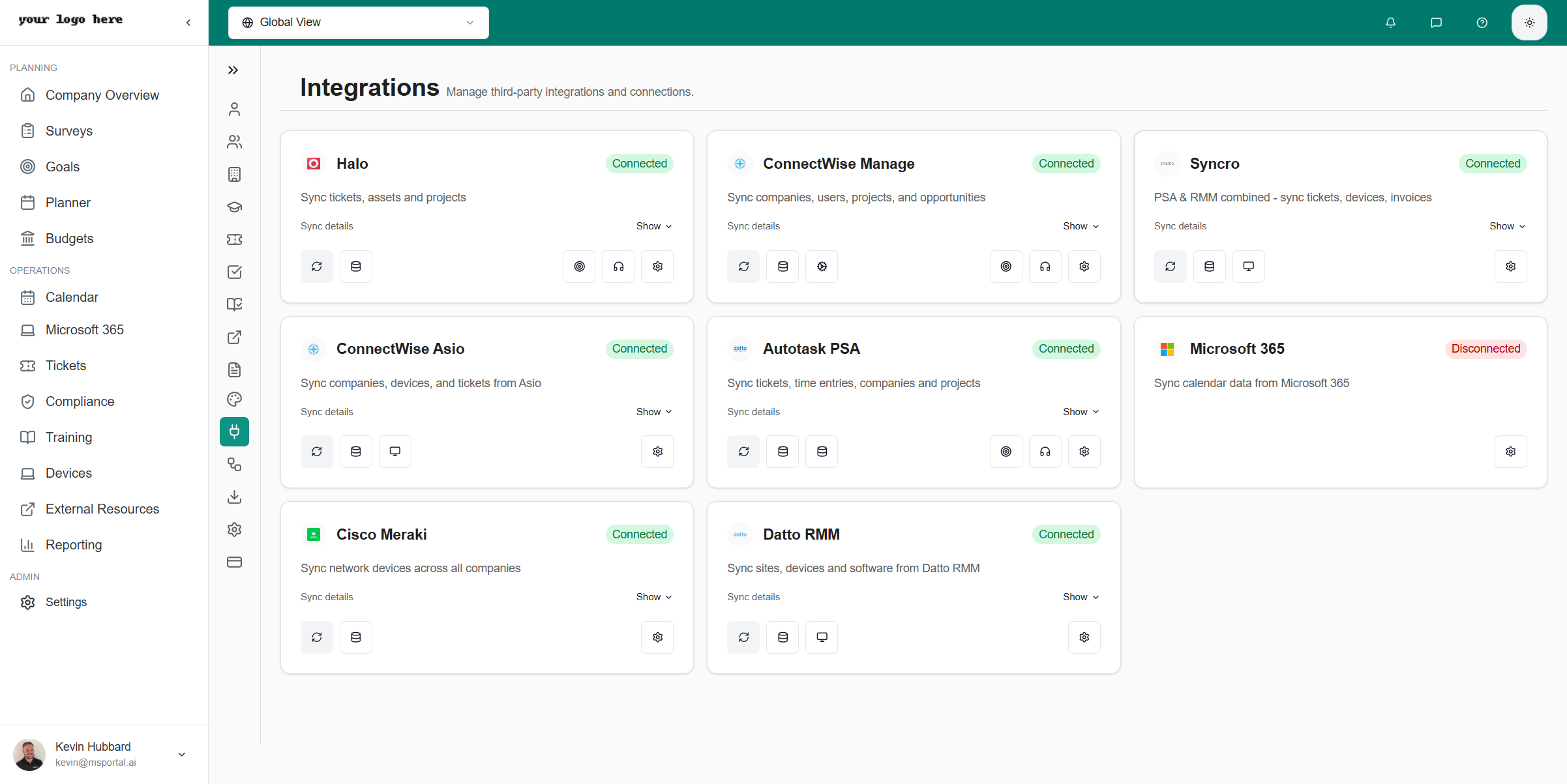 MSPortal.ai supports integration with major PSA platforms:
| Integration | Description |
| ---------------------- | -------------------------------------- |
| **Halo PSA** | Full ticketing, company, and user sync |
| **ConnectWise Manage** | Tickets, companies, and service boards |
| **Autotask** | Account and ticket synchronization |
| **Syncro** | Customer and ticket integration |
| **Datto RMM** | Device and monitoring data |
| **ConnectWise Asio** | Device and monitoring data |
| **Microsoft 365** | Secure Score and tenant management |
| **Stripe** | Billing and payment processing |
| **Bigger Brains** | Training content and courses |
## Connecting an Integration
Click on the integration you want to configure
Provide API keys, client ID/secret, or other required credentials
Set sync preferences and mapping options
Click **Test** to verify the connection works
Turn on automatic synchronization
## PSA Integrations
### What Syncs
| Data Type | Direction | Notes |
| ------------- | -------------- | ---------------------- |
| **Companies** | PSA → MSPortal | Client/account records |
| **Contacts** | PSA → MSPortal | Company contacts |
| **Users** | Bidirectional | Technician accounts |
| **Tickets** | Bidirectional | Service tickets |
### Sync Options
* **Auto-sync interval** - How often data syncs (5, 15, 30 minutes)
* **Initial import** - Import existing records on first connect
* **Selective sync** - Choose which record types to sync
### Per-Company Auto-Import Role Override
When PSA contacts are auto-imported, they are assigned a portal role from a fallback chain. You can override that role per company without touching the integration-wide default.
**The fallback chain (highest to lowest priority):**
1. **Per-company override**: a Default Import Role chosen on the Company Defaults manager for that company
2. **Contact-type rule**: a role mapped from the contact's named type in the PSA (for example "Billing Contact", "Technical Contact", or any custom type your PSA exposes; Halo user types are mapped the same way)
3. **Primary contact pseudo-type**: a role mapped from each PSA's primary-contact flag, applied when the contact is marked as the company's primary
4. **Integration default**: the role chosen during integration setup
To set the per-company override:
Go to **Settings → Companies**, find the company you want to override, and open the actions menu on its row.
Click **Manage Defaults** to open the Company Defaults manager.
Find the **Default Import Role** dropdown. The label below it shows which provider's default the company is currently inheriting (e.g. "Inheriting from ConnectWise: Standard User"). Pick a different role to override that for this one company.
Click **Save**. The next sync that imports new contacts at this company uses the override role.
The override only affects users imported automatically. Manually-created users are unaffected, and existing users keep whatever role was assigned when they were imported.
### Unified Company Mapping
Once you have at least one PSA or RMM connected, the **Settings → Integrations → Companies** page shows every MSPortal company on the rows and every active integration on the columns. Use it to link, unlink, and quick-match companies across every connected tool from one grid. See the [Integration Company Mapping](/user-guides/settings/integration-company-mapping) guide for the full workflow.
## Integration Status
Each integration shows:
| Status | Meaning |
| ---------------- | ------------------------------------ |
| **Connected** | Active and syncing |
| **Disconnected** | Credentials removed or expired |
| **Error** | Connection issue requiring attention |
| **Syncing** | Currently synchronizing data |
## Troubleshooting
### Connection Issues
1. Verify API credentials are correct
2. Check that required permissions are granted
3. Ensure your PSA subscription includes API access
4. Review firewall/network settings
### Sync Problems
1. Check the sync logs for errors
2. Verify field mappings are correct
3. Look for duplicate records
4. Contact support if issues persist
For detailed setup instructions for each integration, see the [Integrations Guide](/user-guides/integrations/index).
## Related Resources
* [Enable ConnectWise](/user-guides/integrations/enable-connectwise-integration)
* [Enable Autotask](/user-guides/integrations/enable-autotask-integration)
* [Enable Halo PSA](/user-guides/integrations/enable-halo-integration)
* [Enable Syncro](/user-guides/integrations/enable-syncro-integration)
* [Enable Datto RMM](/user-guides/integrations/enable-datto-rmm-integration)
* [Enable ConnectWise Asio](/user-guides/integrations/enable-connectwise-asio-integration)
* [Import Companies](/user-guides/integrations/import-companies)
MSPortal.ai supports integration with major PSA platforms:
| Integration | Description |
| ---------------------- | -------------------------------------- |
| **Halo PSA** | Full ticketing, company, and user sync |
| **ConnectWise Manage** | Tickets, companies, and service boards |
| **Autotask** | Account and ticket synchronization |
| **Syncro** | Customer and ticket integration |
| **Datto RMM** | Device and monitoring data |
| **ConnectWise Asio** | Device and monitoring data |
| **Microsoft 365** | Secure Score and tenant management |
| **Stripe** | Billing and payment processing |
| **Bigger Brains** | Training content and courses |
## Connecting an Integration
Click on the integration you want to configure
Provide API keys, client ID/secret, or other required credentials
Set sync preferences and mapping options
Click **Test** to verify the connection works
Turn on automatic synchronization
## PSA Integrations
### What Syncs
| Data Type | Direction | Notes |
| ------------- | -------------- | ---------------------- |
| **Companies** | PSA → MSPortal | Client/account records |
| **Contacts** | PSA → MSPortal | Company contacts |
| **Users** | Bidirectional | Technician accounts |
| **Tickets** | Bidirectional | Service tickets |
### Sync Options
* **Auto-sync interval** - How often data syncs (5, 15, 30 minutes)
* **Initial import** - Import existing records on first connect
* **Selective sync** - Choose which record types to sync
### Per-Company Auto-Import Role Override
When PSA contacts are auto-imported, they are assigned a portal role from a fallback chain. You can override that role per company without touching the integration-wide default.
**The fallback chain (highest to lowest priority):**
1. **Per-company override**: a Default Import Role chosen on the Company Defaults manager for that company
2. **Contact-type rule**: a role mapped from the contact's named type in the PSA (for example "Billing Contact", "Technical Contact", or any custom type your PSA exposes; Halo user types are mapped the same way)
3. **Primary contact pseudo-type**: a role mapped from each PSA's primary-contact flag, applied when the contact is marked as the company's primary
4. **Integration default**: the role chosen during integration setup
To set the per-company override:
Go to **Settings → Companies**, find the company you want to override, and open the actions menu on its row.
Click **Manage Defaults** to open the Company Defaults manager.
Find the **Default Import Role** dropdown. The label below it shows which provider's default the company is currently inheriting (e.g. "Inheriting from ConnectWise: Standard User"). Pick a different role to override that for this one company.
Click **Save**. The next sync that imports new contacts at this company uses the override role.
The override only affects users imported automatically. Manually-created users are unaffected, and existing users keep whatever role was assigned when they were imported.
### Unified Company Mapping
Once you have at least one PSA or RMM connected, the **Settings → Integrations → Companies** page shows every MSPortal company on the rows and every active integration on the columns. Use it to link, unlink, and quick-match companies across every connected tool from one grid. See the [Integration Company Mapping](/user-guides/settings/integration-company-mapping) guide for the full workflow.
## Integration Status
Each integration shows:
| Status | Meaning |
| ---------------- | ------------------------------------ |
| **Connected** | Active and syncing |
| **Disconnected** | Credentials removed or expired |
| **Error** | Connection issue requiring attention |
| **Syncing** | Currently synchronizing data |
## Troubleshooting
### Connection Issues
1. Verify API credentials are correct
2. Check that required permissions are granted
3. Ensure your PSA subscription includes API access
4. Review firewall/network settings
### Sync Problems
1. Check the sync logs for errors
2. Verify field mappings are correct
3. Look for duplicate records
4. Contact support if issues persist
For detailed setup instructions for each integration, see the [Integrations Guide](/user-guides/integrations/index).
## Related Resources
* [Enable ConnectWise](/user-guides/integrations/enable-connectwise-integration)
* [Enable Autotask](/user-guides/integrations/enable-autotask-integration)
* [Enable Halo PSA](/user-guides/integrations/enable-halo-integration)
* [Enable Syncro](/user-guides/integrations/enable-syncro-integration)
* [Enable Datto RMM](/user-guides/integrations/enable-datto-rmm-integration)
* [Enable ConnectWise Asio](/user-guides/integrations/enable-connectwise-asio-integration)
* [Import Companies](/user-guides/integrations/import-companies)