> ## Documentation Index
> Fetch the complete documentation index at: https://docs.msportal.ai/llms.txt
> Use this file to discover all available pages before exploring further.
# Use PSA billing to answer Standards
> Link billed services and agreement types to Standards, review the evidence, and preserve manual decisions.
Branch preview for the September 18 release. These controls are not yet published. Screenshots show MSPortal Demo running the release branch.
**Audience:** MSP staff managing Standards or financial-reporting settings.
The catalog supports synchronized ConnectWise, Autotask, and Halo billing.
Billing evidence can mark an unanswered standard as deployed. It establishes
that a matching service or agreement type was billed; it does not verify an
agent installation or protection on every device.
## Before you start
* Create the standard and any deployment options in Standards settings.
* Ensure your PSA billing has synchronized. The default evaluation uses the last
three completed calendar months; current-month-only charges are not included.
* Review device-platform and company-field applicability. Automatic billing
answers must still respect those rules.
* Viewing the catalog requires financial-reporting settings read or Standards
settings read access. Revenue classification edits require financial-reporting
settings management. Mapping edits in this financial grid require financial-reporting settings
management; edits in a standard’s own editor require Standards settings management. Re-checking billing requires Standards settings management or
Planner write access. Write operations require active billing.
## Link a billed key to Standards
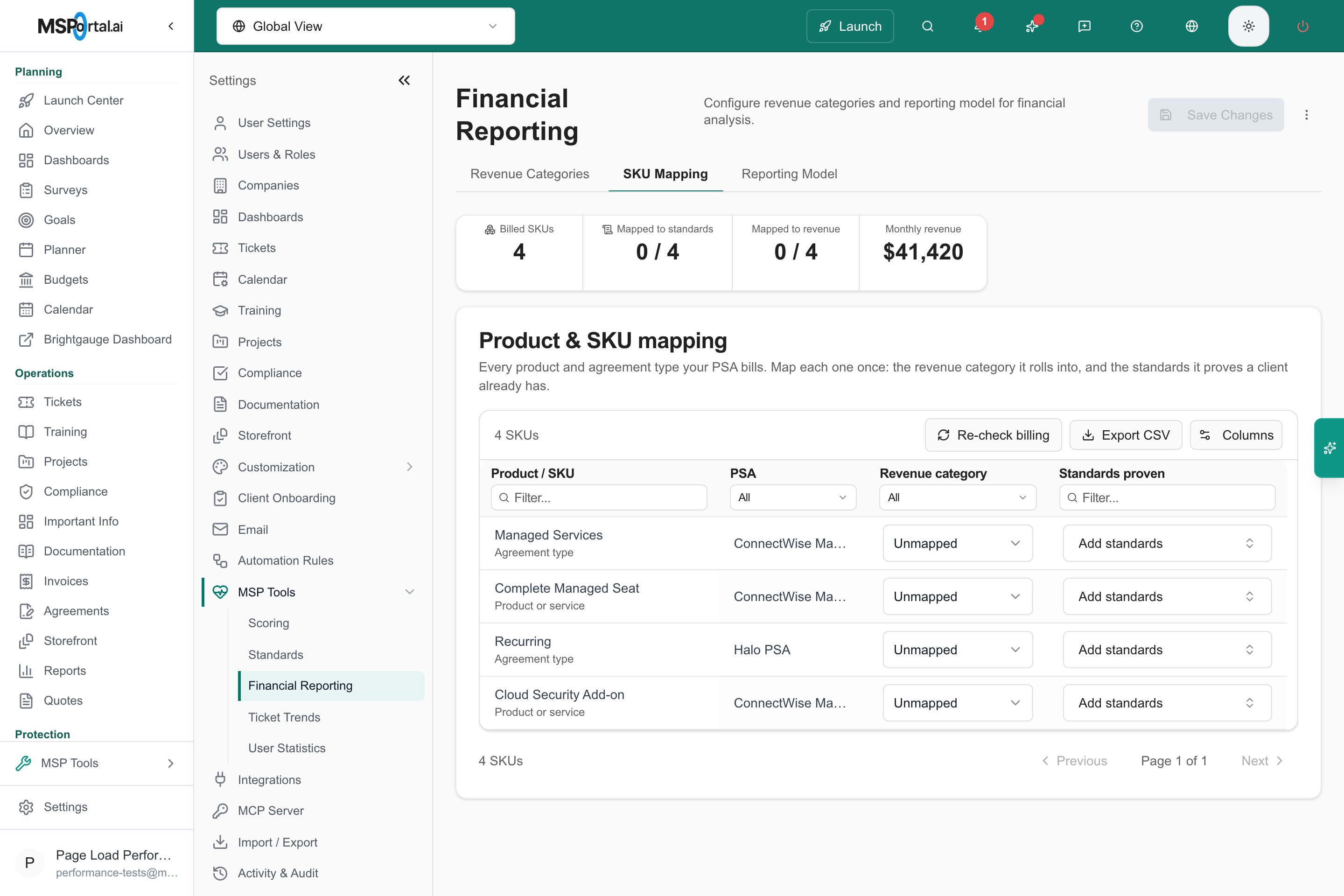
Open **Settings > MSP Tools > Financial Reporting** and select **SKU Mapping**.
Review the SKU label, provider, revenue category, and Standards links. Use **Columns** to show **Clients billed** and **Monthly revenue** when needed; existing saved column preferences are retained. This is
a shared settings catalog for your MSP, rather than a company-filtered matrix.
Set the row's revenue category when needed, then select the standards it
proves. These choices save from the row; wait for confirmation before
navigating away. Revenue classification and Standards links are independent.
Select **Re-check billing** and wait for the results. This updates automatic
Standards answers in your permitted company scope, including other configured
mappings. It is not just a preview of the selected row.
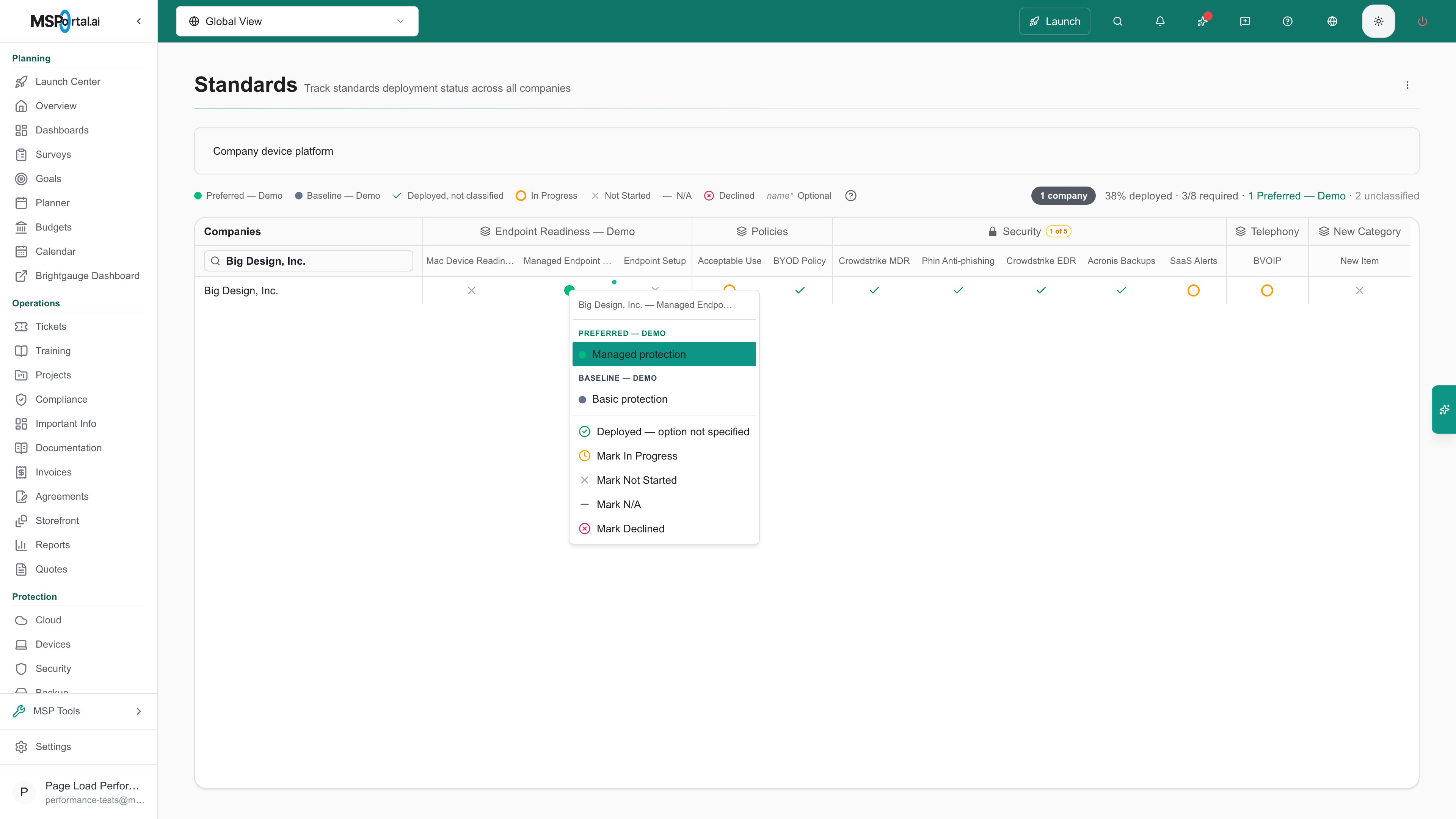
Open **MSP Tools > Standards** and select a matching company. Review the
automatic-answer indicator and hover explanation naming the billing evidence.
 The supported keys are **services** and **contract types**. A service identifies
the billed offering; a contract type can represent a bundled agreement.
## Require alternatives or multiple services
Expand a standard's editor in **Settings > MSP Tools > Standards** to configure
its SKU groups and optional deployment choices.
* Within one group, any matching SKU satisfies that group: **A or B**.
* With multiple groups, every group needs a match: **(A or B) and (C or D)**.
* A matching group can imply a deployment option. When several matched options
apply, the highest tier wins.
The supported keys are **services** and **contract types**. A service identifies
the billed offering; a contract type can represent a bundled agreement.
## Require alternatives or multiple services
Expand a standard's editor in **Settings > MSP Tools > Standards** to configure
its SKU groups and optional deployment choices.
* Within one group, any matching SKU satisfies that group: **A or B**.
* With multiple groups, every group needs a match: **(A or B) and (C or D)**.
* A matching group can imply a deployment option. When several matched options
apply, the highest tier wins.
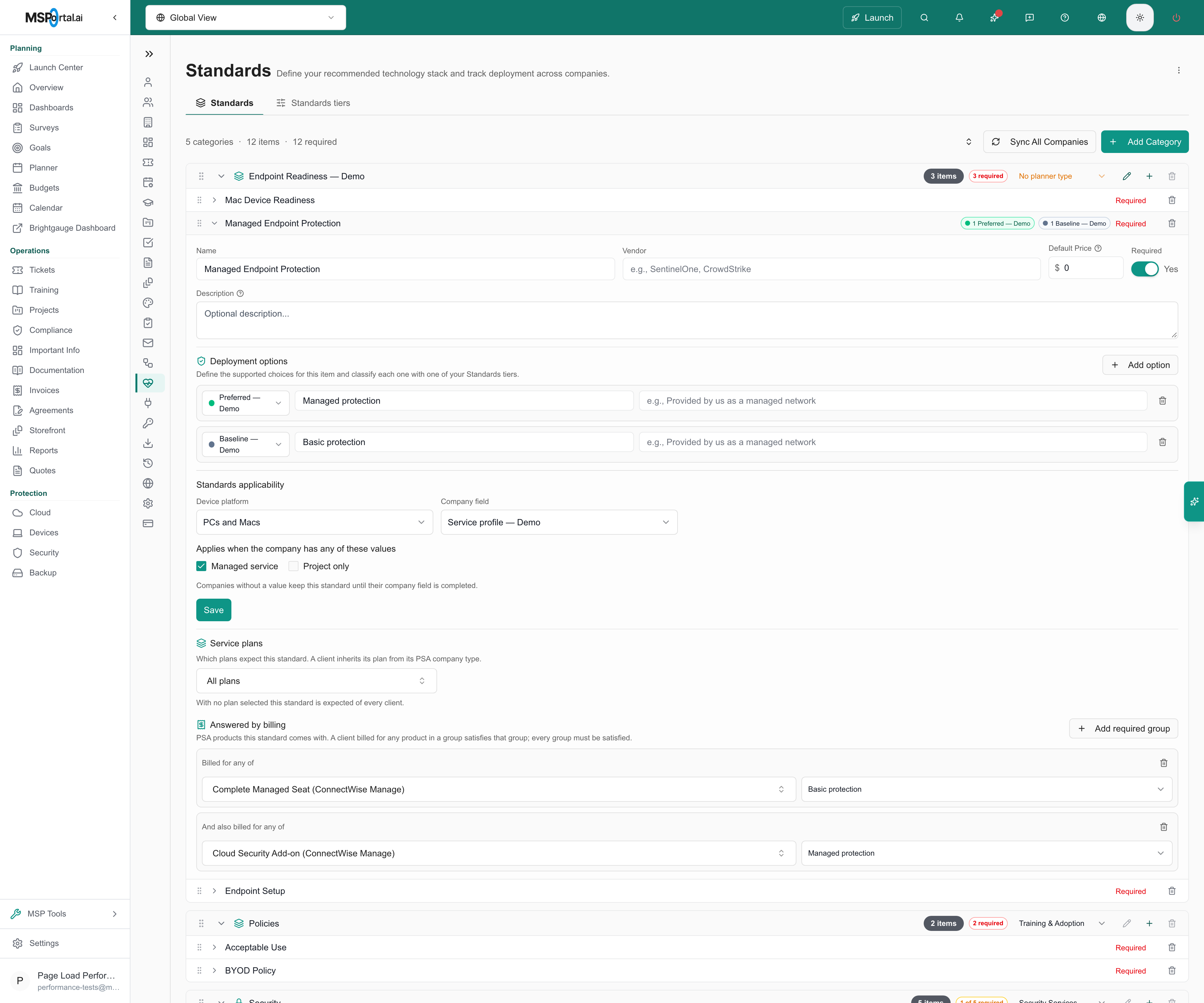 The flat SKU Mapping picker adds new Standards links to the default alternatives
group. Keeping a standard selected while changing other links preserves its
existing group and deployment-option configuration.
## Keep manual decisions authoritative
Automatic evaluation can answer an unanswered **Not Started** cell or revise an
answer it previously generated. If matching evidence disappears, its automatic
answer returns to Not Started.
A recorded manual decision such as **Declined**, **In Progress**, or **Deployed**
is preserved on later evaluations. Manually editing an automatic answer transfers
that answer to manual control. Leaving a cell Not Started makes it eligible for
automation; it is not an opt-out setting.
The flat SKU Mapping picker adds new Standards links to the default alternatives
group. Keeping a standard selected while changing other links preserves its
existing group and deployment-option configuration.
## Keep manual decisions authoritative
Automatic evaluation can answer an unanswered **Not Started** cell or revise an
answer it previously generated. If matching evidence disappears, its automatic
answer returns to Not Started.
A recorded manual decision such as **Declined**, **In Progress**, or **Deployed**
is preserved on later evaluations. Manually editing an automatic answer transfers
that answer to manual control. Leaving a cell Not Started makes it eligible for
automation; it is not an opt-out setting.
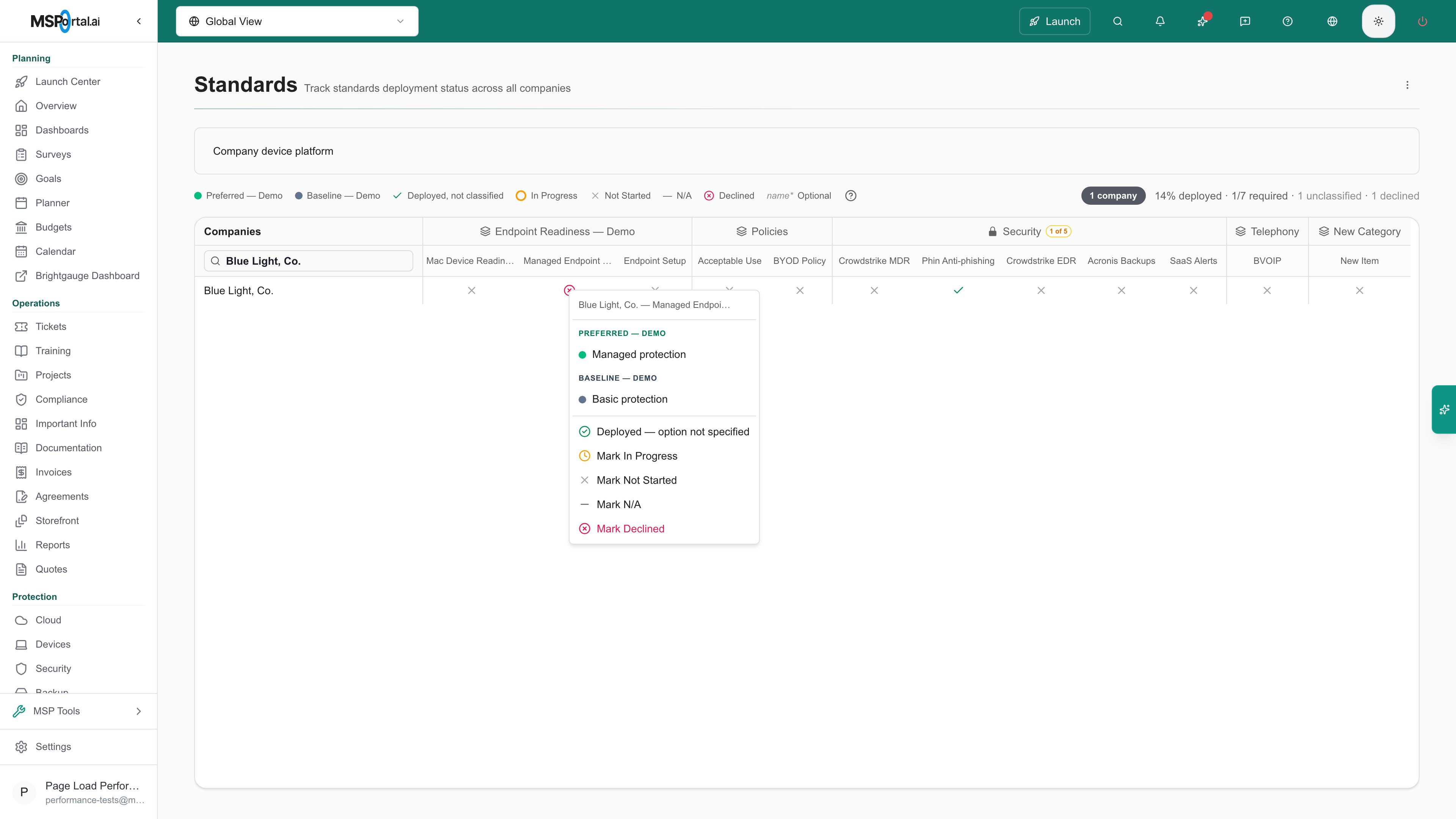 An onboarding-controlled unanswered cell remains owned by its onboarding task.
Review the task link rather than expecting billing to take over that cell.
## Troubleshooting
| Symptom | Check |
| ----------------------------------------------------------- | -------------------------------------------------------------------------------------------------------- |
| No SKU rows | Confirm supported PSA billing has synchronized and falls within completed months in the lookback window. |
| A saved mapping is shown without recent billing | Retained mappings can remain visible after their billing falls outside the window. |
| A company is not auto-answered | Check applicability, all required groups, billing dates, and existing manual or onboarding ownership. |
| An automatic answer disappears | Re-check whether its mapped billing evidence still exists in the lookback window. |
| Re-check billing is unavailable | Financial classification access alone does not grant permission to update Standards answers. |
| The revenue category changed but the Standards link did not | These are independent settings; update the relevant control. |
Set up the choices that billing can imply.
Record a manual decision for a company.
An onboarding-controlled unanswered cell remains owned by its onboarding task.
Review the task link rather than expecting billing to take over that cell.
## Troubleshooting
| Symptom | Check |
| ----------------------------------------------------------- | -------------------------------------------------------------------------------------------------------- |
| No SKU rows | Confirm supported PSA billing has synchronized and falls within completed months in the lookback window. |
| A saved mapping is shown without recent billing | Retained mappings can remain visible after their billing falls outside the window. |
| A company is not auto-answered | Check applicability, all required groups, billing dates, and existing manual or onboarding ownership. |
| An automatic answer disappears | Re-check whether its mapped billing evidence still exists in the lookback window. |
| Re-check billing is unavailable | Financial classification access alone does not grant permission to update Standards answers. |
| The revenue category changed but the Standards link did not | These are independent settings; update the relevant control. |
Set up the choices that billing can imply.
Record a manual decision for a company.