> ## Documentation Index
> Fetch the complete documentation index at: https://docs.msportal.ai/llms.txt
> Use this file to discover all available pages before exploring further.
# Configure Standards tiers and deployment options
> Define implementation levels, rank them and set targets for PSA company types.
**Audience:** MSP staff with Standards settings Manage permission and active billing. Company users can read shared linked work; they do not configure this catalog.
Open **Settings > MSP Tools > Standards**. Tiers describe the quality or support level of a deployed implementation, such as Managed or Customer-managed. Their names and order are your choices.
## Create and order tiers
1. In **Standards tiers**, select **Add tier**. A numbered placeholder is saved immediately.
2. Enter a distinct **Tier name** and a description of what it means to your team.
3. Choose its color. Color identifies the tier visually; it does not determine its strength.
4. Use the row's up and down arrows to arrange tiers **strongest first**.
5. Wait for automatic saving and reopen the page to confirm the configuration.
There is no overall Save button. Names and descriptions save shortly after typing stops; ordering is saved when you use an arrow. Reordering changes how existing classifications compare with targets, so agree the ordering before applying it broadly.
## Set Company type targets
Under **Company type targets**, choose a target tier beside each relevant PSA company type. These choices save immediately. Select **No target tier** to remove an assignment.
The choices come from types on active PSA-synced companies. This screen does not create PSA company types or change a company's types. If a company has several mapped types, its strongest mapped target wins. Adding a tier is necessary before the target selectors become available.
A target is an expectation, not a deployment update. It does not install software or mark a company Deployed.
## Add deployment options to a standard
1. Expand the standard's category and open its item row.
2. Under **Deployment options**, select **Add option**. Create at least one tier first if the button is disabled.
3. Rename the new option to the implementation, such as a product or managed service choice.
4. Choose its **Standards tier** and enter optional **Configuration detail** explaining the implementation.
5. Wait for saving, then review the resulting option before using it in deployment tracking.
An option belongs to that individual standard. Several options can use the same tier. A new option initially uses the first, strongest tier; check that choice rather than assuming it is the lowest level. Rename **New deployment option** before adding another option to the same standard.
Adding an option does not assign it to every company. Company deployment tracking needs the relevant selected option before its deployed state is classified. See [Read the Standards matrix](/user-guides/msp-tools/read-standards-matrix).
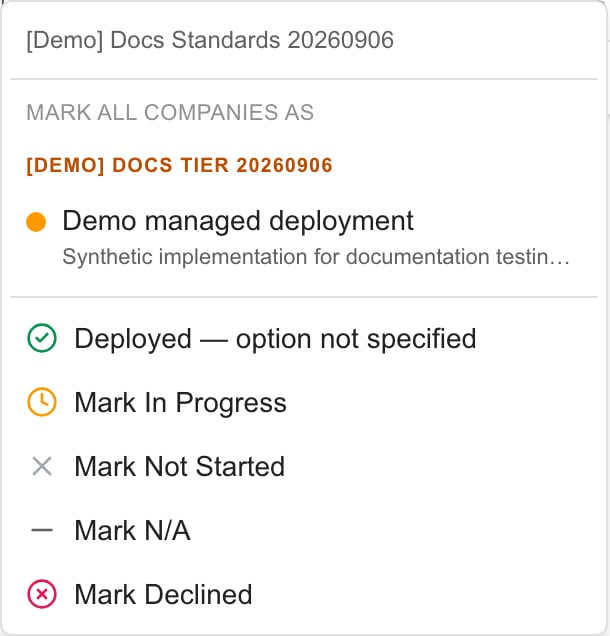 Use a [status cell](/user-guides/msp-tools/update-standard-deployments) for one company. Review [bulk scope](/user-guides/msp-tools/bulk-update-standards) before choosing an option from the column menu shown above.
## Interpret deployed and target states
A deployed item with no selected option can remain **Unclassified**. An implementation at or above the company's target meets the tier target. A lower tier can still be Deployed while showing an upgrade opportunity; it is not automatically changed to Not Started. With several deployed alternatives in a one-of group, the strongest deployed tier supplies the group comparison.
## Change or remove definitions
Renaming a tier changes its shared label. Moving it changes its rank. Changing an option's tier changes how companies using that option are classified.
An option's trash action deletes it immediately, without a separate confirmation. Deleting a selected option removes that selection from affected company tracking, but does not by itself reset its deployment status. Review the resulting unclassified state.
A tier's trash action opens **Delete Standards tier?**. Confirm **Delete tier** only after reviewing the impact. A tier cannot be deleted while options still use it; move or delete those options first. Successful tier deletion clears company type assignments to that tier. There is no automatic replacement target.
## FAQs
Open Settings > MSP Tools > Standards and use the Standards tiers section.
No. Choose names and descriptions appropriate to your MSP.
The first tier is strongest. Use up and down arrows to rank them; color does not determine strength.
No. Add tier saves a numbered placeholder immediately; its inline fields save automatically afterward.
They come from types on active PSA-synced companies. This screen does not create or change PSA company types.
The strongest mapped target wins.
Select No target tier beside that company type. The choice saves immediately.
Create at least one Standards tier first.
The first, strongest tier. Review and change that choice as needed.
No. An option is an available implementation choice for one standard; company tracking needs the relevant selection.
Yes. It remains deployed while its lower tier indicates an upgrade opportunity.
Its tracking record has no selected deployment option supplying a tier.
Move or delete those options first. The action rejects deletion while options still use that tier.
Its trash action deletes immediately. Affected company selections are cleared without resetting deployment status.
Assignments to that tier are cleared; another target is not automatically selected.
Use a [status cell](/user-guides/msp-tools/update-standard-deployments) for one company. Review [bulk scope](/user-guides/msp-tools/bulk-update-standards) before choosing an option from the column menu shown above.
## Interpret deployed and target states
A deployed item with no selected option can remain **Unclassified**. An implementation at or above the company's target meets the tier target. A lower tier can still be Deployed while showing an upgrade opportunity; it is not automatically changed to Not Started. With several deployed alternatives in a one-of group, the strongest deployed tier supplies the group comparison.
## Change or remove definitions
Renaming a tier changes its shared label. Moving it changes its rank. Changing an option's tier changes how companies using that option are classified.
An option's trash action deletes it immediately, without a separate confirmation. Deleting a selected option removes that selection from affected company tracking, but does not by itself reset its deployment status. Review the resulting unclassified state.
A tier's trash action opens **Delete Standards tier?**. Confirm **Delete tier** only after reviewing the impact. A tier cannot be deleted while options still use it; move or delete those options first. Successful tier deletion clears company type assignments to that tier. There is no automatic replacement target.
## FAQs
Open Settings > MSP Tools > Standards and use the Standards tiers section.
No. Choose names and descriptions appropriate to your MSP.
The first tier is strongest. Use up and down arrows to rank them; color does not determine strength.
No. Add tier saves a numbered placeholder immediately; its inline fields save automatically afterward.
They come from types on active PSA-synced companies. This screen does not create or change PSA company types.
The strongest mapped target wins.
Select No target tier beside that company type. The choice saves immediately.
Create at least one Standards tier first.
The first, strongest tier. Review and change that choice as needed.
No. An option is an available implementation choice for one standard; company tracking needs the relevant selection.
Yes. It remains deployed while its lower tier indicates an upgrade opportunity.
Its tracking record has no selected deployment option supplying a tier.
Move or delete those options first. The action rejects deletion while options still use that tier.
Its trash action deletes immediately. Affected company selections are cleared without resetting deployment status.
Assignments to that tier are cleared; another target is not automatically selected.