> ## Documentation Index
> Fetch the complete documentation index at: https://docs.msportal.ai/llms.txt
> Use this file to discover all available pages before exploring further.
# Templates Settings
> Create and manage note templates for meetings, planner items, and more
Templates Settings allows you to create and manage reusable templates for meeting notes, planner items, and other content throughout MSPortal.ai.
## Accessing Templates Settings
1. Click **Settings** in the sidebar
2. Select the **Templates** icon from the settings navigation
## Templates Overview
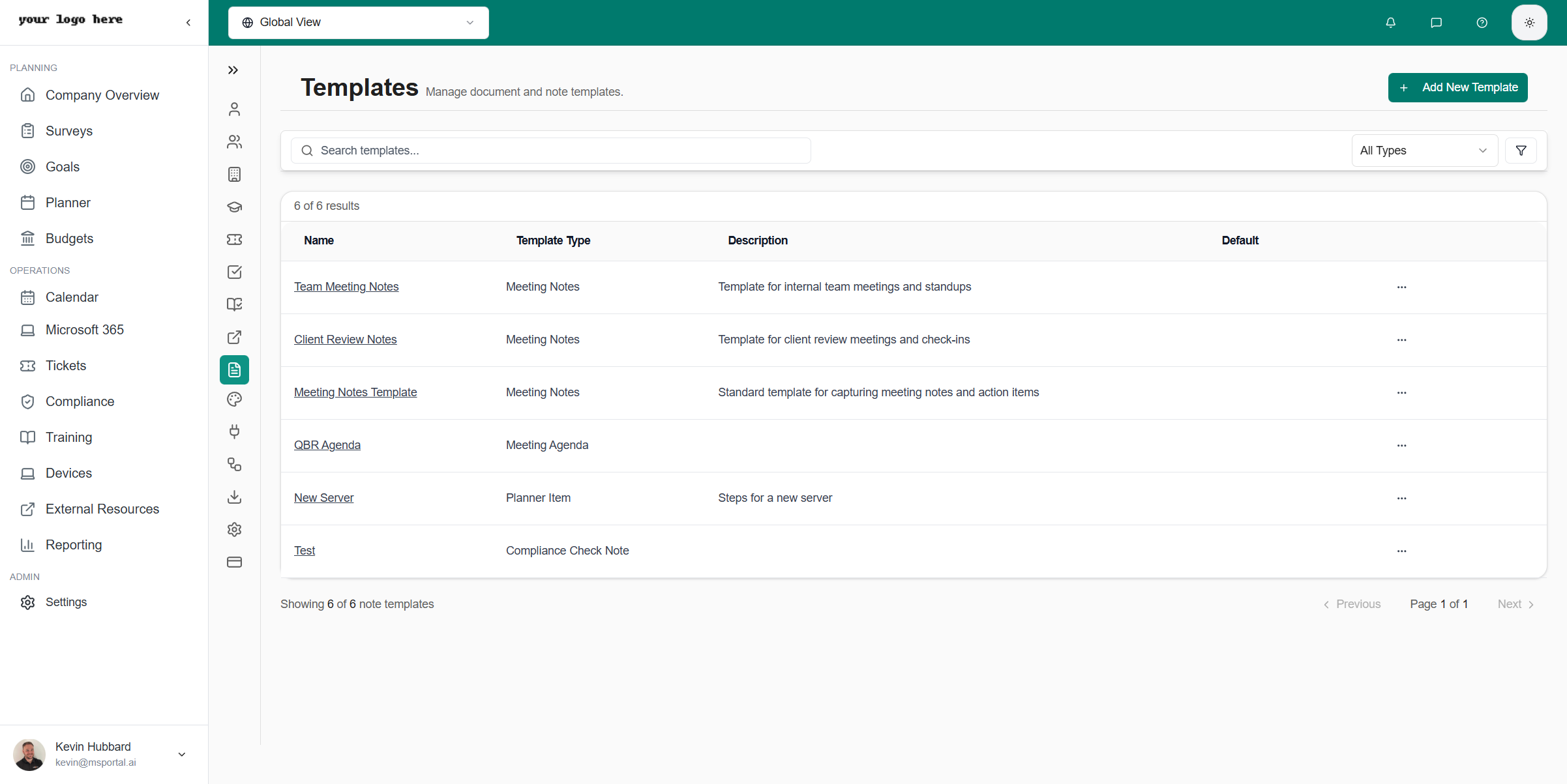 ### Template Information
Each template shows:
| Field | Description |
| ----------------- | ----------------------------- |
| **Name** | Template name |
| **Type** | What the template is used for |
| **Created** | When the template was created |
| **Last Modified** | Most recent update |
## Template Types
MSPortal supports several template types:
| Type | Used For |
| ----------------- | ----------------------------------------- |
| **Meeting Notes** | Pre-formatted notes for meetings and QBRs |
| **Planner Item** | Standard task descriptions and checklists |
| **Email** | Email templates for communications |
| **Report** | Formatted sections for reports |
## Managing Templates
### Creating a New Template
Select the **+ Add Template** button
Choose the template type
Enter a descriptive name
Build the template using the editor
Click **Save** to create the template
### Template Editor
The template editor provides:
* **Rich text formatting** - Bold, italic, headings
* **Lists** - Bulleted and numbered lists
* **Tables** - Structured data layouts
* **Variables** - Dynamic content placeholders
### Using Variables
Insert dynamic content with variables:
| Variable | Inserts |
| ------------------- | ------------------- |
| `{{company_name}}` | Company name |
| `{{date}}` | Current date |
| `{{user_name}}` | Current user's name |
| `{{meeting_title}}` | Meeting title |
## Using Templates
### In Meetings
1. Open a meeting page
2. Click **Add Notes**
3. Select **Use Template**
4. Choose from available templates
5. Template content is inserted
### In Planner
1. Create a new planner item
2. Click **Use Template**
3. Select the appropriate template
4. Customize as needed
## Best Practices
* **Keep templates concise** - Focus on structure, not content
* **Use variables** - Make templates dynamic
* **Regular review** - Update templates as needs change
* **Name clearly** - Use descriptive names for easy selection
## Related Resources
* [Calendar](/user-guides/calendar/index) - Using templates in meetings
* [Planner](/user-guides/planner/index) - Using templates in tasks
* [Settings Overview](/user-guides/settings/index) - All settings options
### Template Information
Each template shows:
| Field | Description |
| ----------------- | ----------------------------- |
| **Name** | Template name |
| **Type** | What the template is used for |
| **Created** | When the template was created |
| **Last Modified** | Most recent update |
## Template Types
MSPortal supports several template types:
| Type | Used For |
| ----------------- | ----------------------------------------- |
| **Meeting Notes** | Pre-formatted notes for meetings and QBRs |
| **Planner Item** | Standard task descriptions and checklists |
| **Email** | Email templates for communications |
| **Report** | Formatted sections for reports |
## Managing Templates
### Creating a New Template
Select the **+ Add Template** button
Choose the template type
Enter a descriptive name
Build the template using the editor
Click **Save** to create the template
### Template Editor
The template editor provides:
* **Rich text formatting** - Bold, italic, headings
* **Lists** - Bulleted and numbered lists
* **Tables** - Structured data layouts
* **Variables** - Dynamic content placeholders
### Using Variables
Insert dynamic content with variables:
| Variable | Inserts |
| ------------------- | ------------------- |
| `{{company_name}}` | Company name |
| `{{date}}` | Current date |
| `{{user_name}}` | Current user's name |
| `{{meeting_title}}` | Meeting title |
## Using Templates
### In Meetings
1. Open a meeting page
2. Click **Add Notes**
3. Select **Use Template**
4. Choose from available templates
5. Template content is inserted
### In Planner
1. Create a new planner item
2. Click **Use Template**
3. Select the appropriate template
4. Customize as needed
## Best Practices
* **Keep templates concise** - Focus on structure, not content
* **Use variables** - Make templates dynamic
* **Regular review** - Update templates as needs change
* **Name clearly** - Use descriptive names for easy selection
## Related Resources
* [Calendar](/user-guides/calendar/index) - Using templates in meetings
* [Planner](/user-guides/planner/index) - Using templates in tasks
* [Settings Overview](/user-guides/settings/index) - All settings options