> ## Documentation Index
> Fetch the complete documentation index at: https://docs.msportal.ai/llms.txt
> Use this file to discover all available pages before exploring further.
# Ticket Settings
> Configure ticket delivery methods, display groups, and allowed statuses for your PSA integration
Ticket Settings control how MSPortal.ai handles tickets from your PSA system. Configure delivery methods, organize tickets into display groups, and define which statuses users can set.
## Accessing Ticket Settings
1. Click **Settings** in the sidebar
2. Select the **Tickets** icon from the settings navigation
## General Settings
The General tab contains core ticket configuration options.
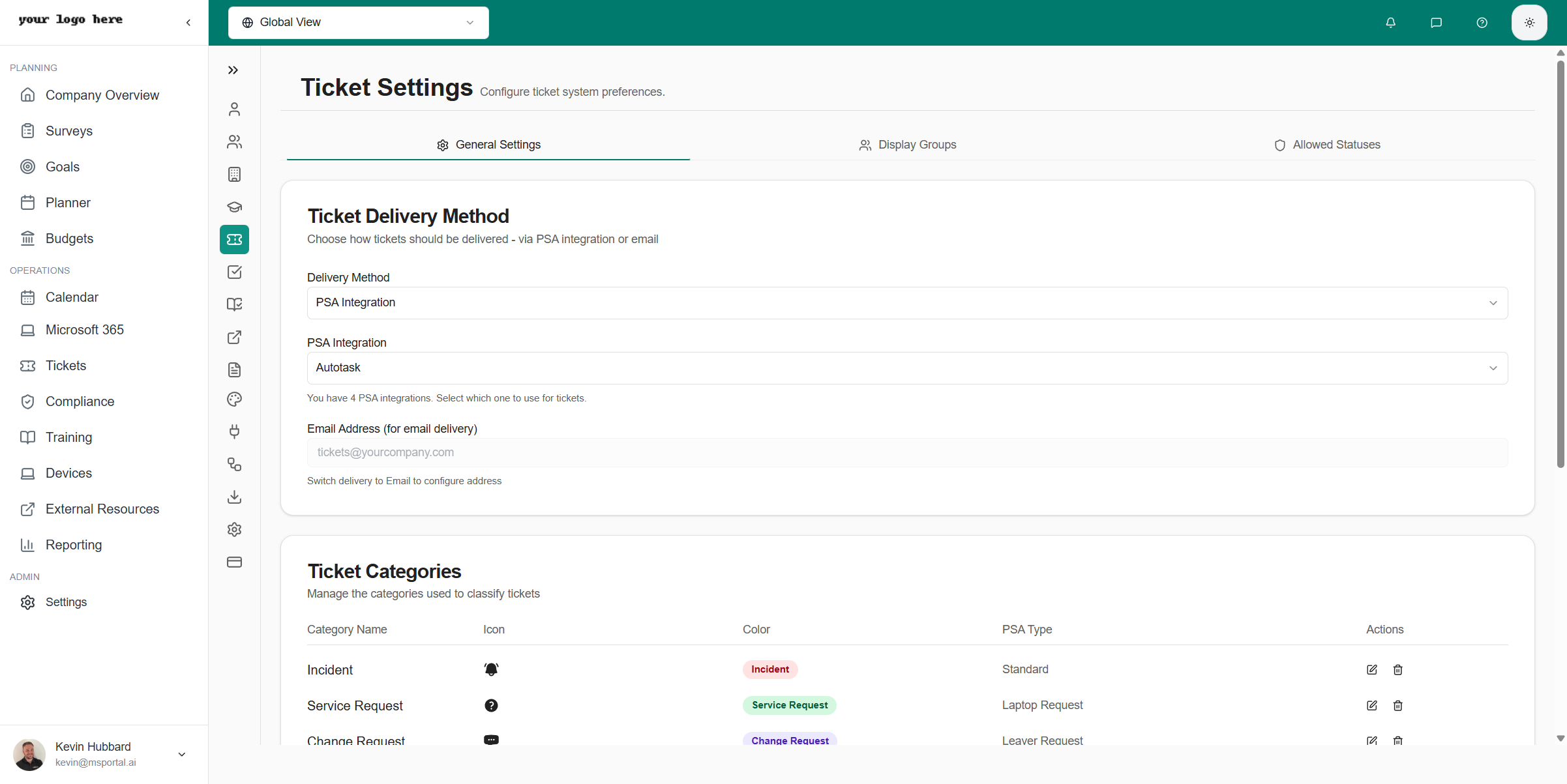 ### Ticket Delivery Method
Choose how tickets are delivered to end users:
| Method | Description |
| ---------- | --------------------------------------------------- |
| **Email** | Tickets sent via email notifications |
| **Portal** | Users access tickets through the MSPortal interface |
| **Both** | Tickets available via email and portal |
### Ticket Categories
Define categories to organize tickets by type:
* **Support** - General technical support requests
* **Service Request** - New service requests and changes
* **Incident** - Urgent issues requiring immediate attention
* **Project** - Project-related tasks and milestones
Categories sync with your PSA system. Changes here will affect how tickets are categorized across both platforms.
### Default Settings
Configure default values for new tickets:
* **Default Priority** - Initial priority level for new tickets
* **Default Status** - Starting status when tickets are created
* **Default Assignment** - Auto-assignment rules
## Display Groups
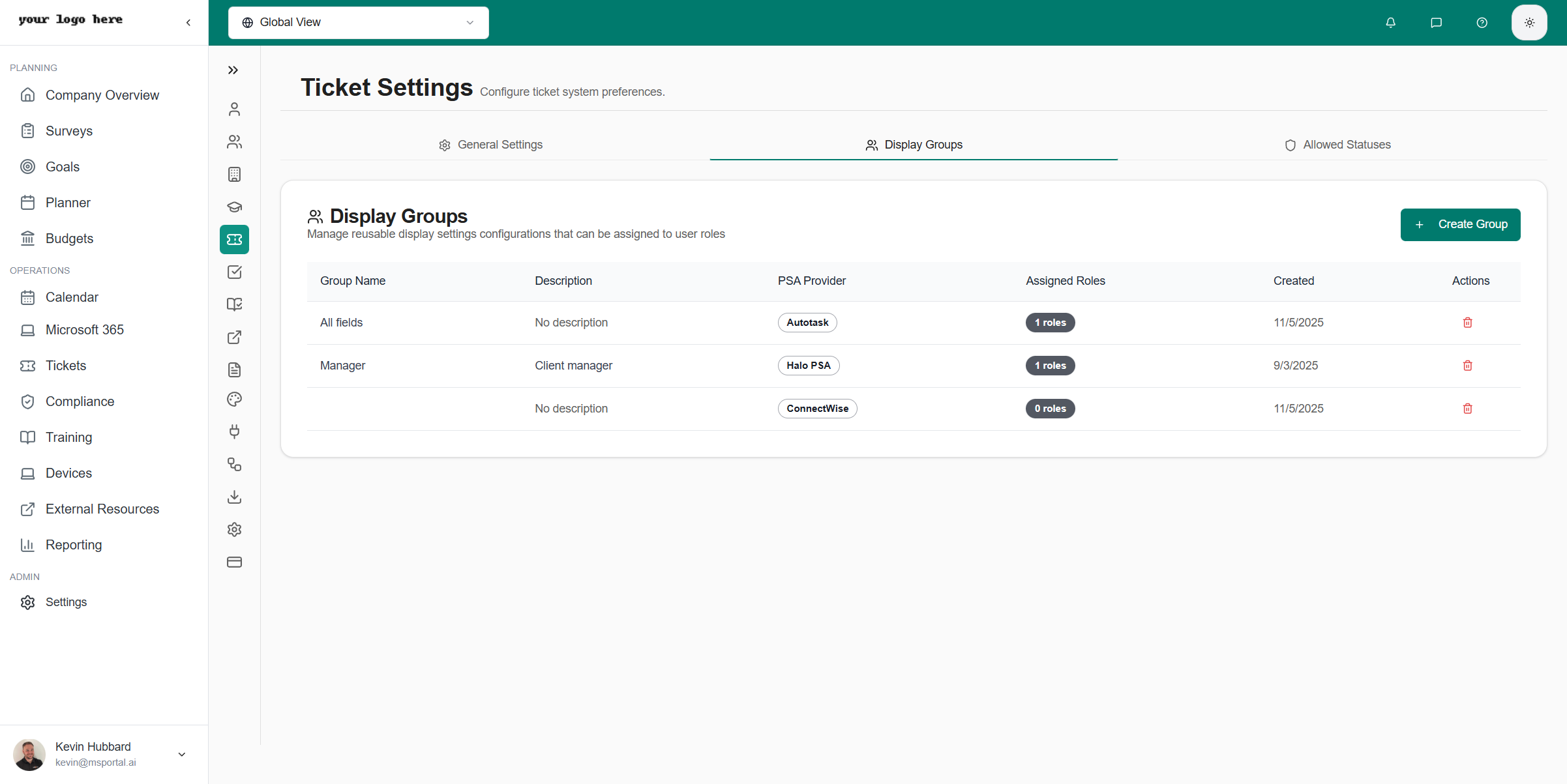
Display Groups are reusable display-settings configurations that you assign to user **roles**. A single group controls three things at once for everyone holding that role:
* **Ticket Visibility** - which tickets the role can see (all company tickets, only their own, or only their location's)
* **Board, queue, and ticket-type scope** - which PSA boards/queues are visible and which ticket types are hidden
* **Field Visibility** - which ticket fields (columns) appear in the tickets list
This is how you restrict company (end-customer) users so that most people see only their own tickets, while specific roles can see everything for the company.
### Ticket Delivery Method
Choose how tickets are delivered to end users:
| Method | Description |
| ---------- | --------------------------------------------------- |
| **Email** | Tickets sent via email notifications |
| **Portal** | Users access tickets through the MSPortal interface |
| **Both** | Tickets available via email and portal |
### Ticket Categories
Define categories to organize tickets by type:
* **Support** - General technical support requests
* **Service Request** - New service requests and changes
* **Incident** - Urgent issues requiring immediate attention
* **Project** - Project-related tasks and milestones
Categories sync with your PSA system. Changes here will affect how tickets are categorized across both platforms.
### Default Settings
Configure default values for new tickets:
* **Default Priority** - Initial priority level for new tickets
* **Default Status** - Starting status when tickets are created
* **Default Assignment** - Auto-assignment rules
## Display Groups
Display Groups are reusable display-settings configurations that you assign to user **roles**. A single group controls three things at once for everyone holding that role:
* **Ticket Visibility** - which tickets the role can see (all company tickets, only their own, or only their location's)
* **Board, queue, and ticket-type scope** - which PSA boards/queues are visible and which ticket types are hidden
* **Field Visibility** - which ticket fields (columns) appear in the tickets list
This is how you restrict company (end-customer) users so that most people see only their own tickets, while specific roles can see everything for the company.
 ### Ticket Visibility Options
When you create a Display Group, the **Ticket Visibility** dropdown sets the scope of tickets the assigned role can see:
| Option | What the role sees |
| ---------------------- | ------------------------------------------------------------------------------------------------------------------------------ |
| **All Tickets** | Every ticket for the company. Use for managers, owners, or anyone who needs full visibility. |
| **Same Location Only** | All tickets opened at the user's assigned location. Use for site or branch managers. |
| **Own Tickets Only** | Only tickets the user opened or is the contact on. Use for standard company users who should not see their coworkers' tickets. |
**Same Location Only** relies on each company user having a **location** assigned on their profile. If a user has no location set, they will not see location-scoped tickets. Set a user's location from **Settings → Companies → (company) → Users**, or on the user's profile.
### Creating a Display Group
From **Settings → Tickets**, open the **Display Groups** tab, then click **Create Group**.
Enter a **Name** (e.g., "Standard Technician" or "Manager View") and an optional **Description** explaining what the group shows and who should use it.
Set **Ticket Visibility** to **All Tickets**, **Same Location Only**, or **Own Tickets Only** based on what this role should be able to see.
If you have more than one PSA integration connected, choose the **PSA Provider** this group applies to. With a single PSA, this is selected automatically.
Use **Assigned Roles** to pick one or more roles. Everyone holding an assigned role inherits this group's visibility and field settings. A role can be assigned to one group per PSA provider.
Use **Restrict to Boards / Queues** to limit the role to specific boards or queues (leave empty to allow all). Use **Hide Ticket Types** to keep selected ticket types out of this role's list (leave empty to show all). New boards and types added in your PSA stay visible automatically.
In the **Field Visibility** panel, check the ticket fields (columns) that should appear for this role. Fields are grouped into sections such as Basic Information, Categories, Assets and Location, Timing and SLA, and Resolution. Use **Select All Fields** or a section's **All in...** checkbox to toggle groups quickly.
Click **Create Group** (or **Update Group** when editing). The settings apply to the assigned roles immediately.
### Example: Restrict Most Users to Their Own Tickets
To let only certain company users see all company tickets while everyone else sees just their own, create two Display Groups for the same PSA provider:
Set **Ticket Visibility** to **Own Tickets Only** and assign it to the role most company users hold (e.g., "Company User").
Set **Ticket Visibility** to **All Tickets** and assign it to the role your trusted contacts hold (e.g., "Company Admin").
Promote a company user to the all-access role to give them full visibility, or move them back to the standard role to limit them to their own tickets. No per-user ticket configuration is required.
Visibility is enforced everywhere tickets appear - the tickets list, dashboards, and ticket trends - not just on the main tickets page.
## Allowed Statuses
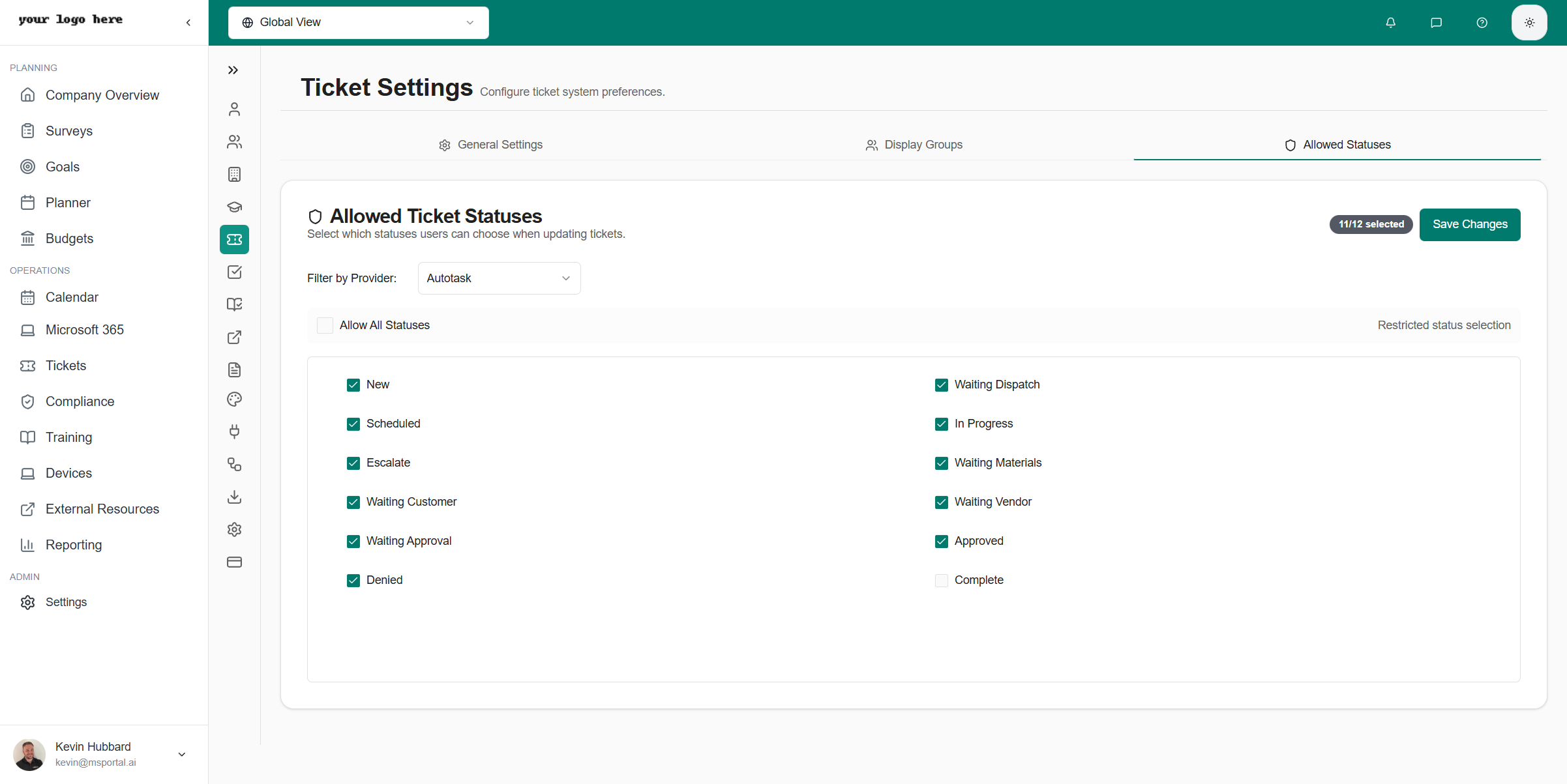
Control which ticket statuses users can select when updating tickets. This ensures consistent status usage across your team.
### Ticket Visibility Options
When you create a Display Group, the **Ticket Visibility** dropdown sets the scope of tickets the assigned role can see:
| Option | What the role sees |
| ---------------------- | ------------------------------------------------------------------------------------------------------------------------------ |
| **All Tickets** | Every ticket for the company. Use for managers, owners, or anyone who needs full visibility. |
| **Same Location Only** | All tickets opened at the user's assigned location. Use for site or branch managers. |
| **Own Tickets Only** | Only tickets the user opened or is the contact on. Use for standard company users who should not see their coworkers' tickets. |
**Same Location Only** relies on each company user having a **location** assigned on their profile. If a user has no location set, they will not see location-scoped tickets. Set a user's location from **Settings → Companies → (company) → Users**, or on the user's profile.
### Creating a Display Group
From **Settings → Tickets**, open the **Display Groups** tab, then click **Create Group**.
Enter a **Name** (e.g., "Standard Technician" or "Manager View") and an optional **Description** explaining what the group shows and who should use it.
Set **Ticket Visibility** to **All Tickets**, **Same Location Only**, or **Own Tickets Only** based on what this role should be able to see.
If you have more than one PSA integration connected, choose the **PSA Provider** this group applies to. With a single PSA, this is selected automatically.
Use **Assigned Roles** to pick one or more roles. Everyone holding an assigned role inherits this group's visibility and field settings. A role can be assigned to one group per PSA provider.
Use **Restrict to Boards / Queues** to limit the role to specific boards or queues (leave empty to allow all). Use **Hide Ticket Types** to keep selected ticket types out of this role's list (leave empty to show all). New boards and types added in your PSA stay visible automatically.
In the **Field Visibility** panel, check the ticket fields (columns) that should appear for this role. Fields are grouped into sections such as Basic Information, Categories, Assets and Location, Timing and SLA, and Resolution. Use **Select All Fields** or a section's **All in...** checkbox to toggle groups quickly.
Click **Create Group** (or **Update Group** when editing). The settings apply to the assigned roles immediately.
### Example: Restrict Most Users to Their Own Tickets
To let only certain company users see all company tickets while everyone else sees just their own, create two Display Groups for the same PSA provider:
Set **Ticket Visibility** to **Own Tickets Only** and assign it to the role most company users hold (e.g., "Company User").
Set **Ticket Visibility** to **All Tickets** and assign it to the role your trusted contacts hold (e.g., "Company Admin").
Promote a company user to the all-access role to give them full visibility, or move them back to the standard role to limit them to their own tickets. No per-user ticket configuration is required.
Visibility is enforced everywhere tickets appear - the tickets list, dashboards, and ticket trends - not just on the main tickets page.
## Allowed Statuses
Control which ticket statuses users can select when updating tickets. This ensures consistent status usage across your team.
 ### Configuring Allowed Statuses
1. Review the list of available statuses from your PSA
2. Check the statuses you want users to be able to select
3. Uncheck statuses that should be restricted (e.g., internal-only statuses)
### Status Categories
Statuses are typically organized by workflow stage:
* **Open Statuses** - New, In Progress, Researching
* **Pending Statuses** - Waiting on Customer, Waiting on Vendor, Scheduled
* **Resolved Statuses** - Resolved, Completed, Closed
* **Cancelled Statuses** - Cancelled, Duplicate
Restricting statuses affects all users. Ensure your team understands which statuses are available before making changes.
## Compliance Ticket Defaults
Each PSA integration's settings tab has a **Compliance Ticket Defaults** card that controls which queue, priority, status, type, subtype, and category compliance-driven tickets land in. Tickets created from a compliance check (manually or by an automation rule) inherit these defaults, so compliance work no longer falls into whatever board your PSA picks at random.
From **Settings → Tickets**, open the tab for your PSA (ConnectWise, Halo, Autotask, or Syncro).
Scroll to the **Compliance Ticket Defaults** card. The fields available match what your PSA exposes for tickets.
Choose the queue or service board, priority, status, type, subtype, and category that compliance tickets should default to. Leave a field blank to fall back to the integration-wide default.
Click **Save**. The next compliance ticket created in your tenant inherits the new defaults.
### Halo Required Fields
Halo PSA requires **category, impact, and urgency** to create a ticket. The Compliance Ticket Defaults card on the Halo tab persists those three values alongside the others so your defaults stick across saves and the create flow does not silently fall back to Halo's API defaults.
### Coverage by Provider
| Provider | Queue / Board | Priority | Status | Type | Subtype | Category | Impact | Urgency |
| ----------- | ------------- | -------- | ------ | ---- | ------- | -------- | ------ | ------- |
| ConnectWise | Service Board | Yes | Yes | Yes | Yes | - | - | - |
| Autotask | Queue | Yes | Yes | Yes | Yes | Yes | - | - |
| Halo PSA | Team / Queue | Yes | Yes | Yes | - | Yes | Yes | Yes |
| Syncro | - | Yes | Yes | Yes | - | - | - | - |
The same card pattern appears as a **Ticket Defaults** card for non-compliance tickets right above it. Configure both if you want compliance tickets routed differently from the rest of your service work.
## Ticket Templates
Ticket templates live under **Settings → Tickets → Templates** and govern the structured forms users fill out on the new-ticket page, the AI ticket assistant, and the browser extension. Each template defines fields, sections, conditional logic, PSA routing, company visibility, and (when needed) per-company branches and embedded child templates.
### Embedded Templates
A field of type **Embedded Template** pulls another template's questions inline as a sub-card. When the parent field is visible (driven by the parent's conditional logic), the embedded template renders inline and, on submit, fires its own separate PSA ticket using its **own** board, priority, status, ticket type, and category.
**Why use embedded templates:**
* One user request should spawn multiple PSA tickets with **different routing** (e.g. a "New Hire" parent splits into a Procurement ticket for hardware and an IT ticket for software access)
* You want to keep each child ticket scoped to a single team's responsibilities, with its own SLA, approver, and PSA fields
* You need to capture per-child attachments (file uploads inside an embed attach to the embed's PSA ticket)
**Key constraints:**
* An embedded template cannot itself contain embedded templates (depth-1 cap, enforced in the editor and on save)
* Embeds inherit the parent's company gating — admins do **not** need to enable each embed for every company the parent applies to
* Both parent and embed land in the tenant's currently selected PSA integration
After every multi-ticket submission, MSPortal posts an internal note on the parent PSA ticket listing every related embed ticket number, so support staff can trace the full chain without leaving the parent record.
Learn how to add an Embedded Template field, configure its conditional, and verify the routing in the Form Preview pane.
## PSA Integration Notes
Ticket settings work in conjunction with your PSA integration:
* **Halo PSA** - Syncs ticket types, statuses, and priorities automatically
* **ConnectWise** - Maps to service board configurations
* **Autotask** - Syncs with ticket categories and queues
* **Syncro** - Integrates with ticket types and statuses
Some settings may be overridden by your PSA configuration. Check your [integration settings](/user-guides/integrations/index) if tickets aren't displaying as expected.
## Best Practices
1. **Start with defaults** - Use standard configurations before customizing
2. **Test with a few users** - Validate settings work before rolling out broadly
3. **Document changes** - Keep track of display group configurations
4. **Sync regularly** - Ensure PSA changes are reflected in MSPortal
## Related Resources
* [Ticketing Module](/user-guides/ticketing/index) - Using the tickets interface
* [Integrations](/user-guides/integrations/index) - PSA integration setup
* [Settings Overview](/user-guides/settings/index) - All settings options
### Configuring Allowed Statuses
1. Review the list of available statuses from your PSA
2. Check the statuses you want users to be able to select
3. Uncheck statuses that should be restricted (e.g., internal-only statuses)
### Status Categories
Statuses are typically organized by workflow stage:
* **Open Statuses** - New, In Progress, Researching
* **Pending Statuses** - Waiting on Customer, Waiting on Vendor, Scheduled
* **Resolved Statuses** - Resolved, Completed, Closed
* **Cancelled Statuses** - Cancelled, Duplicate
Restricting statuses affects all users. Ensure your team understands which statuses are available before making changes.
## Compliance Ticket Defaults
Each PSA integration's settings tab has a **Compliance Ticket Defaults** card that controls which queue, priority, status, type, subtype, and category compliance-driven tickets land in. Tickets created from a compliance check (manually or by an automation rule) inherit these defaults, so compliance work no longer falls into whatever board your PSA picks at random.
From **Settings → Tickets**, open the tab for your PSA (ConnectWise, Halo, Autotask, or Syncro).
Scroll to the **Compliance Ticket Defaults** card. The fields available match what your PSA exposes for tickets.
Choose the queue or service board, priority, status, type, subtype, and category that compliance tickets should default to. Leave a field blank to fall back to the integration-wide default.
Click **Save**. The next compliance ticket created in your tenant inherits the new defaults.
### Halo Required Fields
Halo PSA requires **category, impact, and urgency** to create a ticket. The Compliance Ticket Defaults card on the Halo tab persists those three values alongside the others so your defaults stick across saves and the create flow does not silently fall back to Halo's API defaults.
### Coverage by Provider
| Provider | Queue / Board | Priority | Status | Type | Subtype | Category | Impact | Urgency |
| ----------- | ------------- | -------- | ------ | ---- | ------- | -------- | ------ | ------- |
| ConnectWise | Service Board | Yes | Yes | Yes | Yes | - | - | - |
| Autotask | Queue | Yes | Yes | Yes | Yes | Yes | - | - |
| Halo PSA | Team / Queue | Yes | Yes | Yes | - | Yes | Yes | Yes |
| Syncro | - | Yes | Yes | Yes | - | - | - | - |
The same card pattern appears as a **Ticket Defaults** card for non-compliance tickets right above it. Configure both if you want compliance tickets routed differently from the rest of your service work.
## Ticket Templates
Ticket templates live under **Settings → Tickets → Templates** and govern the structured forms users fill out on the new-ticket page, the AI ticket assistant, and the browser extension. Each template defines fields, sections, conditional logic, PSA routing, company visibility, and (when needed) per-company branches and embedded child templates.
### Embedded Templates
A field of type **Embedded Template** pulls another template's questions inline as a sub-card. When the parent field is visible (driven by the parent's conditional logic), the embedded template renders inline and, on submit, fires its own separate PSA ticket using its **own** board, priority, status, ticket type, and category.
**Why use embedded templates:**
* One user request should spawn multiple PSA tickets with **different routing** (e.g. a "New Hire" parent splits into a Procurement ticket for hardware and an IT ticket for software access)
* You want to keep each child ticket scoped to a single team's responsibilities, with its own SLA, approver, and PSA fields
* You need to capture per-child attachments (file uploads inside an embed attach to the embed's PSA ticket)
**Key constraints:**
* An embedded template cannot itself contain embedded templates (depth-1 cap, enforced in the editor and on save)
* Embeds inherit the parent's company gating — admins do **not** need to enable each embed for every company the parent applies to
* Both parent and embed land in the tenant's currently selected PSA integration
After every multi-ticket submission, MSPortal posts an internal note on the parent PSA ticket listing every related embed ticket number, so support staff can trace the full chain without leaving the parent record.
Learn how to add an Embedded Template field, configure its conditional, and verify the routing in the Form Preview pane.
## PSA Integration Notes
Ticket settings work in conjunction with your PSA integration:
* **Halo PSA** - Syncs ticket types, statuses, and priorities automatically
* **ConnectWise** - Maps to service board configurations
* **Autotask** - Syncs with ticket categories and queues
* **Syncro** - Integrates with ticket types and statuses
Some settings may be overridden by your PSA configuration. Check your [integration settings](/user-guides/integrations/index) if tickets aren't displaying as expected.
## Best Practices
1. **Start with defaults** - Use standard configurations before customizing
2. **Test with a few users** - Validate settings work before rolling out broadly
3. **Document changes** - Keep track of display group configurations
4. **Sync regularly** - Ensure PSA changes are reflected in MSPortal
## Related Resources
* [Ticketing Module](/user-guides/ticketing/index) - Using the tickets interface
* [Integrations](/user-guides/integrations/index) - PSA integration setup
* [Settings Overview](/user-guides/settings/index) - All settings options