> ## Documentation Index
> Fetch the complete documentation index at: https://docs.msportal.ai/llms.txt
> Use this file to discover all available pages before exploring further.
# Training Settings
> Manage courses, categories, and learning content for your organization
Training Settings allows you to manage the courses and learning content available in your MSPortal.ai Training module. Configure course availability, manage categories, and customize the learning experience.
## Accessing Training Settings
1. Click **Settings** in the sidebar
2. Select the **Training** icon from the settings navigation
## Courses Overview
The Training Settings page displays all available courses.
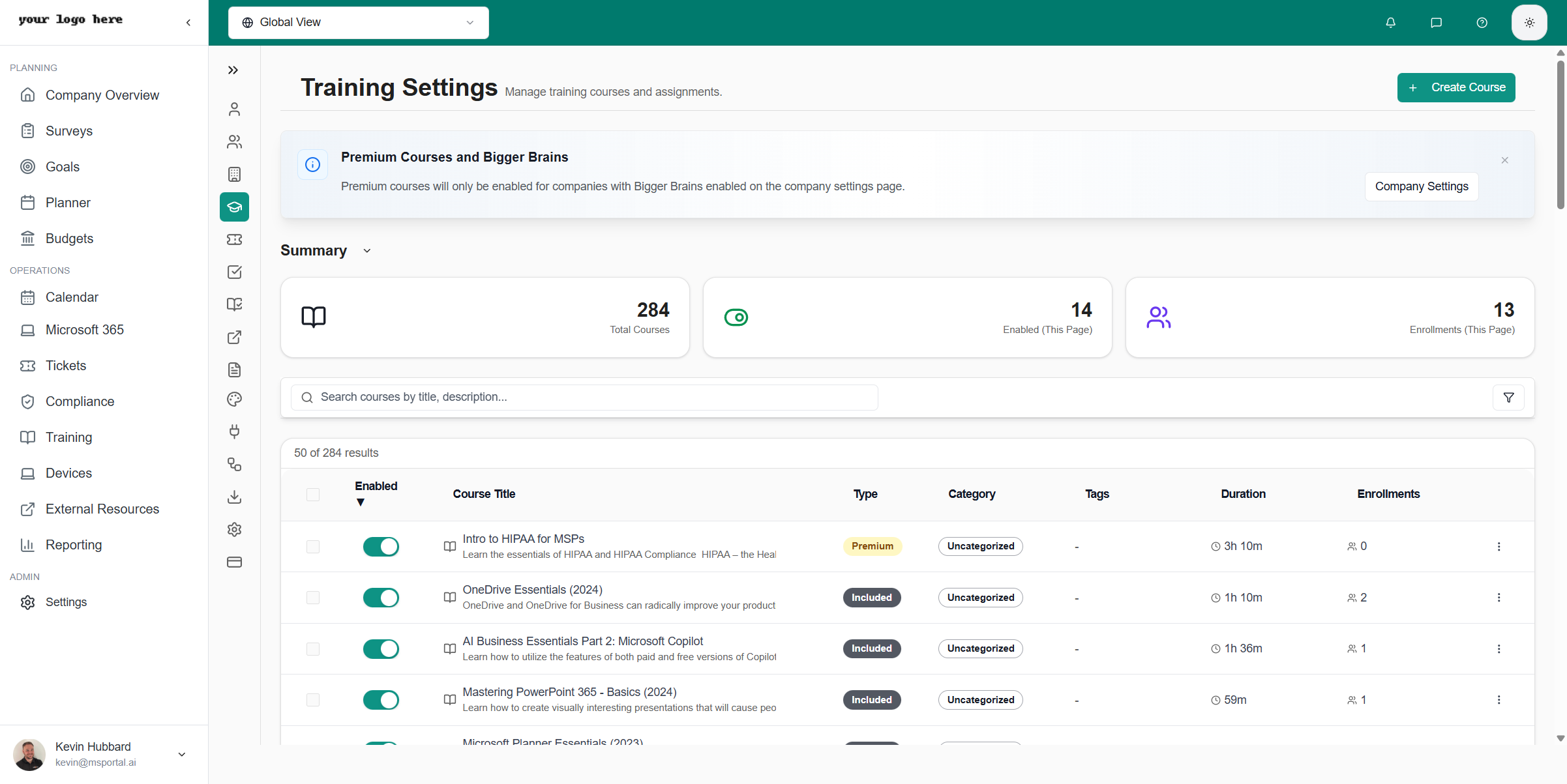 ### Course Information
Each course shows:
| Field | Description |
| --------------- | -------------------------- |
| **Title** | Course name |
| **Category** | Topic classification |
| **Duration** | Estimated completion time |
| **Status** | Active, draft, or archived |
| **Enrollments** | Number of users enrolled |
## Managing Courses
### Course Categories
Courses are organized into categories:
* **Microsoft 365** - Office apps, Teams, OneDrive
* **Security Awareness** - Phishing, password security, social engineering
* **Compliance** - HIPAA, GDPR, industry regulations
* **Technical Skills** - IT fundamentals, troubleshooting
* **Soft Skills** - Communication, time management
### Enabling/Disabling Courses
Use the search or filter to locate the course
Click the status toggle to enable or disable the course
Confirm the status change when prompted
Disabling a course won't remove existing enrollments. Users currently enrolled can still complete the course.
## Course Details
Click on any course to view detailed information:
### Course Content
* **Description** - What the course covers
* **Learning Objectives** - Skills users will gain
* **Modules** - Individual lessons within the course
* **Assessment** - Quiz or test requirements
### Course Settings
* **Visibility** - Which companies can see this course
* **Prerequisites** - Required courses to complete first
* **Certification** - Whether completion grants a certificate
* **Expiration** - How long until recertification is needed
## Bigger Brains Integration
MSPortal includes access to Bigger Brains training content:
* **Premium IT Training** - Professional courses and certifications
* **Regular Updates** - New content added frequently
* **Progress Tracking** - Detailed completion tracking
Bigger Brains add-on is managed in [Billing Settings](/user-guides/settings/billing).
## Custom Content
You can also upload custom training content:
### Supported Formats
* **Video** - MP4, WebM
* **Documents** - PDF, PowerPoint
* **SCORM** - Standard e-learning packages
### Creating Custom Courses
1. Click **Add Course** button
2. Enter course title and description
3. Upload content files
4. Configure settings and visibility
5. Publish when ready
## Best Practices
* **Start with essentials** - Enable core security awareness first
* **Track completion rates** - Monitor engagement
* **Set realistic timelines** - Don't overwhelm users
* **Regular refresh** - Update training content annually
## Related Resources
* [Training Module](/user-guides/training/index) - Using the training interface
* [Learning Paths](/user-guides/training/learning-paths) - Creating course sequences
* [Enabling Training](/user-guides/training/enabling-training) - Initial setup guide
### Course Information
Each course shows:
| Field | Description |
| --------------- | -------------------------- |
| **Title** | Course name |
| **Category** | Topic classification |
| **Duration** | Estimated completion time |
| **Status** | Active, draft, or archived |
| **Enrollments** | Number of users enrolled |
## Managing Courses
### Course Categories
Courses are organized into categories:
* **Microsoft 365** - Office apps, Teams, OneDrive
* **Security Awareness** - Phishing, password security, social engineering
* **Compliance** - HIPAA, GDPR, industry regulations
* **Technical Skills** - IT fundamentals, troubleshooting
* **Soft Skills** - Communication, time management
### Enabling/Disabling Courses
Use the search or filter to locate the course
Click the status toggle to enable or disable the course
Confirm the status change when prompted
Disabling a course won't remove existing enrollments. Users currently enrolled can still complete the course.
## Course Details
Click on any course to view detailed information:
### Course Content
* **Description** - What the course covers
* **Learning Objectives** - Skills users will gain
* **Modules** - Individual lessons within the course
* **Assessment** - Quiz or test requirements
### Course Settings
* **Visibility** - Which companies can see this course
* **Prerequisites** - Required courses to complete first
* **Certification** - Whether completion grants a certificate
* **Expiration** - How long until recertification is needed
## Bigger Brains Integration
MSPortal includes access to Bigger Brains training content:
* **Premium IT Training** - Professional courses and certifications
* **Regular Updates** - New content added frequently
* **Progress Tracking** - Detailed completion tracking
Bigger Brains add-on is managed in [Billing Settings](/user-guides/settings/billing).
## Custom Content
You can also upload custom training content:
### Supported Formats
* **Video** - MP4, WebM
* **Documents** - PDF, PowerPoint
* **SCORM** - Standard e-learning packages
### Creating Custom Courses
1. Click **Add Course** button
2. Enter course title and description
3. Upload content files
4. Configure settings and visibility
5. Publish when ready
## Best Practices
* **Start with essentials** - Enable core security awareness first
* **Track completion rates** - Monitor engagement
* **Set realistic timelines** - Don't overwhelm users
* **Regular refresh** - Update training content annually
## Related Resources
* [Training Module](/user-guides/training/index) - Using the training interface
* [Learning Paths](/user-guides/training/learning-paths) - Creating course sequences
* [Enabling Training](/user-guides/training/enabling-training) - Initial setup guide