> ## Documentation Index
> Fetch the complete documentation index at: https://docs.msportal.ai/llms.txt
> Use this file to discover all available pages before exploring further.
# Users & Roles
> Manage team members and create custom roles with granular permissions
Users & Roles settings allow you to manage your team members, create custom roles, and assign granular permissions to control access across MSPortal.ai.
## Accessing Users & Roles
1. Click **Settings** in the sidebar
2. Select the **Users & Roles** icon from the settings navigation
## Users Tab
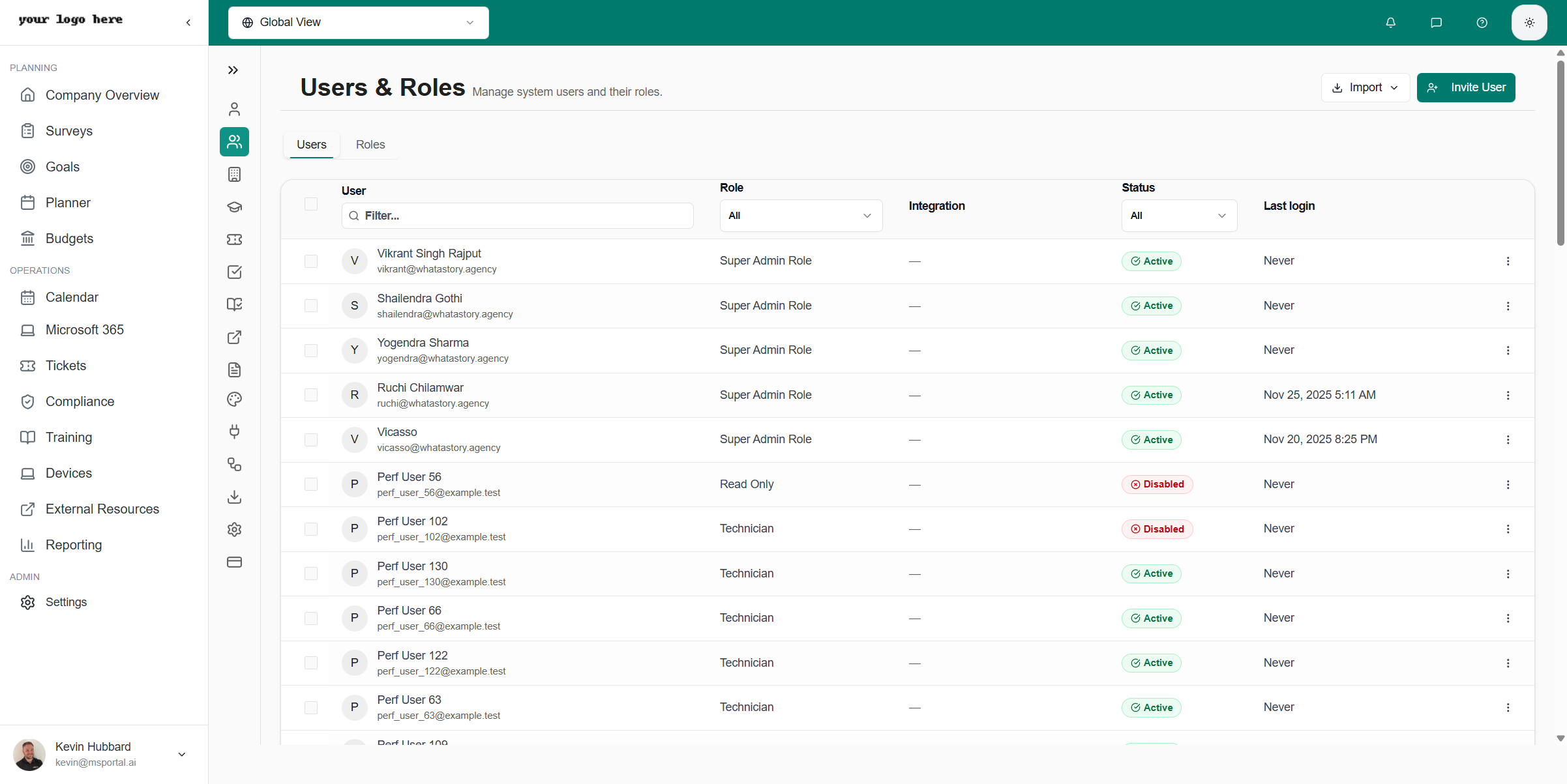
The Users tab displays all team members in your organization.
 ### User Information
Each user entry shows:
| Field | Description |
| -------------- | --------------------------- |
| **Name** | User's full name |
| **Email** | Login email address |
| **Role** | Assigned custom role |
| **Status** | Active or inactive |
| **Last Login** | Most recent login timestamp |
### Adding a New User
Select the **+ Add User** button in the top right
Fill in the user's name, email address, and other required information
Select a custom role to define the user's permissions
If "Restrict to Assigned Companies" is enabled, select which companies this user can access
Click **Save** to send an invitation email to the new user
### Editing Users
Click on any user row to edit their details:
* Update profile information
* Change assigned role
* Modify company assignments
* Deactivate or reactivate the account
## Roles Tab
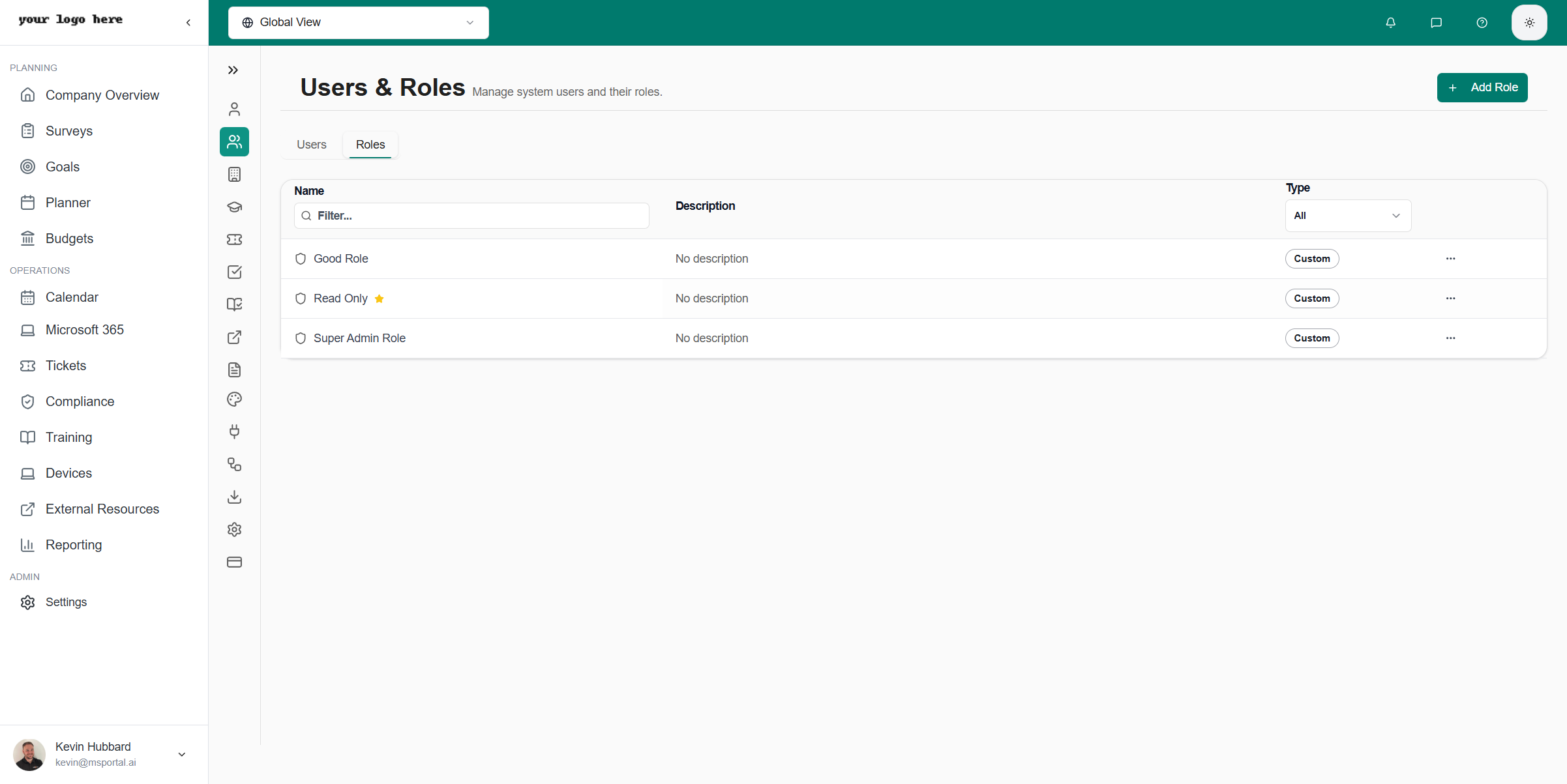
The Roles tab allows you to create and manage custom roles with specific permissions.
### User Information
Each user entry shows:
| Field | Description |
| -------------- | --------------------------- |
| **Name** | User's full name |
| **Email** | Login email address |
| **Role** | Assigned custom role |
| **Status** | Active or inactive |
| **Last Login** | Most recent login timestamp |
### Adding a New User
Select the **+ Add User** button in the top right
Fill in the user's name, email address, and other required information
Select a custom role to define the user's permissions
If "Restrict to Assigned Companies" is enabled, select which companies this user can access
Click **Save** to send an invitation email to the new user
### Editing Users
Click on any user row to edit their details:
* Update profile information
* Change assigned role
* Modify company assignments
* Deactivate or reactivate the account
## Roles Tab
The Roles tab allows you to create and manage custom roles with specific permissions.
 ### Understanding Roles
Roles define what actions users can perform in MSPortal.ai. Each role is a collection of permissions that can be assigned to users.
The **Primary Admin** role is a system role that cannot be deleted or modified. It always has full access to all features.
### Creating a Custom Role
Select the **+ Add Role** button
Enter a descriptive name (e.g., "Support Technician", "Account Manager")
Check the permissions this role should have access to
Click **Save** to create the role
### Duplicating a Role
When an existing role is close to what you need, you can duplicate it as a starting point instead of rebuilding from scratch.
On the role you want to copy, click the actions menu (three dots) at the end of the row.
Select **Duplicate**. A new role is created immediately, named **Copy of \[original role name]**.
Click the new role to rename it, edit the description, and adjust permissions as needed before assigning it to users.
Duplicating a role copies the role name, description, all permission assignments, and role configuration flags such as bypass-company-restrictions and update-email opt-in. Company roles also carry over their ticket display group. It does not copy user assignments, so no users receive the new role until you assign it explicitly.
Duplicate is available for both tenant roles and company roles, and requires the **Manage > Users & Roles** permission (or the Primary Admin role).
### RBAC Permissions
Roles use a granular Role-Based Access Control (RBAC) system. Each role has three permission levels for every resource:
### Understanding Roles
Roles define what actions users can perform in MSPortal.ai. Each role is a collection of permissions that can be assigned to users.
The **Primary Admin** role is a system role that cannot be deleted or modified. It always has full access to all features.
### Creating a Custom Role
Select the **+ Add Role** button
Enter a descriptive name (e.g., "Support Technician", "Account Manager")
Check the permissions this role should have access to
Click **Save** to create the role
### Duplicating a Role
When an existing role is close to what you need, you can duplicate it as a starting point instead of rebuilding from scratch.
On the role you want to copy, click the actions menu (three dots) at the end of the row.
Select **Duplicate**. A new role is created immediately, named **Copy of \[original role name]**.
Click the new role to rename it, edit the description, and adjust permissions as needed before assigning it to users.
Duplicating a role copies the role name, description, all permission assignments, and role configuration flags such as bypass-company-restrictions and update-email opt-in. Company roles also carry over their ticket display group. It does not copy user assignments, so no users receive the new role until you assign it explicitly.
Duplicate is available for both tenant roles and company roles, and requires the **Manage > Users & Roles** permission (or the Primary Admin role).
### RBAC Permissions
Roles use a granular Role-Based Access Control (RBAC) system. Each role has three permission levels for every resource:
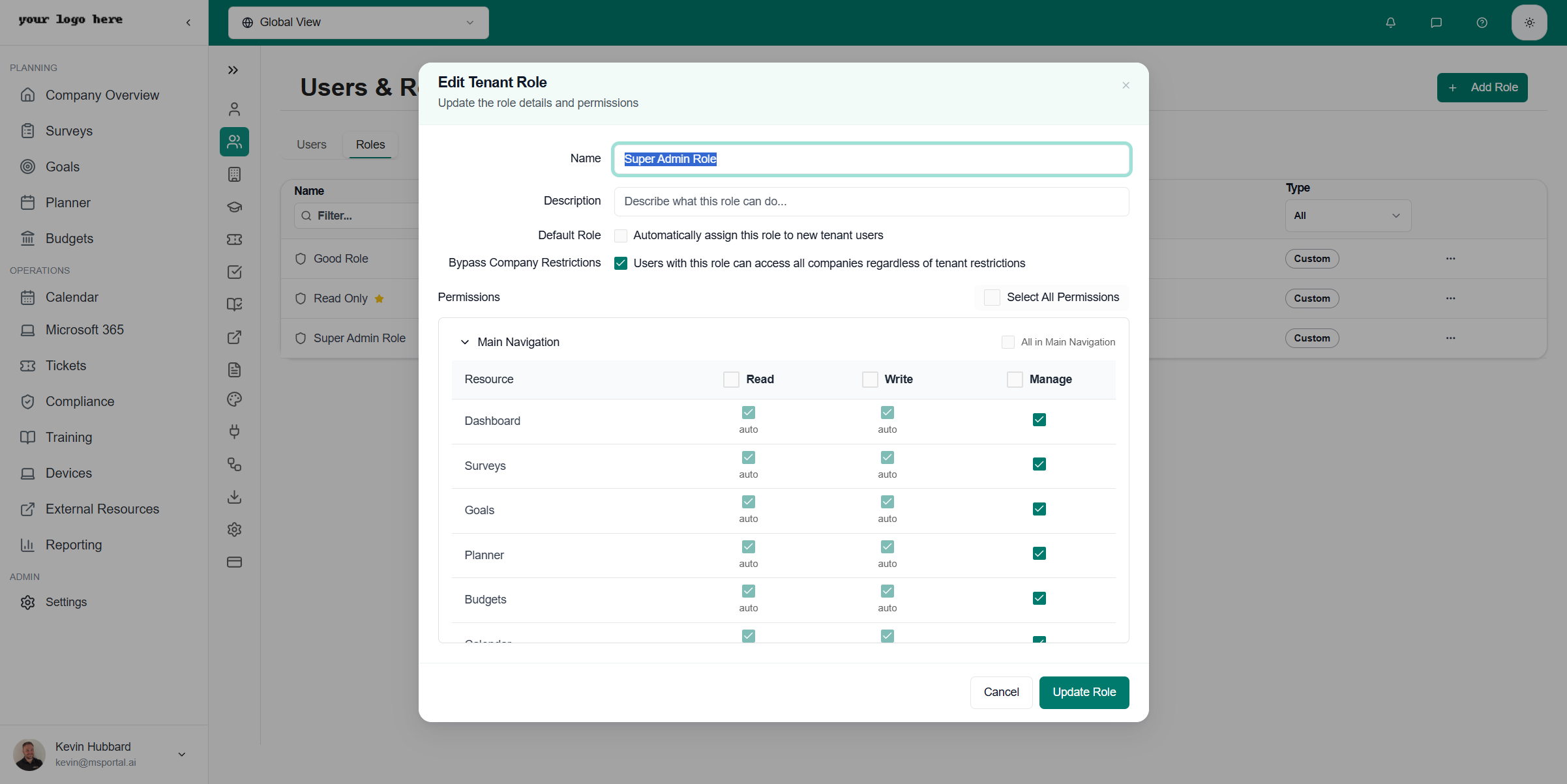 | Permission Level | Description |
| ---------------- | ------------------------------------------ |
| **Read** | View data and access the page |
| **Write** | Create and edit records |
| **Manage** | Full control including delete and settings |
### Permission Sections
Permissions are organized into three sections:
**Main Navigation** - Access to core application pages:
* Dashboard, Surveys, Goals, Planner, Budgets
* Calendar, Meetings, Notifications
* M365, Tickets, Compliance, Training
* Devices, Reporting, External
**Settings** - Access to configuration areas:
* Users, Roles, Companies
* Training, Tickets, Compliance settings
* Templates, Playbooks, Integrations
* Import/Export, Tenant, Billing
**Other** - Special permissions:
* Impersonate (start user impersonation)
* Types management
### Role Options
| Option | Description |
| ------------------------------- | ------------------------------------------------------ |
| **Default Role** | Automatically assign to new users |
| **Bypass Company Restrictions** | Access all companies regardless of tenant restrictions |
### Example Role Configurations
| Role Name | Typical Permissions |
| -------------------- | -------------------------------------------------------- |
| **Support Tech** | Read/Write on Tickets, Devices; Read on Company Overview |
| **Account Manager** | Manage on Calendar, Budgets; Read/Write on Reports |
| **Compliance Admin** | Manage on Compliance, Playbooks; Read on Reports |
| **Training Admin** | Manage on Training; Read on Company Overview |
## Company Assignments
When "Restrict to Assigned Companies" is enabled in [Tenant Settings](/user-guides/settings/tenant), users only see data for companies they're assigned to.
### Assigning Companies to Users
1. Edit a user from the Users tab
2. Navigate to the **Company Assignments** section
3. Select the companies this user should have access to
4. Save changes
If a user has no company assignments when restrictions are enabled, they won't be able to see any company data.
## Best Practices
### Role Design
* **Start simple** - Create a few broad roles before adding specialized ones
* **Use descriptive names** - Role names should indicate the user's function
* **Document permissions** - Maintain a reference of what each role can do
### User Management
* **Regular audits** - Review user access periodically
* **Deactivate vs delete** - Deactivate users who leave to preserve audit trails
* **Least privilege** - Assign the minimum permissions needed for each role
## Troubleshooting
### User Can't Access a Feature
1. Check the user's assigned role
2. Verify the role has the required permission
3. If using company restrictions, ensure the user is assigned to relevant companies
### Role Changes Not Taking Effect
1. Ask the user to log out and back in
2. Clear browser cache if issues persist
3. Verify the role was saved successfully
## Related Resources
* [Settings Overview](/user-guides/settings/index) - All settings options
* [Tenant Settings](/user-guides/settings/tenant) - Company restriction settings
* [Getting Started](/user-guides/getting-started/how-to-create-a-new-user-role) - Role creation guide
| Permission Level | Description |
| ---------------- | ------------------------------------------ |
| **Read** | View data and access the page |
| **Write** | Create and edit records |
| **Manage** | Full control including delete and settings |
### Permission Sections
Permissions are organized into three sections:
**Main Navigation** - Access to core application pages:
* Dashboard, Surveys, Goals, Planner, Budgets
* Calendar, Meetings, Notifications
* M365, Tickets, Compliance, Training
* Devices, Reporting, External
**Settings** - Access to configuration areas:
* Users, Roles, Companies
* Training, Tickets, Compliance settings
* Templates, Playbooks, Integrations
* Import/Export, Tenant, Billing
**Other** - Special permissions:
* Impersonate (start user impersonation)
* Types management
### Role Options
| Option | Description |
| ------------------------------- | ------------------------------------------------------ |
| **Default Role** | Automatically assign to new users |
| **Bypass Company Restrictions** | Access all companies regardless of tenant restrictions |
### Example Role Configurations
| Role Name | Typical Permissions |
| -------------------- | -------------------------------------------------------- |
| **Support Tech** | Read/Write on Tickets, Devices; Read on Company Overview |
| **Account Manager** | Manage on Calendar, Budgets; Read/Write on Reports |
| **Compliance Admin** | Manage on Compliance, Playbooks; Read on Reports |
| **Training Admin** | Manage on Training; Read on Company Overview |
## Company Assignments
When "Restrict to Assigned Companies" is enabled in [Tenant Settings](/user-guides/settings/tenant), users only see data for companies they're assigned to.
### Assigning Companies to Users
1. Edit a user from the Users tab
2. Navigate to the **Company Assignments** section
3. Select the companies this user should have access to
4. Save changes
If a user has no company assignments when restrictions are enabled, they won't be able to see any company data.
## Best Practices
### Role Design
* **Start simple** - Create a few broad roles before adding specialized ones
* **Use descriptive names** - Role names should indicate the user's function
* **Document permissions** - Maintain a reference of what each role can do
### User Management
* **Regular audits** - Review user access periodically
* **Deactivate vs delete** - Deactivate users who leave to preserve audit trails
* **Least privilege** - Assign the minimum permissions needed for each role
## Troubleshooting
### User Can't Access a Feature
1. Check the user's assigned role
2. Verify the role has the required permission
3. If using company restrictions, ensure the user is assigned to relevant companies
### Role Changes Not Taking Effect
1. Ask the user to log out and back in
2. Clear browser cache if issues persist
3. Verify the role was saved successfully
## Related Resources
* [Settings Overview](/user-guides/settings/index) - All settings options
* [Tenant Settings](/user-guides/settings/tenant) - Company restriction settings
* [Getting Started](/user-guides/getting-started/how-to-create-a-new-user-role) - Role creation guide