> ## Documentation Index
> Fetch the complete documentation index at: https://docs.msportal.ai/llms.txt
> Use this file to discover all available pages before exploring further.
# Respond to an NPS survey
> Choose your recommendation rating, answer follow-up questions, and submit feedback through your invitation.
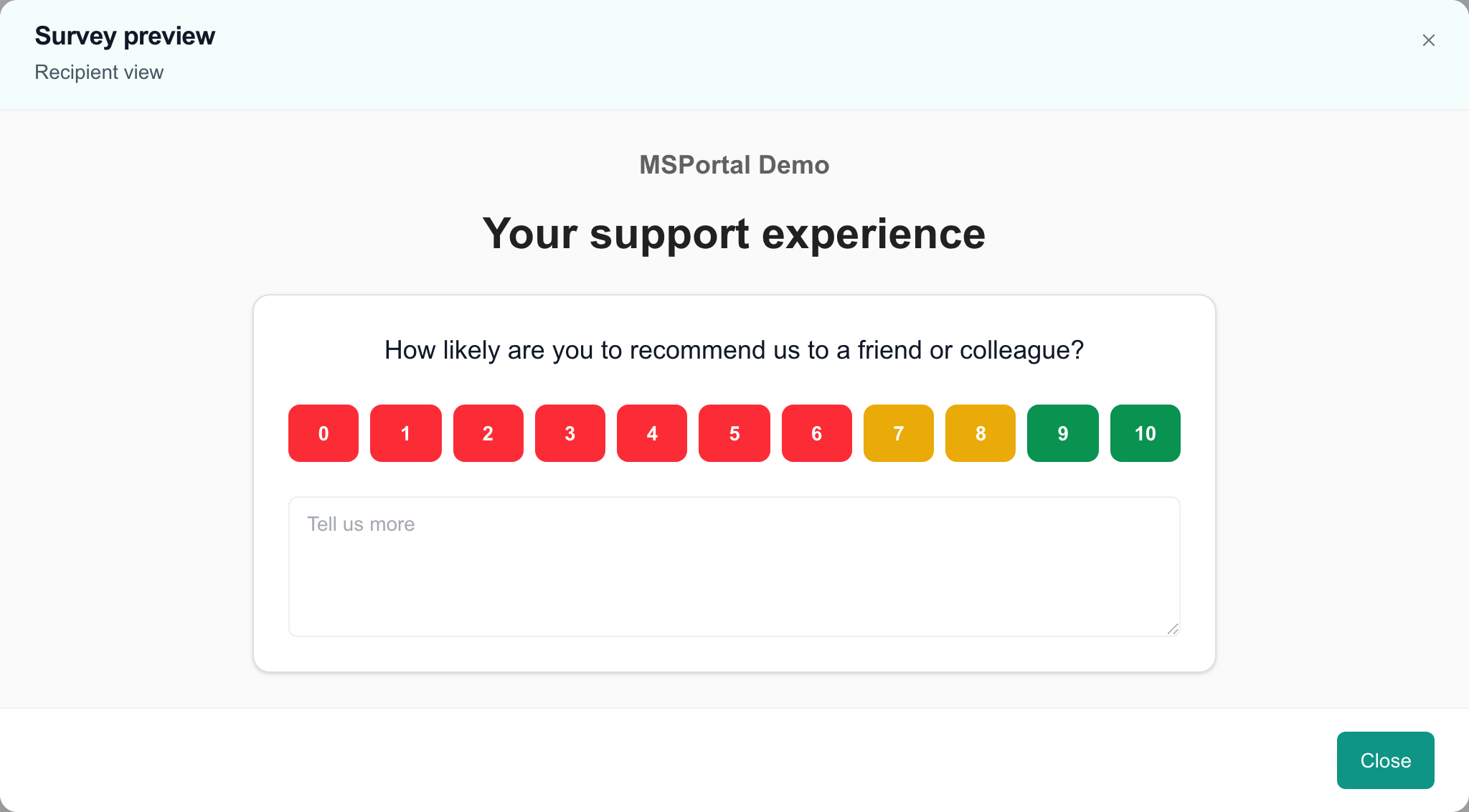
An NPS survey asks how likely you are to recommend your provider. Open your own invitation link to respond. You do not need survey-management access to complete the public response form.
 ## Give your feedback
1. Read the provider's question and any introduction.
2. Choose the rating that represents your experience. The survey may display numbers, stars, faces, or another configured rating style.
3. Add an optional comment in **Tell us more**. The form allows up to 1,000 characters in this field.
4. Answer any additional questions that appear. Required questions are marked with an asterisk.
5. Review your selection and select **Submit Feedback**.
6. Wait for the thank-you message before closing the page.
Selecting a rating changes the form but does not submit it. You can change the selected rating before pressing **Submit Feedback**. Additional questions may appear or disappear based on that selection; review the questions visible for your final rating.
Numeric NPS uses a 0–10 scale. Other rating styles represent configured points on that scale, so follow the displayed question and labels rather than assuming every five-option style is a separate 1–5 NPS score.
## After submission
The thank-you page can show a provider message and optional links to review sites. Following a review link is a separate action on another website. Submitting your NPS response does not automatically post a public review.
The invitation is intended for one completed response. If you need to correct submitted feedback, contact the provider. The form does not offer a recipient-side edit action after completion.
## Troubleshooting
* **Submit Feedback is disabled:** select a rating and wait for any current submission to finish.
* **A required question is missing an answer:** complete the visible required follow-up questions for your selected rating.
* **Invalid, expired, inactive, or ended survey:** reopen the original invitation or ask the provider for a current link.
* **Already completed:** ask the provider about a correction instead of using someone else's invitation.
* **You refreshed before submitting:** the form does not promise draft restoration. Check every answer before submitting again.
## Frequently asked questions
No. Choose your rating, review any follow-up questions, and select **Submit Feedback**.
Yes. Select another rating and review any newly visible required questions before submitting.
The provider can configure questions for particular scores. The form submits the follow-up answers relevant to the final selected score.
The main feedback comment is optional. Additional questions can be required; complete those marked with an asterisk.
Do not assume so. The invitation identifies its recipient, and the provider can associate the response with that recipient and company.
No. Optional review links open separate websites. A public review requires a separate action there.
There is no recipient edit control for the completed response. Contact the provider to arrange a correction.
Use the invitation link to submit your personal response. The Surveys area is a separate portal capability for viewing or managing available survey information.
## Related guides
* [Complete a questionnaire](/user-guides/surveys/complete-a-survey)
* [Rate a support experience](/user-guides/surveys/rate-your-support)
## Give your feedback
1. Read the provider's question and any introduction.
2. Choose the rating that represents your experience. The survey may display numbers, stars, faces, or another configured rating style.
3. Add an optional comment in **Tell us more**. The form allows up to 1,000 characters in this field.
4. Answer any additional questions that appear. Required questions are marked with an asterisk.
5. Review your selection and select **Submit Feedback**.
6. Wait for the thank-you message before closing the page.
Selecting a rating changes the form but does not submit it. You can change the selected rating before pressing **Submit Feedback**. Additional questions may appear or disappear based on that selection; review the questions visible for your final rating.
Numeric NPS uses a 0–10 scale. Other rating styles represent configured points on that scale, so follow the displayed question and labels rather than assuming every five-option style is a separate 1–5 NPS score.
## After submission
The thank-you page can show a provider message and optional links to review sites. Following a review link is a separate action on another website. Submitting your NPS response does not automatically post a public review.
The invitation is intended for one completed response. If you need to correct submitted feedback, contact the provider. The form does not offer a recipient-side edit action after completion.
## Troubleshooting
* **Submit Feedback is disabled:** select a rating and wait for any current submission to finish.
* **A required question is missing an answer:** complete the visible required follow-up questions for your selected rating.
* **Invalid, expired, inactive, or ended survey:** reopen the original invitation or ask the provider for a current link.
* **Already completed:** ask the provider about a correction instead of using someone else's invitation.
* **You refreshed before submitting:** the form does not promise draft restoration. Check every answer before submitting again.
## Frequently asked questions
No. Choose your rating, review any follow-up questions, and select **Submit Feedback**.
Yes. Select another rating and review any newly visible required questions before submitting.
The provider can configure questions for particular scores. The form submits the follow-up answers relevant to the final selected score.
The main feedback comment is optional. Additional questions can be required; complete those marked with an asterisk.
Do not assume so. The invitation identifies its recipient, and the provider can associate the response with that recipient and company.
No. Optional review links open separate websites. A public review requires a separate action there.
There is no recipient edit control for the completed response. Contact the provider to arrange a correction.
Use the invitation link to submit your personal response. The Surveys area is a separate portal capability for viewing or managing available survey information.
## Related guides
* [Complete a questionnaire](/user-guides/surveys/complete-a-survey)
* [Rate a support experience](/user-guides/surveys/rate-your-support)