> ## Documentation Index
> Fetch the complete documentation index at: https://docs.msportal.ai/llms.txt
> Use this file to discover all available pages before exploring further.
# Tasks and notes
> Keep your own task list, work with company tasks, and use the list or board from anywhere in MSPortal.
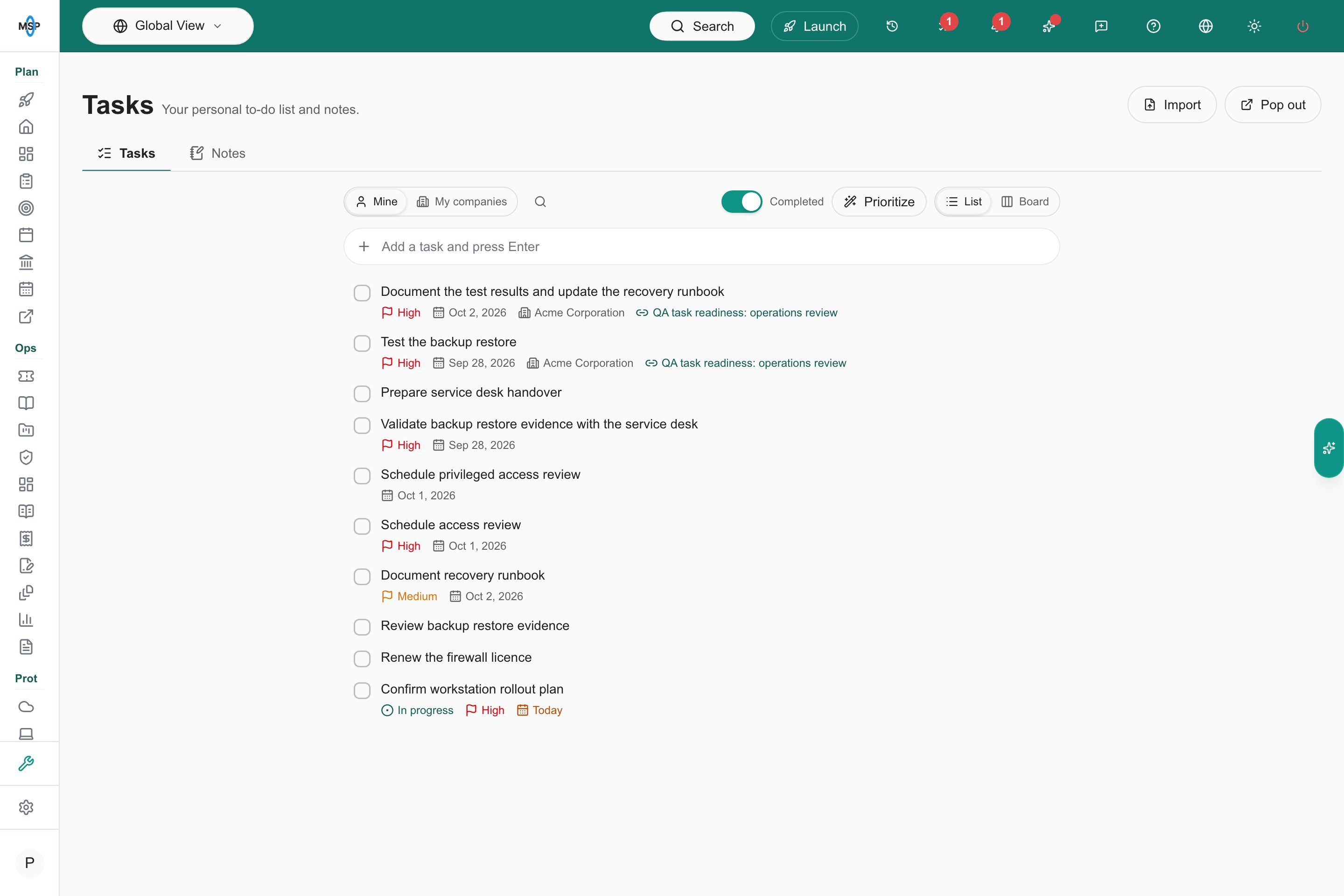
Tasks give MSP staff a personal to-do list, a board, and working notes that follow you across MSPortal. This guide is for MSP staff. Company users do not see tasks.
 ## Before you start
* You must be MSP staff. The task list button does not show for company users.
* **Prioritize** and **Create tasks from notes** need AI turned on for your portal.
* Your task changes save for everyone who can see the task, and your other open windows update.
* To audit other people's lists you need the **See all task lists** permission (**Audit: See all task lists** in the role editor).
## Open your task list
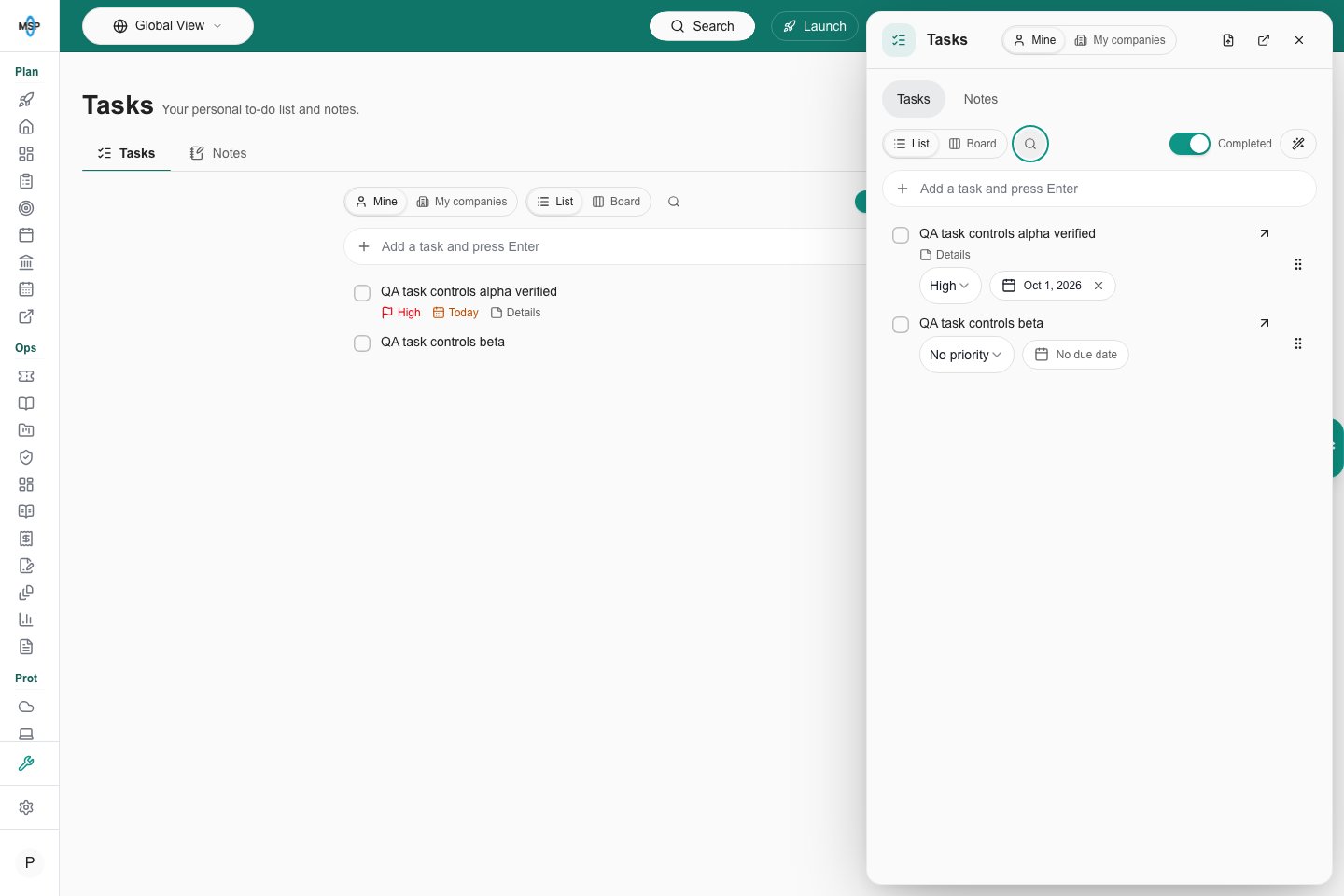
In the top bar, click **Open task list** (the checklist icon). A badge shows how many of your open tasks are due today or overdue. The side panel opens and stays open while you move around MSPortal.
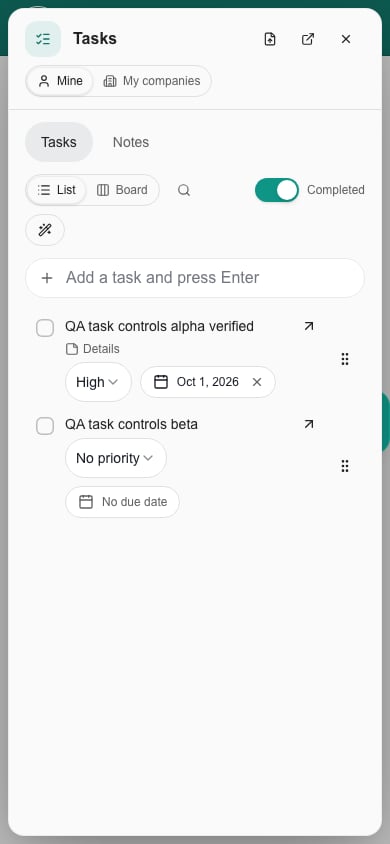
In the panel header, choose **Mine** or **My companies**. **Mine** has tasks you own. **My companies** has tasks for companies you are assigned to.
Use **List** or **Board** in the toolbar below the **Tasks** and **Notes** tabs.
Click **Open in a new window** in the panel header to open the full Tasks workspace in its own window. Changes you save there update the side panel.
## Before you start
* You must be MSP staff. The task list button does not show for company users.
* **Prioritize** and **Create tasks from notes** need AI turned on for your portal.
* Your task changes save for everyone who can see the task, and your other open windows update.
* To audit other people's lists you need the **See all task lists** permission (**Audit: See all task lists** in the role editor).
## Open your task list
In the top bar, click **Open task list** (the checklist icon). A badge shows how many of your open tasks are due today or overdue. The side panel opens and stays open while you move around MSPortal.
In the panel header, choose **Mine** or **My companies**. **Mine** has tasks you own. **My companies** has tasks for companies you are assigned to.
Use **List** or **Board** in the toolbar below the **Tasks** and **Notes** tabs.
Click **Open in a new window** in the panel header to open the full Tasks workspace in its own window. Changes you save there update the side panel.
 ## Add and organize tasks
Type into **Add a task and press Enter**, then press **Enter**. The task goes on your personal list.
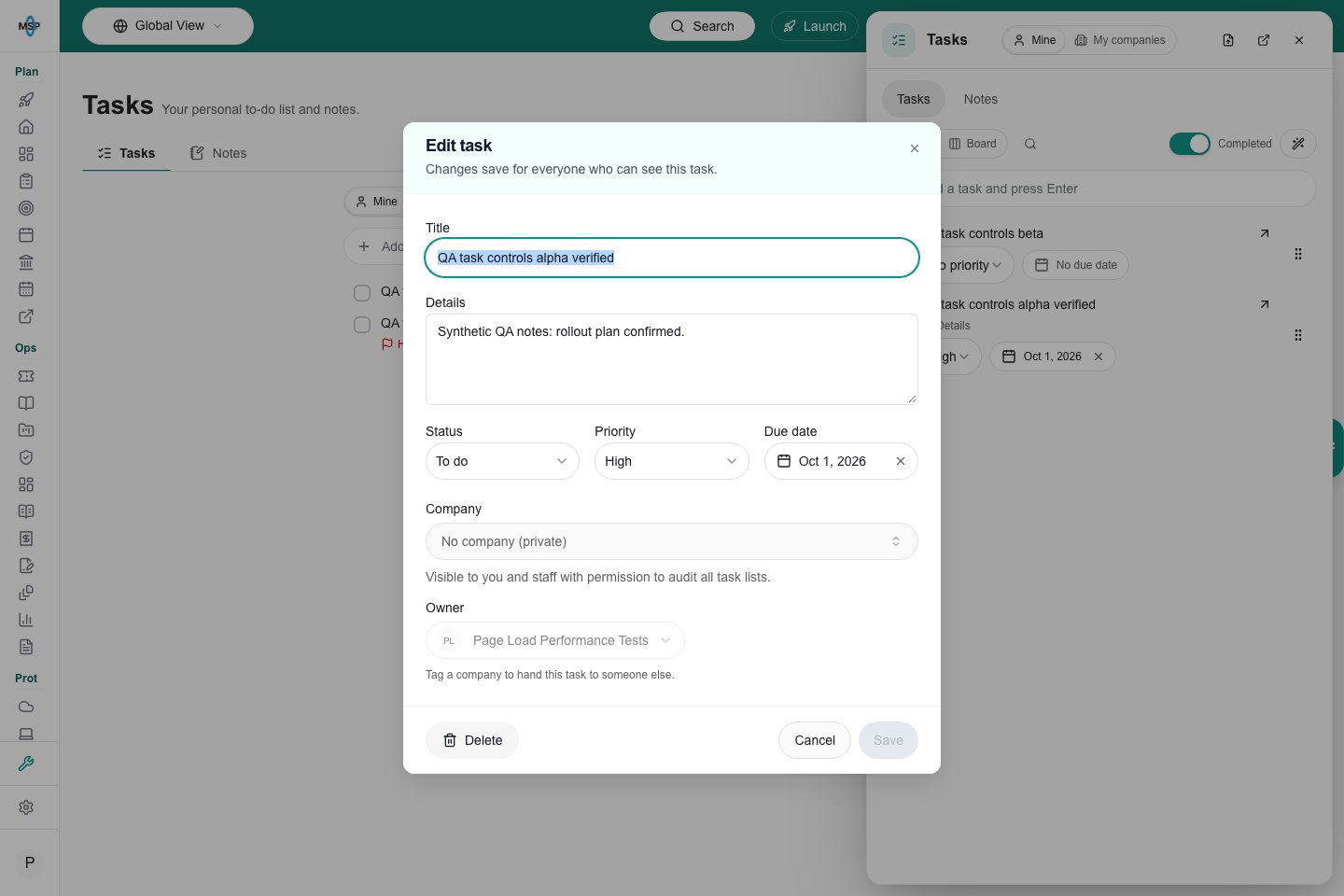
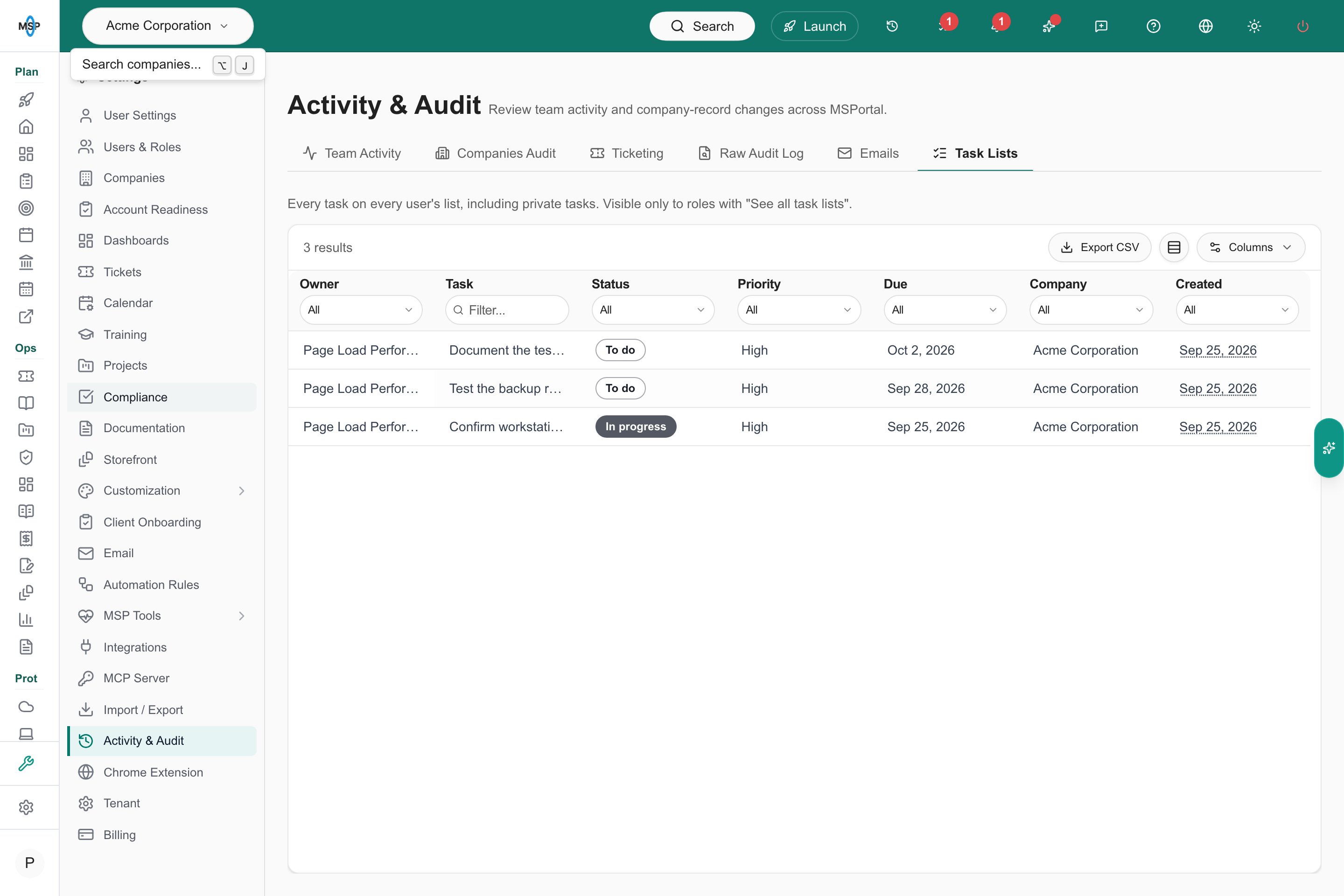
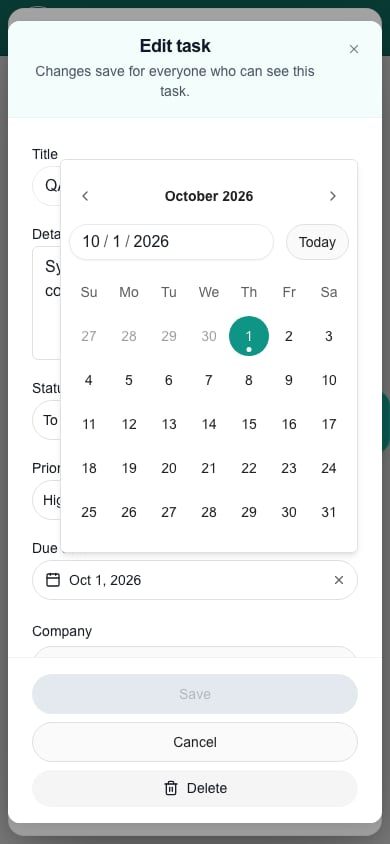
In the side panel, click a task title to edit it inline. Click the check button or press **Enter** to save. Change the priority and due date with the dropdowns on the row. Click the outward-arrow button to open **Edit task** for notes and other details. In the full workspace, click a title to open the editor.
## Add and organize tasks
Type into **Add a task and press Enter**, then press **Enter**. The task goes on your personal list.
In the side panel, click a task title to edit it inline. Click the check button or press **Enter** to save. Change the priority and due date with the dropdowns on the row. Click the outward-arrow button to open **Edit task** for notes and other details. In the full workspace, click a title to open the editor.
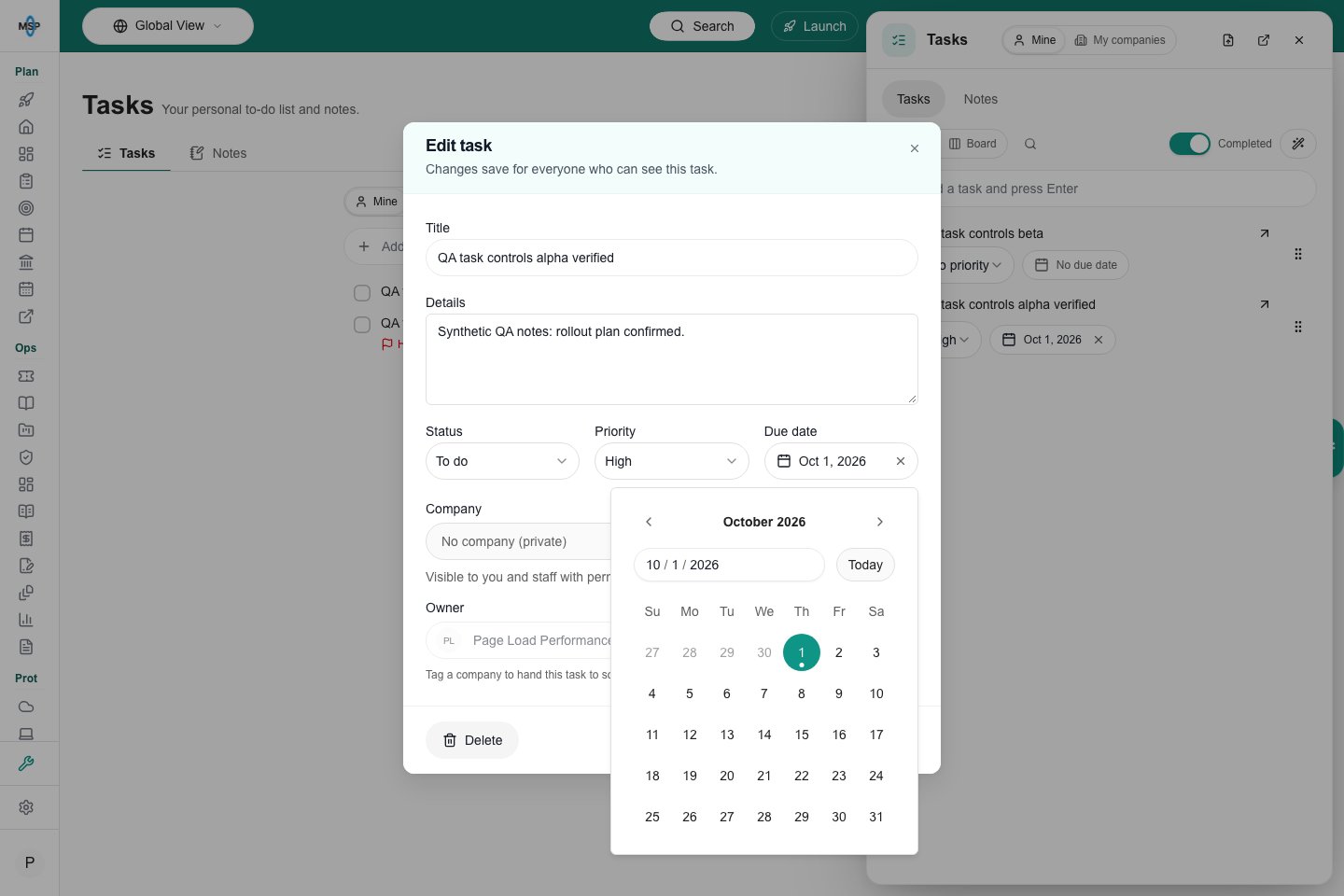 Tick the checkbox. Completed tasks stay under **Completed**. Untick one to reopen it.
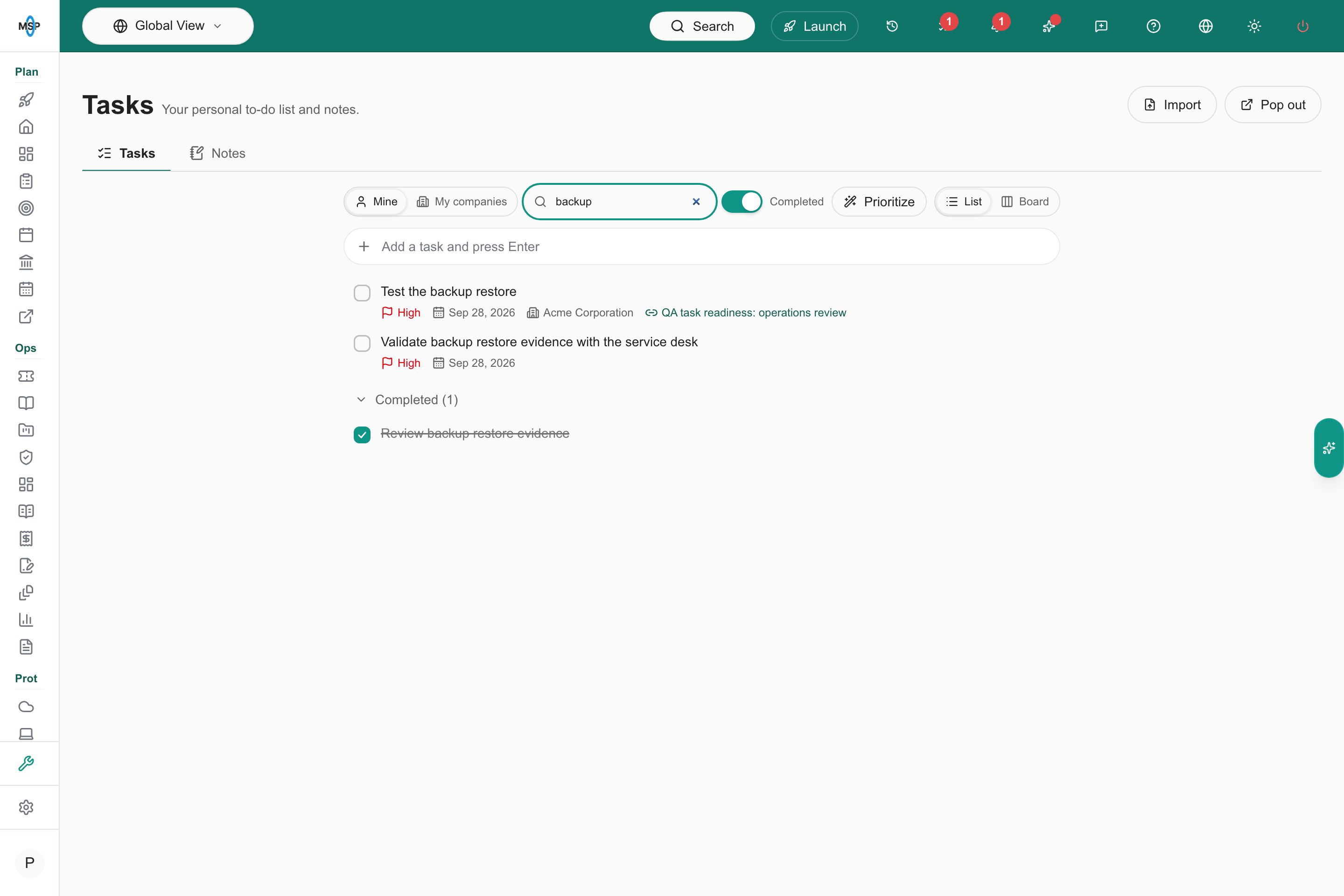 In **List**, drag a task by its grip to reorder it. In **Board**, drag the grip to move a task between **To do**, **In progress**, **Blocked**, and **Done**. Dragging does not complete a task. You can also set **Status** in the editor.
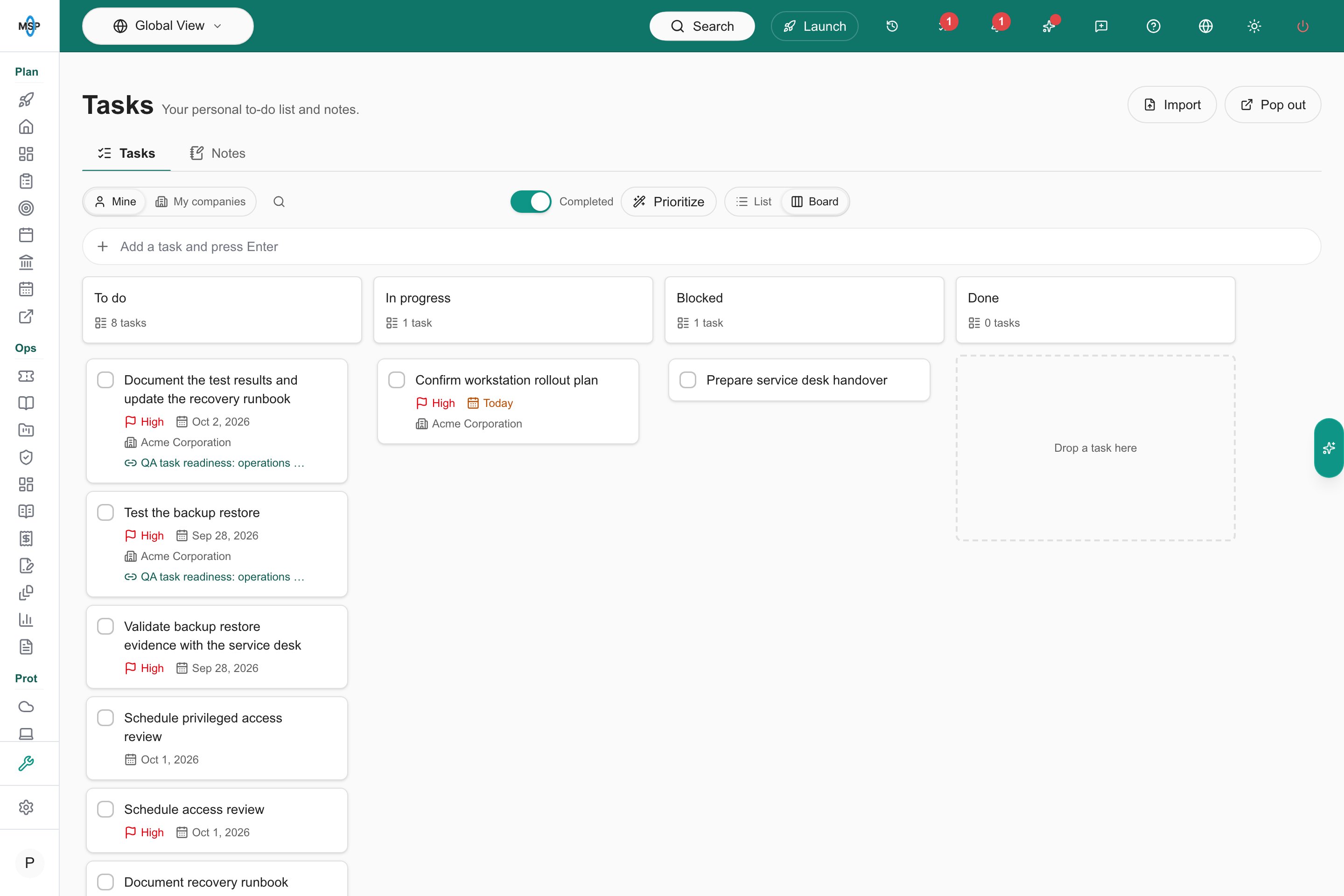 Click **Search tasks** to open a floating search field and filter the current view. Clear the search before you drag to reorder.
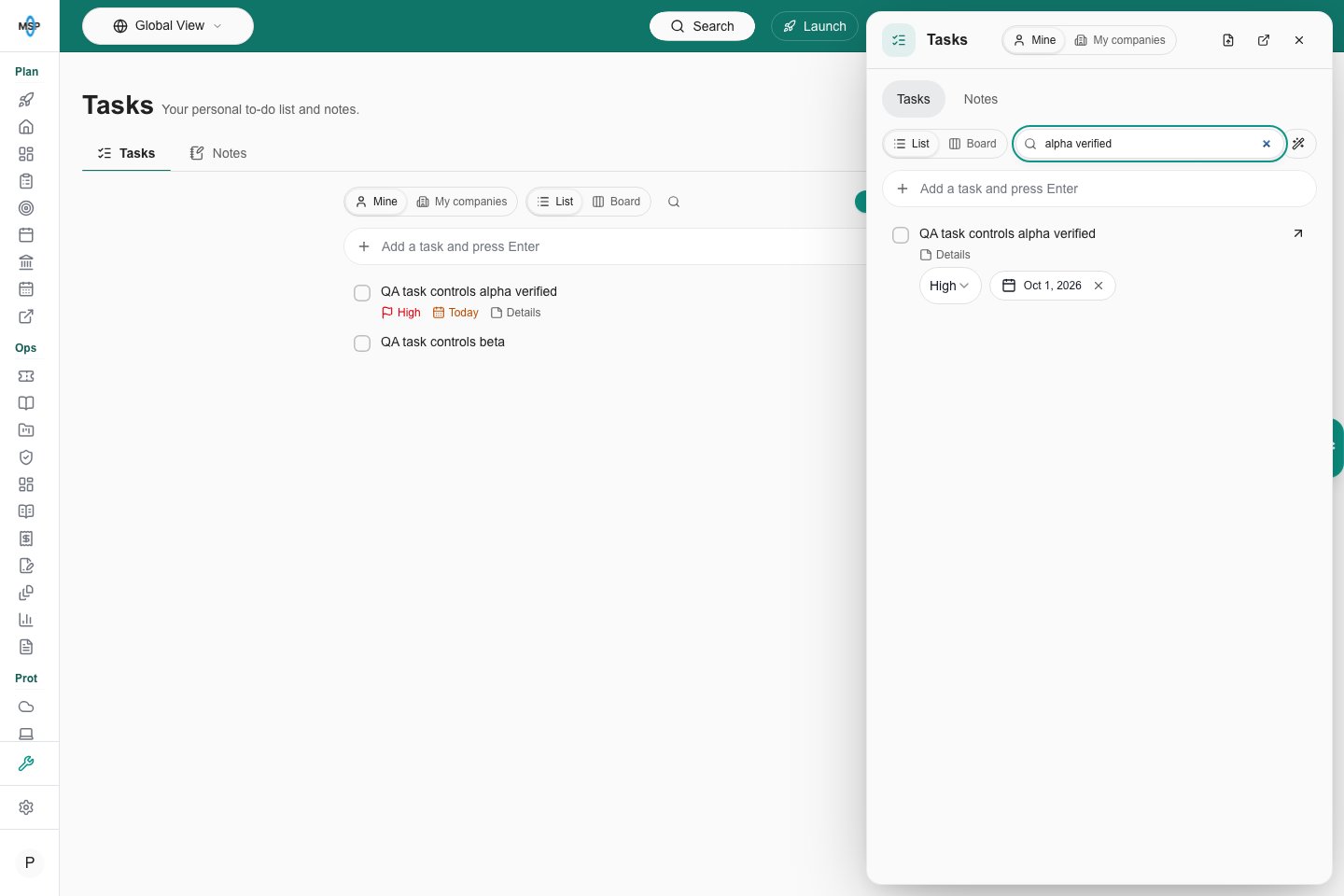 Open the task, click **Delete**, check the task name, and confirm. Deleting a task does not delete the ticket, device, or other record it was linked to.
A note icon with **Details** marks tasks that have notes. Inline changes save immediately. If a save fails, your editor stays open with your draft so you can try again.
## Prioritize with AI
Choose the task view, such as **Mine**, in the list or panel.
Click **Prioritize**. AI ranks your own open tasks in that view and sets their priorities, using dates, status, and task context. Tasks owned by colleagues are left alone. You need at least two open tasks you can edit.
A message such as "Prioritized 12 tasks." appears. Click **Undo** within a few seconds to restore your previous order.
Up to 200 eligible tasks are ranked in one pass. If you have more, the message says how many further down kept their places.
## Share tasks with a company
Click the task title or the details button.
Choose a **Company** in the editor. A task with no company is private to you. A task tagged to a company is shared with that company's assigned team.
Choose a company first, then pick a different **Owner**. You need permission to assign work for that company.
### Who can see what
* **Mine** has tasks you own, including tasks tagged with a company.
* **My companies** has tasks for companies you are assigned to. These two views do not follow the top-bar company selector.
* A task without a company is private to its owner. Staff with **See all task lists** can read it in the audit view.
* Company tasks are shared with the company's assigned team. Staff with company-settings access can also view them. Editing needs an assignment to the company or company-settings write access.
* A task created from a meeting action item keeps the meeting's company. Its owner and supported fields stay in sync with the action item. To change the company, change it in the meeting.
* Scratch notes are private to their owner and are not part of task-list audit.
Open the task, click **Delete**, check the task name, and confirm. Deleting a task does not delete the ticket, device, or other record it was linked to.
A note icon with **Details** marks tasks that have notes. Inline changes save immediately. If a save fails, your editor stays open with your draft so you can try again.
## Prioritize with AI
Choose the task view, such as **Mine**, in the list or panel.
Click **Prioritize**. AI ranks your own open tasks in that view and sets their priorities, using dates, status, and task context. Tasks owned by colleagues are left alone. You need at least two open tasks you can edit.
A message such as "Prioritized 12 tasks." appears. Click **Undo** within a few seconds to restore your previous order.
Up to 200 eligible tasks are ranked in one pass. If you have more, the message says how many further down kept their places.
## Share tasks with a company
Click the task title or the details button.
Choose a **Company** in the editor. A task with no company is private to you. A task tagged to a company is shared with that company's assigned team.
Choose a company first, then pick a different **Owner**. You need permission to assign work for that company.
### Who can see what
* **Mine** has tasks you own, including tasks tagged with a company.
* **My companies** has tasks for companies you are assigned to. These two views do not follow the top-bar company selector.
* A task without a company is private to its owner. Staff with **See all task lists** can read it in the audit view.
* Company tasks are shared with the company's assigned team. Staff with company-settings access can also view them. Editing needs an assignment to the company or company-settings write access.
* A task created from a meeting action item keeps the meeting's company. Its owner and supported fields stay in sync with the action item. To change the company, change it in the meeting.
* Scratch notes are private to their owner and are not part of task-list audit.
 ## See a company's action items
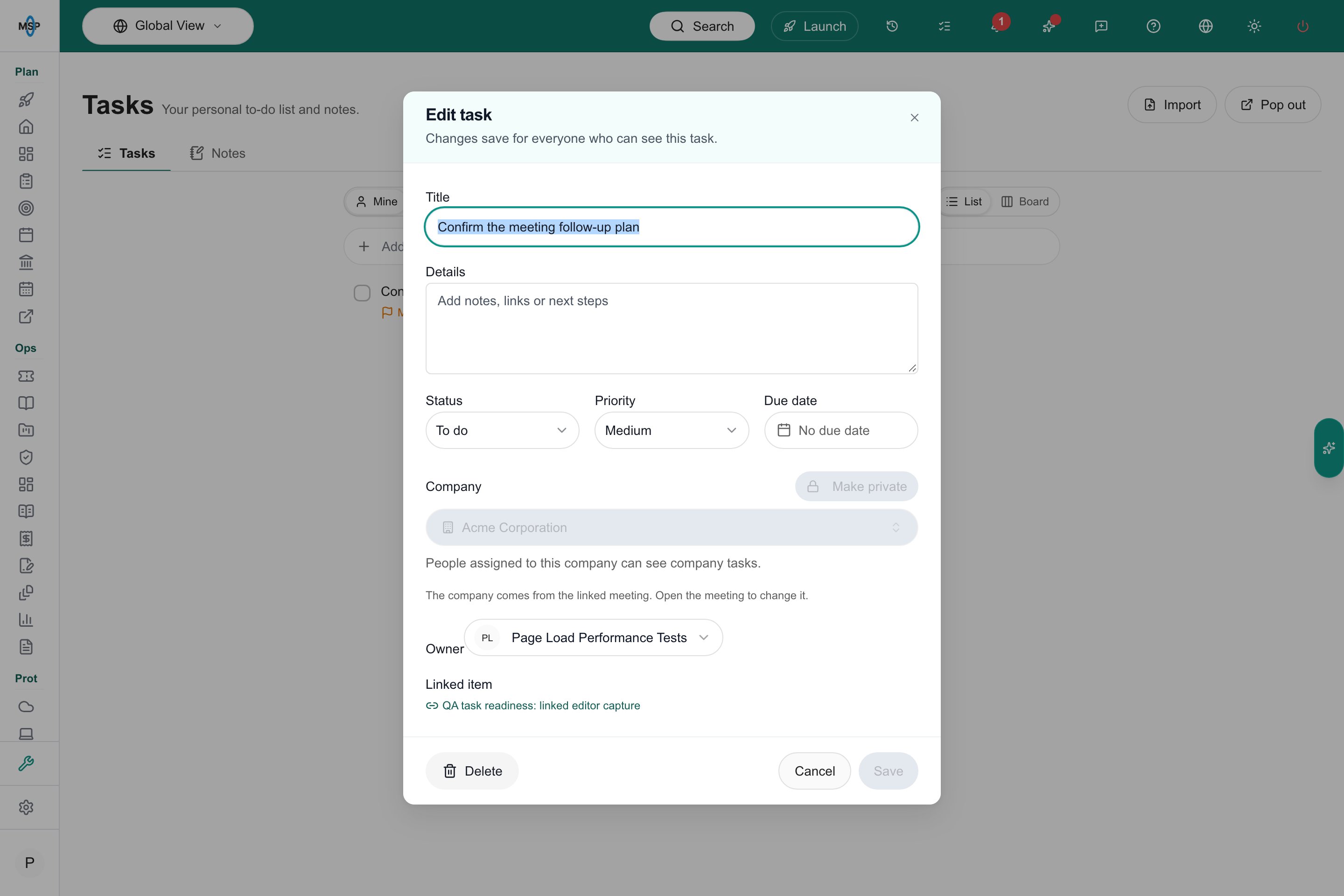
Open the company's details and click the **Action Items** tab. Everyone assigned to the company can see and update these tasks, and they appear in each person's **My companies** list.
## See a company's action items
Open the company's details and click the **Action Items** tab. Everyone assigned to the company can see and update these tasks, and they appear in each person's **My companies** list.
 ## Audit task lists
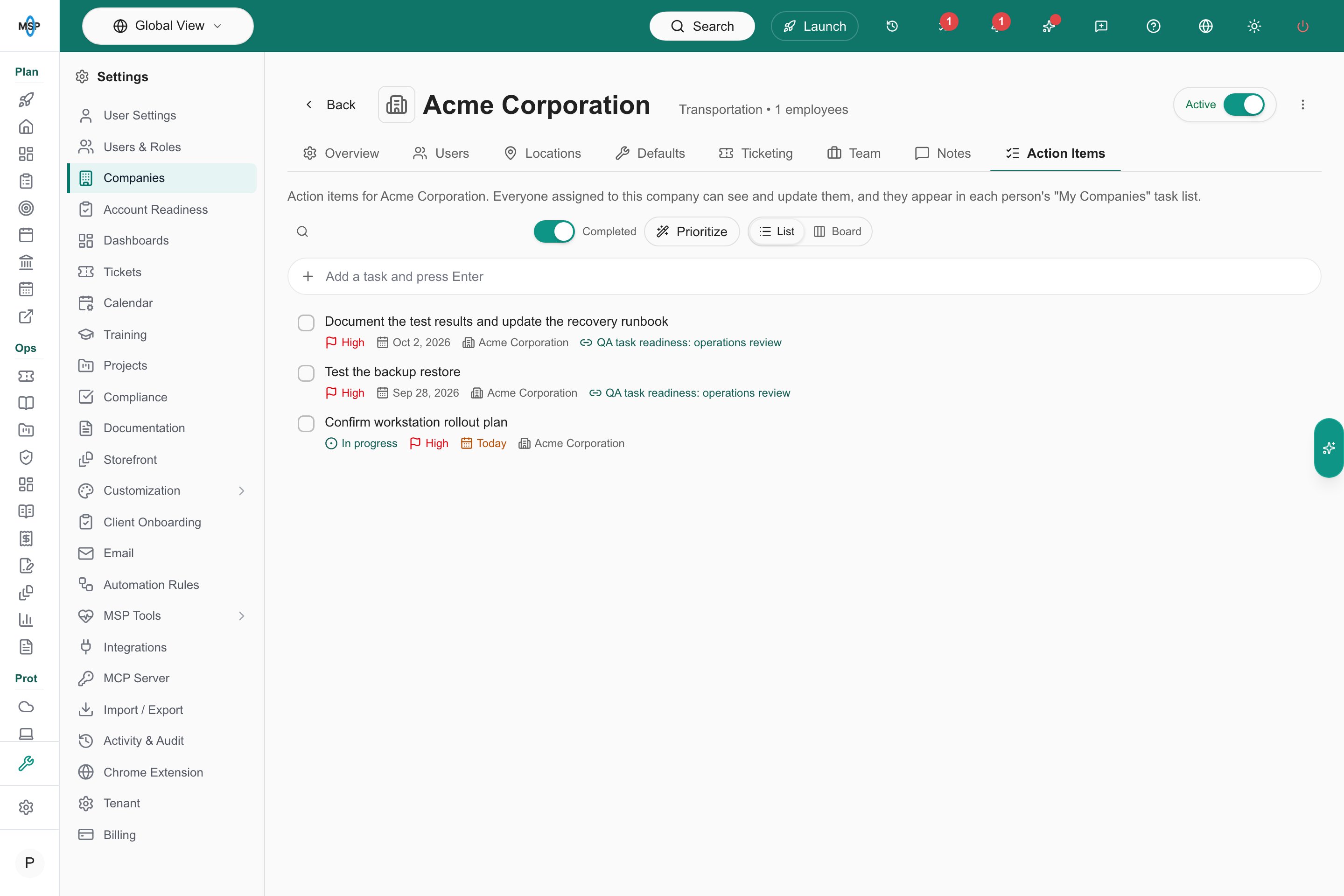
Go to **Settings > Activity & Audit** and open **Task Lists**. You need **See all task lists**.
The table shows each task's **Owner**, **Task**, **Status**, **Priority**, **Due**, **Company**, **Source**, **Created**, and **Completed**. Private tasks are labeled **Private**. The rows are read-only.
## Audit task lists
Go to **Settings > Activity & Audit** and open **Task Lists**. You need **See all task lists**.
The table shows each task's **Owner**, **Task**, **Status**, **Priority**, **Due**, **Company**, **Source**, **Created**, and **Completed**. Private tasks are labeled **Private**. The rows are read-only.
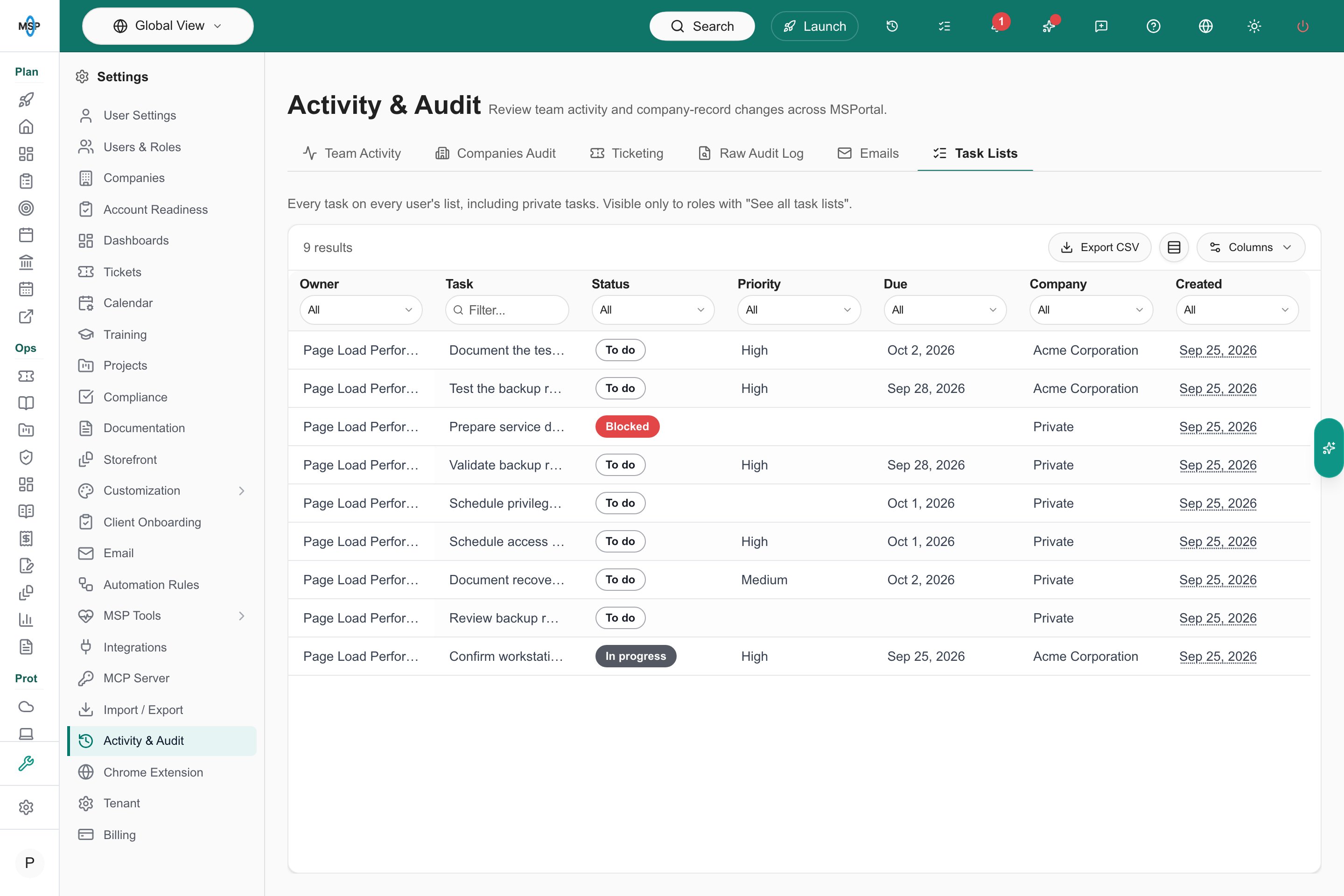 Pick a company in the company selector. The audit follows it.
 ## Use tasks on a phone or in dark mode
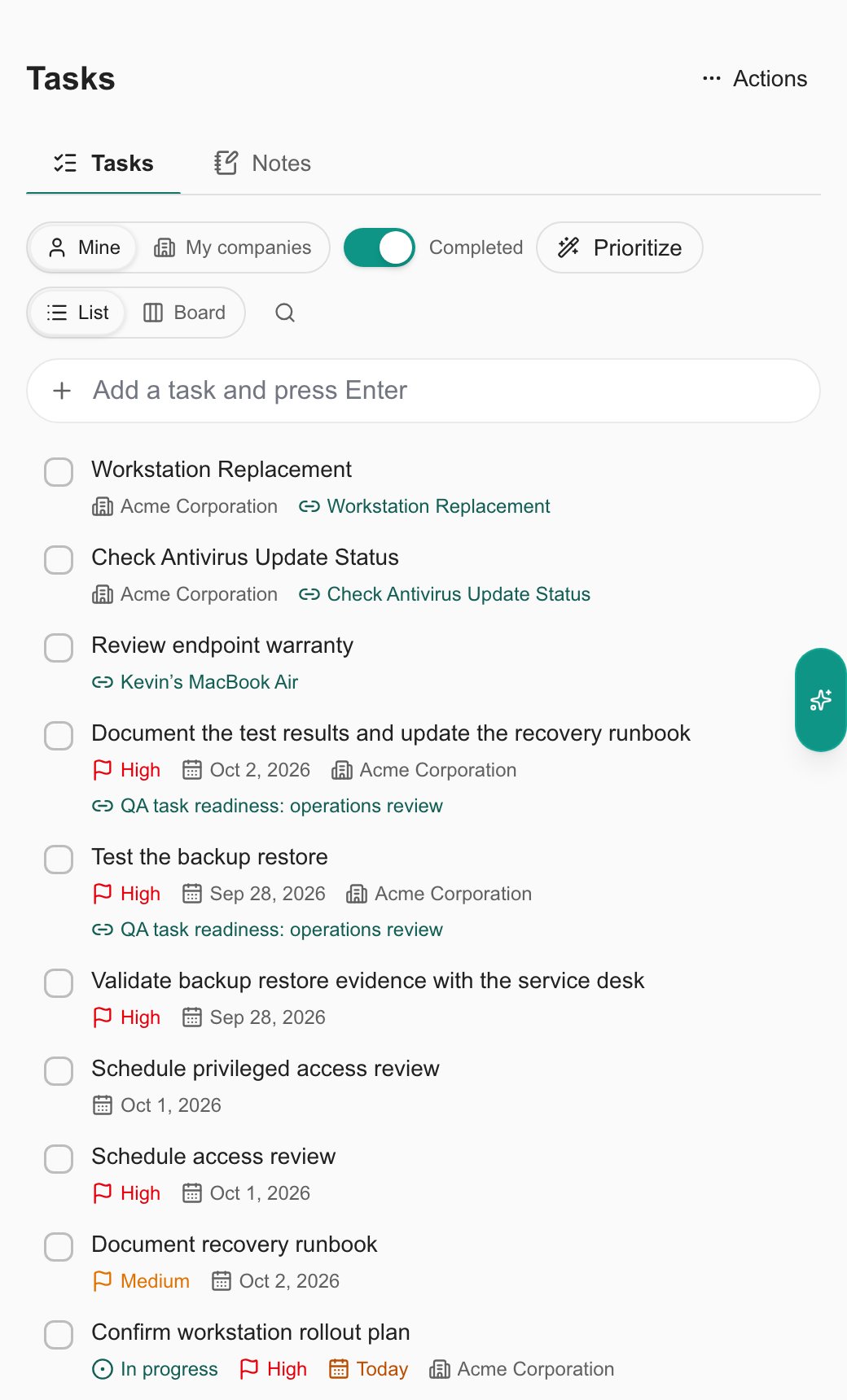
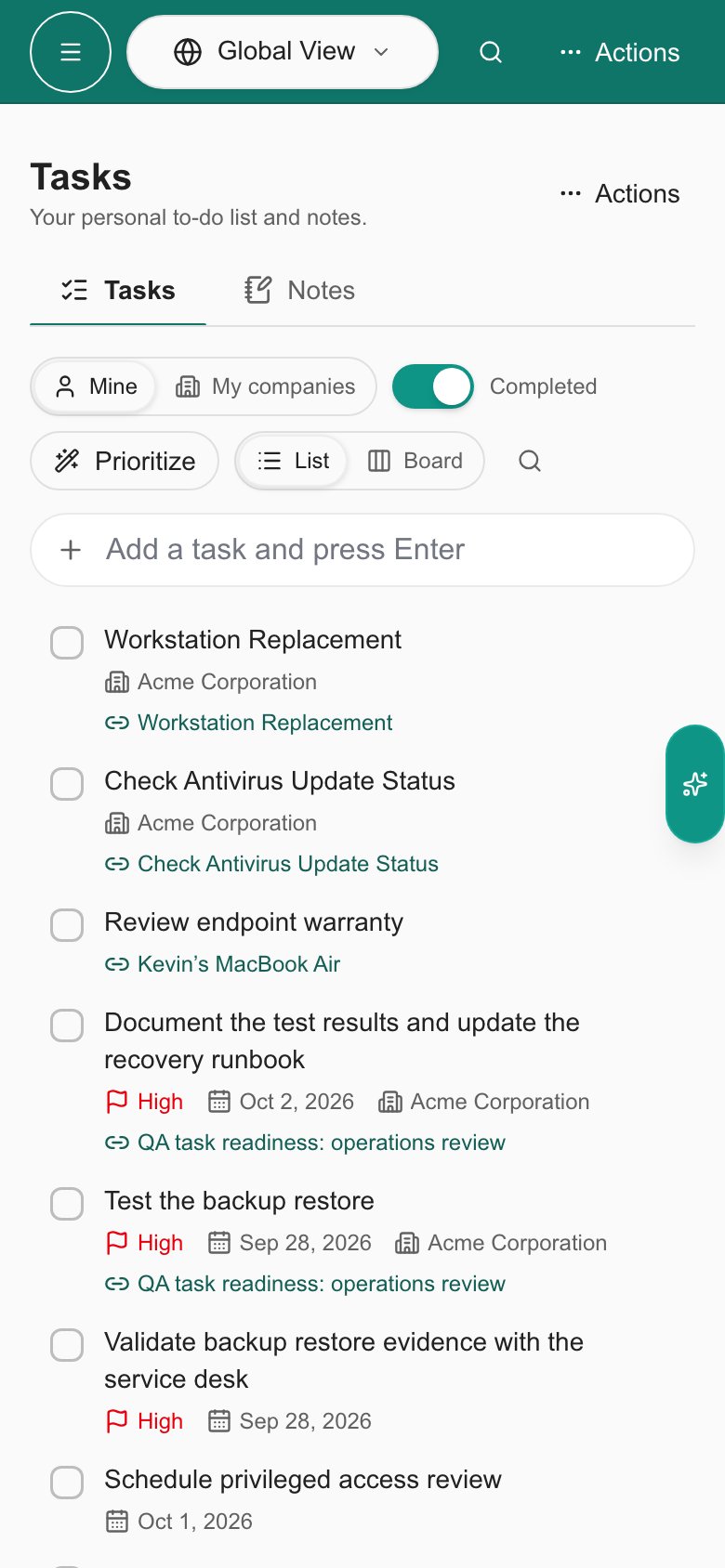
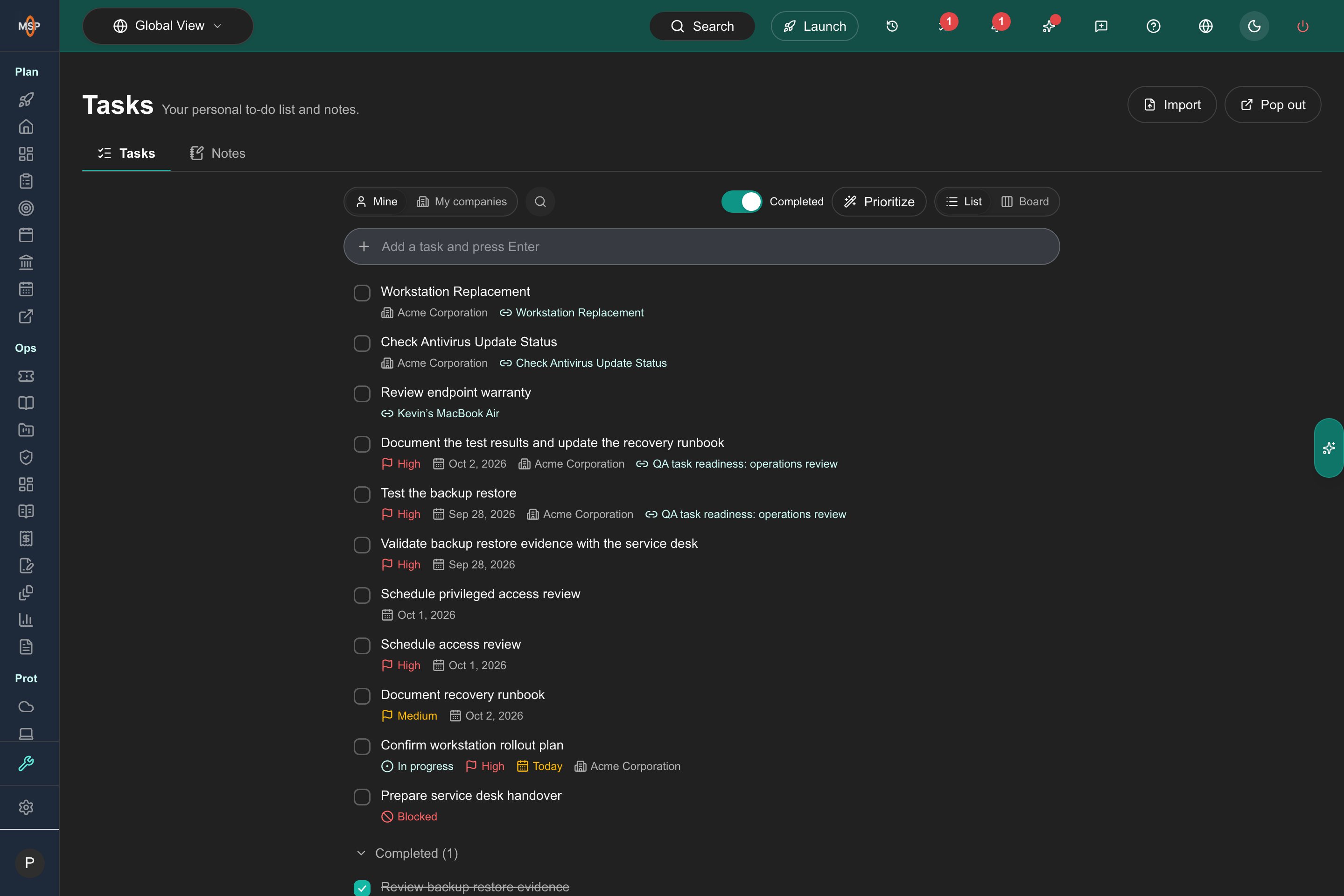
The task workspace adapts to small screens and follows your light or dark appearance setting. On a narrow screen, scroll the board sideways to reach other columns.
## Use tasks on a phone or in dark mode
The task workspace adapts to small screens and follows your light or dark appearance setting. On a narrow screen, scroll the board sideways to reach other columns.
 ## Troubleshooting
| Problem | What to do |
| - | - |
| There is no task list button | Tasks are for MSP staff only. Company users do not see them. |
| **Prioritize** does nothing | You need at least two open tasks you can edit. Colleagues' tasks are skipped. |
| A task did not save | Your editor stays open with the draft. Click save again. |
| You cannot reorder a task | Clear the search first. You cannot drag while a search is active. |
| You cannot pick another **Owner** | Tag the task with a company first. You also need permission to assign work for that company. |
| A task's company will not change | It was created from a meeting action item. Change the company in the meeting. |
| **Task Lists** is missing from **Activity & Audit** | Your role needs **See all task lists**. |
## Frequently asked questions
Only you, unless you tag a company. A task with a company is shared with that company's assigned team. Staff with **See all task lists** can also read private tasks in the audit view.
No. A task keeps a link to its source, and deleting the task does not change the source.
No. They are personal views and ignore the top-bar company selector. The audit view does follow it.
No. Only the checkbox completes a task. Dragging moves it.
No. **Prioritize** only changes your own open tasks.
## Related guides
* [Import lists and add linked items](/user-guides/tasks/import-tasks)
* [Use notes and extract tasks](/user-guides/tasks/notes)
* [MCP tools reference](/user-guides/mcp-server/tools-reference)
This documentation is built and hosted on [Mintlify](https://mintlify.com), a developer documentation platform.
## Troubleshooting
| Problem | What to do |
| - | - |
| There is no task list button | Tasks are for MSP staff only. Company users do not see them. |
| **Prioritize** does nothing | You need at least two open tasks you can edit. Colleagues' tasks are skipped. |
| A task did not save | Your editor stays open with the draft. Click save again. |
| You cannot reorder a task | Clear the search first. You cannot drag while a search is active. |
| You cannot pick another **Owner** | Tag the task with a company first. You also need permission to assign work for that company. |
| A task's company will not change | It was created from a meeting action item. Change the company in the meeting. |
| **Task Lists** is missing from **Activity & Audit** | Your role needs **See all task lists**. |
## Frequently asked questions
Only you, unless you tag a company. A task with a company is shared with that company's assigned team. Staff with **See all task lists** can also read private tasks in the audit view.
No. A task keeps a link to its source, and deleting the task does not change the source.
No. They are personal views and ignore the top-bar company selector. The audit view does follow it.
No. Only the checkbox completes a task. Dragging moves it.
No. **Prioritize** only changes your own open tasks.
## Related guides
* [Import lists and add linked items](/user-guides/tasks/import-tasks)
* [Use notes and extract tasks](/user-guides/tasks/notes)
* [MCP tools reference](/user-guides/mcp-server/tools-reference)
This documentation is built and hosted on [Mintlify](https://mintlify.com), a developer documentation platform.