> ## Documentation Index
> Fetch the complete documentation index at: https://docs.msportal.ai/llms.txt
> Use this file to discover all available pages before exploring further.
# Import and add linked tasks
> Review pasted lists, CSV files and tasks linked to existing portal records before saving.
## Import a list
Open **Tasks → Import**, or **Import tasks** in the side panel. Paste one task per line or upload a `.txt` or `.csv` file, up to 2 MB. Leading bullets, numbers and checkbox markers are removed.
For CSV files, use these headers:
```csv theme={null}
title,description,due_date,priority
Review restore evidence,Confirm the restore procedure,2026-10-01,high
Update the recovery runbook,Record the agreed steps,2026-10-02,medium
```
Use `YYYY-MM-DD` dates and `low`, `medium` or `high` priorities. Quote fields containing commas. Unrecognized dates or priorities are omitted, so check the preview before importing. Long titles and descriptions are shortened to their supported limits.
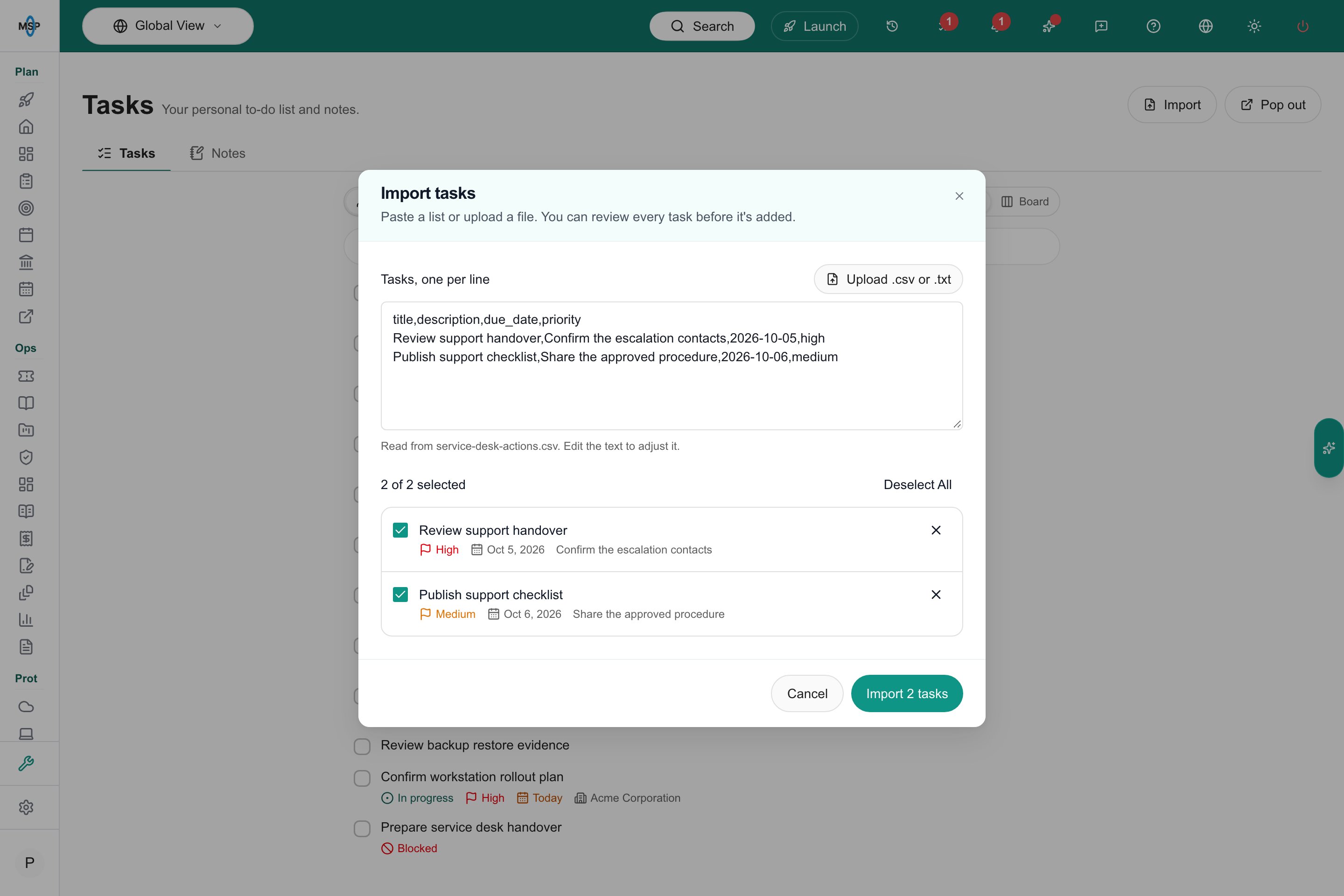 Untick rows to exclude them, remove unwanted rows, or use **Select All / Deselect All**. The final button shows the number of selected tasks. You can import up to **500 tasks** at once. Nothing is created until you choose **Import**.
Imports create tasks on your personal list without a company. Open a task afterward to tag it with a company and share it.
## Add work from an existing record
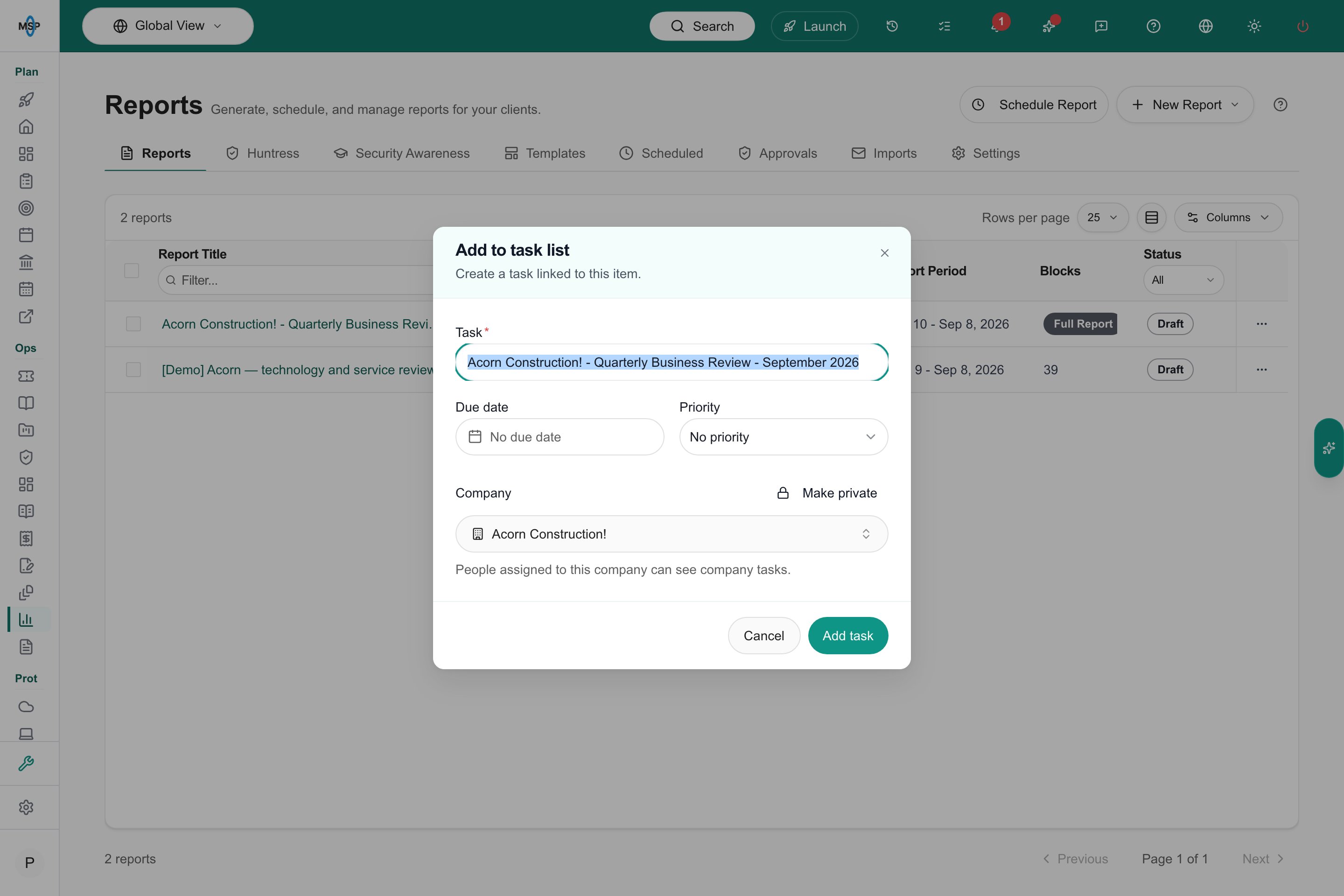
Supported portal lists and record menus offer **Add to task list**. Where the list supports bulk selection, select the items first and choose the same action from its bulk menu.
Review the proposed titles, company, priority and due date. A bulk addition creates one task per selected item. Each task retains a link to its source; creating or deleting a task does not change that source record.
Untick rows to exclude them, remove unwanted rows, or use **Select All / Deselect All**. The final button shows the number of selected tasks. You can import up to **500 tasks** at once. Nothing is created until you choose **Import**.
Imports create tasks on your personal list without a company. Open a task afterward to tag it with a company and share it.
## Add work from an existing record
Supported portal lists and record menus offer **Add to task list**. Where the list supports bulk selection, select the items first and choose the same action from its bulk menu.
Review the proposed titles, company, priority and due date. A bulk addition creates one task per selected item. Each task retains a link to its source; creating or deleting a task does not change that source record.
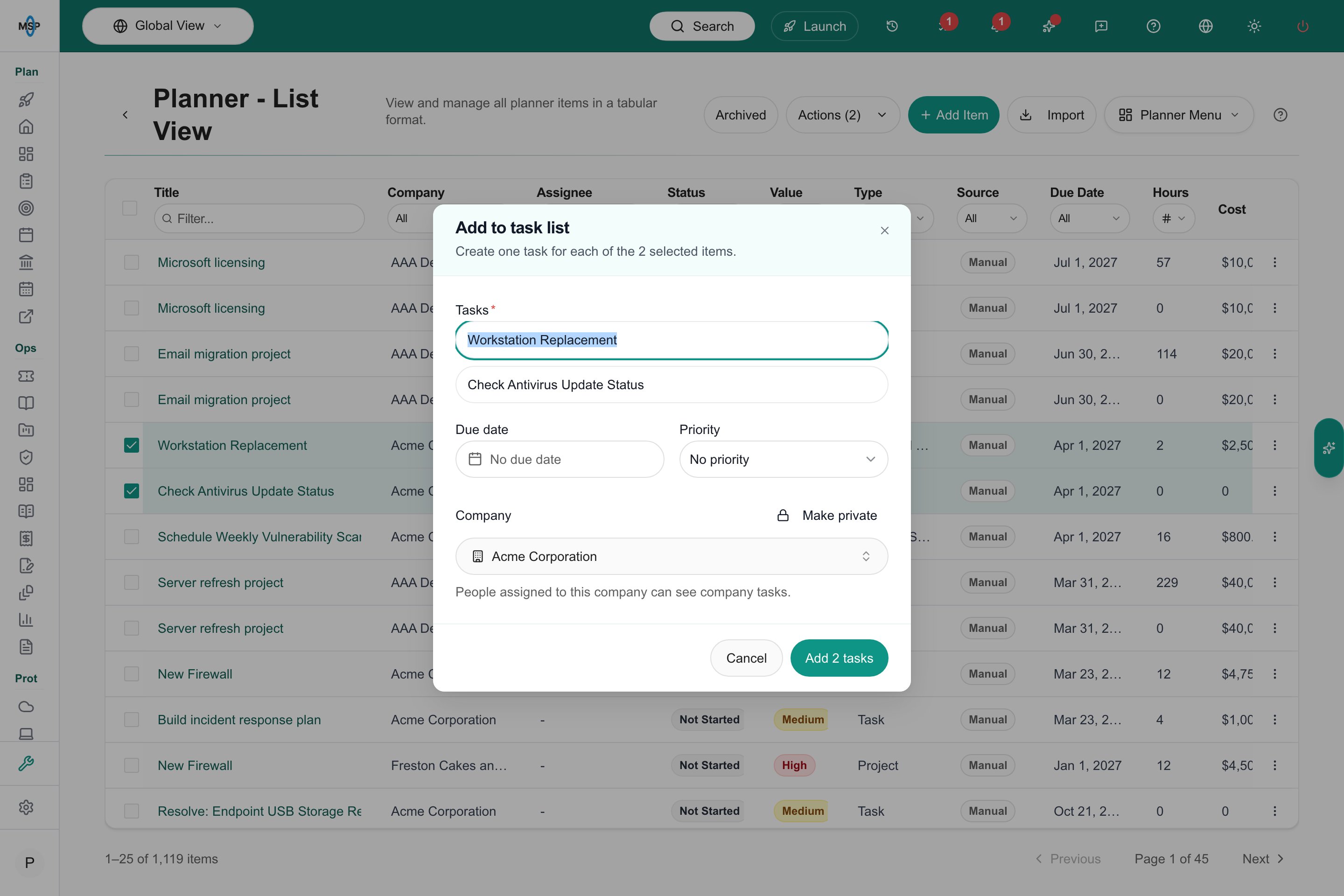 If selected items belong to different companies, the dialog can retain each item's company or use one selected company for the batch. Check sharing before saving.
## Meeting actions
Meeting action items assigned to staff also appear in their task lists. If an item has no active staff assignee, its staff creator may own the mirrored task. Status, title, due date, supported priority changes and staff reassignment stay synchronized. Completing the task completes its meeting action item.
[Read the meeting transcript workflow](/user-guides/calendar/add-meeting-transcript) or [return to Tasks](/user-guides/tasks/index).
If selected items belong to different companies, the dialog can retain each item's company or use one selected company for the batch. Check sharing before saving.
## Meeting actions
Meeting action items assigned to staff also appear in their task lists. If an item has no active staff assignee, its staff creator may own the mirrored task. Status, title, due date, supported priority changes and staff reassignment stay synchronized. Completing the task completes its meeting action item.
[Read the meeting transcript workflow](/user-guides/calendar/add-meeting-transcript) or [return to Tasks](/user-guides/tasks/index).
 This documentation is built and hosted on [Mintlify](https://mintlify.com), a developer documentation platform.