> ## Documentation Index
> Fetch the complete documentation index at: https://docs.msportal.ai/llms.txt
> Use this file to discover all available pages before exploring further.
# Notes and AI task suggestions
> Save private working notes and review suggested tasks extracted from them.
## Keep working notes
Open **Tasks → Notes** in the workspace or side panel. Type into a tab; it saves automatically after a short pause. The save indicator shows progress or a failure with a retry option. Switching tabs also saves pending edits.
Use **New notes tab** to add a tab, up to 20. Double-click a saved tab's name or open its actions menu to **Rename** it. The same menu offers **Delete**, with confirmation. Notes are private to their owner and are separate from task-list audit.
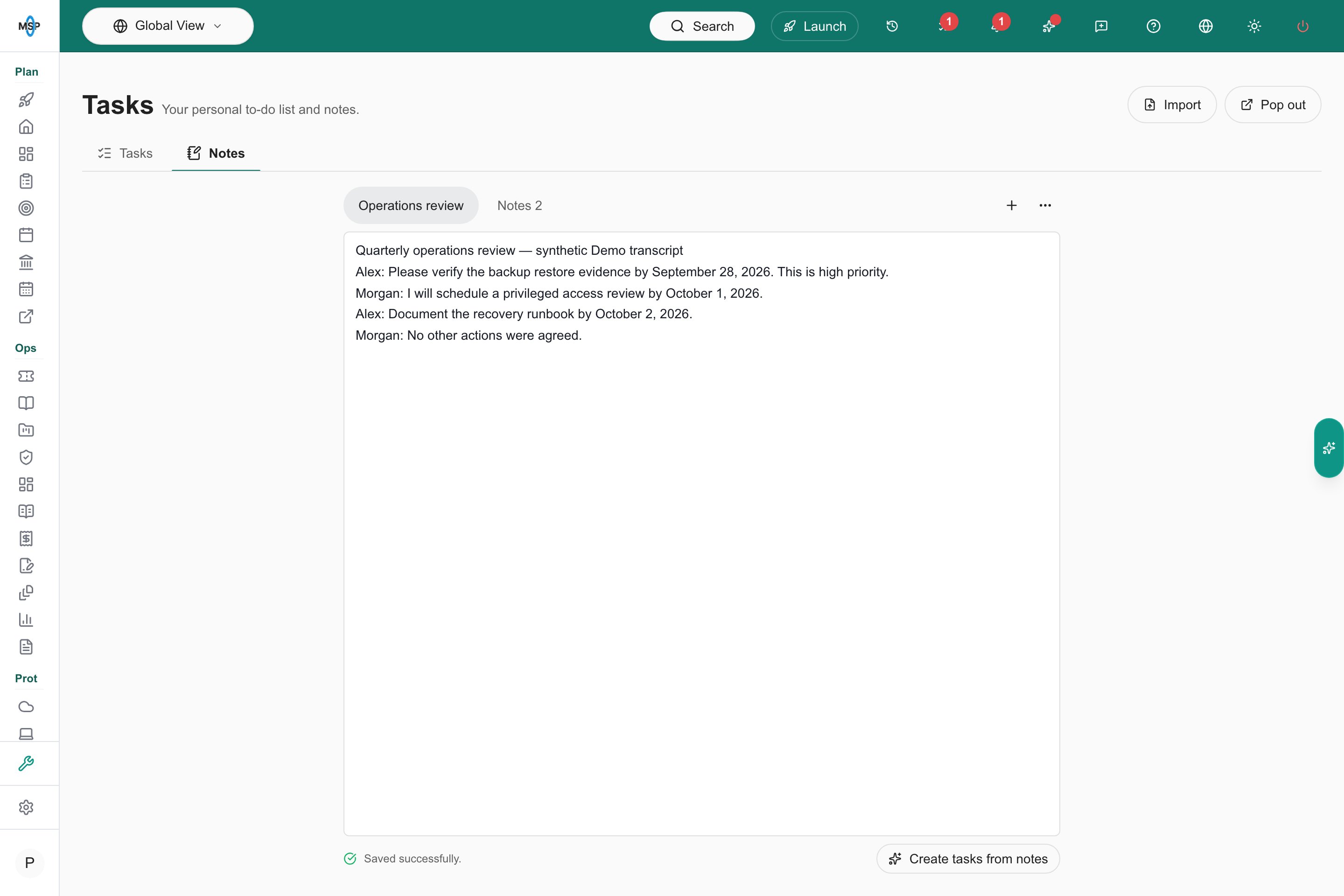 ## Turn a transcript or notes into tasks
1. Paste the text into a notes tab. You can select a passage to use only that part; otherwise the current tab is used.
2. Choose **Create tasks from notes**. AI must be available for your tenant.
3. Review the suggested tasks. Edit titles, priorities and due dates, and untick anything you do not want.
4. Choose **Add tasks**. Only the selected tasks are created.
## Turn a transcript or notes into tasks
1. Paste the text into a notes tab. You can select a passage to use only that part; otherwise the current tab is used.
2. Choose **Create tasks from notes**. AI must be available for your tenant.
3. Review the suggested tasks. Edit titles, priorities and due dates, and untick anything you do not want.
4. Choose **Add tasks**. Only the selected tasks are created.
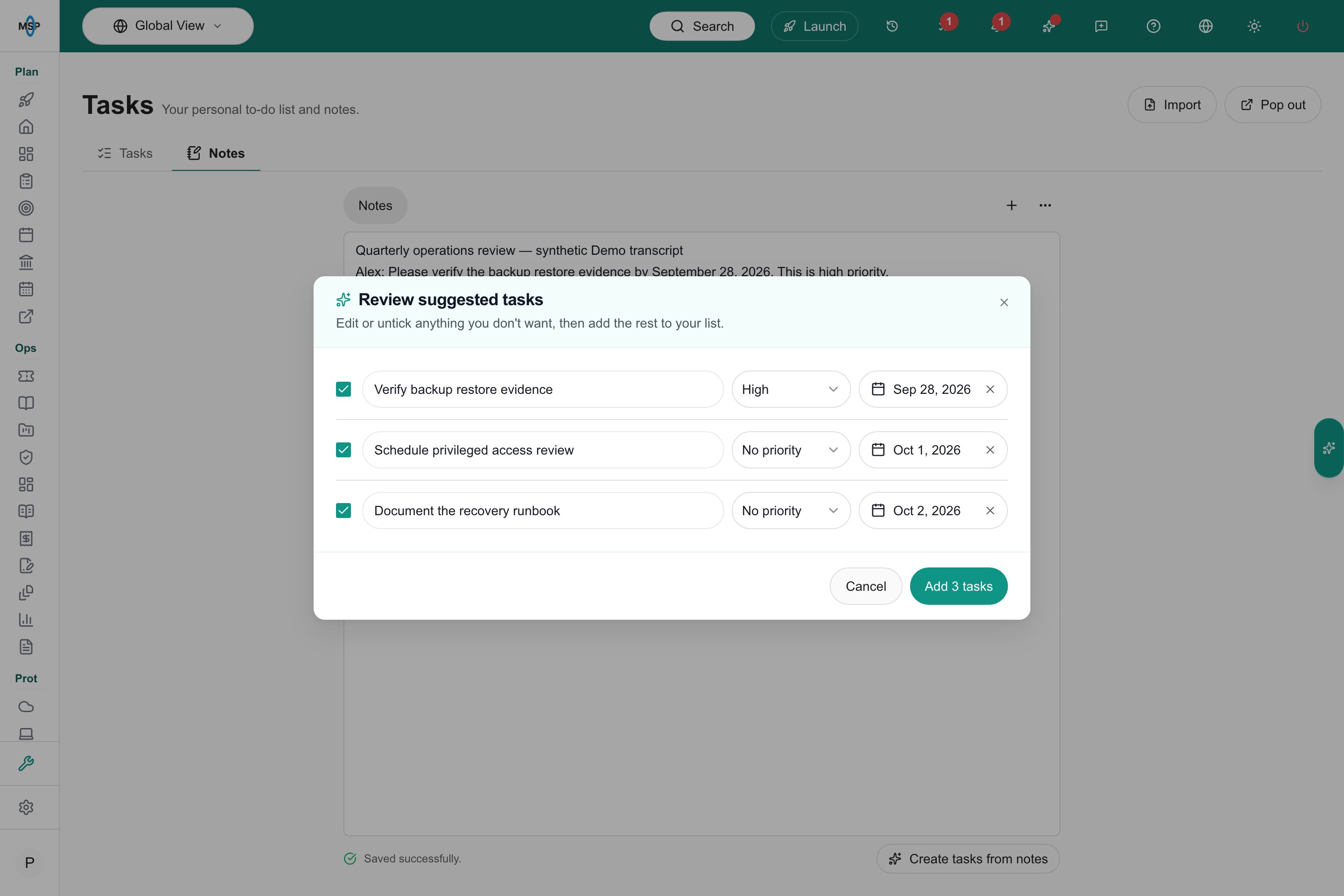 Suggestions do not create tasks until you approve them. Verify dates and scope before saving. For a transcript attached to a meeting, use the meeting's [Transcript & AI step](/user-guides/calendar/add-meeting-transcript), where generated action items can be reviewed and assigned to staff.
This documentation is built and hosted on [Mintlify](https://mintlify.com), a developer documentation platform.
Suggestions do not create tasks until you approve them. Verify dates and scope before saving. For a transcript attached to a meeting, use the meeting's [Transcript & AI step](/user-guides/calendar/add-meeting-transcript), where generated action items can be reviewed and assigned to staff.
This documentation is built and hosted on [Mintlify](https://mintlify.com), a developer documentation platform.