> ## Documentation Index
> Fetch the complete documentation index at: https://docs.msportal.ai/llms.txt
> Use this file to discover all available pages before exploring further.
# Tickets
> Create, view, and manage support tickets with AI assistance and customizable templates
The Tickets module provides comprehensive ticket management integrated with your PSA system. Create tickets using AI assistance, manage templates, and track ticket status all from one interface.
The Tickets interface adapts based on your PSA integration (ConnectWise, Halo PSA, Autotask, or Syncro). Some features and field names may vary depending on your connected PSA system.
## Accessing Tickets
1. Click **Tickets** in the sidebar
2. The ticket list displays all tickets for the selected company
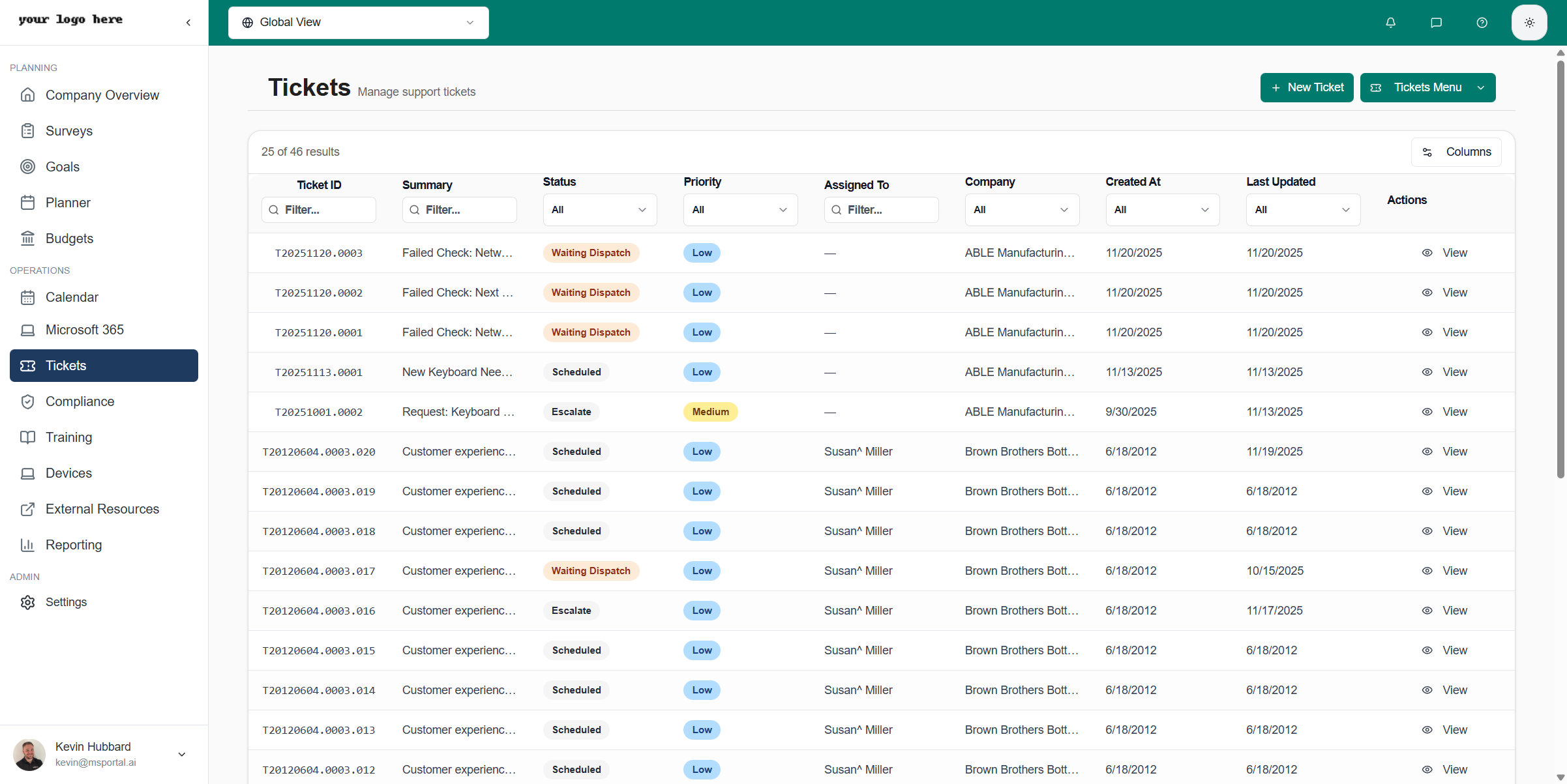 The tickets list provides a centralized view of all support tickets across your organization. When viewing in **Global View** (accessible from the company selector at the top of the page), you'll see tickets from all companies. When a specific company is selected, the list automatically filters to show only that company's tickets.
## Tickets List
The ticket list displays essential information at a glance, including ticket numbers, summaries, status, priority, assigned technicians, and timestamps. Each row is color-coded by status and priority to help you quickly identify urgent issues.
### Menu Options
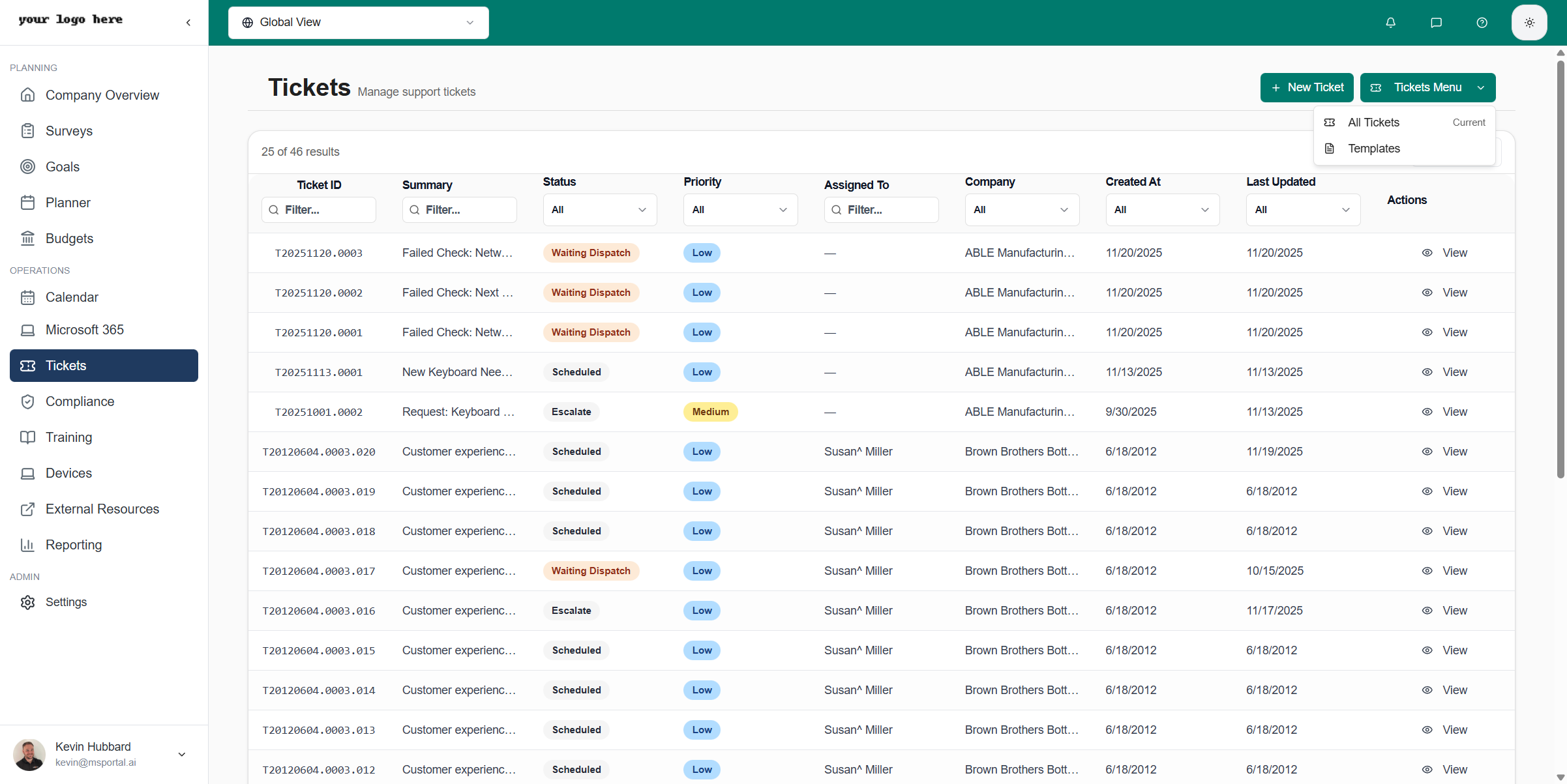
Click the **Tickets Menu** dropdown to switch between views:
The tickets list provides a centralized view of all support tickets across your organization. When viewing in **Global View** (accessible from the company selector at the top of the page), you'll see tickets from all companies. When a specific company is selected, the list automatically filters to show only that company's tickets.
## Tickets List
The ticket list displays essential information at a glance, including ticket numbers, summaries, status, priority, assigned technicians, and timestamps. Each row is color-coded by status and priority to help you quickly identify urgent issues.
### Menu Options
Click the **Tickets Menu** dropdown to switch between views:
 | Option | Description |
| --------------- | ------------------------------------------------------------------- |
| **All Tickets** | View and manage all tickets from your connected PSA systems |
| **Templates** | Access and manage ticket templates for standardized ticket creation |
### Filtering Tickets
The filter bar provides powerful search and filtering capabilities to help you find specific tickets quickly:
| Filter | Description |
| --------------- | ---------------------------------------------------------------------------------------------------------------------------- |
| **Search** | Free-text search across ticket number, summary, and description. Useful for finding tickets by keyword or reference number |
| **Status** | Filter by ticket status (e.g., Open, Closed, Pending). Multi-select allows viewing tickets in multiple states simultaneously |
| **Priority** | Filter by priority level to focus on critical issues first |
| **Assigned To** | Filter by assigned technician to view your team's workload or your own tickets |
| **Date Range** | Filter by creation or last update date using preset ranges (Today, This Week, Last Month) or custom date ranges |
| **Company** | Filter by associated company, particularly useful when viewing all tickets in Global View |
Combine multiple filters to narrow down results. For example, filter by "Open" status + "High" priority + "Assigned To: Me" to see your urgent open tickets.
### Column Preferences
Customize which columns display in the tickets table to match your workflow:
Click the **Columns** button in the toolbar above the ticket list
Use the eye icons next to each column name to show or hide columns. Hidden columns are grayed out
Drag columns using the grip handle on the left side to reorder them according to your preference
| Option | Description |
| --------------- | ------------------------------------------------------------------- |
| **All Tickets** | View and manage all tickets from your connected PSA systems |
| **Templates** | Access and manage ticket templates for standardized ticket creation |
### Filtering Tickets
The filter bar provides powerful search and filtering capabilities to help you find specific tickets quickly:
| Filter | Description |
| --------------- | ---------------------------------------------------------------------------------------------------------------------------- |
| **Search** | Free-text search across ticket number, summary, and description. Useful for finding tickets by keyword or reference number |
| **Status** | Filter by ticket status (e.g., Open, Closed, Pending). Multi-select allows viewing tickets in multiple states simultaneously |
| **Priority** | Filter by priority level to focus on critical issues first |
| **Assigned To** | Filter by assigned technician to view your team's workload or your own tickets |
| **Date Range** | Filter by creation or last update date using preset ranges (Today, This Week, Last Month) or custom date ranges |
| **Company** | Filter by associated company, particularly useful when viewing all tickets in Global View |
Combine multiple filters to narrow down results. For example, filter by "Open" status + "High" priority + "Assigned To: Me" to see your urgent open tickets.
### Column Preferences
Customize which columns display in the tickets table to match your workflow:
Click the **Columns** button in the toolbar above the ticket list
Use the eye icons next to each column name to show or hide columns. Hidden columns are grayed out
Drag columns using the grip handle on the left side to reorder them according to your preference
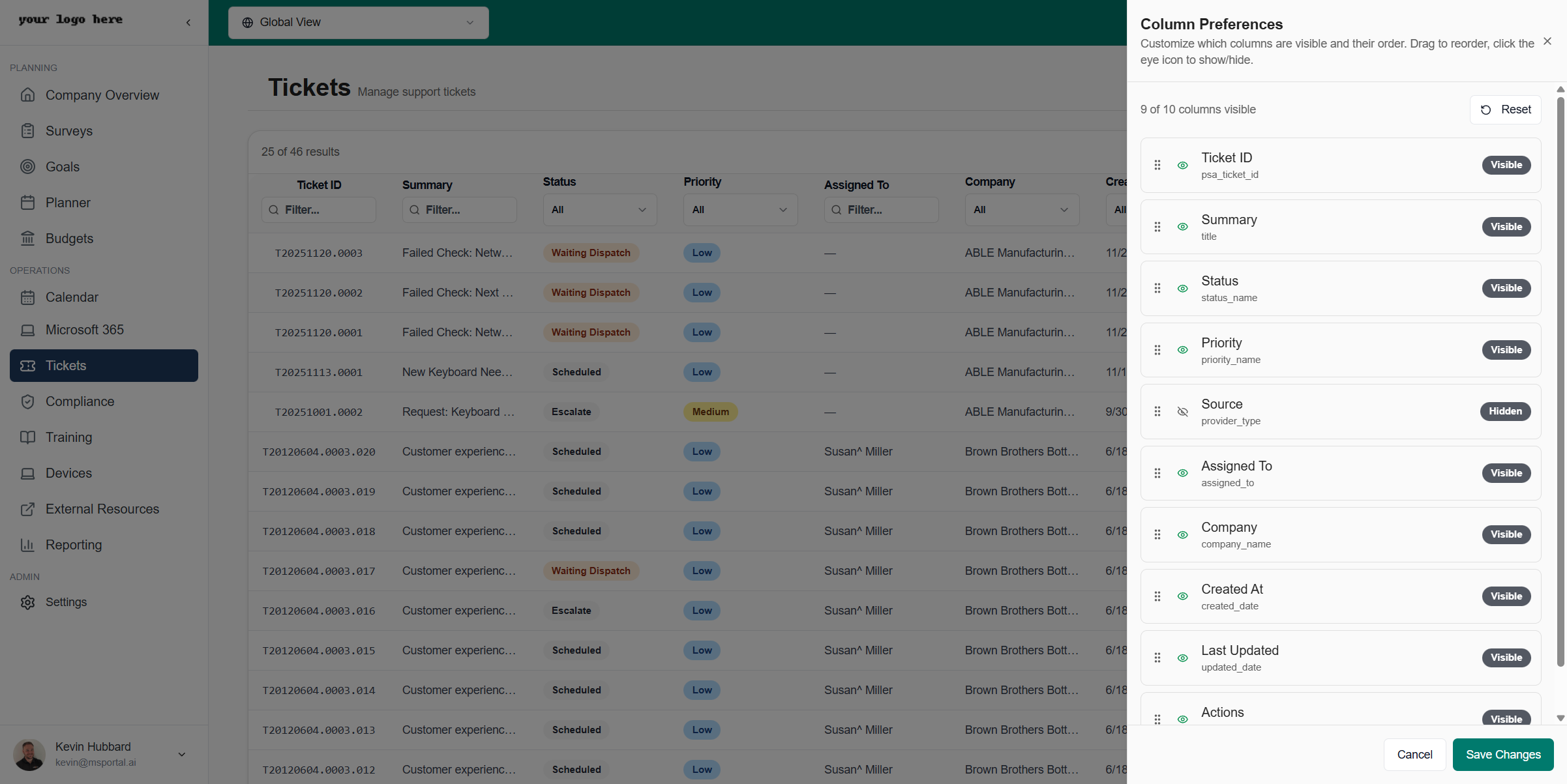 Your column preferences are saved automatically and persist across sessions. Available columns include:
| Column | Description |
| --------------- | ---------------------------------------------------------------------------------------------------- |
| **Ticket #** | Unique ticket identifier from your PSA system. Click to view ticket details |
| **Summary** | Brief ticket description (truncated in list view, full text visible in detail view) |
| **Status** | Current ticket state with color-coded badge for quick visual identification |
| **Priority** | Urgency level with color coding (red for critical, orange for high, yellow for medium, blue for low) |
| **Source** | PSA system the ticket originated from (ConnectWise, Halo, Autotask, or Syncro) |
| **Company** | Associated client company |
| **Assigned To** | Responsible technician or team |
| **Created** | Creation timestamp showing when the ticket was opened |
| **Updated** | Last modified timestamp, useful for tracking recent activity |
| **SLA Status** | Service level agreement status showing if deadlines are at risk |
| **Category** | Ticket category or type as defined in your PSA |
### Pagination
For organizations with many tickets, the list uses server-side pagination to ensure fast loading times. Navigation controls at the bottom of the list let you:
* Jump to the first or last page
* Navigate to the next or previous page
* See your current position (e.g., "Page 2 of 15, 367 total tickets")
## Creating a New Ticket
### Starting a New Ticket
Click the **New Ticket** button in the top right corner of the tickets page
Describe the issue in natural language in the AI Assistant panel. You can type or use voice input to dictate the issue
Choose a template from the dropdown to pre-fill the form with appropriate fields, or let AI select the best template based on your description
Complete the required fields in each section. AI-populated fields are highlighted and can be edited if needed
Click **Create Ticket** to submit the ticket to your PSA system
Your column preferences are saved automatically and persist across sessions. Available columns include:
| Column | Description |
| --------------- | ---------------------------------------------------------------------------------------------------- |
| **Ticket #** | Unique ticket identifier from your PSA system. Click to view ticket details |
| **Summary** | Brief ticket description (truncated in list view, full text visible in detail view) |
| **Status** | Current ticket state with color-coded badge for quick visual identification |
| **Priority** | Urgency level with color coding (red for critical, orange for high, yellow for medium, blue for low) |
| **Source** | PSA system the ticket originated from (ConnectWise, Halo, Autotask, or Syncro) |
| **Company** | Associated client company |
| **Assigned To** | Responsible technician or team |
| **Created** | Creation timestamp showing when the ticket was opened |
| **Updated** | Last modified timestamp, useful for tracking recent activity |
| **SLA Status** | Service level agreement status showing if deadlines are at risk |
| **Category** | Ticket category or type as defined in your PSA |
### Pagination
For organizations with many tickets, the list uses server-side pagination to ensure fast loading times. Navigation controls at the bottom of the list let you:
* Jump to the first or last page
* Navigate to the next or previous page
* See your current position (e.g., "Page 2 of 15, 367 total tickets")
## Creating a New Ticket
### Starting a New Ticket
Click the **New Ticket** button in the top right corner of the tickets page
Describe the issue in natural language in the AI Assistant panel. You can type or use voice input to dictate the issue
Choose a template from the dropdown to pre-fill the form with appropriate fields, or let AI select the best template based on your description
Complete the required fields in each section. AI-populated fields are highlighted and can be edited if needed
Click **Create Ticket** to submit the ticket to your PSA system
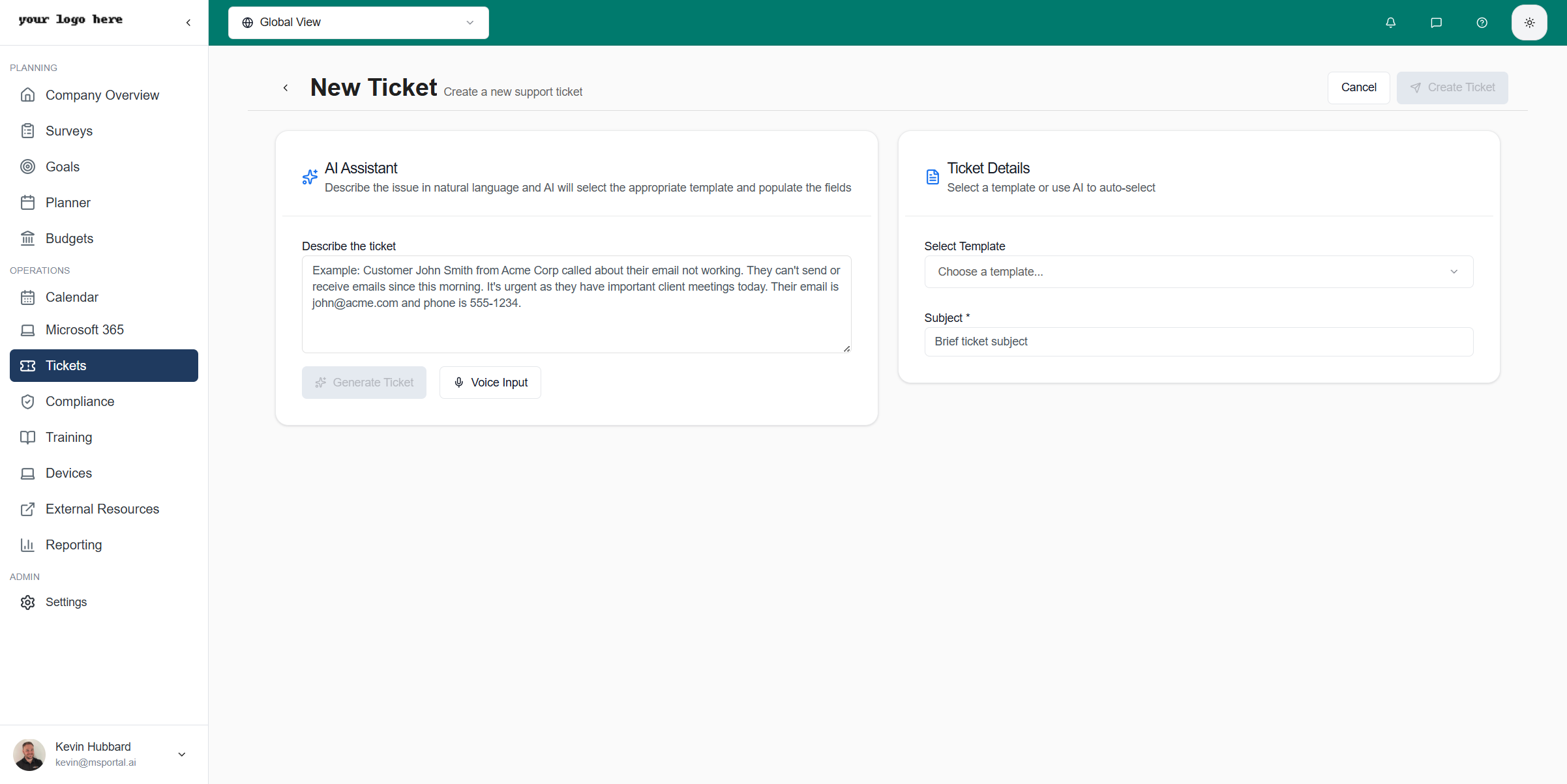 The new ticket form is divided into two main panels:
* **Left Panel**: AI Assistant for natural language ticket creation
* **Right Panel**: Template selection and field entry
### AI Assistant
The AI Assistant revolutionizes ticket creation by understanding natural language descriptions and automatically populating form fields:
| Feature | Description |
| ---------------------------------- | -------------------------------------------------------------------------------------------------------------------------------------------------------------------------------------------------------------------------------- |
| **Natural Language Processing** | Describe the issue conversationally. For example: "Customer John from Acme Corp called - their email stopped working this morning and they can't send or receive messages. It's urgent because they have client meetings today." |
| **Voice Input** | Click the microphone button to dictate the issue hands-free. The AI transcribes your speech in real-time and shows interim results as you speak |
| **Intelligent Template Selection** | AI analyzes your description and selects the most appropriate template automatically |
| **Auto-Fill Fields** | AI extracts details like contact name, email, phone, issue description, urgency, and impact from your description and populates corresponding fields |
| **Smart Suggestions** | Based on the issue type, AI suggests appropriate categories, priorities, and even follow-up questions for gathering additional information |
For best results with AI ticket creation, include as much context as possible in your description: who reported the issue, what the problem is, when it started, how urgent it is, and any relevant contact information.
After AI generates the ticket details, you'll see a summary showing:
* **Fields filled**: Which fields were automatically populated
* **Required fields remaining**: Any mandatory fields you still need to complete
* **Optional fields available**: Additional fields you can fill in if needed
* **Follow-up questions**: Suggested questions to gather more information
While AI saves time, it may occasionally misinterpret information. Always review AI-populated fields before submitting to ensure accuracy.
### Using Templates
Templates provide pre-configured forms for common ticket types, ensuring consistency and capturing all necessary information:
The new ticket form is divided into two main panels:
* **Left Panel**: AI Assistant for natural language ticket creation
* **Right Panel**: Template selection and field entry
### AI Assistant
The AI Assistant revolutionizes ticket creation by understanding natural language descriptions and automatically populating form fields:
| Feature | Description |
| ---------------------------------- | -------------------------------------------------------------------------------------------------------------------------------------------------------------------------------------------------------------------------------- |
| **Natural Language Processing** | Describe the issue conversationally. For example: "Customer John from Acme Corp called - their email stopped working this morning and they can't send or receive messages. It's urgent because they have client meetings today." |
| **Voice Input** | Click the microphone button to dictate the issue hands-free. The AI transcribes your speech in real-time and shows interim results as you speak |
| **Intelligent Template Selection** | AI analyzes your description and selects the most appropriate template automatically |
| **Auto-Fill Fields** | AI extracts details like contact name, email, phone, issue description, urgency, and impact from your description and populates corresponding fields |
| **Smart Suggestions** | Based on the issue type, AI suggests appropriate categories, priorities, and even follow-up questions for gathering additional information |
For best results with AI ticket creation, include as much context as possible in your description: who reported the issue, what the problem is, when it started, how urgent it is, and any relevant contact information.
After AI generates the ticket details, you'll see a summary showing:
* **Fields filled**: Which fields were automatically populated
* **Required fields remaining**: Any mandatory fields you still need to complete
* **Optional fields available**: Additional fields you can fill in if needed
* **Follow-up questions**: Suggested questions to gather more information
While AI saves time, it may occasionally misinterpret information. Always review AI-populated fields before submitting to ensure accuracy.
### Using Templates
Templates provide pre-configured forms for common ticket types, ensuring consistency and capturing all necessary information:
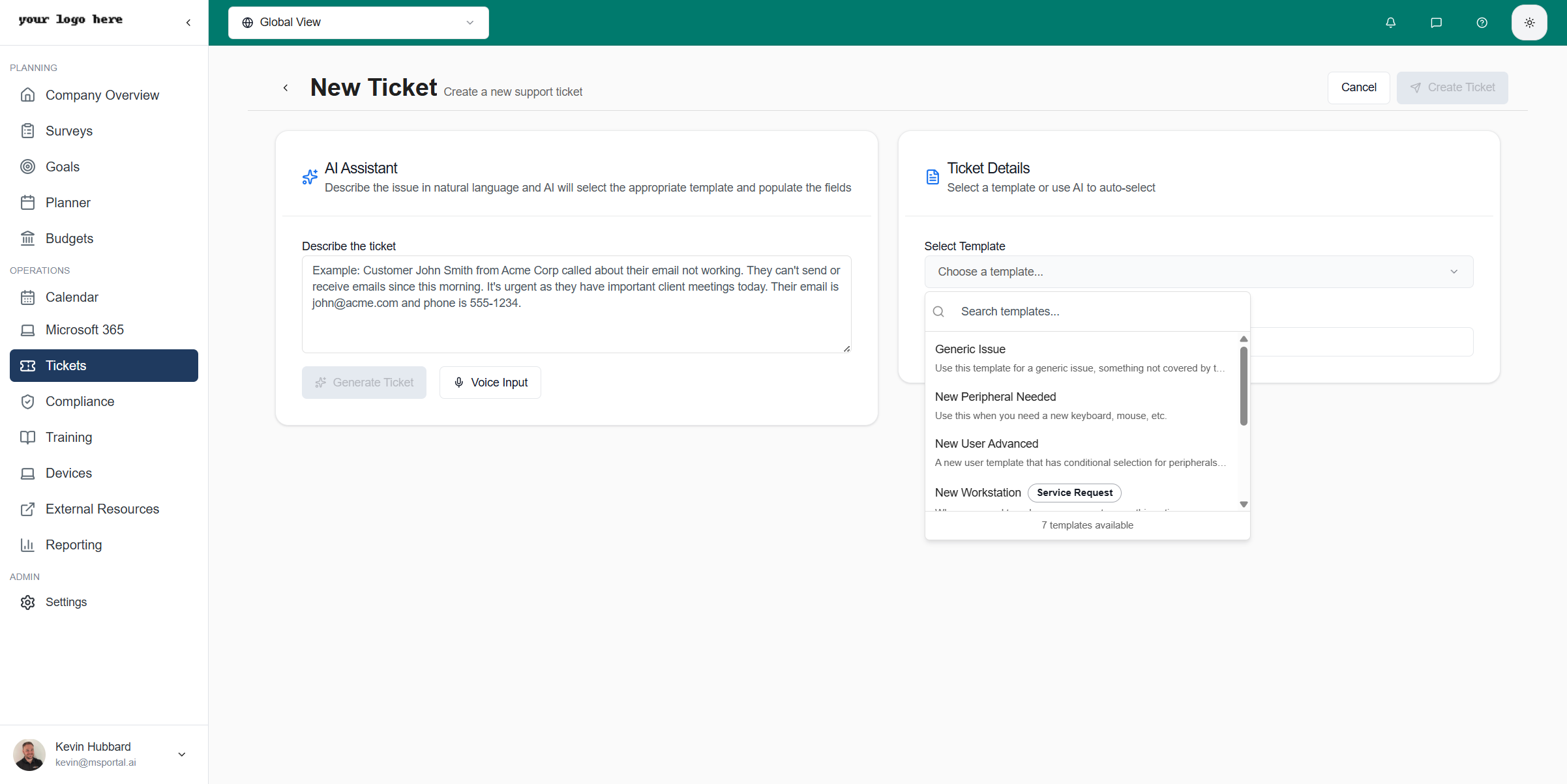 Select the **Template** dropdown in the ticket form header
Browse templates by category or use the search box to find a specific template. Templates are organized by category for easy navigation
Click a template to load its fields. Common templates include "Generic Issue", "New User Setup", "Hardware Request", "Password Reset", etc.
Fill in the template-specific fields. Fields are organized into logical tabs for easy navigation
Select the **Template** dropdown in the ticket form header
Browse templates by category or use the search box to find a specific template. Templates are organized by category for easy navigation
Click a template to load its fields. Common templates include "Generic Issue", "New User Setup", "Hardware Request", "Password Reset", etc.
Fill in the template-specific fields. Fields are organized into logical tabs for easy navigation
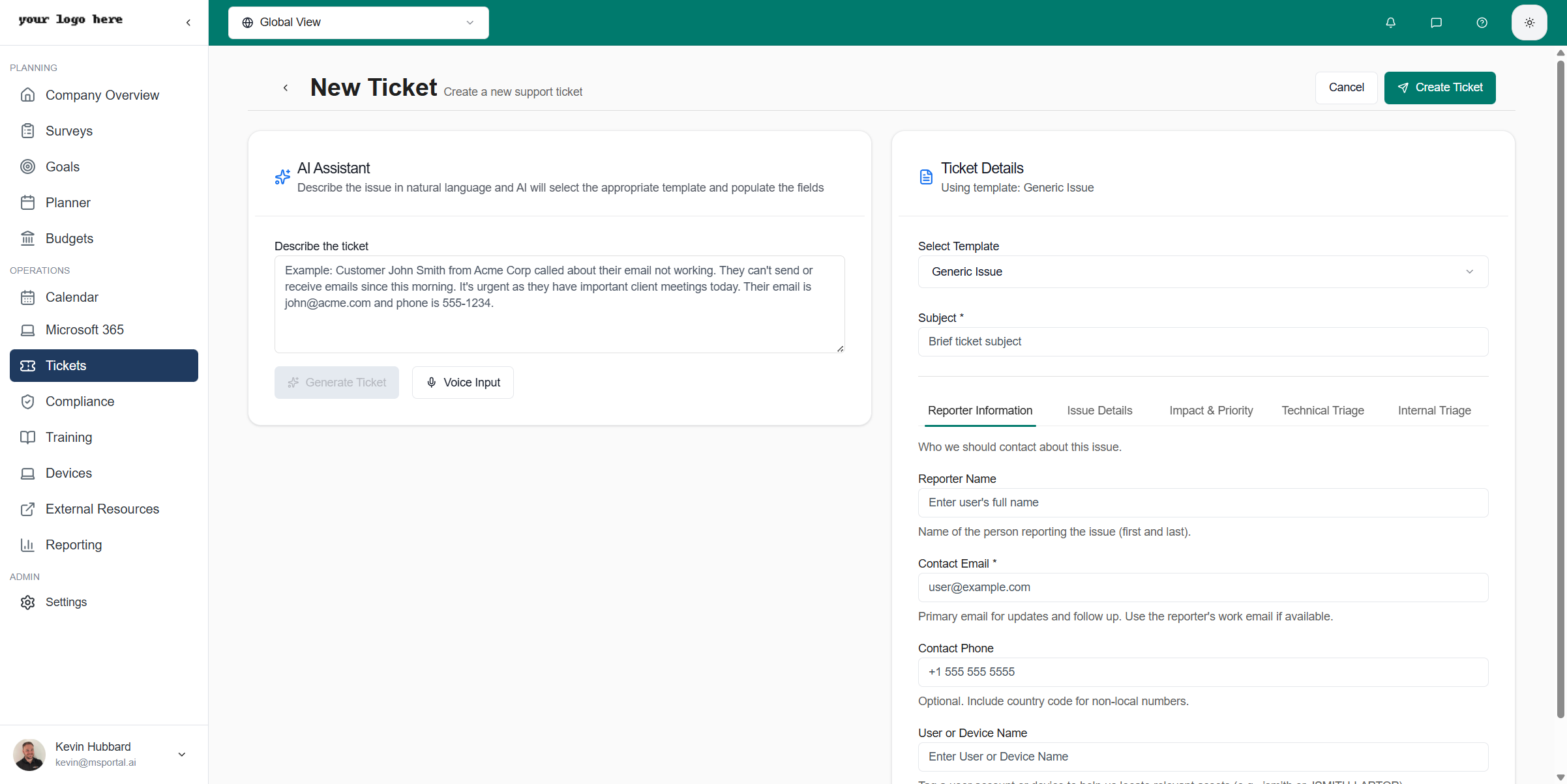 Templates organize fields into logical sections displayed as tabs:
* **Reporter Information** - Contact name, email, phone number, and preferred contact method
* **Issue Details** - Problem description, symptoms, error messages, and screenshots
* **Impact & Priority** - Number of users affected, business impact, and urgency level
* **Technical Triage** - Diagnostic information, troubleshooting steps already taken, and device details
* **Internal Triage** - Internal notes, routing preferences, and team assignments
Required fields are marked with an asterisk (\*). The Create Ticket button remains disabled until all required fields are completed.
### Attaching Files
You can attach files to tickets during creation:
* Screenshots captured directly in the form using the screenshot field
* File uploads for logs, documents, or other supporting materials
* Maximum 5 files, each up to 50MB
## Viewing Ticket Details
Click any ticket row in the list to open the detail view in a slide-out panel:
Templates organize fields into logical sections displayed as tabs:
* **Reporter Information** - Contact name, email, phone number, and preferred contact method
* **Issue Details** - Problem description, symptoms, error messages, and screenshots
* **Impact & Priority** - Number of users affected, business impact, and urgency level
* **Technical Triage** - Diagnostic information, troubleshooting steps already taken, and device details
* **Internal Triage** - Internal notes, routing preferences, and team assignments
Required fields are marked with an asterisk (\*). The Create Ticket button remains disabled until all required fields are completed.
### Attaching Files
You can attach files to tickets during creation:
* Screenshots captured directly in the form using the screenshot field
* File uploads for logs, documents, or other supporting materials
* Maximum 5 files, each up to 50MB
## Viewing Ticket Details
Click any ticket row in the list to open the detail view in a slide-out panel:
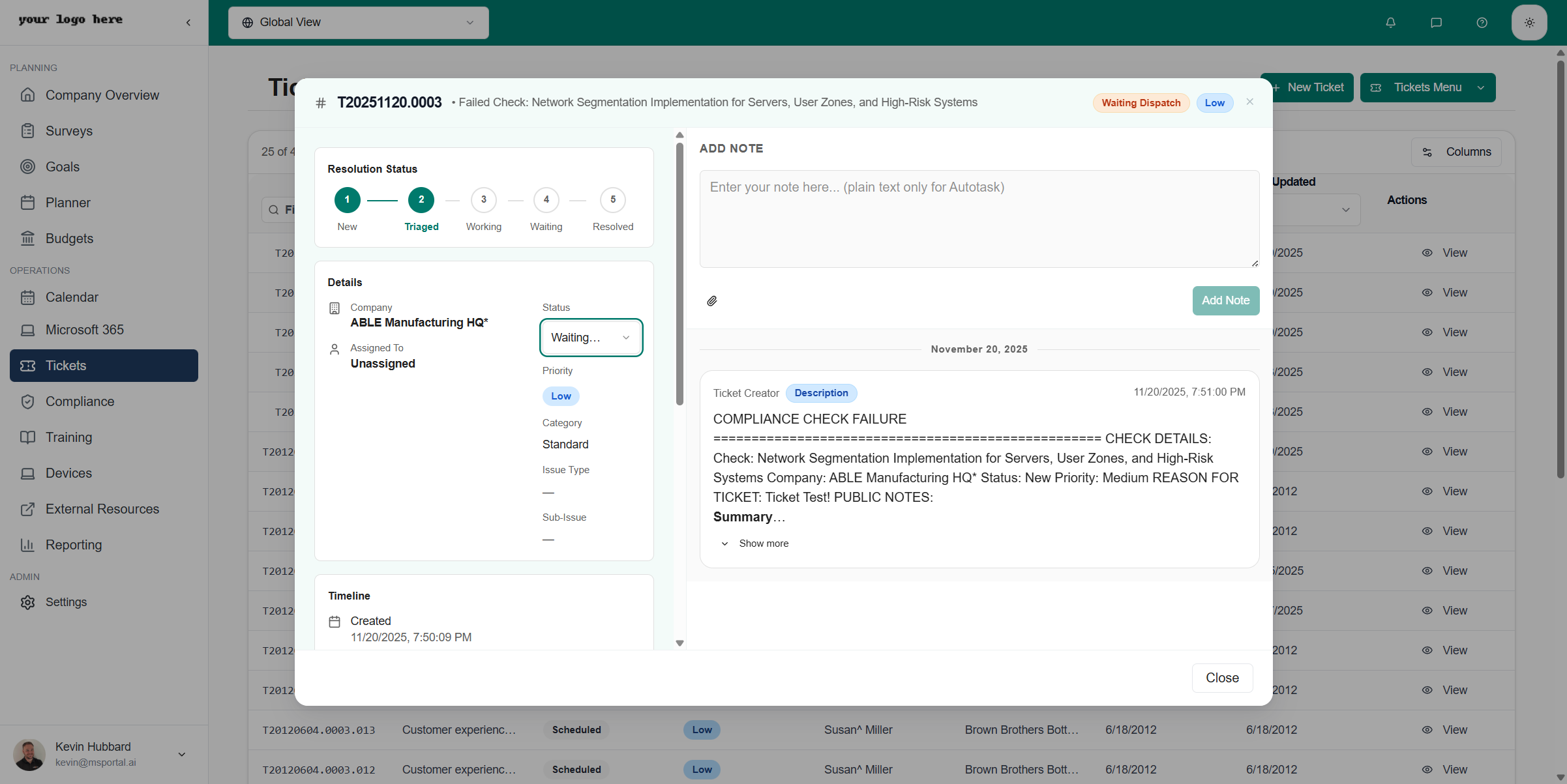 The ticket detail view is organized into a two-column layout:
* **Left Column**: Ticket information, status, and PSA-specific details
* **Right Column**: Activity timeline and note composer
### Detail Sections
| Section | Description |
| ---------------------- | ------------------------------------------------------------------------------------------- |
| **Header** | Ticket ID, subject line, status badge, priority badge, and attachments indicator |
| **Ticket Details** | Core information including company, contact, creation date, and custom fields from your PSA |
| **PSA Details** | Provider-specific information such as board, queue, type, subtype, and SLA details |
| **Resolution Stepper** | Visual progress indicator showing ticket lifecycle stages (New → In Progress → Resolved) |
| **Activity Timeline** | Chronological history of all notes, status changes, and updates |
### Changing Ticket Status
If you have edit permissions, you can update the ticket status directly from the detail panel:
1. Click the **Status** dropdown in the ticket details section
2. Select the new status from the available options
3. The change syncs automatically to your PSA system
Available status options depend on your PSA configuration and the ticket's current board or queue. Some workflows may restrict which status transitions are allowed.
### Adding Notes
To add a note or update to a ticket:
Click the ticket row to open the detail panel
Use the rich text editor at the top of the right column to compose your note. The editor supports formatting like bold, italic, and bullet lists
Click the attachment icon to upload supporting files. Files are attached to both the note in MSPortal and synced to your PSA
Click **Save Note** to post the update. The note appears immediately in the activity timeline and syncs to your PSA
If you close the detail panel with unsaved note content, you'll be prompted to confirm. Save your work before closing to avoid losing your changes.
### Activity Log
The Activity section provides a complete history of ticket interactions:
* **Notes**: All communication and updates added by technicians
* **Status Changes**: Audit trail of status transitions with timestamps
* **Initial Description**: The original ticket description appears as the first entry in the timeline
Notes display the author name and timestamp, making it easy to track who communicated what and when.
### Readability Controls
Three controls in the ticket detail modal make long activity feeds easier to read, especially for tickets with rich PSA-formatted notes or extensive history.
| Control | Location | What It Does |
| --------------------------------- | ------------------------------ | ------------------------------------------------------------------------------------------------------------------------------------------------------------------------------------------------------------------------------------------------ |
| **Collapsible Add Note composer** | Chevron in the composer header | Tucks the entire reply form away when you just want to read history, freeing up the right pane for the activity feed |
| **Fullscreen toggle** | Button in the modal header | Expands the dialog to fill the browser window. Useful for long ticket histories or PSA-formatted notes with embedded images |
| **A- / A+ font scaling** | Composer header | Steps the activity-feed font size from 87.5% up to 175% in 12.5% increments, with a percentage badge that resets to 100% on click. Works on both plain-text and rich PSA notes (HTML), so headings, lists, and quoted replies all scale together |
All three preferences stick per browser, so once you set your preferred view it follows you across tickets and sessions.
### Attachments
For tickets with attachments, click the **Attachments** button in the header to view and download files:
* See all attached documents and their file sizes
* Click to download individual files
* Attachments sync bidirectionally with your PSA system
## Managing Templates
Templates are the foundation of structured ticket creation. They define what information is captured and how it maps to your PSA system.
### Accessing Templates
Click the **Tickets Menu** dropdown in the page header
Choose **Templates** from the menu to open the template management page
The ticket detail view is organized into a two-column layout:
* **Left Column**: Ticket information, status, and PSA-specific details
* **Right Column**: Activity timeline and note composer
### Detail Sections
| Section | Description |
| ---------------------- | ------------------------------------------------------------------------------------------- |
| **Header** | Ticket ID, subject line, status badge, priority badge, and attachments indicator |
| **Ticket Details** | Core information including company, contact, creation date, and custom fields from your PSA |
| **PSA Details** | Provider-specific information such as board, queue, type, subtype, and SLA details |
| **Resolution Stepper** | Visual progress indicator showing ticket lifecycle stages (New → In Progress → Resolved) |
| **Activity Timeline** | Chronological history of all notes, status changes, and updates |
### Changing Ticket Status
If you have edit permissions, you can update the ticket status directly from the detail panel:
1. Click the **Status** dropdown in the ticket details section
2. Select the new status from the available options
3. The change syncs automatically to your PSA system
Available status options depend on your PSA configuration and the ticket's current board or queue. Some workflows may restrict which status transitions are allowed.
### Adding Notes
To add a note or update to a ticket:
Click the ticket row to open the detail panel
Use the rich text editor at the top of the right column to compose your note. The editor supports formatting like bold, italic, and bullet lists
Click the attachment icon to upload supporting files. Files are attached to both the note in MSPortal and synced to your PSA
Click **Save Note** to post the update. The note appears immediately in the activity timeline and syncs to your PSA
If you close the detail panel with unsaved note content, you'll be prompted to confirm. Save your work before closing to avoid losing your changes.
### Activity Log
The Activity section provides a complete history of ticket interactions:
* **Notes**: All communication and updates added by technicians
* **Status Changes**: Audit trail of status transitions with timestamps
* **Initial Description**: The original ticket description appears as the first entry in the timeline
Notes display the author name and timestamp, making it easy to track who communicated what and when.
### Readability Controls
Three controls in the ticket detail modal make long activity feeds easier to read, especially for tickets with rich PSA-formatted notes or extensive history.
| Control | Location | What It Does |
| --------------------------------- | ------------------------------ | ------------------------------------------------------------------------------------------------------------------------------------------------------------------------------------------------------------------------------------------------ |
| **Collapsible Add Note composer** | Chevron in the composer header | Tucks the entire reply form away when you just want to read history, freeing up the right pane for the activity feed |
| **Fullscreen toggle** | Button in the modal header | Expands the dialog to fill the browser window. Useful for long ticket histories or PSA-formatted notes with embedded images |
| **A- / A+ font scaling** | Composer header | Steps the activity-feed font size from 87.5% up to 175% in 12.5% increments, with a percentage badge that resets to 100% on click. Works on both plain-text and rich PSA notes (HTML), so headings, lists, and quoted replies all scale together |
All three preferences stick per browser, so once you set your preferred view it follows you across tickets and sessions.
### Attachments
For tickets with attachments, click the **Attachments** button in the header to view and download files:
* See all attached documents and their file sizes
* Click to download individual files
* Attachments sync bidirectionally with your PSA system
## Managing Templates
Templates are the foundation of structured ticket creation. They define what information is captured and how it maps to your PSA system.
### Accessing Templates
Click the **Tickets Menu** dropdown in the page header
Choose **Templates** from the menu to open the template management page
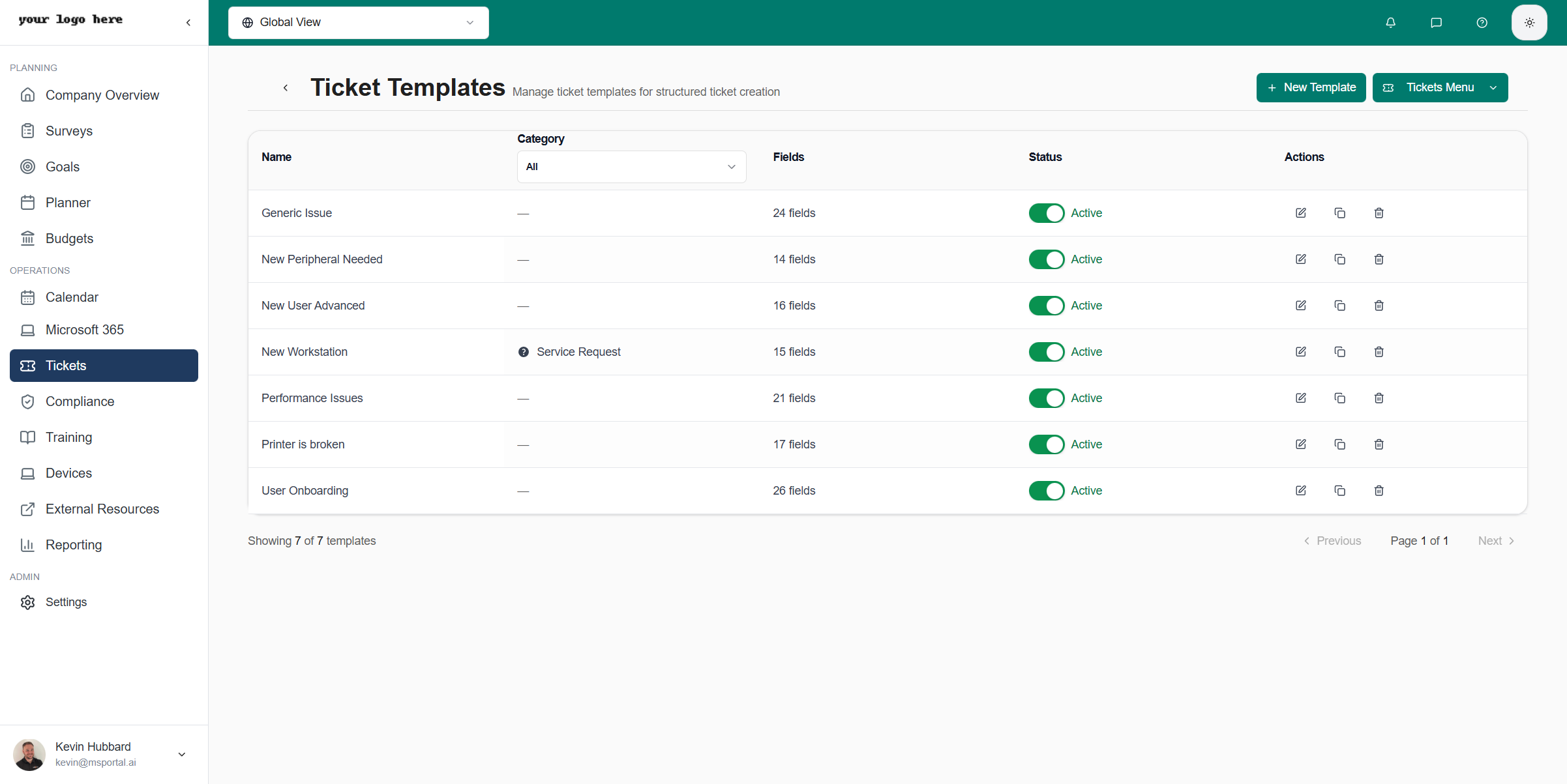 ### Template List
The templates list displays all your ticket templates with key information:
| Column | Description |
| ------------ | ------------------------------------------------------------------- |
| **Name** | Template name as displayed in the template selector |
| **Category** | Organizational category (e.g., Hardware, Software, Network, Access) |
| **Fields** | Total number of fields defined in the template |
| **Status** | Active (available for use) or Inactive (hidden from selectors) |
| **Actions** | Quick actions: Edit, Duplicate, or Delete |
Use template categories to organize related templates. Categories make it easier for technicians to find the right template quickly.
### Creating a Template
Click the **New Template** button in the top right corner
Provide a descriptive name, select a category, and add a description explaining when to use this template
Create sections to organize related fields. Each section becomes a tab in the ticket creation form
Add fields to each section. Configure field type, label, placeholder text, and whether the field is required
Map template fields to corresponding fields in your PSA system to ensure data syncs correctly
Click **Save Template** to save your work. Toggle the Active switch to make it available for use
### Template Editor
### Template List
The templates list displays all your ticket templates with key information:
| Column | Description |
| ------------ | ------------------------------------------------------------------- |
| **Name** | Template name as displayed in the template selector |
| **Category** | Organizational category (e.g., Hardware, Software, Network, Access) |
| **Fields** | Total number of fields defined in the template |
| **Status** | Active (available for use) or Inactive (hidden from selectors) |
| **Actions** | Quick actions: Edit, Duplicate, or Delete |
Use template categories to organize related templates. Categories make it easier for technicians to find the right template quickly.
### Creating a Template
Click the **New Template** button in the top right corner
Provide a descriptive name, select a category, and add a description explaining when to use this template
Create sections to organize related fields. Each section becomes a tab in the ticket creation form
Add fields to each section. Configure field type, label, placeholder text, and whether the field is required
Map template fields to corresponding fields in your PSA system to ensure data syncs correctly
Click **Save Template** to save your work. Toggle the Active switch to make it available for use
### Template Editor
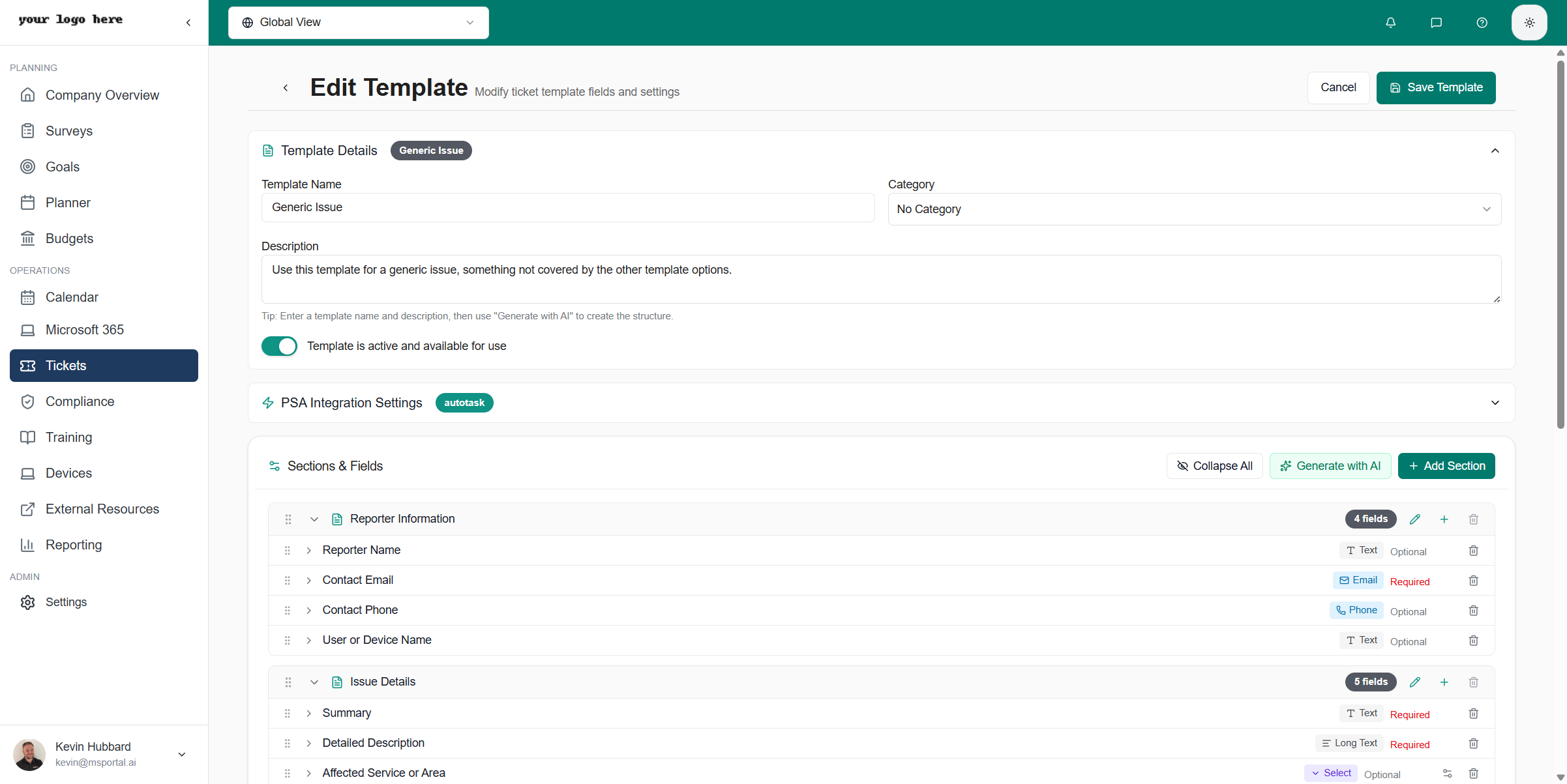 The template editor provides a visual interface for building ticket forms:
#### Template Details Section
| Field | Description |
| ----------------- | --------------------------------------------------------------------------------------------------------------------------- |
| **Template Name** | Display name shown in template selectors. Use clear, descriptive names like "New User Onboarding" or "Network Issue Report" |
| **Category** | Organizational category for grouping related templates |
| **Description** | Explanation of when and why to use this template. This helps technicians choose the right template |
| **Active** | Toggle to enable or disable the template. Inactive templates are hidden from the template selector |
#### PSA Integration Settings
Configure how template fields map to your PSA system:
* **Default Board/Queue** - Pre-select the service board or queue for tickets created with this template
* **Default Priority** - Set a default priority level
* **Default Status** - Define the initial status for new tickets
* **Field Mappings** - Map custom template fields to PSA custom fields
PSA mapping ensures that information captured in MSPortal flows correctly to your ticketing system. Test your mappings after configuration to verify data appears correctly in your PSA.
#### Sections & Fields
Organize your template with sections and fields:
| Action | Description |
| -------------------- | ----------------------------------------------------------------------------------- |
| **Add Section** | Create a new grouping of related fields. Sections appear as tabs in the ticket form |
| **Add Field** | Add an input field to a section. Choose from various field types |
| **Collapse All** | Minimize all sections to see the template structure at a glance |
| **Expand All** | Expand all sections to see all fields |
| **Generate with AI** | Use AI to automatically generate a template structure based on your description |
| **Drag to Reorder** | Drag sections and fields to rearrange their order |
#### Field Types
Choose the appropriate field type for each piece of information you need to capture:
| Type | Description | Use Case |
| ---------------- | ----------------------------------------------------------------------- | ------------------------------------------------ |
| **Text** | Single line text input | Names, short descriptions, reference numbers |
| **Long Text** | Multi-line text area with optional rich text editing | Issue descriptions, notes, detailed explanations |
| **Email** | Email address with format validation | Contact emails |
| **Phone** | Phone number field with formatting | Contact phone numbers |
| **Number** | Numeric input with optional min/max validation | Quantities, counts, metrics |
| **Date** | Date picker with calendar interface | Due dates, incident dates |
| **Select** | Single-choice dropdown selection | Categories, departments, types |
| **Multi-Select** | Multiple-choice selection | Skills, tags, affected systems |
| **Check** | Checkbox for yes/no questions | Confirmations, flags |
| **Impact** | Predefined impact level selector | Business impact assessment |
| **Urgency** | Predefined urgency level selector | Time sensitivity assessment |
| **Priority** | Priority level selector (usually auto-calculated from impact + urgency) | Issue priority |
| **Upload** | File attachment with drag-and-drop support | Screenshots, logs, documents |
| **URL** | Web link field with validation | Reference links, documentation |
#### Field Properties
Each field can be configured with various properties:
| Property | Description |
| ----------------- | ------------------------------------------------------------------------------------------------------------------------------ |
| **Label** | Display name shown next to the field |
| **Placeholder** | Hint text shown inside empty fields |
| **Help Text** | Additional guidance shown below the field |
| **Required** | Field must be completed before submission. Options: Always Required, Optional, or Conditional |
| **Conditional** | Field appears or becomes required based on other field values. For example, "Show email field only if contact method is Email" |
| **Default Value** | Pre-populated value that users can change |
| **PSA Mapping** | Which PSA field this data should populate |
### AI Template Generation
Generate complete template structures using AI:
Provide a descriptive template name that indicates its purpose (e.g., "VPN Access Request")
Describe the template's purpose, what information it should capture, and any special requirements
Click the AI button (sparkle icon) to open the AI Template Designer sidebar
Tell the AI what you're trying to accomplish. Be specific about required fields, sections, and any conditional logic needed
AI generates sections and fields based on your description. Review the structure and modify as needed
AI template generation works best when you provide context about your workflow. For example: "Create a template for new employee onboarding that captures the employee's name, department, start date, required software, and manager approval."
## PSA Integration
MSPortal integrates with leading PSA systems to provide seamless ticket management:
### Supported PSA Systems
| PSA | Sync Direction | Features |
| ---------------------- | -------------- | --------------------------------------------------------------------------------- |
| **ConnectWise Manage** | Bidirectional | Full ticket sync, notes, time entries, attachments, status updates, custom fields |
| **Halo PSA** | Bidirectional | Tickets, actions, SLAs, attachments, custom fields |
| **Autotask** | Bidirectional | Tickets, notes, time entries, attachments |
| **Syncro** | Bidirectional | Tickets, comments, basic sync |
### Synchronization
Tickets automatically sync with your PSA in real-time:
* **New tickets** created in MSPortal appear immediately in your PSA
* **Updates** sync bidirectionally - changes made in either system reflect in both
* **Notes and attachments** are synchronized to maintain complete ticket history
* **Status changes** reflect in both systems within seconds
* **Custom field mappings** ensure your data flows correctly to PSA-specific fields
Sync frequency and specific features may vary by PSA provider. Contact support if you notice sync delays or missing data.
### Viewing PSA Details
When viewing ticket details, PSA-specific information is displayed based on your provider:
**ConnectWise**: Board, type, subtype, status, priority, SLA status, resources, and customer update flags
**Halo PSA**: Team, agent, category, impact, urgency, SLA details, and actions
**Autotask**: Queue, status, priority, issue type, and sub-issue type
**Syncro**: Status, priority, and basic ticket information
## Best Practices
* **Use Templates Consistently** - Create templates for common ticket types to ensure all necessary information is captured every time
* **Leverage AI for Speed** - Use AI Assistant for routine tickets to save time while maintaining quality
* **Keep Templates Updated** - Regularly review and update templates to reflect current processes and requirements
* **Customize Your View** - Configure column visibility and filters to match your workflow
* **Add Context in Notes** - When adding notes, include enough detail for other technicians to understand the situation
* **Use Appropriate Priority** - Accurately assess priority to ensure critical issues get attention first
* **Attach Supporting Files** - Include screenshots, logs, or documents that help diagnose and resolve issues faster
## Related Resources
* [Creating a Ticket Template](/user-guides/ticketing/how-to-create-a-ticket-template)
* [AI Ticket Creation](/user-guides/ticketing/open-a-ticket-with-ai)
* [Ticket Settings](/user-guides/settings/tickets)
* [Integrations Overview](/user-guides/integrations/index)
The template editor provides a visual interface for building ticket forms:
#### Template Details Section
| Field | Description |
| ----------------- | --------------------------------------------------------------------------------------------------------------------------- |
| **Template Name** | Display name shown in template selectors. Use clear, descriptive names like "New User Onboarding" or "Network Issue Report" |
| **Category** | Organizational category for grouping related templates |
| **Description** | Explanation of when and why to use this template. This helps technicians choose the right template |
| **Active** | Toggle to enable or disable the template. Inactive templates are hidden from the template selector |
#### PSA Integration Settings
Configure how template fields map to your PSA system:
* **Default Board/Queue** - Pre-select the service board or queue for tickets created with this template
* **Default Priority** - Set a default priority level
* **Default Status** - Define the initial status for new tickets
* **Field Mappings** - Map custom template fields to PSA custom fields
PSA mapping ensures that information captured in MSPortal flows correctly to your ticketing system. Test your mappings after configuration to verify data appears correctly in your PSA.
#### Sections & Fields
Organize your template with sections and fields:
| Action | Description |
| -------------------- | ----------------------------------------------------------------------------------- |
| **Add Section** | Create a new grouping of related fields. Sections appear as tabs in the ticket form |
| **Add Field** | Add an input field to a section. Choose from various field types |
| **Collapse All** | Minimize all sections to see the template structure at a glance |
| **Expand All** | Expand all sections to see all fields |
| **Generate with AI** | Use AI to automatically generate a template structure based on your description |
| **Drag to Reorder** | Drag sections and fields to rearrange their order |
#### Field Types
Choose the appropriate field type for each piece of information you need to capture:
| Type | Description | Use Case |
| ---------------- | ----------------------------------------------------------------------- | ------------------------------------------------ |
| **Text** | Single line text input | Names, short descriptions, reference numbers |
| **Long Text** | Multi-line text area with optional rich text editing | Issue descriptions, notes, detailed explanations |
| **Email** | Email address with format validation | Contact emails |
| **Phone** | Phone number field with formatting | Contact phone numbers |
| **Number** | Numeric input with optional min/max validation | Quantities, counts, metrics |
| **Date** | Date picker with calendar interface | Due dates, incident dates |
| **Select** | Single-choice dropdown selection | Categories, departments, types |
| **Multi-Select** | Multiple-choice selection | Skills, tags, affected systems |
| **Check** | Checkbox for yes/no questions | Confirmations, flags |
| **Impact** | Predefined impact level selector | Business impact assessment |
| **Urgency** | Predefined urgency level selector | Time sensitivity assessment |
| **Priority** | Priority level selector (usually auto-calculated from impact + urgency) | Issue priority |
| **Upload** | File attachment with drag-and-drop support | Screenshots, logs, documents |
| **URL** | Web link field with validation | Reference links, documentation |
#### Field Properties
Each field can be configured with various properties:
| Property | Description |
| ----------------- | ------------------------------------------------------------------------------------------------------------------------------ |
| **Label** | Display name shown next to the field |
| **Placeholder** | Hint text shown inside empty fields |
| **Help Text** | Additional guidance shown below the field |
| **Required** | Field must be completed before submission. Options: Always Required, Optional, or Conditional |
| **Conditional** | Field appears or becomes required based on other field values. For example, "Show email field only if contact method is Email" |
| **Default Value** | Pre-populated value that users can change |
| **PSA Mapping** | Which PSA field this data should populate |
### AI Template Generation
Generate complete template structures using AI:
Provide a descriptive template name that indicates its purpose (e.g., "VPN Access Request")
Describe the template's purpose, what information it should capture, and any special requirements
Click the AI button (sparkle icon) to open the AI Template Designer sidebar
Tell the AI what you're trying to accomplish. Be specific about required fields, sections, and any conditional logic needed
AI generates sections and fields based on your description. Review the structure and modify as needed
AI template generation works best when you provide context about your workflow. For example: "Create a template for new employee onboarding that captures the employee's name, department, start date, required software, and manager approval."
## PSA Integration
MSPortal integrates with leading PSA systems to provide seamless ticket management:
### Supported PSA Systems
| PSA | Sync Direction | Features |
| ---------------------- | -------------- | --------------------------------------------------------------------------------- |
| **ConnectWise Manage** | Bidirectional | Full ticket sync, notes, time entries, attachments, status updates, custom fields |
| **Halo PSA** | Bidirectional | Tickets, actions, SLAs, attachments, custom fields |
| **Autotask** | Bidirectional | Tickets, notes, time entries, attachments |
| **Syncro** | Bidirectional | Tickets, comments, basic sync |
### Synchronization
Tickets automatically sync with your PSA in real-time:
* **New tickets** created in MSPortal appear immediately in your PSA
* **Updates** sync bidirectionally - changes made in either system reflect in both
* **Notes and attachments** are synchronized to maintain complete ticket history
* **Status changes** reflect in both systems within seconds
* **Custom field mappings** ensure your data flows correctly to PSA-specific fields
Sync frequency and specific features may vary by PSA provider. Contact support if you notice sync delays or missing data.
### Viewing PSA Details
When viewing ticket details, PSA-specific information is displayed based on your provider:
**ConnectWise**: Board, type, subtype, status, priority, SLA status, resources, and customer update flags
**Halo PSA**: Team, agent, category, impact, urgency, SLA details, and actions
**Autotask**: Queue, status, priority, issue type, and sub-issue type
**Syncro**: Status, priority, and basic ticket information
## Best Practices
* **Use Templates Consistently** - Create templates for common ticket types to ensure all necessary information is captured every time
* **Leverage AI for Speed** - Use AI Assistant for routine tickets to save time while maintaining quality
* **Keep Templates Updated** - Regularly review and update templates to reflect current processes and requirements
* **Customize Your View** - Configure column visibility and filters to match your workflow
* **Add Context in Notes** - When adding notes, include enough detail for other technicians to understand the situation
* **Use Appropriate Priority** - Accurately assess priority to ensure critical issues get attention first
* **Attach Supporting Files** - Include screenshots, logs, or documents that help diagnose and resolve issues faster
## Related Resources
* [Creating a Ticket Template](/user-guides/ticketing/how-to-create-a-ticket-template)
* [AI Ticket Creation](/user-guides/ticketing/open-a-ticket-with-ai)
* [Ticket Settings](/user-guides/settings/tickets)
* [Integrations Overview](/user-guides/integrations/index)