> ## Documentation Index
> Fetch the complete documentation index at: https://docs.msportal.ai/llms.txt
> Use this file to discover all available pages before exploring further.
# How to Enable Training
> Learn how to enable Premium training for companies and manage courses
The Training module provides cybersecurity awareness training courses for your organization. This guide explains how to enable training for your companies and configure available courses.
## Prerequisites
* You must have "Manage Training" permission
* Your subscription must include the Training module
## Understanding Training Tiers
MSPortal offers two tiers of training content:
### Standard Training
* Included with base subscription
* Core cybersecurity awareness topics
* Essential compliance training
* No additional cost
### Premium Training (Bigger Brains)
* Extended course library with 280+ courses
* Industry-specific content
* Advanced security topics
* Billed per user at enabled companies
Download the complete [Bigger Brains Course Catalog](http://tripletech.biz/downloads/course_catalog.pdf) to see all available premium courses.
## Step 1: Enable Training for Companies
Before users can access premium training, you must enable it for their company.
### Navigate to Companies & Locations
Go to **Settings** > **Companies** from the main menu.
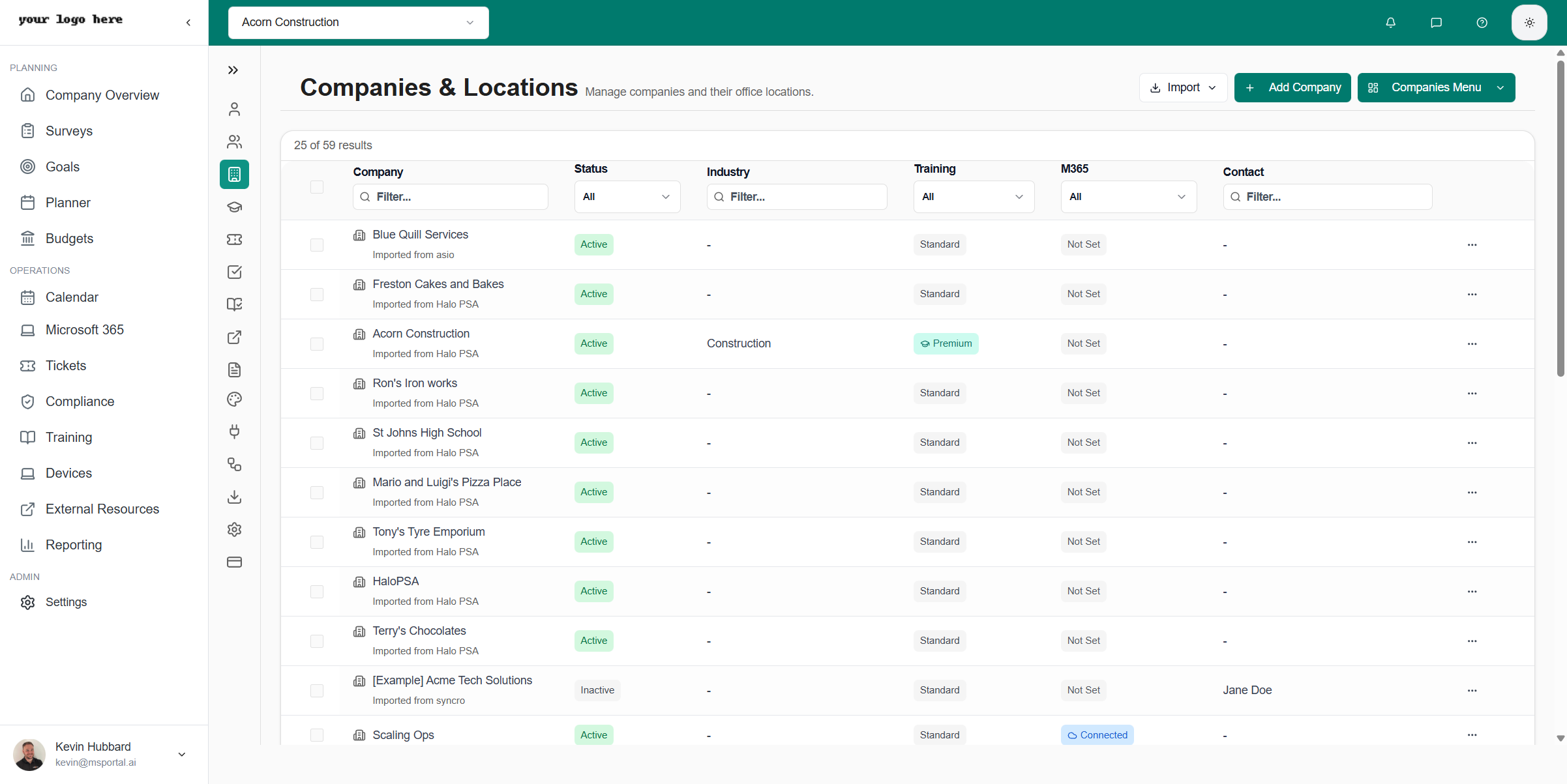 The **Training** column shows the current training tier for each company:
* **Standard** - Basic training only
* **Premium** - Full access to Bigger Brains courses
### Enable Training for a Single Company
1. Find the company in the list
2. Click the **...** menu button on the company row
3. Select **Enable Premium Training**
The **Training** column shows the current training tier for each company:
* **Standard** - Basic training only
* **Premium** - Full access to Bigger Brains courses
### Enable Training for a Single Company
1. Find the company in the list
2. Click the **...** menu button on the company row
3. Select **Enable Premium Training**
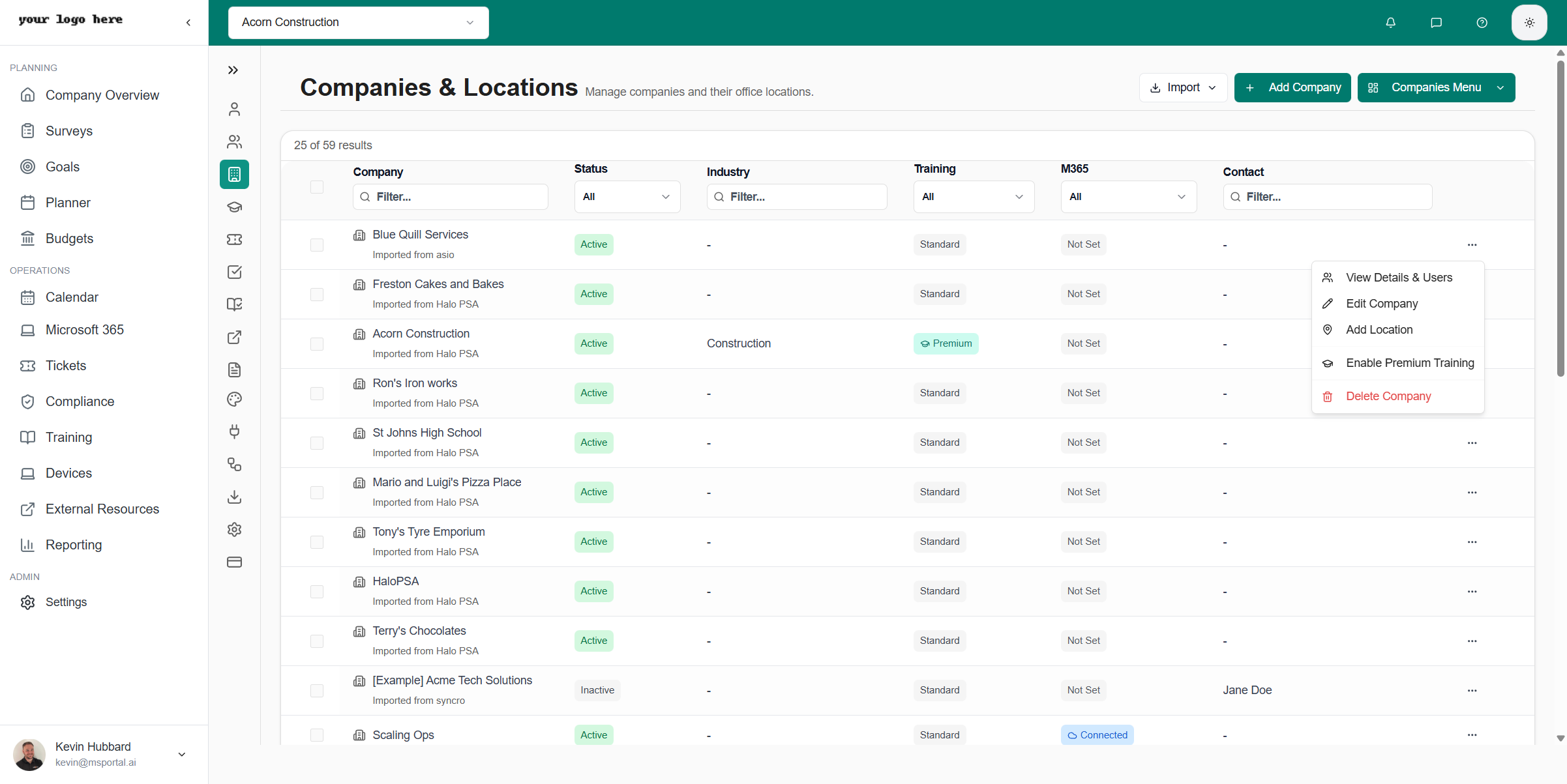 To disable premium training, use the same menu and select **Disable Premium Training**.
### Enable Training for Multiple Companies (Bulk)
1. Select the checkboxes next to the companies you want to update
2. Click the **Actions** dropdown at the top of the list
3. Select **Enable Premium Training** or **Disable Premium Training**
To disable premium training, use the same menu and select **Disable Premium Training**.
### Enable Training for Multiple Companies (Bulk)
1. Select the checkboxes next to the companies you want to update
2. Click the **Actions** dropdown at the top of the list
3. Select **Enable Premium Training** or **Disable Premium Training**
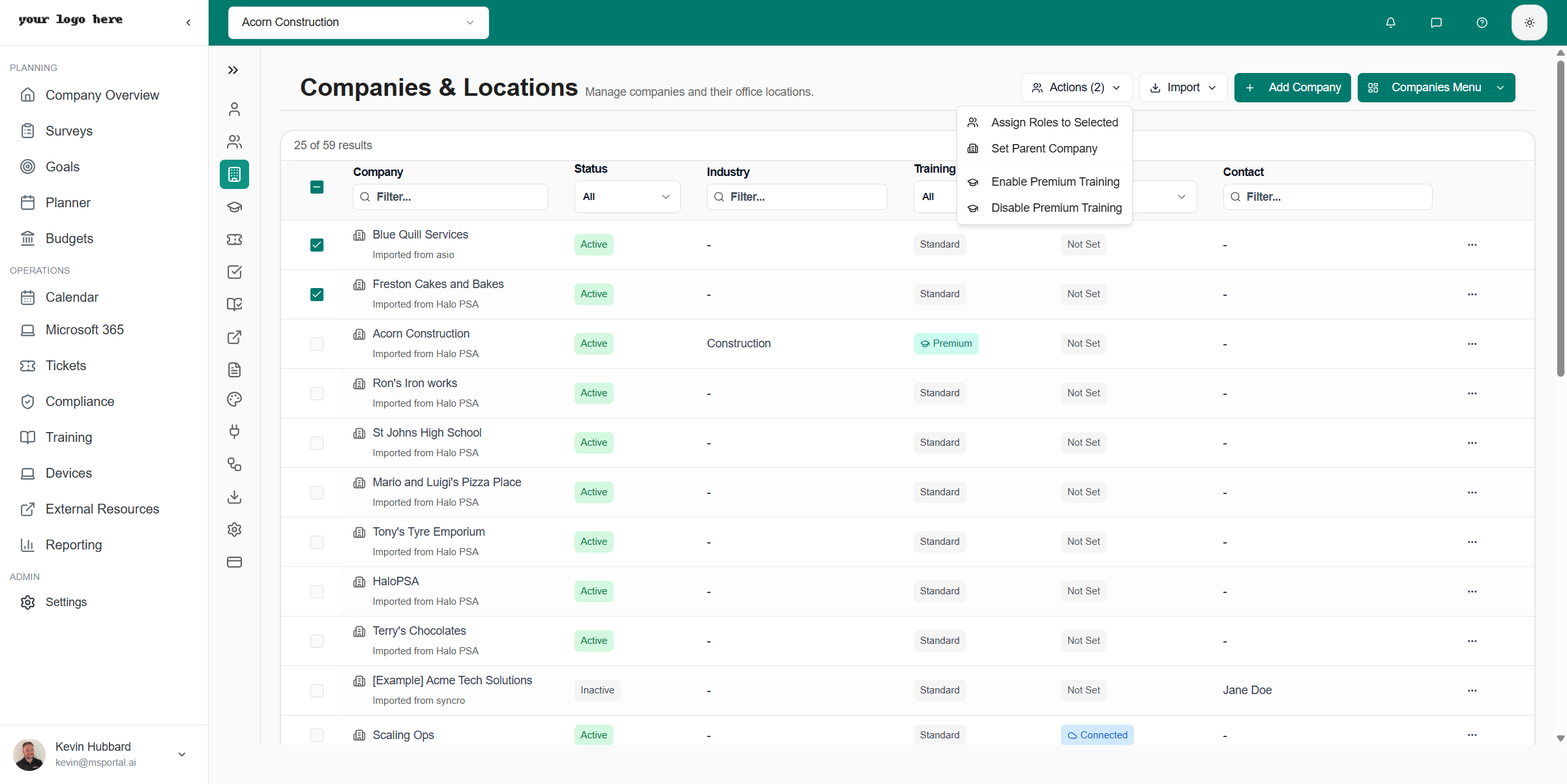 Billing for premium training is calculated per user at enabled companies. When you enable Premium Training for a company, all users at that company will have access to premium courses.
## Step 2: Manage Available Courses
After enabling training for companies, configure which courses are available.
### Navigate to Training Settings
Go to **Settings** > **Training** from the main menu.
Billing for premium training is calculated per user at enabled companies. When you enable Premium Training for a company, all users at that company will have access to premium courses.
## Step 2: Manage Available Courses
After enabling training for companies, configure which courses are available.
### Navigate to Training Settings
Go to **Settings** > **Training** from the main menu.
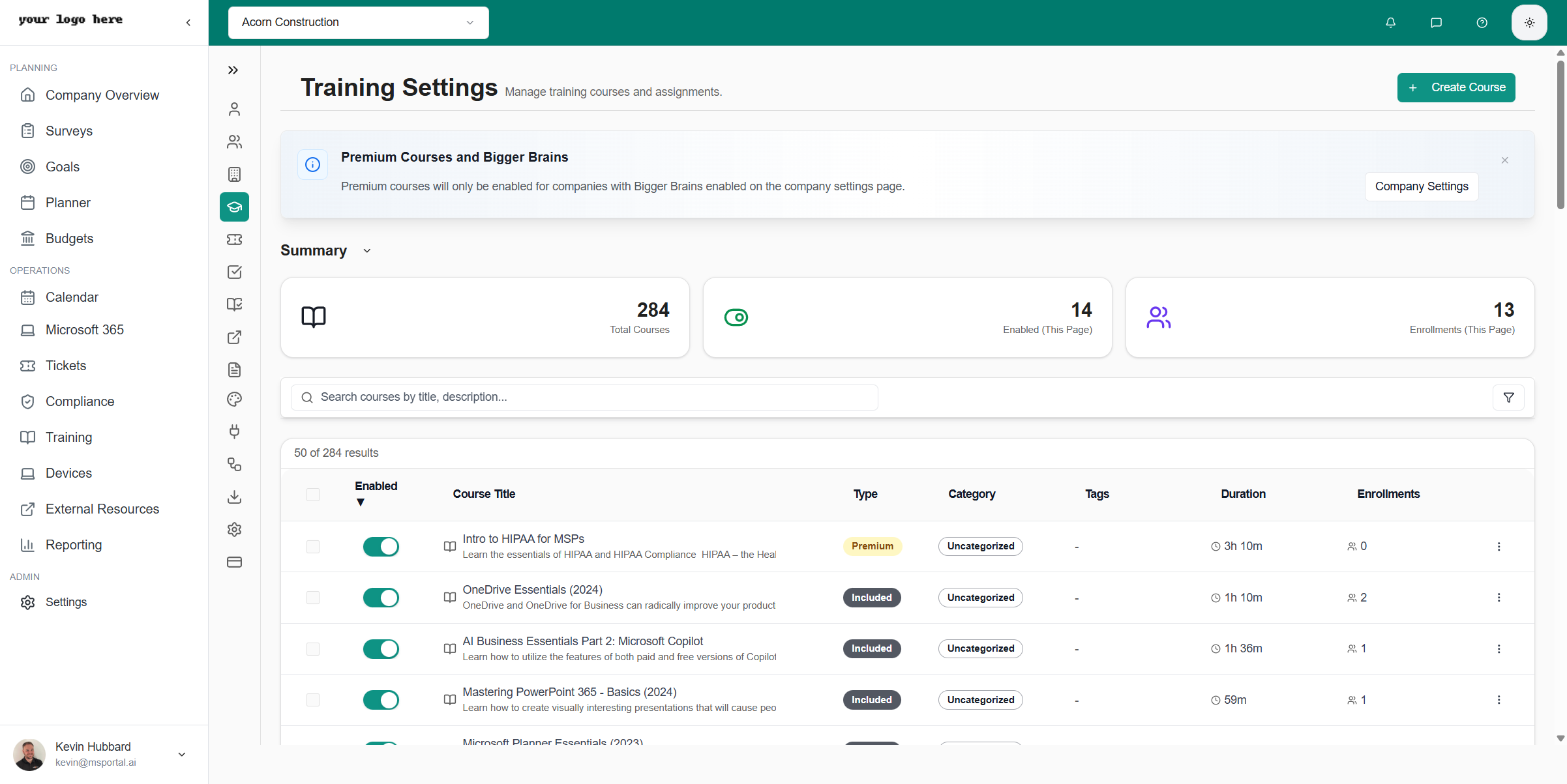 This page displays all available courses with:
* **Enabled** toggle - Whether the course is available to users
* **Course Title** - Name and description of the course
* **Type** - Premium (Bigger Brains) or Standard
* **Category** - Course topic area
* **Tags** - Additional labels for filtering
* **Duration** - Expected completion time
* **Enrollments** - Number of users assigned
### Enable Individual Courses
1. Browse the course list
2. Click the **Toggle** button next to each course you want to enable
3. The course will become available to users at enabled companies
### Course Filters and Search
* Use the **Search** bar to find courses by title or description
* Filter by **Category** to view courses by topic
* Filter by **Type** to see only Premium or Standard courses
### Create Custom Courses
Click **Create Course** to add your own training content alongside the standard library.
## After Enabling Training
Once training is configured:
1. **Assign Courses** - Go to Training > Assignments to assign courses to users
2. **Set Requirements** - Configure which courses are mandatory vs. optional
3. **Schedule Reminders** - Set up automated reminder emails
4. **Monitor Progress** - Track completion rates in the Training Dashboard
## Best Practices
* **Start Small** - Enable a few essential courses first
* **Communicate** - Inform users before assigning mandatory training
* **Set Deadlines** - Give reasonable time for course completion
* **Regular Updates** - Review and update course selections quarterly
* **Track Metrics** - Monitor completion rates and adjust as needed
## Troubleshooting
### Premium Courses Not Available
* Verify Premium Training is enabled for the user's company in Settings > Companies
* Check the Training column shows "Premium" for the company
### Users Can't Access Training
* Confirm users have been assigned courses
* Check role permissions include training access
* Verify user accounts are active
## Related Articles
* [Learning Paths](./learning-paths) - Create and manage structured training programs
* [Training Module Overview](./index) - Main training documentation
This page displays all available courses with:
* **Enabled** toggle - Whether the course is available to users
* **Course Title** - Name and description of the course
* **Type** - Premium (Bigger Brains) or Standard
* **Category** - Course topic area
* **Tags** - Additional labels for filtering
* **Duration** - Expected completion time
* **Enrollments** - Number of users assigned
### Enable Individual Courses
1. Browse the course list
2. Click the **Toggle** button next to each course you want to enable
3. The course will become available to users at enabled companies
### Course Filters and Search
* Use the **Search** bar to find courses by title or description
* Filter by **Category** to view courses by topic
* Filter by **Type** to see only Premium or Standard courses
### Create Custom Courses
Click **Create Course** to add your own training content alongside the standard library.
## After Enabling Training
Once training is configured:
1. **Assign Courses** - Go to Training > Assignments to assign courses to users
2. **Set Requirements** - Configure which courses are mandatory vs. optional
3. **Schedule Reminders** - Set up automated reminder emails
4. **Monitor Progress** - Track completion rates in the Training Dashboard
## Best Practices
* **Start Small** - Enable a few essential courses first
* **Communicate** - Inform users before assigning mandatory training
* **Set Deadlines** - Give reasonable time for course completion
* **Regular Updates** - Review and update course selections quarterly
* **Track Metrics** - Monitor completion rates and adjust as needed
## Troubleshooting
### Premium Courses Not Available
* Verify Premium Training is enabled for the user's company in Settings > Companies
* Check the Training column shows "Premium" for the company
### Users Can't Access Training
* Confirm users have been assigned courses
* Check role permissions include training access
* Verify user accounts are active
## Related Articles
* [Learning Paths](./learning-paths) - Create and manage structured training programs
* [Training Module Overview](./index) - Main training documentation