> ## Documentation Index
> Fetch the complete documentation index at: https://docs.msportal.ai/llms.txt
> Use this file to discover all available pages before exploring further.
# Find and enroll in a training course
> Search the course library, show completed courses, and enroll in training available to your account.
**Audience:** Company learners. MSP staff can also browse the library and use **Self Enroll** for their own learning. Enrolling other people is an MSP administration task.
Your MSP must enable training, give you access, and make courses available to your company. Premium content can require an additional entitlement. The catalog and available actions can differ between users.
For **Huntress** tiles, follow [Open your Huntress training](/user-guides/training/open-huntress-training). The enrollment steps below apply to portal course cards. Huntress tiles represent existing provider assignments and do not offer these enrollment actions.
## Browse the course library
Select **Training** in the sidebar, then **Training Menu > Course Library** (`/training/library`).
If Training opens a provider's learning portal instead, use that portal's catalog and assignments. Your MSP has configured a different training experience.
Search by course title, description, or category. Select **Filters** to narrow the catalog by the categories, tags, course types, and difficulty levels available to you.
Use the small grid, large grid, or list controls to change the layout. **My Courses** limits the catalog to your enrollments; **Show All** removes that enrollment filter.
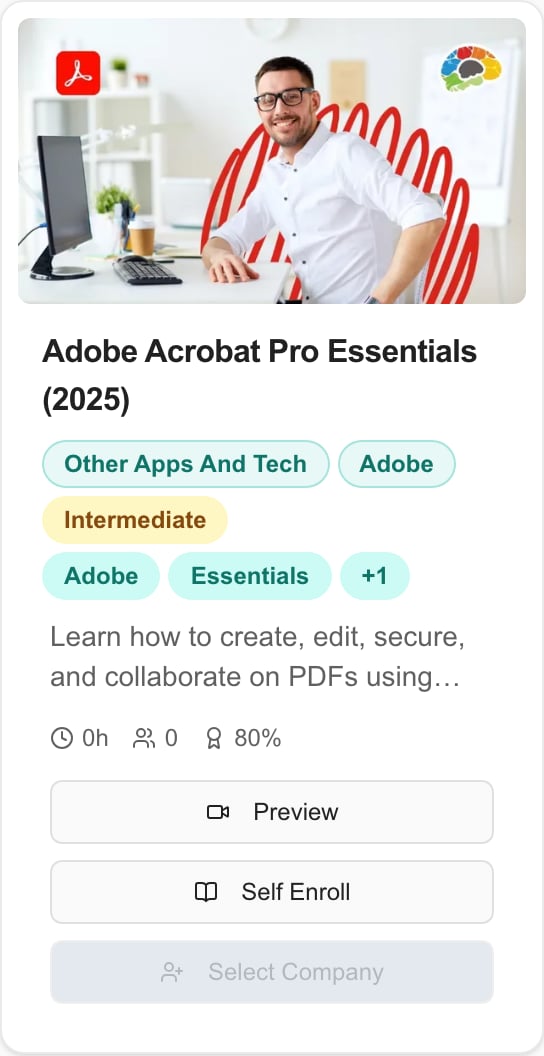
Check its description and any **Required**, **Included**, or **Premium** labels. A **Preview** button, when present, opens a preview. Watching a preview does not enroll you or complete the course.
Select **Enroll** on the course card, or **Enroll Now** in list view. Wait for the enrollment confirmation. If the button is disabled or enrollment fails, check your selected company and ask your MSP to confirm course access.
For MSP staff, **Self Enroll** enrolls the signed-in staff member. **Enroll Users** is a separate administrative action.
Select **Start**, or **Continue** for a course already in progress. See [Take a course and track progress](/user-guides/training/take-a-course).
 ## Find courses you already completed
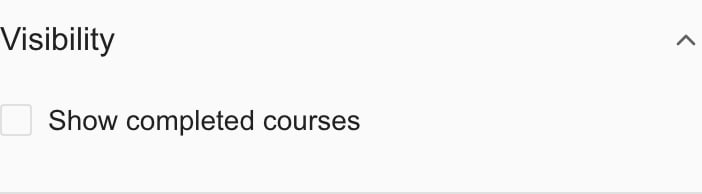
Completed courses are hidden from the library by default. Open **Filters** and enable **Show completed courses** under **Visibility**. Select **Apply Filters** to return to the catalog. Clear other active filters if the course is still missing.
## Find courses you already completed
Completed courses are hidden from the library by default. Open **Filters** and enable **Show completed courses** under **Visibility**. Select **Apply Filters** to return to the catalog. Clear other active filters if the course is still missing.
 For a completed course with a certificate, select **View Certificate**. You can also review enrollment status in **Training Menu > My Training**.
## Remove an enrollment
Where a course shows **Unenroll**, selecting it requests removal of your enrollment. This changes your training record; it is not a way to hide the card temporarily. Use filters to change what you see instead.
Required or assigned training, courses already started, and completed training may be protected from removal. Ask your MSP if an enrollment was assigned incorrectly or removal is refused. Do not unenroll to troubleshoot a missing completion or certificate.
## FAQs
Clear the search and filter chips, switch **My Courses** back to **Show All**, and check the selected company. Your MSP may still need to enable courses or your training access. A load-error message should be reported to the MSP rather than treated as an empty catalog.
The library hides completed courses by default. In **Filters > Visibility**, enable **Show completed courses**.
Company learners enroll themselves in available courses. Ask your MSP to assign training to another user or group.
For portal courses, a preview does not complete training: enroll and use **Start** or **Continue**, then complete the required content and assessment. Huntress tiles currently open a preview link even when labeled Start or Continue; use your assigned Huntress training link for tracked completion.
Course availability depends on company configuration, permissions, assignments, and premium-training access. Ask your MSP to check the specific course for your account.
Enrollment adds the course to your training. Use **Start** to open its player after enrollment succeeds. Starting an assigned learning-path course may enroll and open it in one action.
Training history and assignments can be protected. Ask your MSP to correct the assignment; removing a library filter does not remove an enrollment.
## Related guides
* [Take a course and track progress](/user-guides/training/take-a-course)
* [View and share a training certificate](/user-guides/training/certificates)
* [MSP guide: Enable training](/user-guides/training/enabling-training)
For a completed course with a certificate, select **View Certificate**. You can also review enrollment status in **Training Menu > My Training**.
## Remove an enrollment
Where a course shows **Unenroll**, selecting it requests removal of your enrollment. This changes your training record; it is not a way to hide the card temporarily. Use filters to change what you see instead.
Required or assigned training, courses already started, and completed training may be protected from removal. Ask your MSP if an enrollment was assigned incorrectly or removal is refused. Do not unenroll to troubleshoot a missing completion or certificate.
## FAQs
Clear the search and filter chips, switch **My Courses** back to **Show All**, and check the selected company. Your MSP may still need to enable courses or your training access. A load-error message should be reported to the MSP rather than treated as an empty catalog.
The library hides completed courses by default. In **Filters > Visibility**, enable **Show completed courses**.
Company learners enroll themselves in available courses. Ask your MSP to assign training to another user or group.
For portal courses, a preview does not complete training: enroll and use **Start** or **Continue**, then complete the required content and assessment. Huntress tiles currently open a preview link even when labeled Start or Continue; use your assigned Huntress training link for tracked completion.
Course availability depends on company configuration, permissions, assignments, and premium-training access. Ask your MSP to check the specific course for your account.
Enrollment adds the course to your training. Use **Start** to open its player after enrollment succeeds. Starting an assigned learning-path course may enroll and open it in one action.
Training history and assignments can be protected. Ask your MSP to correct the assignment; removing a library filter does not remove an enrollment.
## Related guides
* [Take a course and track progress](/user-guides/training/take-a-course)
* [View and share a training certificate](/user-guides/training/certificates)
* [MSP guide: Enable training](/user-guides/training/enabling-training)