> ## Documentation Index
> Fetch the complete documentation index at: https://docs.msportal.ai/llms.txt
> Use this file to discover all available pages before exploring further.
# Training Module
> Comprehensive training and learning management system for your organization
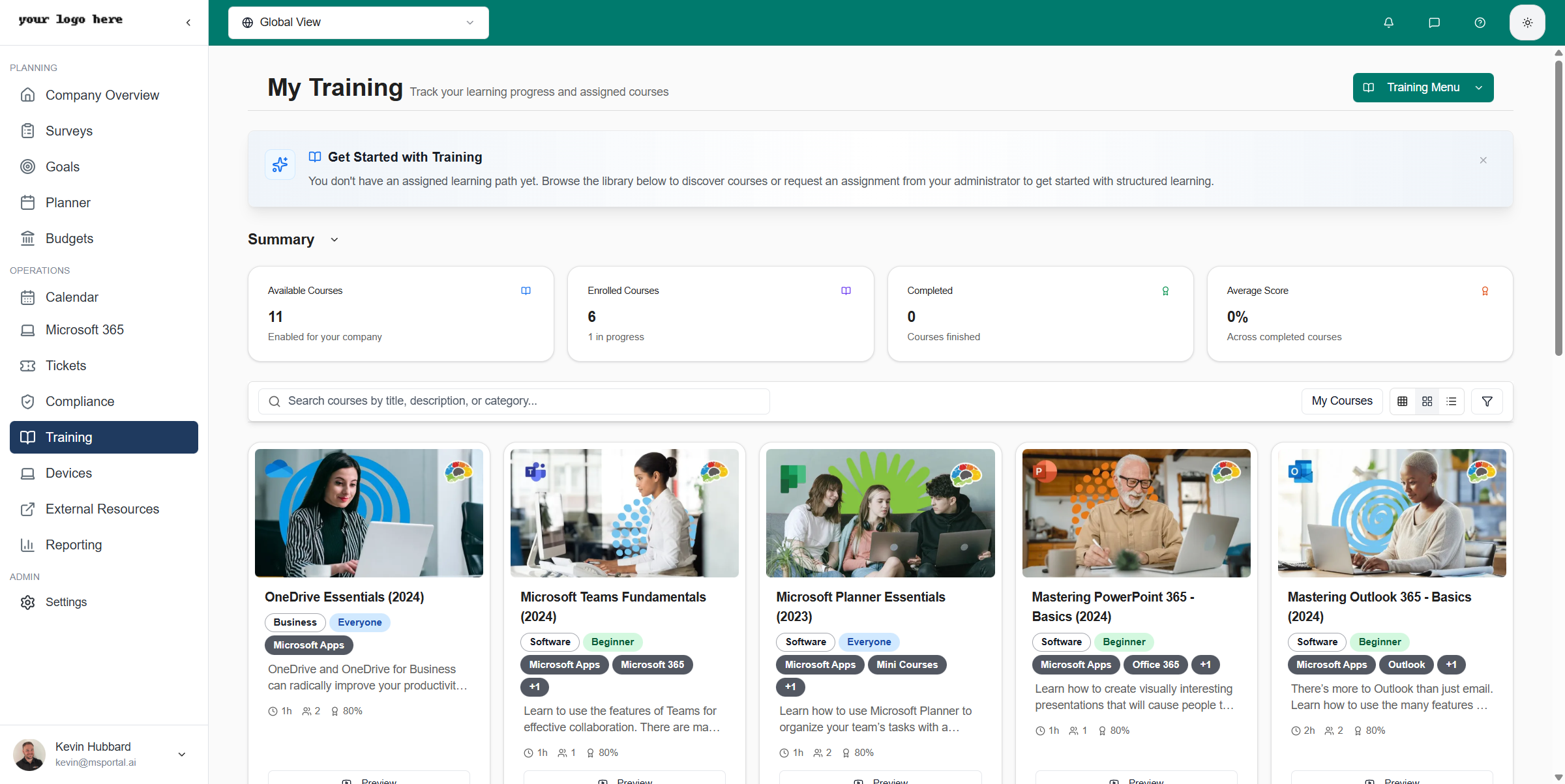
The Training module in MSPortal.ai provides a complete learning management system to help your organization deliver, track, and manage employee training programs.
 ## Key Features
* **Course Library** - Access a catalog of pre-built courses or custom training content
* **Progress Tracking** - Monitor individual and team training completion rates
* **Learning Paths** - Create structured training programs with multiple courses
* **Certifications** - Track compliance certifications and renewal dates
* **Reporting** - Generate detailed training reports for compliance and auditing
## Accessing the Training Module
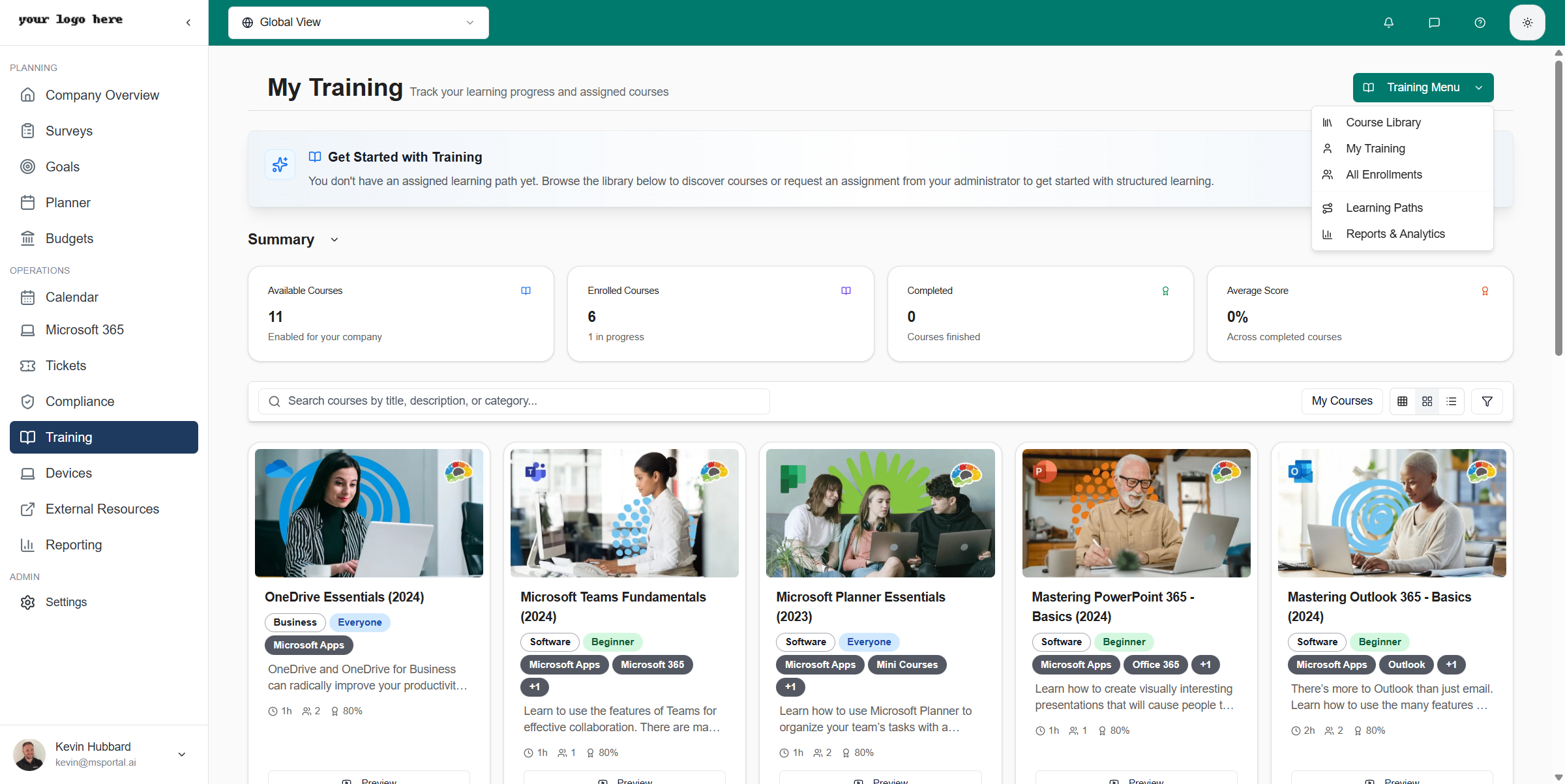
Navigate to **Training** from the main sidebar navigation. The Training Menu provides quick access to all training features:
## Key Features
* **Course Library** - Access a catalog of pre-built courses or custom training content
* **Progress Tracking** - Monitor individual and team training completion rates
* **Learning Paths** - Create structured training programs with multiple courses
* **Certifications** - Track compliance certifications and renewal dates
* **Reporting** - Generate detailed training reports for compliance and auditing
## Accessing the Training Module
Navigate to **Training** from the main sidebar navigation. The Training Menu provides quick access to all training features:
 ### Menu Options
| Option | Description | Permission Required |
| ------------------- | --------------------------------------------- | ------------------- |
| Course Library | Browse and enroll in available courses | All users |
| My Training | View your enrolled courses and progress | All users |
| All Enrollments | View all user enrollments across organization | Manage Training |
| Learning Paths | Create and manage learning paths | Write Training |
| Reports & Analytics | Access training reports and metrics | Write Training |
## Getting Started
Navigate to **Training > Course Library** to see all available courses. You can filter by category, search by name, or switch between grid and list views.
Click on any course card to view details, then click **Enroll** to add it to your training. Enrolled courses appear in **My Training**.
Open an enrolled course and work through the content. Your progress is automatically tracked and saved.
## Common Tasks
### Enrolling in a Course
Browse the Course Library or use the search bar to find specific training topics.
Click on a course card to see the description, duration, and any prerequisites.
Click the **Enroll** button to add the course to your training queue.
You can also be enrolled in courses automatically through Learning Paths assigned by your administrator.
### Taking a Course
Once enrolled, courses can be accessed from **My Training**. The course player supports multiple content types:
### Menu Options
| Option | Description | Permission Required |
| ------------------- | --------------------------------------------- | ------------------- |
| Course Library | Browse and enroll in available courses | All users |
| My Training | View your enrolled courses and progress | All users |
| All Enrollments | View all user enrollments across organization | Manage Training |
| Learning Paths | Create and manage learning paths | Write Training |
| Reports & Analytics | Access training reports and metrics | Write Training |
## Getting Started
Navigate to **Training > Course Library** to see all available courses. You can filter by category, search by name, or switch between grid and list views.
Click on any course card to view details, then click **Enroll** to add it to your training. Enrolled courses appear in **My Training**.
Open an enrolled course and work through the content. Your progress is automatically tracked and saved.
## Common Tasks
### Enrolling in a Course
Browse the Course Library or use the search bar to find specific training topics.
Click on a course card to see the description, duration, and any prerequisites.
Click the **Enroll** button to add the course to your training queue.
You can also be enrolled in courses automatically through Learning Paths assigned by your administrator.
### Taking a Course
Once enrolled, courses can be accessed from **My Training**. The course player supports multiple content types:
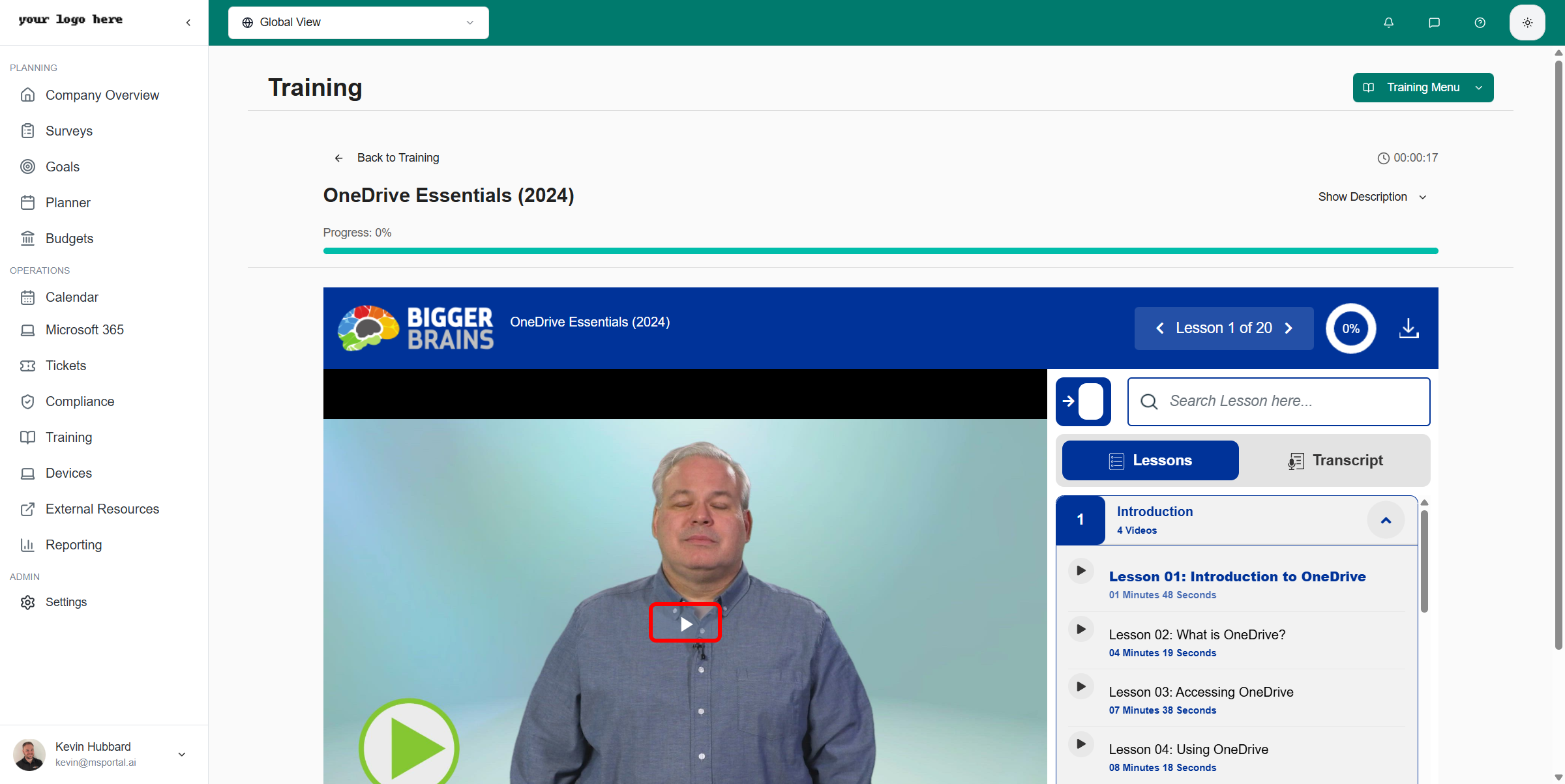 **Supported Content Types:**
* **SCORM Packages** - Interactive e-learning content with progress tracking
* **Video Courses** - Video-based training with completion tracking
* **Documents** - PDF and document-based training materials
**Player Features:**
* Progress bar showing completion percentage
* Session time tracking
* Fullscreen mode for focused learning
* Automatic progress saving
### Working with Learning Paths
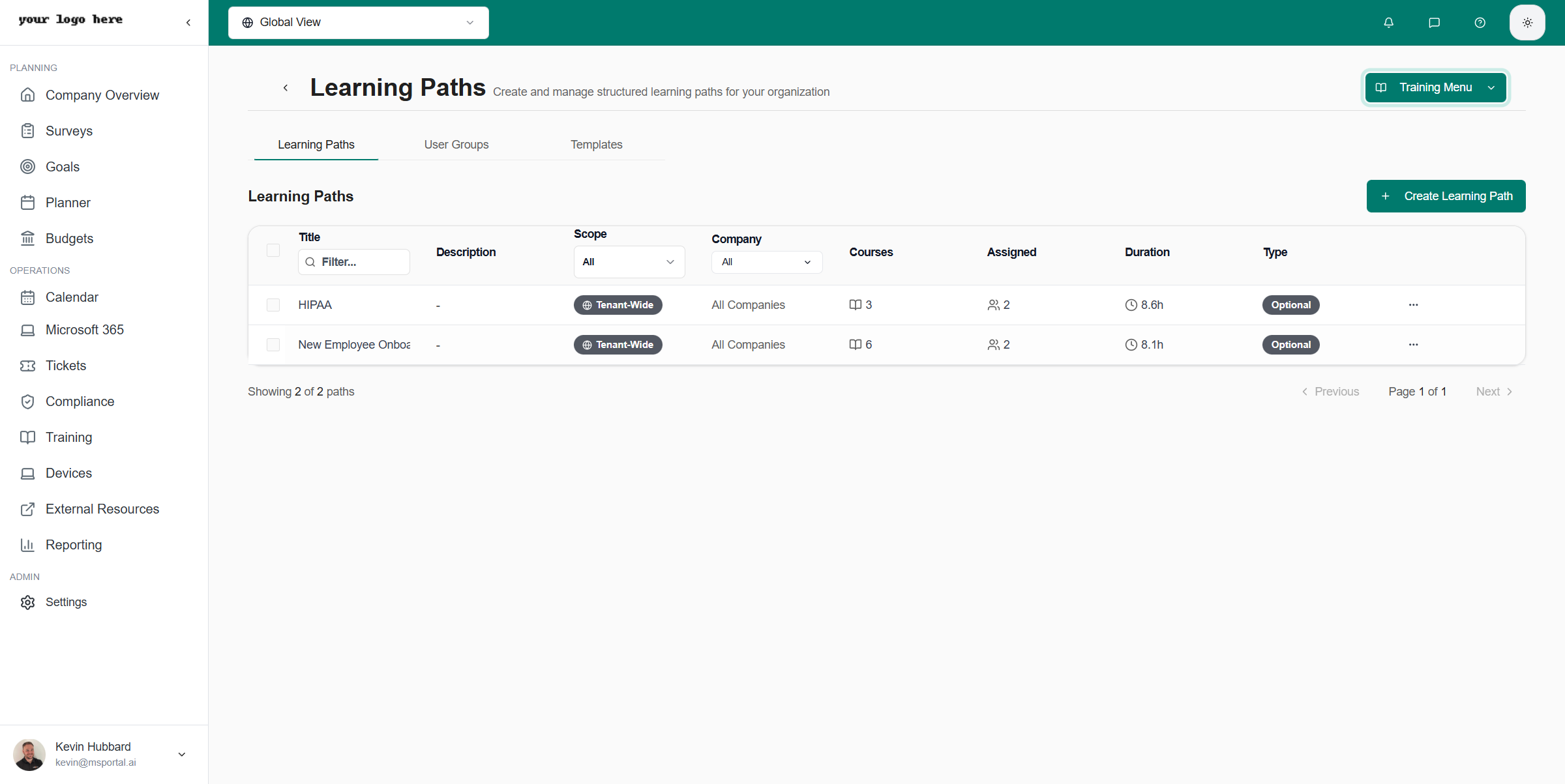
Learning Paths allow administrators to create structured training programs by grouping multiple courses together.
**Supported Content Types:**
* **SCORM Packages** - Interactive e-learning content with progress tracking
* **Video Courses** - Video-based training with completion tracking
* **Documents** - PDF and document-based training materials
**Player Features:**
* Progress bar showing completion percentage
* Session time tracking
* Fullscreen mode for focused learning
* Automatic progress saving
### Working with Learning Paths
Learning Paths allow administrators to create structured training programs by grouping multiple courses together.
 ## Related Guides
Learn how to activate training for your organization
Create and manage learning paths
## Best Practices
* **Regular Reviews** - Schedule monthly reviews of training completion rates
* **Automated Assignments** - Use Learning Paths to automatically assign training to new users
* **Role-Based Training** - Assign training based on job roles and departments
* **Compliance Tracking** - Maintain audit trails for regulatory requirements
## Need Help?
For assistance with the Training module, contact [support@msportal.ai](mailto:support@msportal.ai) or refer to our knowledge base for detailed tutorials.
## Related Guides
Learn how to activate training for your organization
Create and manage learning paths
## Best Practices
* **Regular Reviews** - Schedule monthly reviews of training completion rates
* **Automated Assignments** - Use Learning Paths to automatically assign training to new users
* **Role-Based Training** - Assign training based on job roles and departments
* **Compliance Tracking** - Maintain audit trails for regulatory requirements
## Need Help?
For assistance with the Training module, contact [support@msportal.ai](mailto:support@msportal.ai) or refer to our knowledge base for detailed tutorials.