> ## Documentation Index
> Fetch the complete documentation index at: https://docs.msportal.ai/llms.txt
> Use this file to discover all available pages before exploring further.
# Learning Paths
> Create and manage structured training programs with Learning Paths
Learning Paths allow you to create structured training programs by grouping multiple courses into a single, organized curriculum. Users assigned to a Learning Path are automatically enrolled in all associated courses.
## Prerequisites
Before creating Learning Paths, ensure you have:
* **Write Training** permission
* Courses available in your Course Library
## Accessing Learning Paths
Navigate to **Training** and click the **Training Menu** dropdown. Select **Learning Paths** to access the Learning Paths management area.
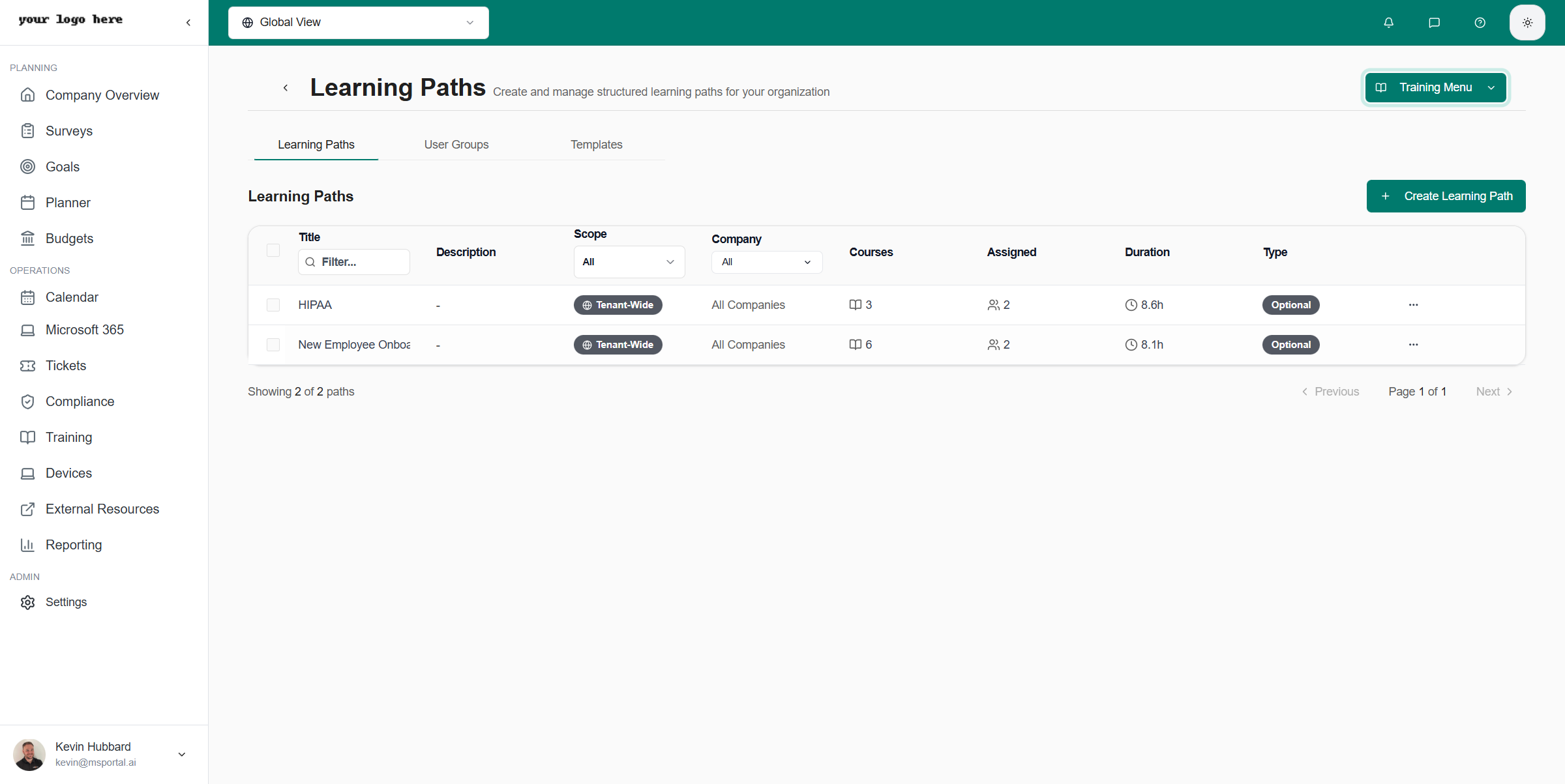 The Learning Paths page includes three tabs:
| Tab | Description |
| -------------- | ---------------------------------------- |
| Learning Paths | View and manage all learning paths |
| User Groups | Manage groups for bulk user assignments |
| Templates | Access pre-built learning path templates |
## Creating a Learning Path
From the Learning Paths tab, click the **Create Learning Path** button.
Fill in the learning path details:
The Learning Paths page includes three tabs:
| Tab | Description |
| -------------- | ---------------------------------------- |
| Learning Paths | View and manage all learning paths |
| User Groups | Manage groups for bulk user assignments |
| Templates | Access pre-built learning path templates |
## Creating a Learning Path
From the Learning Paths tab, click the **Create Learning Path** button.
Fill in the learning path details:
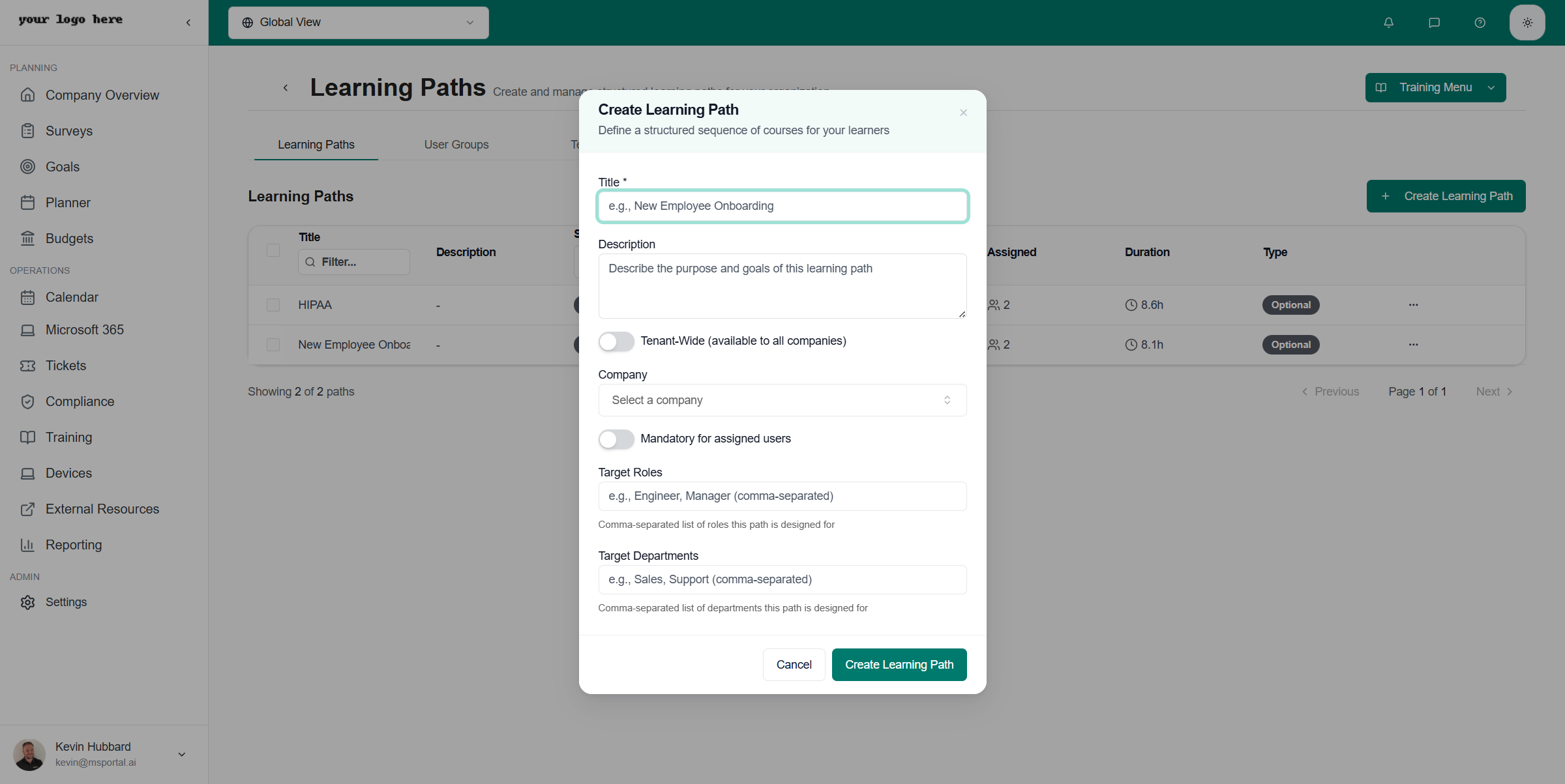 * **Title** - Name of the learning path (e.g., "HIPAA Compliance Training")
* **Description** - Optional description of the learning path purpose
* **Tenant-Wide** - Toggle to make available across all companies
* **Company** - Select specific company if not tenant-wide
* **Mandatory** - Toggle to mark training as required
* **Target Roles** - Select which user roles should receive this training
* **Target Departments** - Select which departments should receive this training
Click **Create** to save the learning path. You'll be redirected to edit the path and add courses.
## Editing a Learning Path
### Adding Courses
Click on any learning path row to open the edit dialog.
Click the **Courses** tab to manage course assignments.
* **Title** - Name of the learning path (e.g., "HIPAA Compliance Training")
* **Description** - Optional description of the learning path purpose
* **Tenant-Wide** - Toggle to make available across all companies
* **Company** - Select specific company if not tenant-wide
* **Mandatory** - Toggle to mark training as required
* **Target Roles** - Select which user roles should receive this training
* **Target Departments** - Select which departments should receive this training
Click **Create** to save the learning path. You'll be redirected to edit the path and add courses.
## Editing a Learning Path
### Adding Courses
Click on any learning path row to open the edit dialog.
Click the **Courses** tab to manage course assignments.
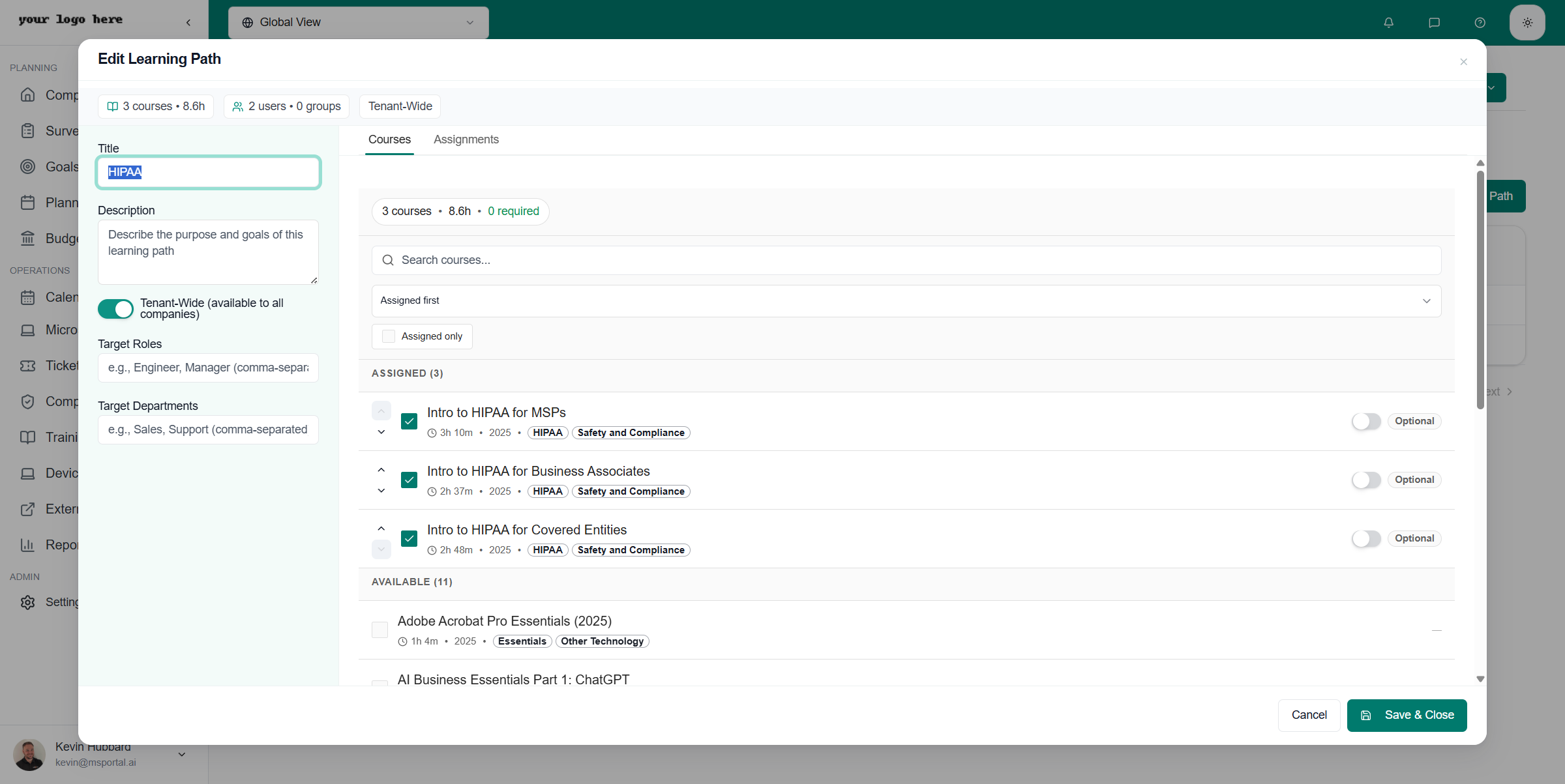 * Browse **Available Courses** on the left panel
* Select one or more courses by clicking on them
* Click **Add Selected** to move them to **Assigned Courses**
To remove courses, select them from **Assigned Courses** and click **Remove**.
Click **Save Changes** to update the learning path.
The order of courses in the Assigned Courses list determines the recommended completion order for users.
### Assigning Users
Click the **Assignments** tab in the edit dialog.
* Browse **Available Courses** on the left panel
* Select one or more courses by clicking on them
* Click **Add Selected** to move them to **Assigned Courses**
To remove courses, select them from **Assigned Courses** and click **Remove**.
Click **Save Changes** to update the learning path.
The order of courses in the Assigned Courses list determines the recommended completion order for users.
### Assigning Users
Click the **Assignments** tab in the edit dialog.
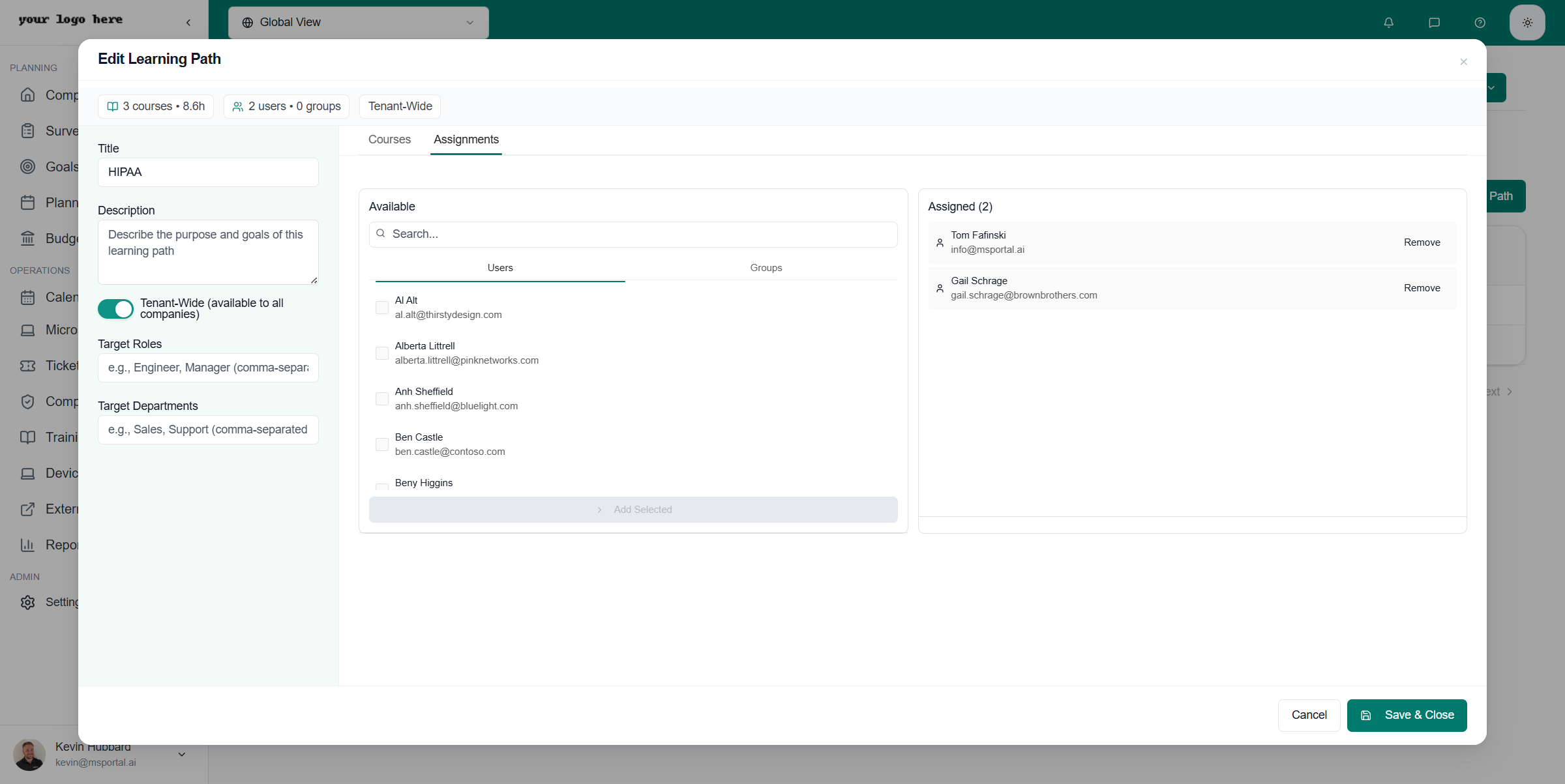 Toggle between **Users** and **Groups** tabs in the Available panel:
* **Users** - Assign individual users
* **Groups** - Assign entire user groups at once
* Select users or groups from the Available list
* Click **Add Selected** to assign them to the learning path
To remove assignments, select from the Assigned list and click **Remove**.
Click **Save Changes** to apply the assignments.
When you assign users to a Learning Path, they are automatically enrolled in all courses within that path. Removing a user from a Learning Path does not remove their course enrollments.
## Learning Path Settings
### Mandatory Training
When a Learning Path is marked as **Mandatory**:
* Assigned users receive notifications about required training
* Progress is tracked in compliance reports
* Managers can view mandatory training completion status
### Target Roles and Departments
Use targeting to automatically assign training:
* **Target Roles** - Users with matching roles are automatically assigned
* **Target Departments** - Users in matching departments are automatically assigned
* Users can match either criteria to receive the training
## User Groups
User Groups simplify bulk assignments by allowing you to create named collections of users.
### Creating a User Group
1. Navigate to **Learning Paths > User Groups** tab
2. Click **Create Group**
3. Enter a group name (e.g., "New Hires Q1")
4. Add users to the group
5. Click **Save**
### Using Groups in Assignments
When assigning users to a Learning Path, switch to the **Groups** tab to see all available groups. Selecting a group assigns all members at once.
## Best Practices
* **Logical Grouping** - Group courses by topic or compliance requirement
* **Progressive Difficulty** - Order courses from foundational to advanced
* **Regular Updates** - Review and update learning paths quarterly
* **Clear Naming** - Use descriptive names like "2024 Security Awareness Training"
* **Use Groups** - Create user groups for common assignment patterns
## Troubleshooting
**Symptoms:** Users report they don't see courses from an assigned Learning Path.
**Solution:**
1. Verify the user is in the Assignments list
2. Check that courses are added to the Learning Path
3. Ensure the user has access to Training module
**Prevention:** Test assignments with a sample user before bulk rollout.
**Symptoms:** Create button is disabled or shows error.
**Solution:**
1. Verify you have **Write Training** permission
2. Check that Title field is not empty
3. Select a company if not using Tenant-Wide option
**Prevention:** Ensure proper permissions are assigned to training administrators.
## Related Resources
* [Training Module Overview](./index) - Main training documentation
* [Enable Training](./enabling-training) - Initial training setup
Toggle between **Users** and **Groups** tabs in the Available panel:
* **Users** - Assign individual users
* **Groups** - Assign entire user groups at once
* Select users or groups from the Available list
* Click **Add Selected** to assign them to the learning path
To remove assignments, select from the Assigned list and click **Remove**.
Click **Save Changes** to apply the assignments.
When you assign users to a Learning Path, they are automatically enrolled in all courses within that path. Removing a user from a Learning Path does not remove their course enrollments.
## Learning Path Settings
### Mandatory Training
When a Learning Path is marked as **Mandatory**:
* Assigned users receive notifications about required training
* Progress is tracked in compliance reports
* Managers can view mandatory training completion status
### Target Roles and Departments
Use targeting to automatically assign training:
* **Target Roles** - Users with matching roles are automatically assigned
* **Target Departments** - Users in matching departments are automatically assigned
* Users can match either criteria to receive the training
## User Groups
User Groups simplify bulk assignments by allowing you to create named collections of users.
### Creating a User Group
1. Navigate to **Learning Paths > User Groups** tab
2. Click **Create Group**
3. Enter a group name (e.g., "New Hires Q1")
4. Add users to the group
5. Click **Save**
### Using Groups in Assignments
When assigning users to a Learning Path, switch to the **Groups** tab to see all available groups. Selecting a group assigns all members at once.
## Best Practices
* **Logical Grouping** - Group courses by topic or compliance requirement
* **Progressive Difficulty** - Order courses from foundational to advanced
* **Regular Updates** - Review and update learning paths quarterly
* **Clear Naming** - Use descriptive names like "2024 Security Awareness Training"
* **Use Groups** - Create user groups for common assignment patterns
## Troubleshooting
**Symptoms:** Users report they don't see courses from an assigned Learning Path.
**Solution:**
1. Verify the user is in the Assignments list
2. Check that courses are added to the Learning Path
3. Ensure the user has access to Training module
**Prevention:** Test assignments with a sample user before bulk rollout.
**Symptoms:** Create button is disabled or shows error.
**Solution:**
1. Verify you have **Write Training** permission
2. Check that Title field is not empty
3. Select a company if not using Tenant-Wide option
**Prevention:** Ensure proper permissions are assigned to training administrators.
## Related Resources
* [Training Module Overview](./index) - Main training documentation
* [Enable Training](./enabling-training) - Initial training setup