> ## Documentation Index
> Fetch the complete documentation index at: https://docs.msportal.ai/llms.txt
> Use this file to discover all available pages before exploring further.
# Open your Huntress training
> Find personally assigned Huntress episodes, understand library buttons, and verify tracked completion.
**Audience:** Company learners and MSP staff taking their own Huntress training. You need Training read access, a Huntress learner record matching your portal email, and synced episodes in an eligible assignment. Your MSP enables and maps the Huntress SAT feed.
## Find your episodes
1. Open **Training > Training Menu > Course Library**. The Training landing page can also show this library when it is not displaying your learning paths.
2. Select **My Courses** to narrow the library to your enrollments. Personally assigned Huntress episodes are already included; they do not need a separate portal enrollment.
3. Search by episode title, description, company, or assignment name. Huntress tiles carry a **Huntress** badge and the assignment name.
4. Clear incompatible course-type or difficulty filters if the episode is missing. Huntress episodes use the **Security Awareness** category and have no supplied difficulty level.
5. To find completed episodes, open **Filters > Visibility**, enable **Show completed courses**, and select **Apply Filters**.
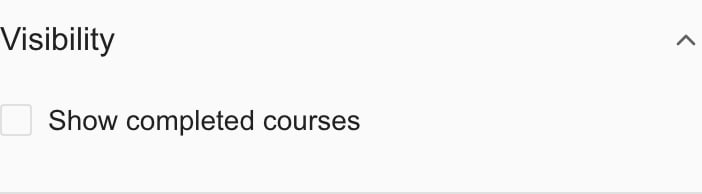 This existing library-control image was captured in an MSP Demo session. The same visibility filter applies to Huntress tiles; it does not show a Huntress assignment or prove learner access.
The library shows one tile per episode record even when it is included in more than one of your assignments. The displayed assignment and progress come from one selected assignment; use the provider to resolve ambiguity when the same episode appears in several curricula.
## Understand Start, Continue, and Review
A tile displays **Start** when no progress is recorded, **Continue** when progress is greater than zero, and **Review** when the synced record indicates completion. These buttons open the supplied Huntress preview URL in a new tab; they do not open the portal course player or create an enrollment.
The current Huntress tile uses a preview link even when its button says Start or Continue. That link may not record learner completion. Use your assigned Huntress training link for tracked completion and follow the provider's instructions. Ask your MSP if you have not received the correct link.
Huntress may require a separate sign-in. **Locked** means the episode's unlock date is still in the future. **Under maintenance** or **Preview unavailable** indicates that the available preview cannot be opened. Larger grid or list views show more metadata, including a supplied unlock date or passing score; small tiles show fewer details.
## Check completion carefully
The portal uses synced assignment-level activity for the episode tiles. A completion timestamp or progress of at least 100% produces **Review**; the same assignment progress or score can appear on several episode tiles. This is not an independent score for every episode.
Huntress tiles contribute to the library's enrolled and completed counts and its average score for completed items with a supplied score. These library figures include portal courses too; they are not a Huntress-only progress report. The tiles do not provide portal certificate, unenrollment, or coworker-enrollment controls.
Finishing training in Huntress does not instantly update the portal. Returning focus to the portal does not force a provider sync. Check the provider's recorded result, then ask your MSP to review sync information if the portal remains stale. Do not unenroll from another course to troubleshoot a Huntress result.
## Missing training and help
Ask your MSP to verify your portal email matches a Huntress learner record that has not been deactivated, the account is mapped to the correct company, and you are included in a synced assignment with episodes. Draft and canceled assignments are excluded from personal tiles. Company scope and library filters also affect what you see. A missing tile can result from unavailable or failed data loading, not just a missing assignment.
Start support requests with the [Home AI Assistant](/user-guides/ticketing/open-a-ticket). Include the assignment, episode, and the provider result you expected, then review and confirm the request. MSP staff review company-wide curricula using [Huntress Assignments](/user-guides/training/read-huntress-assignments); administrative access alone does not populate their personal library.
## Frequently asked questions
No. The current tile opens a preview link. Use the assigned Huntress training link for tracked learning and verify the provider result.
Their tiles use synced assignment-level activity. Those values are not independent per-episode assessment results.
Personal tiles require a matching learner email and assignment membership with synced episodes. Administrative access alone does not assign training.
Completed courses are hidden by default. Enable Show completed courses under Filters > Visibility and apply the filter.
This existing library-control image was captured in an MSP Demo session. The same visibility filter applies to Huntress tiles; it does not show a Huntress assignment or prove learner access.
The library shows one tile per episode record even when it is included in more than one of your assignments. The displayed assignment and progress come from one selected assignment; use the provider to resolve ambiguity when the same episode appears in several curricula.
## Understand Start, Continue, and Review
A tile displays **Start** when no progress is recorded, **Continue** when progress is greater than zero, and **Review** when the synced record indicates completion. These buttons open the supplied Huntress preview URL in a new tab; they do not open the portal course player or create an enrollment.
The current Huntress tile uses a preview link even when its button says Start or Continue. That link may not record learner completion. Use your assigned Huntress training link for tracked completion and follow the provider's instructions. Ask your MSP if you have not received the correct link.
Huntress may require a separate sign-in. **Locked** means the episode's unlock date is still in the future. **Under maintenance** or **Preview unavailable** indicates that the available preview cannot be opened. Larger grid or list views show more metadata, including a supplied unlock date or passing score; small tiles show fewer details.
## Check completion carefully
The portal uses synced assignment-level activity for the episode tiles. A completion timestamp or progress of at least 100% produces **Review**; the same assignment progress or score can appear on several episode tiles. This is not an independent score for every episode.
Huntress tiles contribute to the library's enrolled and completed counts and its average score for completed items with a supplied score. These library figures include portal courses too; they are not a Huntress-only progress report. The tiles do not provide portal certificate, unenrollment, or coworker-enrollment controls.
Finishing training in Huntress does not instantly update the portal. Returning focus to the portal does not force a provider sync. Check the provider's recorded result, then ask your MSP to review sync information if the portal remains stale. Do not unenroll from another course to troubleshoot a Huntress result.
## Missing training and help
Ask your MSP to verify your portal email matches a Huntress learner record that has not been deactivated, the account is mapped to the correct company, and you are included in a synced assignment with episodes. Draft and canceled assignments are excluded from personal tiles. Company scope and library filters also affect what you see. A missing tile can result from unavailable or failed data loading, not just a missing assignment.
Start support requests with the [Home AI Assistant](/user-guides/ticketing/open-a-ticket). Include the assignment, episode, and the provider result you expected, then review and confirm the request. MSP staff review company-wide curricula using [Huntress Assignments](/user-guides/training/read-huntress-assignments); administrative access alone does not populate their personal library.
## Frequently asked questions
No. The current tile opens a preview link. Use the assigned Huntress training link for tracked learning and verify the provider result.
Their tiles use synced assignment-level activity. Those values are not independent per-episode assessment results.
Personal tiles require a matching learner email and assignment membership with synced episodes. Administrative access alone does not assign training.
Completed courses are hidden by default. Enable Show completed courses under Filters > Visibility and apply the filter.