> ## Documentation Index
> Fetch the complete documentation index at: https://docs.msportal.ai/llms.txt
> Use this file to discover all available pages before exploring further.
# Read security awareness learner status
> Find learners, filter provider results, and interpret completion and phishing metrics without confusing them with course actions.
**Audience:** Company users and MSP staff with Security Awareness read access to the selected companies. Your MSP connects and maps the providers and manages access.
## Find a learner
1. Open **Security > Security Awareness** and locate the learner table below any CyberHoot sections. This table contains the connected Breach Secure Now, Phin, and Huntress providers.
2. To include CyberHoot learners, use **Training > Training Menu > Security Training**, when that entry is available. **Training Status** is the status tab when Huntress Assignments is also available.
3. Confirm the main company selection. The **Company** column is hidden when exactly one company is selected.
4. Use the **User** column's text filter and **Provider** choices to narrow the results. The search also matches company names and source user identifiers.
5. Use the column controls to filter or sort, then browse the 25-row pages. Filtering and sorting request the matching result set across pages.
Select a Breach Secure Now row to [read its risk details](/user-guides/training/read-bsn-risk). Other provider rows do not open that panel.
## Filter the table
| Control | Use |
| ---------------------------------------------------- | ----------------------------------------------------------------------------------------------------------------------- |
| Provider | Select one or more providers available to this view. |
| Company | Narrow by company within the main selected scope. |
| Assigned, Completed, Completion | Apply numeric ranges. |
| Training Status | Choose **Up to date**, **Behind**, or **Not assigned**. Clear this filter to include missing status values. |
| Phishing Sent, Clicked, Click Rate, Active Campaigns | Apply numeric ranges to provider metrics. |
| Column visibility | Show additional provider fields such as **ESS**, **Security score**, **Micro training**, **Account**, or **Last Sync**. |
| Last training, Last login, Last Sync | Use date filters when that provider supplies the field. |
CyberHoot adds **Overdue**, **HootScore**, and optional columns for outstanding work, HootRank, individual scores, attempts, late submissions, and AttackPhish failures. These are CyberHoot fields; turning a column on does not make another provider supply it.
Changing company scope resets the table's filters, sorting, and page. Recheck the company and learner after a scope change; close any previously opened BSN detail panel before opening the current row.
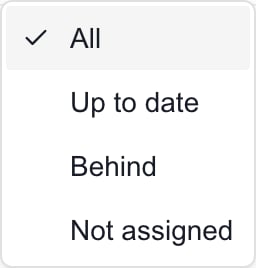 This generic filter was captured in an MSP Demo session. It shows the available choices, not a learner completion result.
## Understand the figures
**Not assigned** means the assigned count is zero. **Up to date** and **Behind** use completion or compliance information available for that provider. **Not provided** means that a usable status or metric was not supplied. A zero can also result from absent imported counts for some providers; it is not an independent provider health check.
| Provider | How to interpret the learner row |
| ----------------- | ----------------------------------------------------------------------------------------------------------------------------------------------------------------------------------------------------------------------- |
| Breach Secure Now | Assigned and Completed combine security courses, micro training, and additional courses. Overall completion uses those totals. The risk panel separates the categories. |
| Phin | Completion uses completed versus assigned counts. Training Status follows Phin's up-to-date value. Active Campaigns is a company-level count repeated on learner rows. |
| Huntress SAT | Assigned counts distinct synced assignments linked to the learner; completed counts assignments with recorded completion or progress of at least 100%. Active Campaigns is company-level, not a learner's course count. |
| CyberHoot | Uses imported assignment, completion, compliance, and Hoot metrics. Phishing Sent and Clicked are not supplied in these generic columns; use the dedicated CyberHoot metrics and HootPhish views. |
For BSN, Active Campaigns is an enrollment indicator displayed as 1 or 0. Do not add repeated company campaign counts across learners. Phishing simulations and captured-credential metrics do not by themselves prove a real account compromise.
The optional **Account** value is a display summary. Missing account activity can display as Active; it is not proof that the person can sign in. Likewise, a non-BSN **Breaches** value of 0 is not proof of a completed dark-web check.
## Missing or stale results
Clear the relevant filters, check company scope, and reload the page if necessary. Ask your MSP to inspect provider mapping and sync information if the learner remains absent. Earlier results can remain visible while a new request loads, and an empty or missing table does not prove a successful refresh.
This table does not export CSV, enroll learners, send reminders, or play courses. For an account or assignment problem, start with the [Home AI Assistant](/user-guides/ticketing/open-a-ticket), then review and confirm the request.
## Frequently asked questions
Only Breach Secure Now rows open the BSN risk panel in this table. Use the relevant provider or assigned training entry for other actions.
No. Phin and Huntress repeat company-level campaign counts on learner rows. BSN uses an enrollment indicator.
No. It means the assigned count is zero. Check provider data and assignments with your MSP before drawing a conclusion.
Providers supply different metrics. A visible column does not guarantee a value for every provider; missing data is not a zero-risk or completion result.
This generic filter was captured in an MSP Demo session. It shows the available choices, not a learner completion result.
## Understand the figures
**Not assigned** means the assigned count is zero. **Up to date** and **Behind** use completion or compliance information available for that provider. **Not provided** means that a usable status or metric was not supplied. A zero can also result from absent imported counts for some providers; it is not an independent provider health check.
| Provider | How to interpret the learner row |
| ----------------- | ----------------------------------------------------------------------------------------------------------------------------------------------------------------------------------------------------------------------- |
| Breach Secure Now | Assigned and Completed combine security courses, micro training, and additional courses. Overall completion uses those totals. The risk panel separates the categories. |
| Phin | Completion uses completed versus assigned counts. Training Status follows Phin's up-to-date value. Active Campaigns is a company-level count repeated on learner rows. |
| Huntress SAT | Assigned counts distinct synced assignments linked to the learner; completed counts assignments with recorded completion or progress of at least 100%. Active Campaigns is company-level, not a learner's course count. |
| CyberHoot | Uses imported assignment, completion, compliance, and Hoot metrics. Phishing Sent and Clicked are not supplied in these generic columns; use the dedicated CyberHoot metrics and HootPhish views. |
For BSN, Active Campaigns is an enrollment indicator displayed as 1 or 0. Do not add repeated company campaign counts across learners. Phishing simulations and captured-credential metrics do not by themselves prove a real account compromise.
The optional **Account** value is a display summary. Missing account activity can display as Active; it is not proof that the person can sign in. Likewise, a non-BSN **Breaches** value of 0 is not proof of a completed dark-web check.
## Missing or stale results
Clear the relevant filters, check company scope, and reload the page if necessary. Ask your MSP to inspect provider mapping and sync information if the learner remains absent. Earlier results can remain visible while a new request loads, and an empty or missing table does not prove a successful refresh.
This table does not export CSV, enroll learners, send reminders, or play courses. For an account or assignment problem, start with the [Home AI Assistant](/user-guides/ticketing/open-a-ticket), then review and confirm the request.
## Frequently asked questions
Only Breach Secure Now rows open the BSN risk panel in this table. Use the relevant provider or assigned training entry for other actions.
No. Phin and Huntress repeat company-level campaign counts on learner rows. BSN uses an enrollment indicator.
No. It means the assigned count is zero. Check provider data and assignments with your MSP before drawing a conclusion.
Providers supply different metrics. A visible column does not guarantee a value for every provider; missing data is not a zero-risk or completion result.