

Before you start
- Your role needs permission to create tickets (the Create tickets permission on the Tickets resource in the role editor).
- At least one active ticket template must be available for the company. If none exist, the page shows No Templates Available with a Create Template button. See How to create a ticket template.
- Pick the client company in the company selector at the top of the page. The ticket is created for that company, and the company must be linked to your PSA integration.
- AI must be on for your portal. An admin turns it on under Settings > Tenant > AI > General with Enable all AI-powered features. If AI is off, you will not see Open AI Assistant or the floating AI button, and you can pick a template yourself.
Create a ticket with AI
1
Choose the company
Use the company selector at the top of the page to pick the client the ticket is for.
2
Open Tickets
Click Tickets in the sidebar.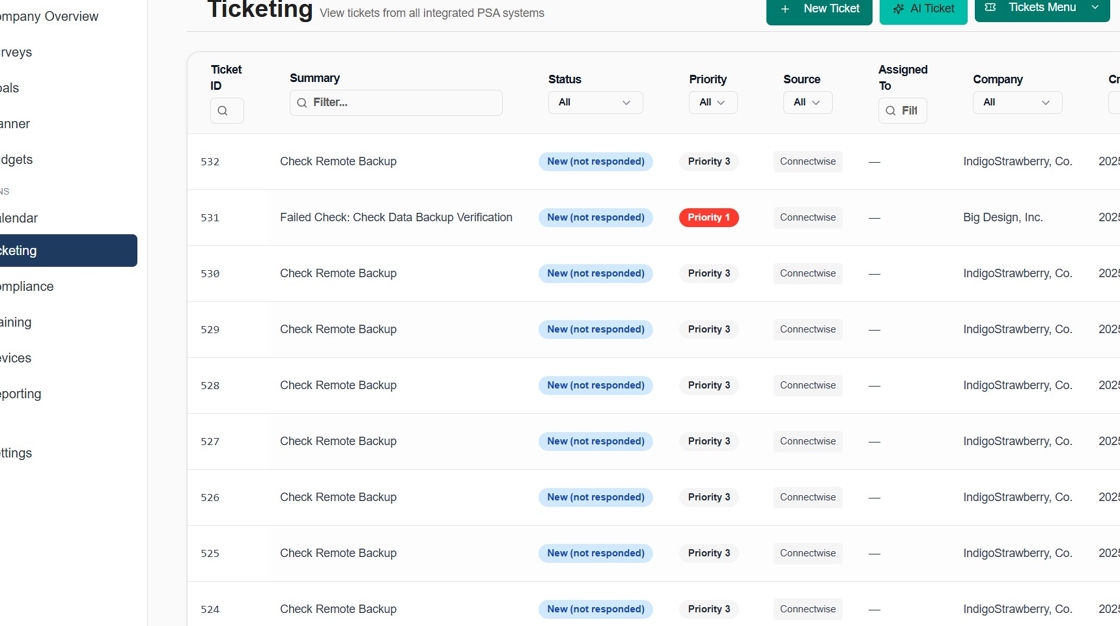
3
Click New Ticket
Click New Ticket at the top right. The AI Assistant panel may open on its own, because the default setting opens it with the page.If the panel did not open, click Open AI Assistant on the Create a Ticket with AI card, or click the floating AI button.
4
Describe the request
Type your request in the assistant’s message box. Include what the problem is, when it started, who is affected, any error message, and what you already tried.Example descriptions:
- “I need a new employee setup for John Smith starting Monday in the Sales department”
- “My email isn’t syncing on my phone since yesterday afternoon”
- “Request for Adobe Creative Suite license for the marketing team”
5
Send the message
Click the send button (Send message) or press Enter. The assistant picks the best template from the ones available for the company and prepares the answers it can infer.
6
Apply the suggested changes
A Suggested Changes card appears in the assistant panel with the Template, the Form content it will fill in, and any Questions to complete the draft. Read it, then click Apply to draft. Click Discard to throw the suggestion away.Nothing is written to the form until you click Apply to draft. After you apply it, a “Template selected and fields populated” message appears and the Template Selected badge shows at the top of the page.
7
Review the AI Generation Summary
The form shows an AI Generation Summary with three lists. Fields we filled for you shows what the AI completed. Required fields you need to complete shows what is still empty. Optional fields available shows the rest. Click a required field in the list to jump to it.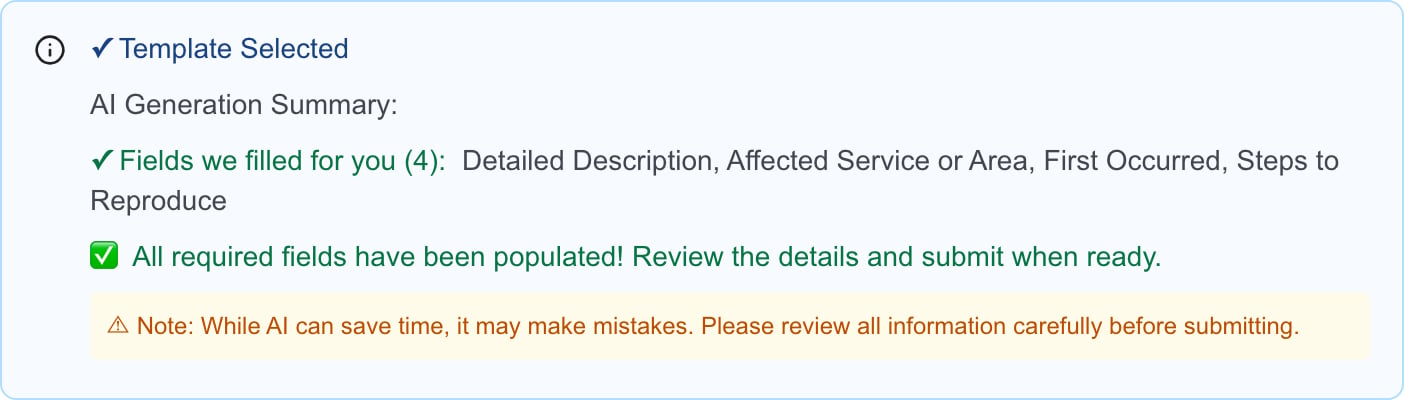
8
Complete the template sections
Go through every section of the form. Multi-section templates show each section on its own tab, so visit each one. Required fields are marked with an asterisk (*). Check the Subject, names, selected dropdown options, and every date. The AI can misread dates such as “next Monday”, so set each date with the calendar picker.
Check the Subject, names, selected dropdown options, and every date. The AI can misread dates such as “next Monday”, so set each date with the calendar picker.9
Add attachments
If the template has a file-upload field, attach screenshots or documents there.
10
Click Create Ticket
Click Create Ticket at the top right and wait for the result. A message such as “Ticket #1234 created successfully!” confirms it.If required fields are missing, an error lists them (for example “Please fill in required fields: Job Title, Department”). Complete those fields and click Create Ticket again. See understand the result if the ticket is created but attachments or an appointment fail.
See understand the result if the ticket is created but attachments or an appointment fail.Related guides under the reply
If your organization uses related guides, the assistant also shows up to three documents that may solve the request beneath its reply, each with a short summary. Clicking one opens the document in MSPortal; the ticket draft continues as normal. Only documents the requester may open are offered. See Suggest related guides on new tickets for how the list is curated.Change the AI result
1
Add detail in the assistant
Open the AI Assistant panel again and send another message that adds detail or describes the change. The assistant sees your current draft, so it works from what is already on the form.
2
Apply the new suggestion
A new Suggested Changes card appears. Click Apply to draft to use it. Review the form again afterward, because a new suggestion can change the template or earlier answers.
If you edit the form after a suggestion appears, the card shows Draft changed. Discard it and ask the assistant again.
Pick a template yourself
1
Leave the assistant
On the New Ticket page, click Edit form in the assistant panel, or close the panel.
2
Choose the request type
Select a request card under Request Service, or open Choose a template… under Select Template. Which one you see depends on your portal’s manual template selection setting. See How to open a ticket.
Embedded templates
Some templates contain another template inside them. For example, a New Hire template can include a New Computer Request template. If your description covers the embedded template’s questions, the AI fills those too. The summary lists them as Parent Label > Inner Label, such as New Computer Request > Model. Click a required one to jump to it inside the embedded card. Each embedded template still creates its own PSA ticket with its own board, priority, and status when you submit. AI only helps fill the questions. See Embedded templates.Write a good description
Good: “I need to set up a new employee named Sarah Johnson who starts on January 15th in the Marketing department. She’ll need access to Adobe Creative Suite, Slack, and our project management tools.”
Troubleshooting
Frequently asked questions
Does the assistant submit the ticket?
Does the assistant submit the ticket?
No. Applying the suggestion only fills the form. The ticket is created when you click Create Ticket.
Can the AI use a template I cannot normally access?
Can the AI use a template I cannot normally access?
No. It chooses from the templates available for the selected company. It does not change your permissions.
Can I use AI when no template exists?
Can I use AI when no template exists?
No. The assistant needs at least one active template. Create one first.
Should I trust every generated answer?
Should I trust every generated answer?
Review them all. Check dates, names, and selected options before you submit.
Can I continue by hand after using AI?
Can I continue by hand after using AI?
Yes. Edit the form directly, or click the back arrow in the page header to pick another template. Going back clears the current answers.