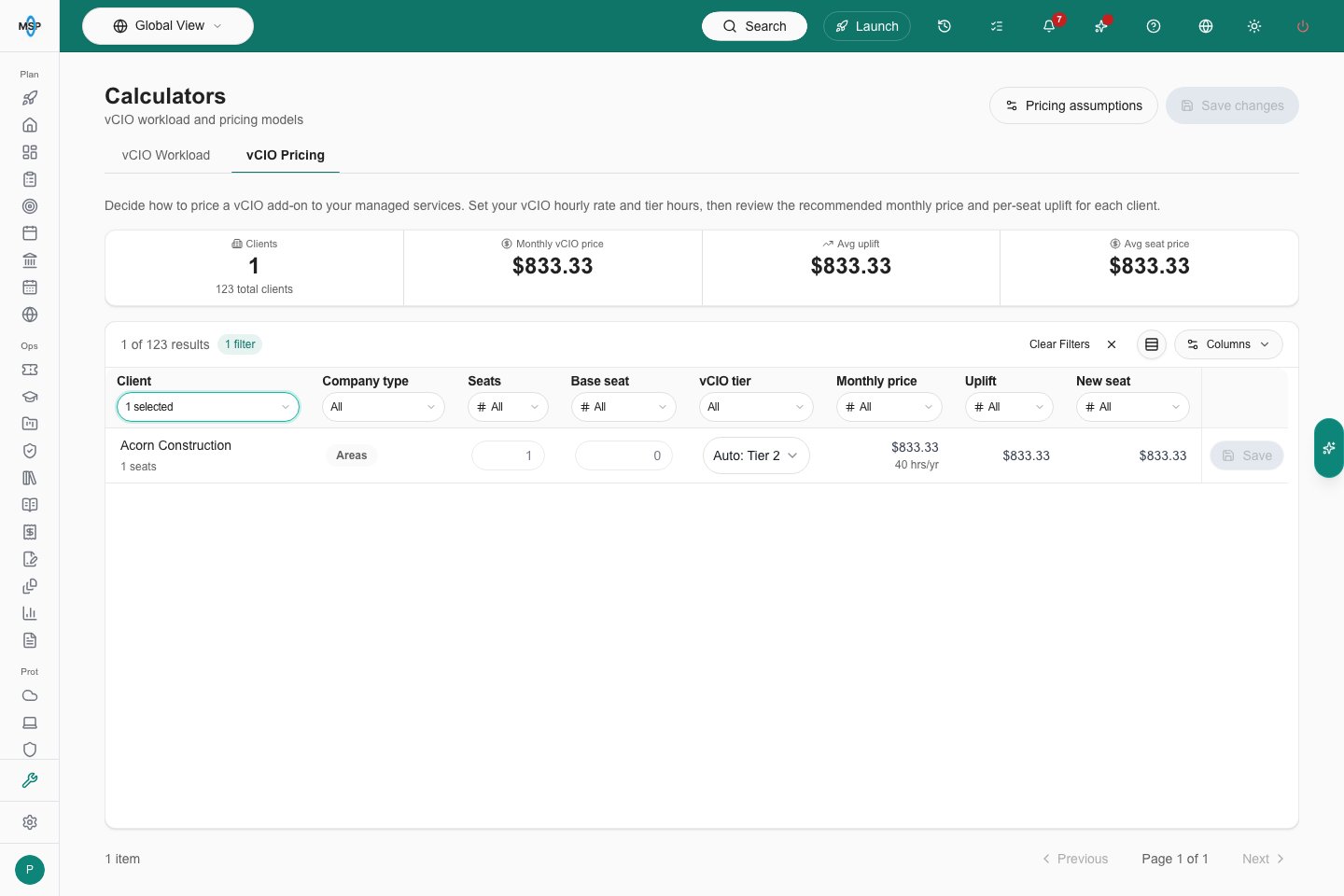
Branch preview for the October 9 release. The updated table layout and header Save changes action are not yet published.
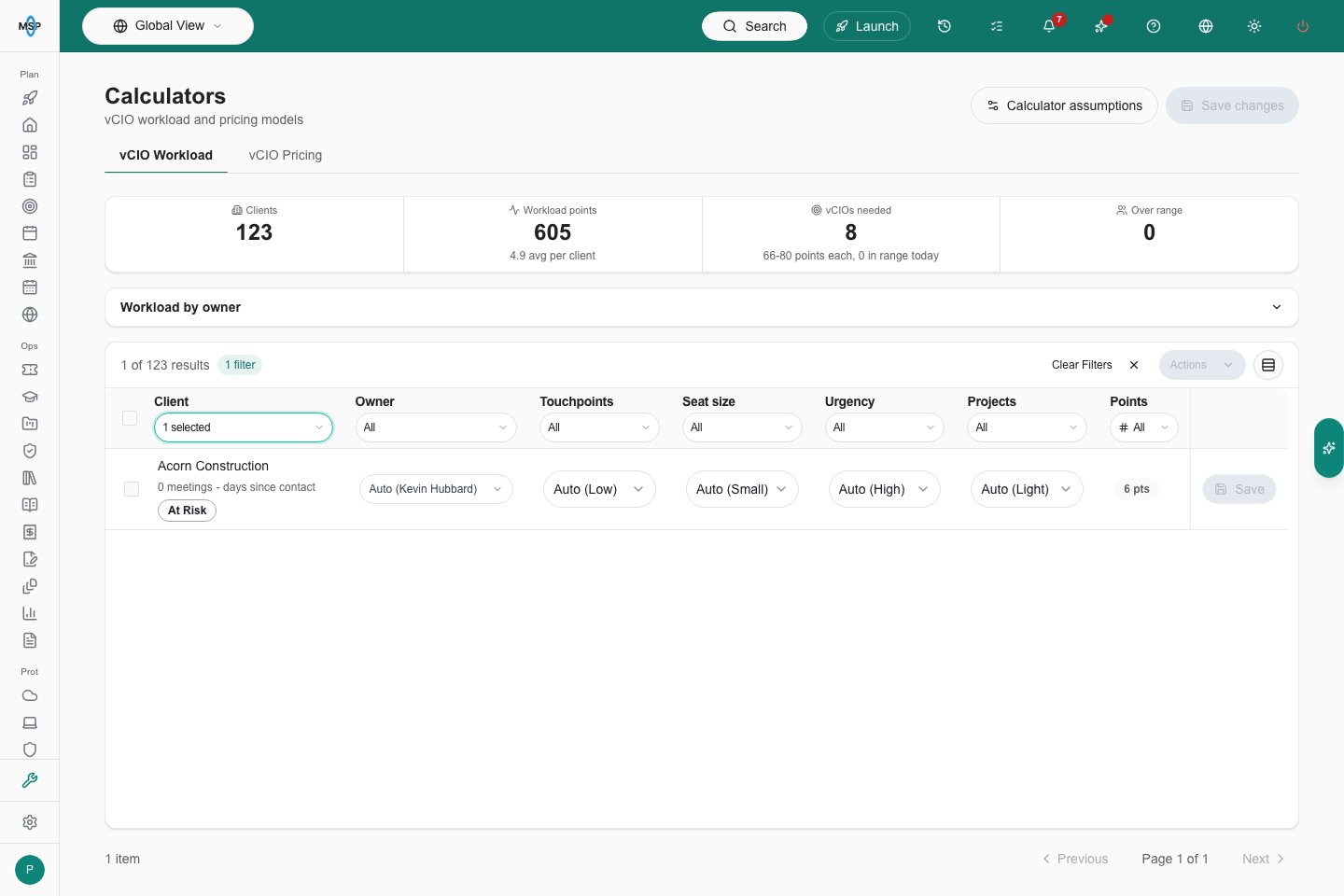
Review workload
The summary shows clients, total workload points, recommended vCIO headcount, and assigned owners over their workload range. Expand or collapse Workload by owner to review each owner’s clients, points, and range. Use the client table’s column filters to narrow the list. Adjust the owner, touchpoints, seat size, urgency, or projects for a client. Auto uses the detected value. Select clients and open the table’s Actions menu to apply the same change to the selection.Review pricing
Choose vCIO Pricing to review seat counts, base seat prices, tiers, monthly prices, per-seat uplift, and recommended seat prices. Filter Company type in its table column; on a phone, open Filters to choose it. Enter a seat count or base seat price to override the detected value, or choose a tier. Clear a number or choose Auto to return to the automatic value. A client needs both seats and a base price for a complete per-seat recommendation.