

Before you start
- To change templates, your role needs permission to write or manage ticket settings (Settings > Tickets).
- To check what a client sees, you only need to create tickets.
Check which templates a company sees
1
Pick the company
Choose the company in the company selector at the top. The template list follows the selected company and includes that company’s branch versions.
2
Open New Ticket
Click Tickets, then New Ticket. Click Edit form in the assistant panel, or close the panel, to see the list.
3
Browse the requests
Under Request Service, search Search services or problems… or pick a category. Cards are sorted by how often each template is used. In the list view, open Choose a template… under Select Template.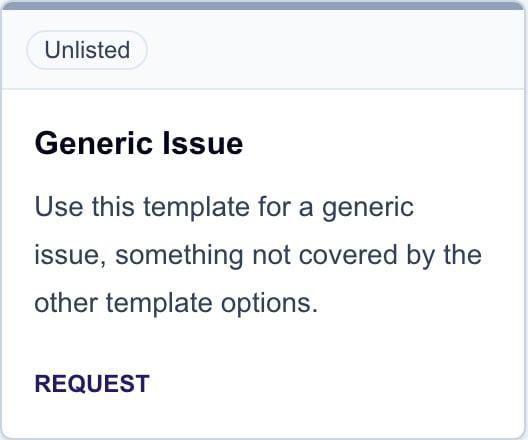
4
Compare with the template list
Open Settings > Tickets > Templates. The list shows each template’s Companies, Roles, and Groups columns, which control who sees it.
Fix a missing template
Work through these checks in order.1
Check that it is active
In Settings > Tickets > Templates, check the Status column. Turn the template on if it is off.
2
Check Companies
Click the Companies value for the template (for example “12 of 40”). Make sure the company is turned on. A company with its own branch uses the branch instead of the parent.
3
Check Roles
Click the Roles value. If specific roles are selected, the user’s role must be one of them. All means no restriction.
4
Check Groups
Click the Groups value to open Company Gating. If Types or Industries are turned on, the company must match both lists. See Company Gating.
5
Check ticket permission
The user’s role needs permission to create tickets. A direct link to a template does not bypass any of these checks.
What clients see on the form
To build or change any of these, see How to create a ticket template.
Troubleshooting
Frequently asked questions
Why do I see more templates than my client?
Why do I see more templates than my client?
The client list only shows active templates turned on for their company, role, type, and industry. Staff see more in Settings > Tickets > Templates.
Can a client's company administrator enable a template?
Can a client's company administrator enable a template?
No. Only MSP staff with ticket settings access change template availability.
Why does one company have different questions?
Why does one company have different questions?
The company may have a branch of the template. Edit the branch from the template’s Branches section.
Does a direct template link bypass restrictions?
Does a direct template link bypass restrictions?
No. The template must still be available to the company and role.