

Before you start
This is an MSP staff tool. Company portal users cannot open the page. Your role needs Ticket Trends read access; AI Analysis additionally requires Ticket Trends write access and enabled AI. Planner creation requires Planner write or management access and an eligible active subscription. Connect and map your PSA, and confirm that the tickets you need have synchronized. The available evidence depends on provider support, ticket history, mappings and exclusions. An empty result does not establish that a client has no service issues.Choose scope and run an analysis
1
Choose companies
Use the global company selector for your permitted portfolio or a particular client. Check the scope again before exporting or creating follow-up work.
2
Choose the lookback
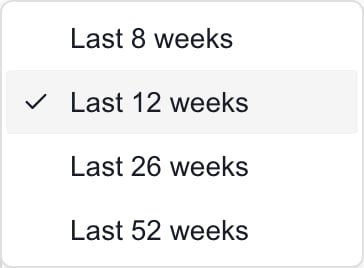
Use Weeks preset to select Last 8 weeks, Last 12 weeks, Last 26 weeks or Last 52 weeks. The page can start with a period that already has a saved analysis; 12 weeks is the fallback. Changing scope or period loads its available data and analysis; it does not automatically request a new AI report.
3
Request the brief
Click AI Analysis, or Re-run AI Analysis when an analysis already exists. This requests background generation. Wait for completion and check Last analyzed; a previous result may remain visible during a re-run. Completion time depends on the workload.
4
Check freshness and history
Open Analysis history to search saved analyses. Selecting an older entry also selects its lookback period. Viewing saved analysis from… identifies that older result. Choose Latest analysis to return to the current result for the selected scope and period.
A successful, current-format analysis normally has a seven-day re-generation cooldown. A failed run can be retried; an older-format result can show a re-run prompt. A new PSA sync does not guarantee that re-generation is immediately available.
Read the brief and evidence
Use the section navigation to jump through the report. Evidence sections remember their expanded state in this browser. Sections can be absent when the analysis has no corresponding content.
Ticket links and metric drilldowns help inspect supporting records. While generation is busy, the page can defer drilldowns. Category trend counts come from the generated snapshot; drilldowns show current tickets, so a later sync or category change can produce different totals. A saved historical narrative does not freeze every live table or drilldown on the page.
Turn recommendations into Planner work
Where Planner suggestions are available:- Select one client, then select the recommendations you want to consider. Portfolio-wide scope cannot create company-specific Planner items.
- Click Preview selected in Planner. This requests an AI preview; it does not create the items.
- In Planner Preview, review the title, summary, What, Where, Why it matters and How. Select or deselect proposals.
- Click Add selected to Planner to create the selected items immediately, or Cancel to leave without creating them.
- Open Planner to verify the new items before adding dates, owners, costs or client visibility.
Configure Ticket Trends exclusions
MSP administrators with Manage Settings Ticket Trends access can open Settings > MSP Tools > Ticket Trends. These are tenant-wide reporting exclusions, independent of the current company selector and dashboard exclusions. Select values under Boards, Types, Categories, Issue Types, Sub-Issue Types, Statuses, Sources or Priorities, using the available synchronized values. Remove a selected chip to include that value again. These changes remain drafts until Save Changes. Reset restores the last successfully saved selection in this editor; it does not undo a saved change. Saving replaces the exclusion selection, attempts to clear cached analyses and requests a historical aggregate rebuild. Saved settings do not prove that cache clearing or the background rebuild succeeded. Reopen the report after rebuilding and check its timestamps before requesting a replacement analysis. Contact your administrator if old results persist despite a successful save. The selected count is a count of excluded values, not excluded tickets. Empty dropdowns can reflect missing synchronized data or a loading failure. Exclusions do not delete tickets, stop provider synchronization or grant/revoke access to ticket records.Export and share
Use Print / PDF on an available AI report to open the browser print dialog. Review its pages before sharing. Evidence sections are intended to expand for printing; verify that the actual output contains what you need. The CSV icons beside Weekly Data, Company Metrics and Category Metrics export those numerical datasets, not the whole AI brief or a list of every underlying ticket. A company CSV reflects the company watchlist data and need not reproduce every displayed table column. For a browser full-page capture,?screenshot=1 on the Ticket Trends URL enables a flattened layout. Expand the evidence you want and inspect the result; this is a capture layout, not a separate downloadable report.
Troubleshooting
Frequently asked questions
Can Company users open Ticket Trends?
Can Company users open Ticket Trends?
No. Ticket Trends is an MSP staff page. Share only reviewed output appropriate for the intended client.
Does read access let me generate an AI analysis?
Does read access let me generate an AI analysis?
No. Generation also needs Ticket Trends write access and enabled AI. Read access and generation permission are separate.
Does changing companies automatically generate a report?
Does changing companies automatically generate a report?
No. It loads data and any saved analysis for that scope. Use AI Analysis when a new report is needed and generation is available.
Why did the page start with a different lookback period?
Why did the page start with a different lookback period?
It can prefer a period with an existing saved analysis. Twelve weeks is the fallback; select the desired period explicitly.
Why can I not re-run after every ticket sync?
Why can I not re-run after every ticket sync?
A successful current-format report normally has a seven-day re-generation cooldown. A provider sync does not remove that cooldown.
How do I return from an older saved analysis?
How do I return from an older saved analysis?
Open Analysis history and choose Latest analysis. Check the company scope, lookback and Last analyzed timestamp.
Does an older analysis freeze the ticket drilldowns?
Does an older analysis freeze the ticket drilldowns?
No. Drilldowns show current tickets and supporting datasets can have a different freshness from the saved narrative. Compare dates and scope before reconciling totals.
Are status colors proof of an SLA failure?
Are status colors proof of an SLA failure?
No. They summarize report signals. Verify the underlying tickets and your actual service commitments before drawing that conclusion.
Can I add Planner suggestions for all companies at once?
Can I add Planner suggestions for all companies at once?
No. Select one client and at least one recommendation, with Planner write or management access.
Is adding the same recommendation again safe from duplicates?
Is adding the same recommendation again safe from duplicates?
Do not assume so. Check Planner after a successful or uncertain request before repeating it; a second submission can create another set.
Does a CSV contain the whole AI report?
Does a CSV contain the whole AI report?
No. Each CSV control exports its numerical dataset. Use Print / PDF for the displayed report and review the output before sharing.
Does Reset undo saved Ticket Trends exclusions?
Does Reset undo saved Ticket Trends exclusions?
No. Reset restores the last successfully saved selection in the current editor. To undo a saved exclusion, change the selection and save again.
Does the exclusions Saved message prove the report was rebuilt?
Does the exclusions Saved message prove the report was rebuilt?
No. The settings can save even if cache clearing or the rebuild request fails. Check the report after rebuilding and ask your administrator to investigate persistent old results.