

Before you start
- Every signed-in user can edit their own profile.
- Open Settings > User Settings. This page shows your personal information, sign-in method, access summary, and email preferences.
- You cannot edit other people’s accounts here. Your MSP manages roles and access.
- During impersonation, User Settings is read-only. Sign in as yourself to make changes.
Edit your personal information
1
Open the profile editor
Go to Settings > User Settings and click Edit profile. The Personal information drawer opens.
2
Update your details
Enter your Full name. You can also set an optional Display name (optional), Title (optional), and Department (optional).Choose your Timezone, or select Use Organization Default to follow the organization’s timezone. This is your personal preference. It does not change the organization’s default.
3
Save the changes
Click Save changes and wait for Profile updated successfully. Closing the drawer discards unsaved edits.
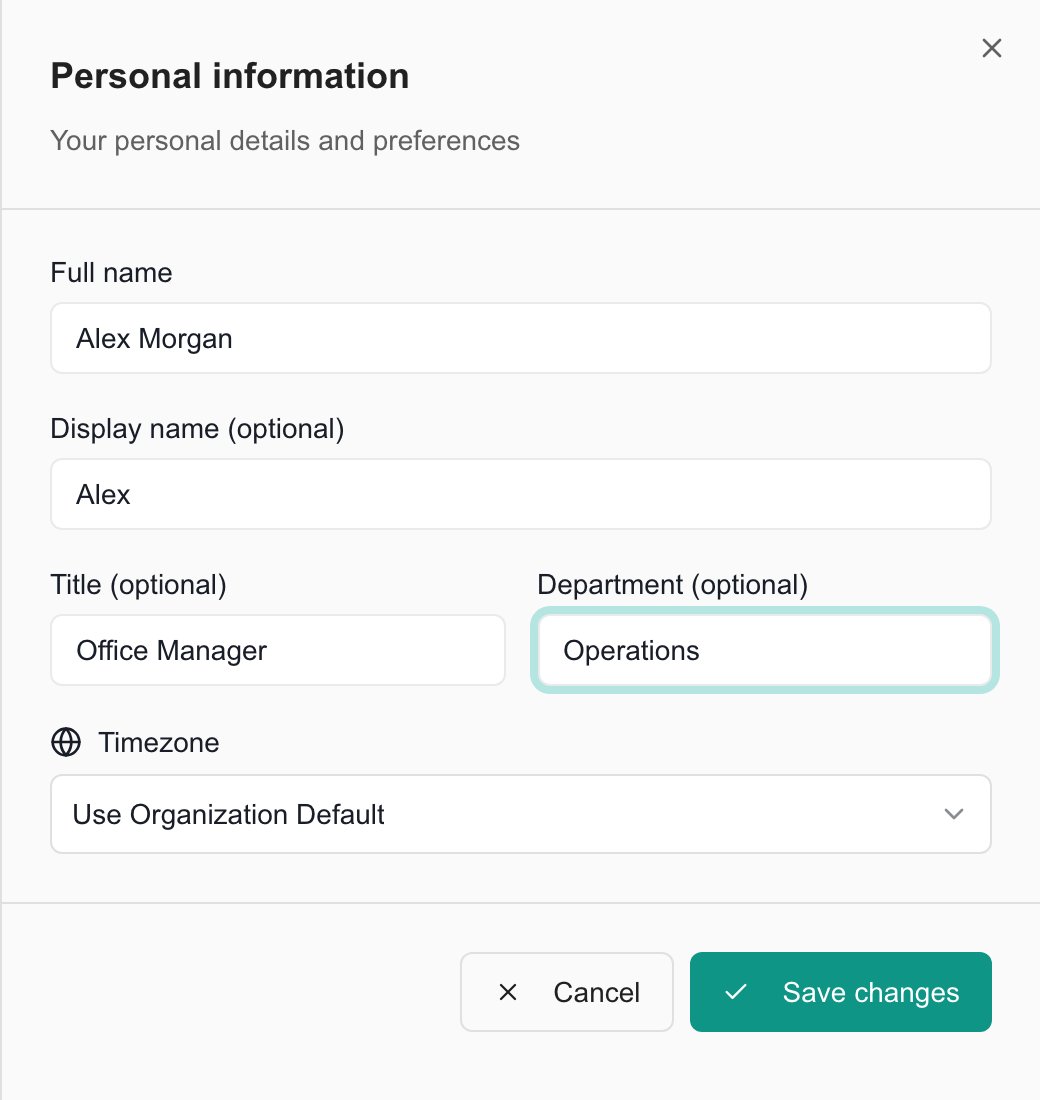
Unsaved example details in the shared profile editor, captured in MSPortal Demo.
Read the portal in your language
Use the language menu (globe icon) in the portal header to choose your preferred language. Portal labels and controls follow that selection. Names and content entered by people, such as ticket descriptions, report text and company names, stay in their original language. Translations cover report controls, integration setup, page titles and shared pagination. The screenshot below shows German labels alongside existing English report titles.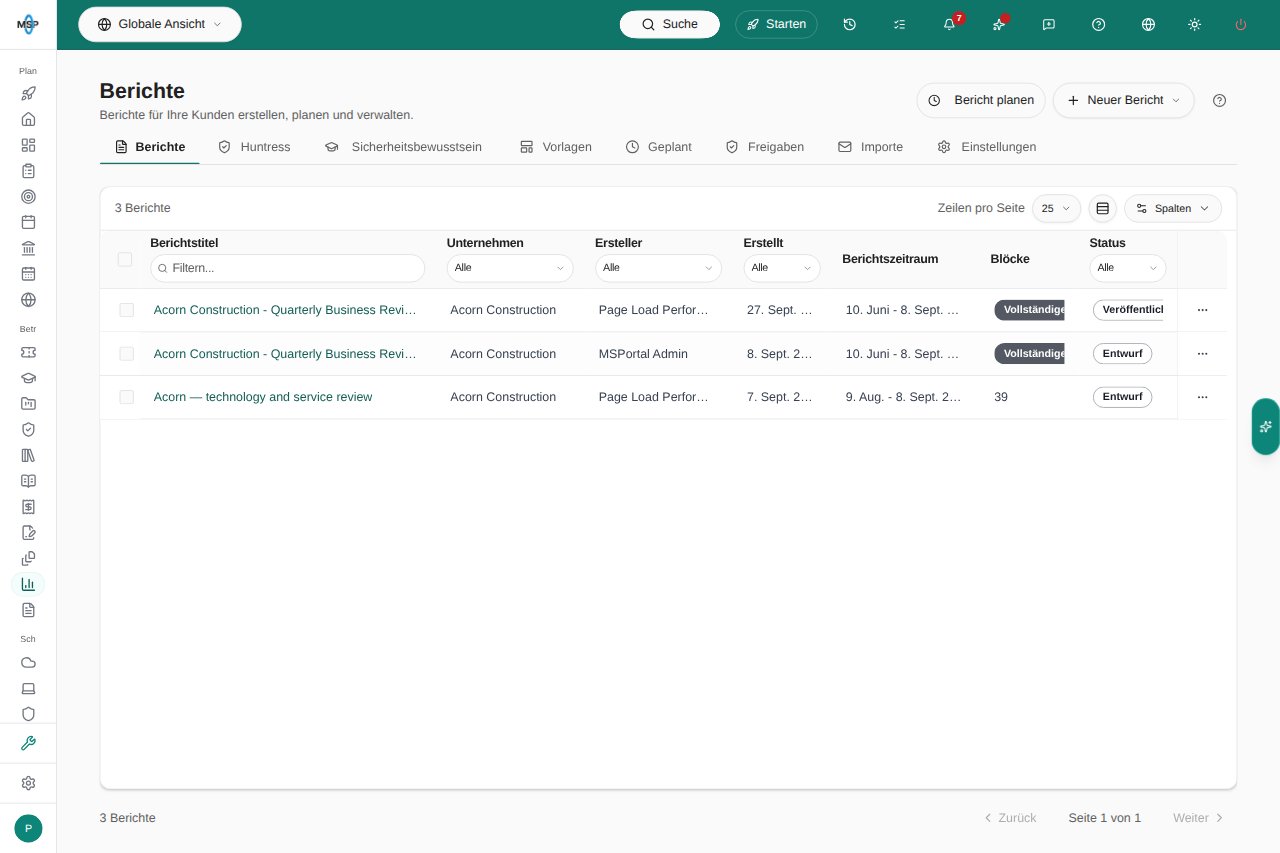
Report controls and counts in German.
Change your profile picture
1
Choose an image
On Settings > User Settings, click Change Avatar under your profile picture. Choose a PNG or JPEG image under 5 MB.
2
Crop it
In Crop Avatar, adjust the crop, zoom, and rotation.
3
Apply
Click Save & Apply and wait for Profile picture updated successfully! The avatar saves separately from the Personal information drawer.
Review how you sign in
1
Open the sign-in card
On Settings > User Settings, click Manage sign-in. The page scrolls to the Sign-in method card.
2
Read your sign-in details
The card shows your sign-in email and whether you use email and password or a Microsoft or Google workspace.
3
Manage a Microsoft or Google account (optional)
If you sign in with Microsoft or Google, click Manage in Microsoft or Manage in Google. That opens the provider’s account security page in a new tab.
Turn product update emails on or off
1
Find the card
On Settings > User Settings, find the Email Notifications card.
2
Switch the preference
Turn Product update emails on or off. It saves immediately, and there is no Save button. Wait for the confirmation message before you leave.
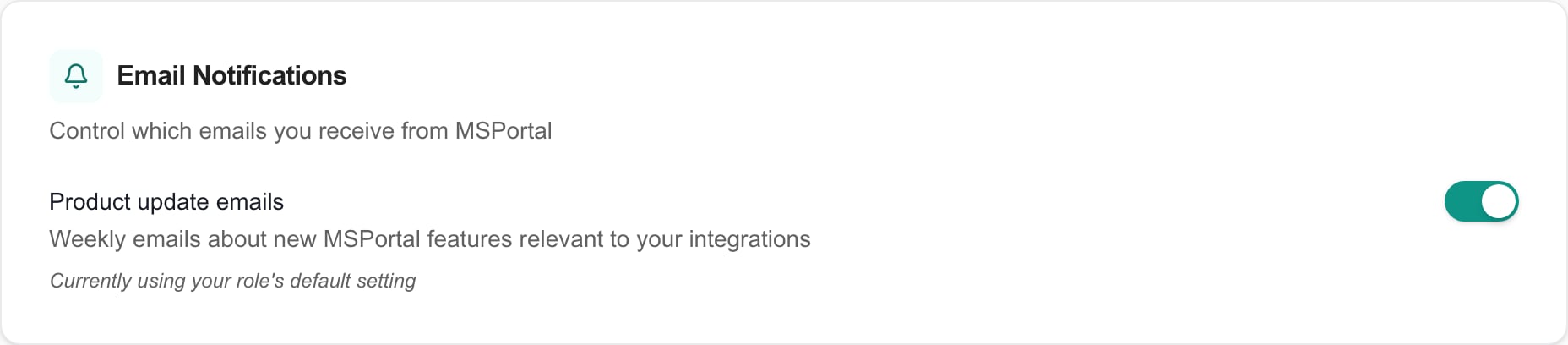
This switch controls product update emails about MSPortal features. It does not control ticket replies, security messages, or other notifications from your IT provider.
Troubleshooting
Frequently asked questions
Does changing my display name change my permissions?
Does changing my display name change my permissions?
No. Names and personal preferences do not change your role or company access. Your MSP manages access.
Will turning off product update emails stop ticket emails?
Will turning off product update emails stop ticket emails?
No. It only controls product update emails. Ask your MSP about ticket and other notification settings.
Does the timezone change affect everyone?
Does the timezone change affect everyone?
No. Timezone is your personal preference. Choose Use Organization Default to follow the organization’s timezone.