

Find and filter events
Audience: Company users with Calendar access and MSP staff. Your MSP assigns the companies, layers and actions you can access. Creation and management need additional permissions.Find events in Calendar
Choose Day, Week, Month or Year, open an event and troubleshoot a missing meeting.
Filter events and layers
Use search, staff, status, busy blocks, hidden titles and Reset.
Find your meetings
Read Upcoming and Past, personal filters, summary counts and busy blocks.
Use List View
Filter meeting records by date, title, company, participant, type and status.
Navigating the Calendar
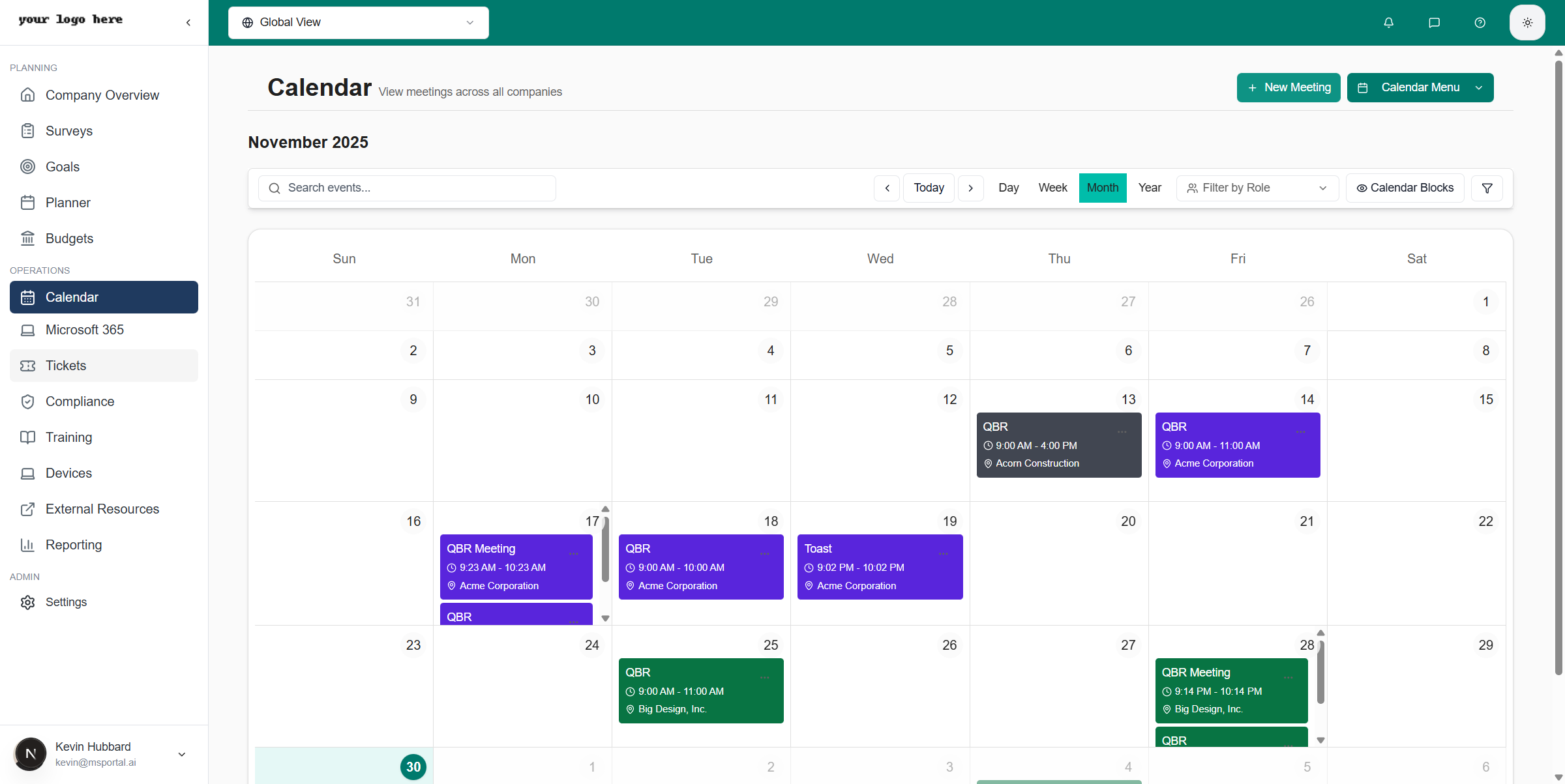
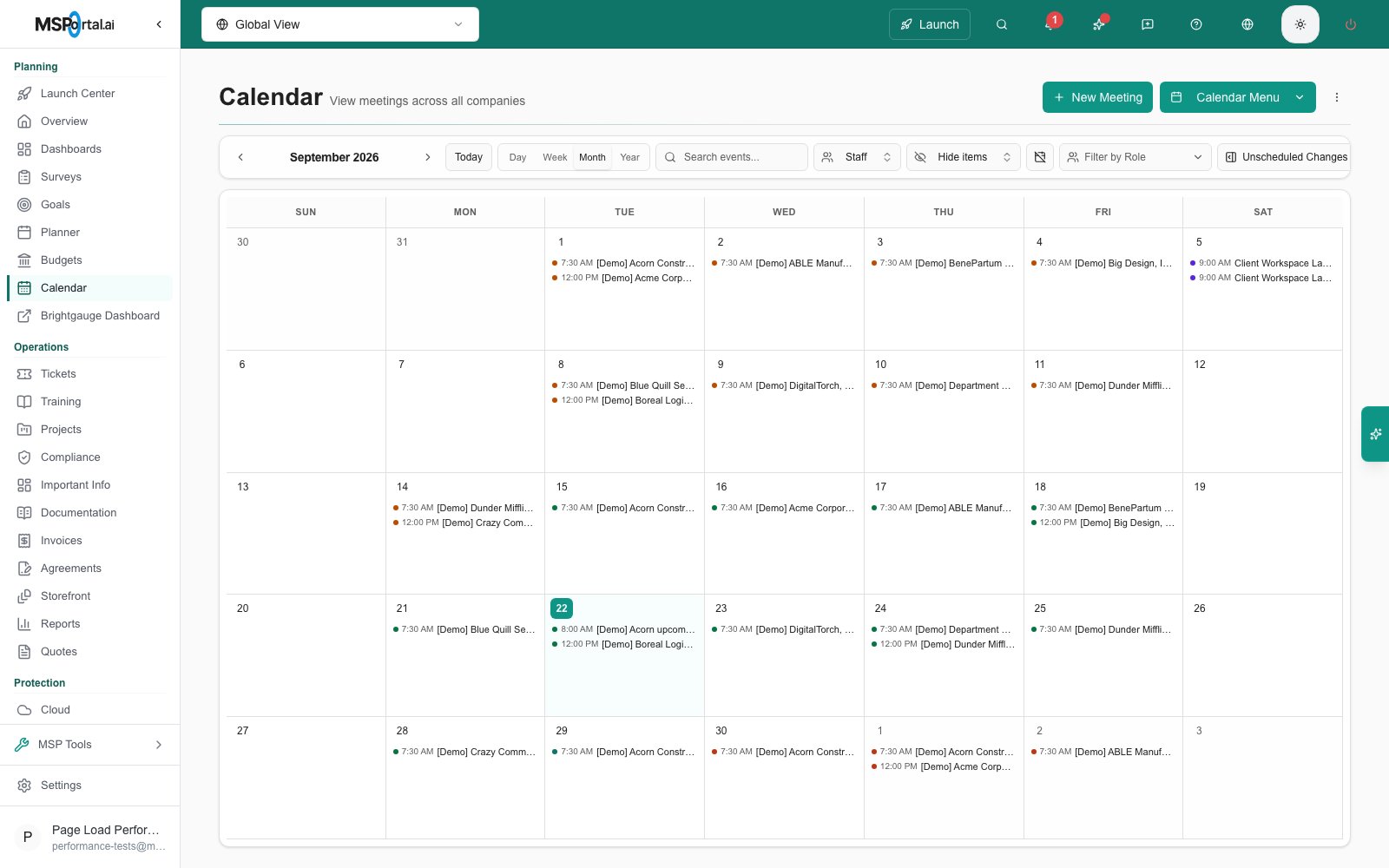
On a fresh browser, Calendar starts in Month view. It can restore your saved view when you return. Use the view switcher in the header to change between Day, Week, Month, and Year views. Each event card shows:- Meeting title - The name of the meeting (e.g., “QBR” for Quarterly Business Reviews)
- Company name - Which client the meeting is associated with
- Color coding - Visual distinction between different meeting types
Viewing Options
Use the Global View dropdown at the top to:- View events across your accessible company scope
- Filter to a specific accessible company
Filtering the Calendar
Open the filter drawer from the calendar header to narrow what’s displayed. You can search events by name and filter by:- Event Types - QBRs, client meetings, internal meetings, training, and more
- Companies - Show only selected clients
- Staff - Show only selected team members
- Status - Scheduled, Confirmed, In Progress, Completed and Canceled; canceled events are hidden by default
- Role - Filter by your team’s assigned roles
Quick Preview
Click any meeting on the calendar to see a preview dialog: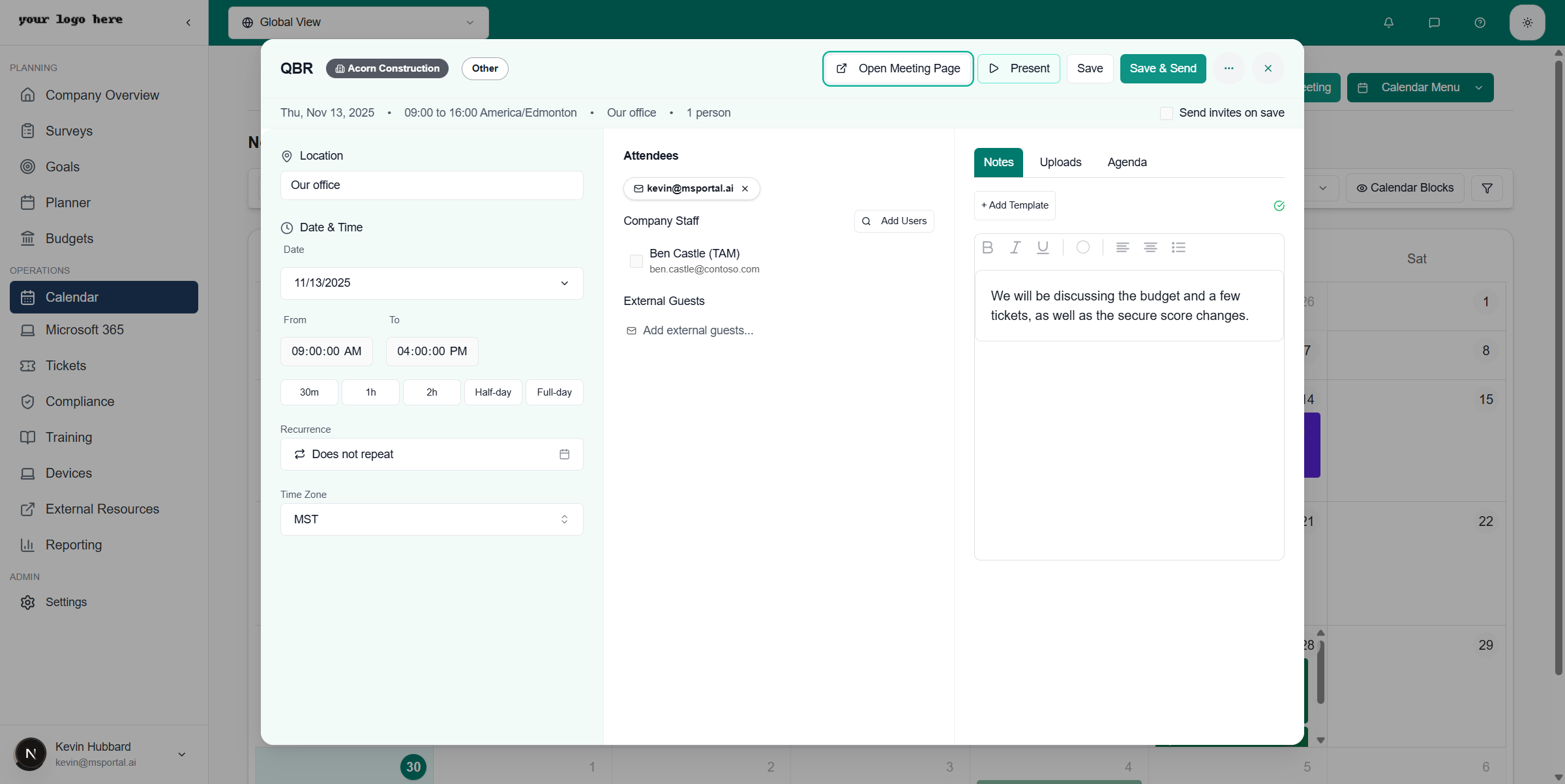
- Date and time - When the meeting is scheduled
- Location - Where the meeting takes place (physical address or virtual link)
- Attendees - Who’s invited to the meeting
- Notes - Any meeting notes or preparation materials
Creating a Meeting
To create a new meeting:1
Open the meeting dialog
Click the New Meeting button in the top-right corner, or click an empty slot on the calendar.
2
Fill in the meeting details
- Title - Name of the meeting
- Company - Which client this meeting is for
- Meeting Type - QBR, Strategy Session, Check-in, etc.
- Date and Time - When the meeting occurs, in the time zone you select
- Location - Physical address or video call link
- Attendees - Invite participants from the company and your team
- Recurrence - Make the meeting repeat (see Recurring Meetings)
- Teams meeting - Toggle whether the invitation includes a Microsoft Teams link
3
Save as a draft or send invitations
Click Save Draft to keep the meeting internal, or Save & Send to publish it and send invitations to every attendee.
Draft Meetings
Every new meeting starts as a draft. A draft appears on your calendar with a Draft status, so your team can see and refine it, but attendees receive nothing until you decide to send it.- Save Draft keeps the meeting internal. You can keep editing the time, attendees, agenda, and details.
- Save & Send publishes the meeting and sends calendar invitations to all attendees.
Invitations, Microsoft 365, and Teams
When your tenant is connected to Microsoft 365, each published meeting creates a single organizer-owned event in the organizer’s Microsoft 365 calendar. Attendee lists are deduplicated, so every participant receives exactly one invitation with one meeting link, and updates to the meeting flow through to everyone’s calendar.Teams Meeting Link
Each meeting has a Teams meeting toggle that controls whether the invitation includes an online meeting link:- Turn it on to add a Teams link to the calendar invitation. Once the meeting is published with Teams enabled, the link cannot be turned off.
- Turn it off for in-person meetings or meetings that use another conferencing tool.
- After publishing, use Join Teams meeting to join directly, or Copy Teams link to share it.
The Teams toggle requires the organizer to be mapped to a Microsoft 365 mailbox and an administrator to have granted Microsoft 365 calendar consent. If either is missing, the dialog explains what’s needed.
Without Microsoft 365
Tenants without a connected Microsoft 365 calendar still send full calendar invitations. When Microsoft 365 publishing isn’t available for the organizer, the meeting dialog offers Use ICS invitations: attendees receive a standard email invitation with an ICS attachment that works with any calendar application. You can also export any meeting with Export .ics from the meeting dialog’s options menu.Recurring Meetings
Set the Recurrence field in the meeting dialog to make a meeting repeat. Available patterns:- Daily
- Weekly
- Biweekly
- Monthly
- Quarterly
- Yearly
Editing a Recurring Meeting
When you edit or cancel a meeting that belongs to a series, MSPortal asks whether the change applies to:- This occurrence - Only the selected meeting changes. The rest of the series is untouched.
- Entire series - The change applies to this and all other meetings in the series.
Time Zones
Every meeting has an explicit time zone, set in the meeting dialog. Invitations and calendar entries land at the correct local time for each participant, including across daylight saving transitions. You can also enable Multi-timezone Display in calendar settings to show additional time zones alongside your own.Meeting Types
The main Calendar filter currently offers QBR, On-site Tech Visit, Internal Meeting, Client Call, Project Milestone, Compliance Review, Business Review, Service Call and Other. These are event-type filters; selecting one does not create a meeting.Import Outlook meetings (branch preview)
MSP staff with meeting creation access can open Import Outlook meetings from the ⋮ Page actions menu in the Calendar header, beside New Meeting. On a phone, open Actions and choose Import Outlook meetings. The stacked-layers menu controls visibility. Choose a calendar date range, then select up to 25 of your own Outlook appointments to review. Opening import enables Appointments and My Outlook appointments so eligible source appointments can load. Private and confidential events are excluded. If no appointments appear, choose another date range or wait for Outlook appointments to load.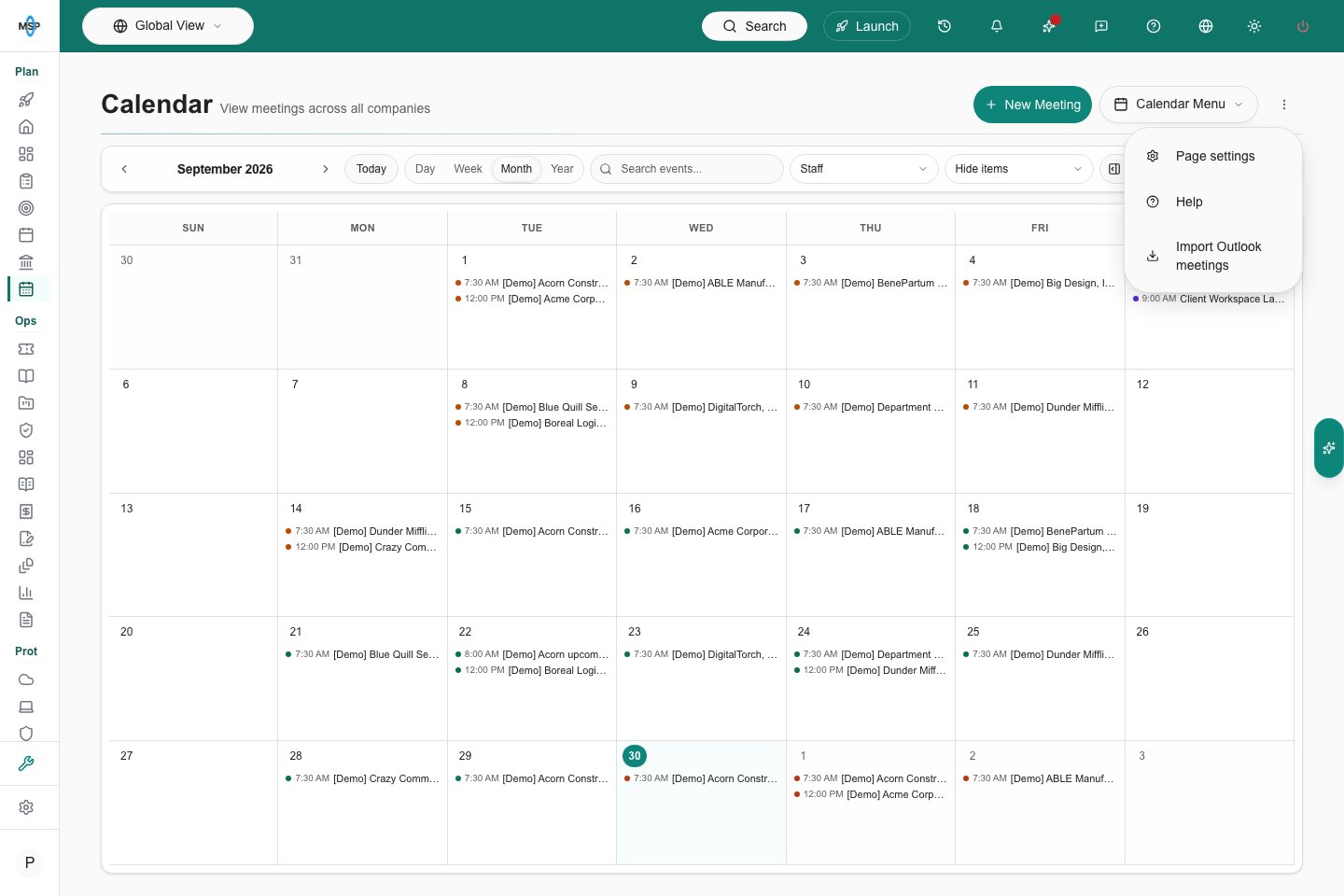
Branch preview: Outlook import is a header action beside New Meeting.
Calendar Layers
Open the stacked-layers icon in the toolbar to control the available layers:- Appointments - MSPortal meetings, Microsoft 365 busy blocks, and appointments, service calls, and schedule entries from your PSA
- Changes - scheduled changes from MSPortal and your PSA, plus freeze windows, with conflict warnings
Next Steps
Recurring Meeting Booking
Let clients choose a recurring QBR or compliance review schedule
Meeting Pages
Learn how to manage meeting details, attendees, and agendas
Presenting
Present meeting content professionally to clients
Meeting Summaries
Generate and send AI-powered meeting summaries
Change Management
Request, approve, and schedule changes with freeze windows and conflict detection