

Before you start
- You can open Settings > Integrations and have permission to manage integrations.
- You have the provider’s credentials, such as an API key or an admin sign-in.
- Your companies exist in MSPortal, or you can import them, so you can match each provider organization to one.
Connect an integration
1
Open Integrations
Go to Settings > Integrations and check the existing connections on the Active tab before you add another one.
2
Start the setup
On the Directory tab, find the provider and select Connect. To change a connection you already have, select Open on its row in Active.
3
Follow the provider guide
Pick your provider in the table below. Each guide lists the credentials, settings and permissions that provider needs.
4
Import or match companies
Link each provider organization or customer to the MSPortal company it belongs to.
5
Check the results
Confirm the integration shows as connected, then check that data synced and appears for the right companies. Connecting does not turn on every data area, so review what the provider syncs.
Move around a connection
On desktop, the Setup guide menu on the left and the task on the right scroll independently. Scroll the task to reach its remaining settings and Back or Continue buttons; the connection header stays in place. Scroll the menu to reach steps farther down the list. You can collapse or expand the menu with the button beside Setup guide. On a phone, tap Setup guide above the task to open the steps, then select the page you want to visit.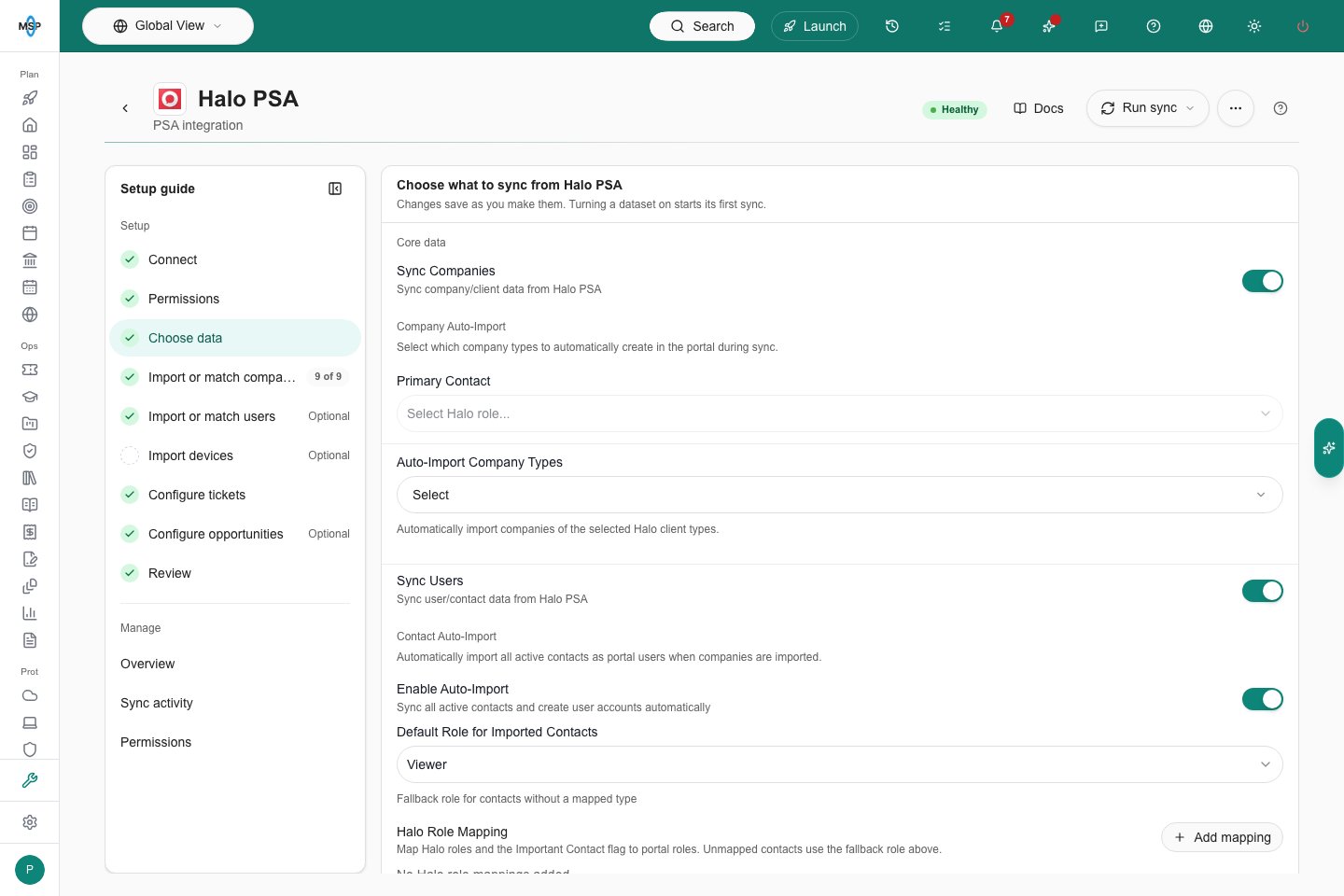
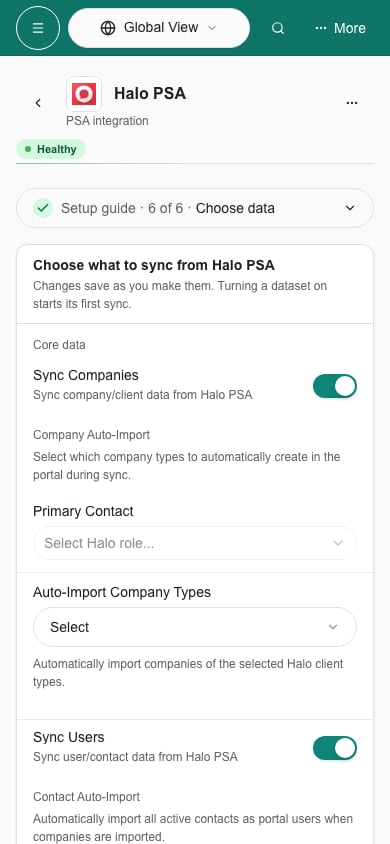
Connect, match and verify
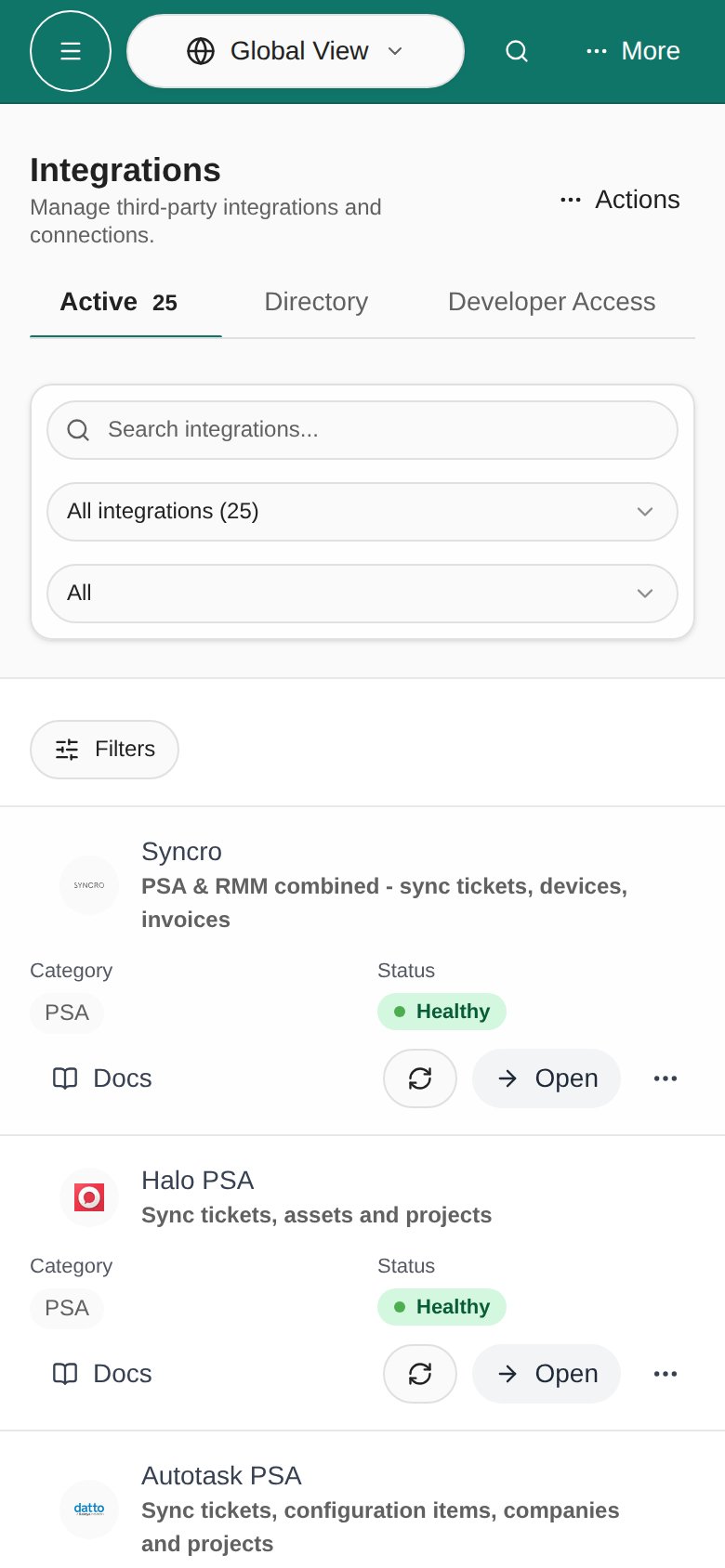
Open Settings > Integrations. Review Active connections before adding another instance. Use the row’s Docs button to open provider documentation; it sits at the left of that row’s action group. Open the connection to review its setup and ongoing settings.- Desktop
- Phone
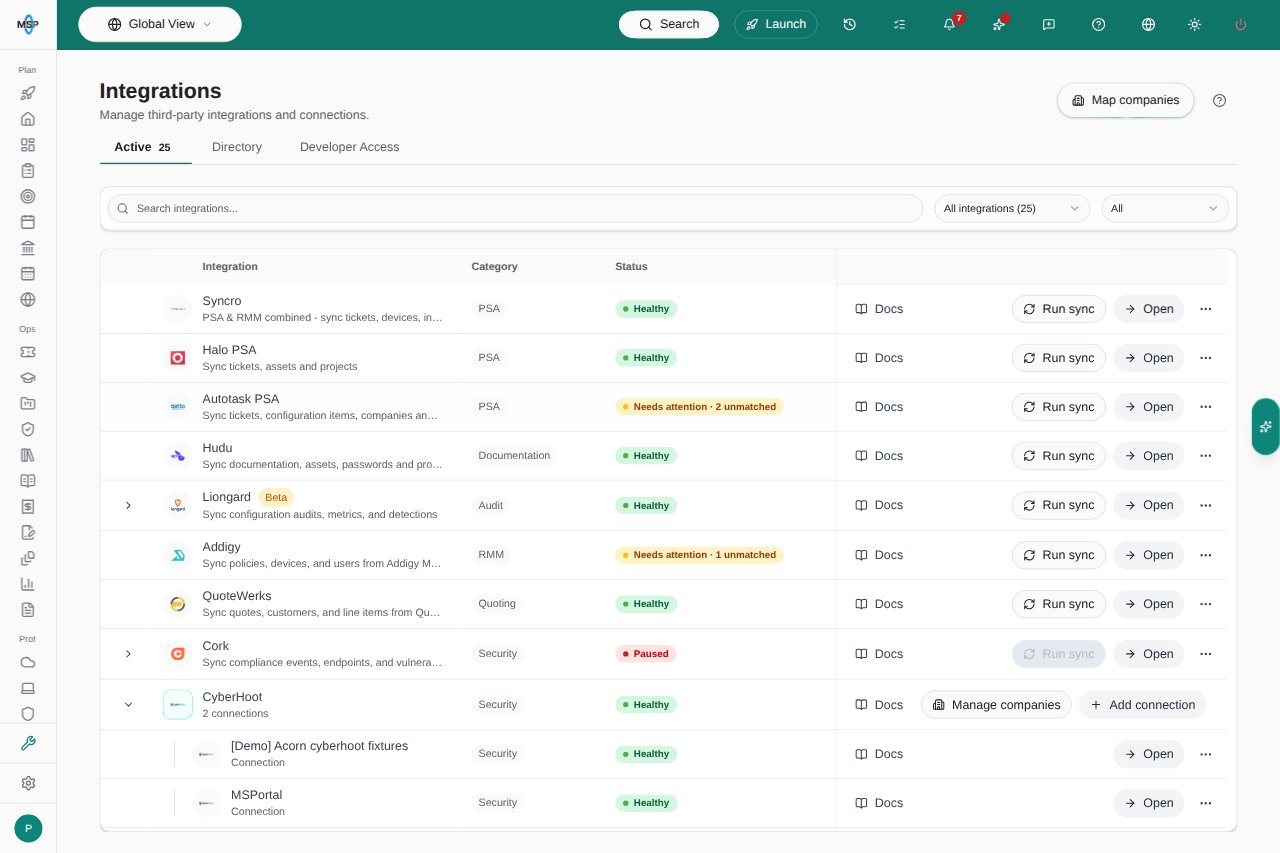
Active connections use consistent Docs actions.
For selection limits, email review and save behavior, see Import companies and Import users. Import or match at least one company to open its contacts and devices. You can return to import more records without resolving every company or contact; other companies can wait.
The same provider tasks open inside Launch Center when connection pages are enabled. Company-specific connections and provider consent screens can have their own flow.
Some text forms have an explicit save action, while switches, pickers and matching actions save immediately. Wait for each result before leaving. A connection, completed setup or accepted match does not itself prove client visibility. Review company links, user roles and automatic import settings before enabling client access.
Return to an existing connection
Use Overview for its status and Sync activity to inspect synchronization. Open the relevant task to change saved settings. Supported credential updates use Test connection and Save changes; a masked credential means a value is stored. Changing the vendor URL can require entering the secret again. Use Run sync, where the provider offers it, when you intend to request a new synchronization. Disconnect…, under More actions in the connection header, removes the connection’s stored credentials, matches and synced data after confirmation. Vendor-side credential revocation is separate.Provider setup and compatibility
Providers differ in how they sign in, map companies and sync. Some services connect per company or through another system instead of through an integration card.Additional provider setup
These guides cover both complete connection workflows and credential intakes. A credential intake submits access for integration development; it does not start live data synchronization.Imports, synchronization, and maintenance
- Integrations FAQ
- Sync Schedules
- Import Users
- Import Companies
- Import Devices
- Clear and Resync Integrations
- Warranty Writeback to Autotask
- Warranty Writeback to IT Glue Configurations
- Warranty Writeback to Hudu and IT Glue Flexible Assets
Frequently asked questions
Does every provider have the same setup steps?
Does every provider have the same setup steps?
No. Sign-in, company mapping, sync and supported actions differ by provider. Follow the provider’s own guide.
Can my clients see the data once a provider is connected?
Can my clients see the data once a provider is connected?
Not automatically. Data must sync and be mapped to the right company, and the client’s role must allow it. Check each.
Should I add another connection when data is missing?
Should I add another connection when data is missing?
No. Check the existing connection’s permissions, scope and company mapping first. A second connection can duplicate records.
Where do I go when data is missing?
Where do I go when data is missing?
Start with the Integrations FAQ.