

Before you begin
Your organization must have Client Onboarding enabled. Viewing requires onboarding read access; creating or changing templates and portals requires onboarding write access and active billing. Convert to Client requires onboarding management access. Your role and company scope can limit what appears. Portals are onboarding instances launched for a specific company. When you create a portal from a template, it copies the template’s phases and tasks into a draft workspace where you track progress, communicate with clients, and manage the onboarding process.Launching a Portal
Open the Company Page
Start Onboarding
Add Client Contacts
Create and review the draft
Activate the Portal
Portal Lifecycle
Portals move through these stages:The Onboarding Tab
The company onboarding page has six tabs for managing the portal: Overview, Tasks, Documents, Pages, Activity, and Settings. Where a company has multiple portals, select the intended portal on Overview and confirm its name before making changes.Overview Tab
The main dashboard showing:- Portal status with progress percentage
- Phase-by-phase progress bars showing completion
- Task summary with counts by status
- Quick actions for managing the portal lifecycle
Tasks Tab
The primary workspace for managing onboarding tasks.Status Legend
At the top, a legend shows the four task statuses with their icons:- Pending (circle) — Not yet started
- In Progress (clock) — Work underway
- Completed (checkmark) — Done
- Blocked (lock) — Waiting on a dependency
Phase Accordions
Tasks are grouped by phase in expandable accordions. Each phase header shows:- Phase name and status badge
- Task completion count (e.g., “3 of 7 completed”)
- Progress bar
Task Rows
Each task row displays:- Status icon — Click to update, right-click for all options
- Task title — With evidence type badge (signature, credentials, meeting, etc.)
- Owner badge — MSP or Client
- Due date — Red if overdue, amber if due within 3 days
- Assigned user — Who is responsible
- Priority indicator — For high and critical tasks
- Evidence content (signatures, credentials, uploaded files, form responses)
- Task description
- Comment threads — both client-facing comments and internal notes
- Checklist items (if attached)
Task Comments and Internal Notes
Each task has two separate conversation streams:- Client-facing comments — shared between your team and the client. Both sides can post and read, enabling back-and-forth without leaving the portal.
- Internal notes — visible only to your MSP team for tracking work, blockers, or handoff notes. Clients never see these.
Task Assignment
Assign tasks to MSP team members individually:Click the Assignee Area
Select a User
Sending Task Emails
Send task summary emails to client contacts:- Send All Tasks — Emails a complete summary of all tasks with status and due dates
- Send Phase Tasks — Emails tasks for a specific phase only
- Send Task Reminder — Send a reminder for an individual task
Documents Tab
The document review queue where you triage files uploaded by clients. Summary tiles across the top show counts for Uploaded (needs review), Approved, Requested (still required), and Rejected. Documents are grouped by phase.- Search — find documents by name, phase, or original filename
- Filter by status — All Documents, Requested, Uploaded, Approved, or Rejected (each shows a count)
- Review — for an uploaded document, click Review, optionally add notes, then Approve or Reject
- Download — open the Files panel to download each uploaded file (with uploader and upload date)
Pages Tab
A review view of the Client Pages attached to this portal. The left pane lists the portal’s assigned pages with Visible and Hidden counts and a search box; the right pane previews the selected page. A source badge shows whether a page is still a Shared page (linked to your library) or a Portal snapshot, and the View as dropdown opens the client portal as a specific contact so you can read the pages in place. Pages are copied into a portal from the template when it’s created. To change which pages appear, edit the template’s Client Pages before launching. See the Client Pages guide.Settings Tab
Configure this portal’s client display sections and task interaction mode, then click Save Changes. These settings apply to this portal rather than changing the template defaults. Use View as afterward to check the result for the relevant contact or role.Activity Tab
Recorded portal activity, with server-side search and type filtering. A recorded event is useful evidence of an action, but is not by itself proof of email delivery or successful storage of a downloaded file. Events tracked include:- Portal and phase status changes
- Task completions and assignments
- Document uploads, approvals, and rejections
- Contact access and invitations
- Signatures and credential submissions
- Meeting scheduling
- Comments and questions
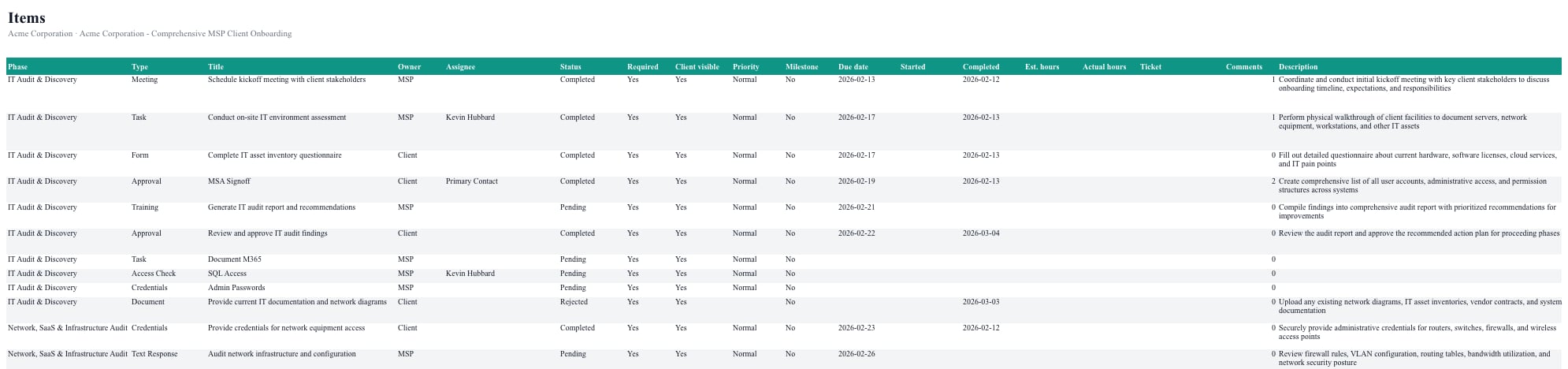
Exporting an Onboarding to Excel
.xlsx workbook for the selected portal. The export changes nothing in the portal.

Contact Management
Manage who has access to the client portal.Adding Contacts
Open the Contact List
Add a Contact
Send Invite
Contact Roles
Select an available client role configured by your MSP. Roles help identify responsibility and can affect task visibility or assignment. Common examples include:- Primary Contact
- IT Contact
- Decision Maker
- Finance Contact
- Office Manager
Managing Access
- Send invite email — Send the access link again if the contact lost it
- Revoke Access — Immediately disable a contact’s portal access
- Regenerate invite link — Create a replacement access link; the previous link and active sessions are invalidated. Share the replacement deliberately.
Previewing as a Client
Use the View as dropdown to open the client portal using a selected contact or role context. It appears in three places:- The portal’s Overview tab
- The portal’s Pages tab
- The portal list under Settings > Onboarding
Meeting Scheduling
Schedule meetings directly from meeting-type tasks.Click Schedule Meeting
Set Meeting Details
Select Attendees
Send Invitations
Credential & Signature Review
Reviewing Credentials
When a client submits credentials through a credential handoff task:- Open the task detail panel.
- Read Retrieve onboarding credentials and secure files before choosing Reveal & Delete or Download & Destroy.
- Prepare to retain the returned information securely. These actions consume the stored submission; opening a task does not retrieve it.
Reviewing Signatures
When a client signs a signature task:- Open the task detail panel to view the signature image
- See signer details: name, email, IP address, and timestamp
- If a document was attached, the signed document is also available
PSA Integration
Use Link Project to choose MSPortal Projects or the company’s available PSA project system. MSPortal Projects supports native project tracking without a PSA. Provider availability, company mapping, permissions, and PSA defaults determine external options. Link Project and Create & Link save when used; they are not unsaved selections awaiting portal activation. Creating tickets is another write action in the chosen project system. Review the target and selected tasks first.Linking a Portal to a PSA Project
Open the Portal Overview
Choose a project system
Choose an Option
- Select Existing: Search for and select an existing project in the chosen system, then use the link action
- Create New: Enter a project name and description, then use the create-and-link action to save a project in the chosen system
Creating PSA Tickets from Tasks
Convert onboarding tasks into PSA tickets to track them in your ticketing workflow.Open Bulk Create
Select Tasks
Create Tickets
Logging Time
Log time entries against onboarding tasks directly from the portal.Click the Clock Icon
Enter Time Details
Submit
PSA Project Defaults
Set tenant-wide defaults for how onboarding portals connect to your PSA in Settings > Onboarding > PSA Projects (this tab appears only when a PSA integration is active). You can configure:- Auto-create tickets — create a ticket for each task when a project is linked
- Status sync — keep ticket status in sync bi-directionally
- Default billable — whether new time entries default to billable
- Provider defaults — the default board/team, priority, status, and ticket type per connected PSA (plus Halo category, impact, and urgency)
Completing a Portal
When all tasks and phases are complete:Review Completion
Complete the Portal
Convert (Optional)
Managing Portals from Settings
The portal list in Settings > Onboarding > Portals provides a centralized workspace across companies. Use the status filters and search to select a portal, inspect its detail, and open its actions. Available actions depend on its status:- Open — Navigate to the company’s onboarding page for this portal
- Archive — Deactivate the portal and revoke all client sessions. Portal data is preserved but clients can no longer access it. A confirmation dialog explains the impact before proceeding.
- Restore — Return an archived portal to draft status so it can be reactivated. Only available for archived portals.
- Delete — Permanently remove the portal and all associated phases, tasks, documents, and contacts. This action cannot be undone. A confirmation dialog requires explicit approval.
Dashboard Integration
Your MSP dashboard shows onboarding information in two places:- Active Onboarding Banner — Quick-link pills showing each active portal with company name, portal name, and a progress bar. Click to jump directly to the portal.
- My Onboarding Tasks Widget — A card showing your personally assigned onboarding tasks across all active portals, ordered by phase and task order. Click any task to go to its portal.
Best Practices
Start with a draft
Start with a draft
Assign tasks early
Assign tasks early
Use the activity feed
Use the activity feed
Send task summaries proactively
Send task summaries proactively
Review documents promptly
Review documents promptly
Frequently asked questions
Does Completed mean every task passed?
Does Completed mean every task passed?
Can clients edit a completed portal?
Can clients edit a completed portal?
Is Convert to Client only a status change?
Is Convert to Client only a status change?
Does Restore immediately reopen an archived portal to clients?
Does Restore immediately reopen an archived portal to clients?
Will changing a template rebuild this portal?
Will changing a template rebuild this portal?
Can I close project setup to undo a new portal?
Can I close project setup to undo a new portal?
Why do two contacts see different tasks?
Why do two contacts see different tasks?
Why is there no PSA project option?
Why is there no PSA project option?
What should I do after a partial creation or ticket error?
What should I do after a partial creation or ticket error?
Can I safely open a credential to see whether it arrived?
Can I safely open a credential to see whether it arrived?